Note
Access to this page requires authorization. You can try signing in or changing directories.
Access to this page requires authorization. You can try changing directories.
While not strictly required, setting up floorplans makes the Microsoft Places experience better for end-users. It allows users to see building layouts, find points of interest, and nearby rooms and desks.
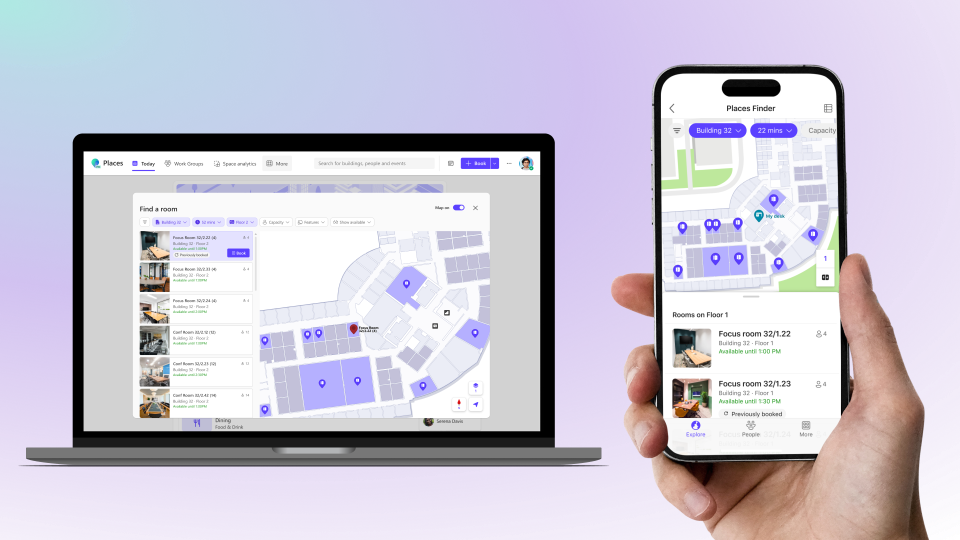
To add your floorplans to Microsoft Places, you need files in the IMDF format, with spatial information properly correlated to your building data, and georeferenced. Creating and correlating IMDF files can be complex. Microsoft recommends working with a specialized partner to streamline the process.
These partners have experience preparing IMDF files compatible with Microsoft Places:
If you decide to work with one of these partners, check their own documentation as otherwise your ability to import the IMDF files into Microsoft Places might not work.
Note
Microsoft does not endorse these partners or guarantee their services. This list is not exhaustive. Other providers may also support IMDF conversion. All third-party services are subject to their own terms.
You can also manually prepare and correlate your IMDF files. See the manual setup section.
Importing your maps
Before uploading the correlated IMDF files, make sure your buildings and floors are already configured in Microsoft Places. See configuring your buildings and floors
Once you have the correlated IMDF files, you can upload them to Microsoft Places, one building at a time.
Step 1. Prepare your IMDF package
Ensure the following .geojson files are zipped directly (not in subfolders).
building.geojson(required)footprint.geojson(required)level.geojson(required)unit.geojson(required)section.geojson(optional)fixture.geojson(optional)
Important
In order for furniture (such as desks and chairs) and sections to show in Microsoft Places, you need to include section.geojson and fixture.geojson in your IMDF files.
Step 2. Find the building PlaceId
Use Get-PlacesV3 to find the identity of the building (PlaceId) for which you'd like to add maps.
Example of how to find the PlaceId for a building named 'Austin 550':
Get-PlaceV3 -Type Building | ? {$_.DisplayName -eq 'Austin 550'} | ft DisplayName,PlaceId
Step 3. Import the map
Execute the following cmdlet to import your correlated map files for your specified building.
New-Map -BuildingId <BuildingPlaceId> -FilePath "[path\to\your\imdf_correlated.zip]"
Note
New maps may take up to 1 hour to appear in Microsoft Places.
Alternative - Manual Setup
The following steps guide you in manually creating correlated IMDF files.
Step 1 - Export spatial information for the building
Use Get-PlacesV3 to find the identity (PlaceId) of the building you'd like to add maps for. Example of how to find the PlaceId for a building named 'Austin 550':
Get-PlaceV3 -Type Building | ? {$_.DisplayName -eq 'Austin 550'} | ft DisplayName,PlaceId
Next, use the same cmdlet to export a CSV file which contains the relevant information for that building. You need to specify a location for the file.
Example:
Get-PlaceV3 -AncestorId <BuildingPlaceId> | export-csv "[path\to\yourBuildingName.csv]" -NoTypeInformation
Step 2 - Prepare your IMDF files
Create one ZIP file per building in IMDF format, with files zipped together directly (not in subfolders). The file should contain the following .geojson files:
building.geojson(required)footprint.geojson(required)level.geojson(required)unit.geojson(required)section.geojson(optional)fixture.geojson(optional)
In addition to adhering to the IMDF standards, there are specific requirements for Microsoft Places listed here.
Important
In order for furniture (such as desks and chairs) and sections to show in Microsoft Places, you need to include section.geojson and fixture.geojson in your IMDF files.
Step 3 - Generate a correlation file
Use Import-MapCorrelations to parse your zipped IMDF files. This cmdlet generates a CSV file named mapfeatures.csv, which you use in step 4 to correlate your IMDF files with your building, floors, and rooms.
Import-MapCorrelations -MapFilePath "[path\to\your\imdffile.zip]"
Note
This command will fail if the IMDF package does not meet Microsoft Places requirements listed here.
Step 4 - Correlate the spaces between the two CSV files
Open both building CSV (created in Step 1) and mapfeatures CSV file (created in Step 3). For each building, floor, room, desk and desk pool:
- Copy the PlaceId, Name, and Type from the building CSV file
- Paste them into the corresponding row in mapfeatures CSV file.
- Save and close the file after completing the correlations.
Note
- Building and all floor levels must be correlated in mapfeatures CSV file. Importing the IMDF file will fail if these features aren't correlated.
- Leave items that you wish uncorrelated with empty values for PlaceId, Name, and Type.
Example
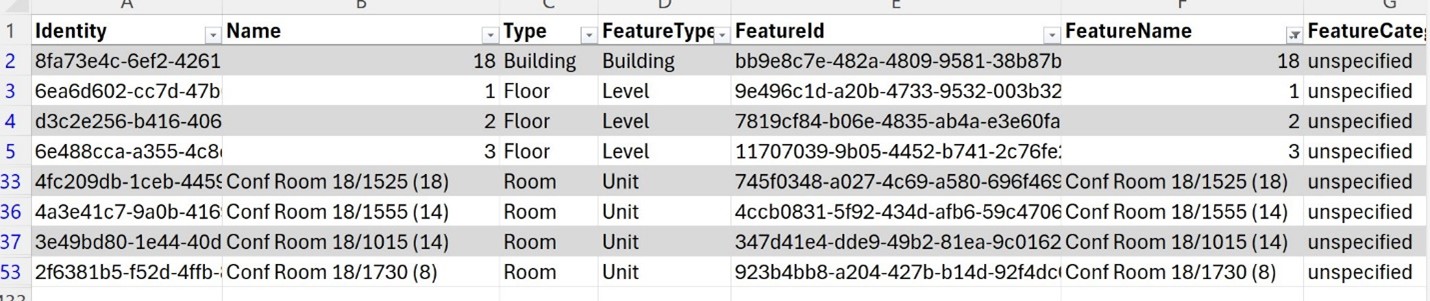
If the building CSV includes a unit named "Room 1555", find the matching row in mapfeatures CSV. Copy the PlaceId, Name, and Type values from the building CSV and paste them into the corresponding row in mapfeatures CSV.

This example shows the resulting mapfeatures CSV:
Step 5 - Update the IMDF package
Run Import-MapCorrelations with your zipped IMDF file location and your correlated csv file location (mapfeatures.csv).
Import-MapCorrelations -MapFilePath "[path\to\your\imdffile.zip]" -CorrelationsFilePath "[path\to\mapfeatures.csv]"
This step creates and exports a new correlated zip file named imdf_correlated.zip.
Step 6 - Importing your maps
Follow the steps in the Importing your maps section section of this page to upload your correlated IMDF package.
IMDF file requirements
IMDF (indoor mapping data format) is an open standard based on GeoJSON, originally developed by Apple, for representing indoor spatial data. Microsoft Places uses IMDF as the input format for floorplans, with additional extensions to support interactive map features.
Each file in the IMDF package must meet the following requirements:
- Must be georeferenced.
- Each IMDF package must contain data for only a single building.
- Floor ordinal value in the IMDF must match the SortOrder value of the corresponding floor in Microsoft Places Directory.
Supported IMDF files
The supported set of IMDF feature types is provided in the table. Other IMDF feature types aren't currently being rendered in Microsoft Places. However, these IMDF feature types may be supported in the future, it's recommended to save them if they're available.
| File type | IMDF feature type | Contents | Allowed geometry types | Example of objects |
|---|---|---|---|---|
| building.geojson | Building | Metadata about the building | None (geometry shall be null) | Building |
| footprint.geojson | Footprint | Outline of the building | Polygon, multipolygon | Building |
| level.geojson | Level | Features representing building floors | Polygon, multipolygon | Floors |
| unit.geojson | Unit | Features representing spaces, walkways, and walls | Polygon, multipolygon | Rooms, workspaces, kitchenettes, restrooms, stairwells, elevators, walkways, and walls – any space that is represented with a polygon on the map. Walls are also represented with closed polygon shapes. |
| section.geojson | Section | Section outline (optional) | Polygon, Multipolygon | Section |
| fixture.geojson | Fixture | Furniture or décor such as desks and chairs (optional) | Polygon, Multipolygon | Furniture, desks, equipment - any items that are movable or semi-permanent |
Optional Microsoft-specific extensions
To improve map accuracy and customization, Microsoft Places supports the following optional properties:
| Property | File | Purpose |
|---|---|---|
| bearing | level.geojson | Set the default rotation angle of the floorplan. This allows the map to display in a more natural orientation. |
| rotation | fixture.geojson | Allows individual desks to be rotated independently. This is helpful for spaces with uniquely angled desks or furniture layouts. |
These properties are optional and intended for advanced scenarios. Existing IMDF files do not need to be updated unless you want to take advantage of these enhancements.
Known Limitations
Uploading data for multiple buildings
You can upload data for one building at a time. The IMDF package should include data across the whole building.
To upload another building, repeat the process for each building.
Making changes to the floorplan and associated data
- In order to make any updates, first delete the map data for that building using the Remove-Map cmdlet, and then reupload with the updated IMDF package using New-Map.
Remove-Map -BuildingId <BuildingPlaceId>
New-Map -BuildingId <BuildingPlaceId>
Delegating map configuration and updates to other admins
Setting up floor plans in Places is only available via PowerShell, and requires the Exchange Administrator role or Places Administrator role.