Note
Access to this page requires authorization. You can try signing in or changing directories.
Access to this page requires authorization. You can try changing directories.
Note
The Vulnerability Management section in the Microsoft Defender portal is now located under Exposure management. With this change, you can now consume and manage security exposure data and vulnerability data in a unified location, to enhance your existing Vulnerability Management features. Learn more.
These changes are relevant for Preview customers (Microsoft Defender XDR + Microsoft Defender for Identity preview option).
With Microsoft Defender Vulnerability Management, you can view Common Vulnerabilities and Exposures (CVEs), which allows you to identify and prioritize vulnerabilities in your organization. This might be available on the Vulnerabilities or Weaknesses page, depending on if you're an XDR/MDI Preview customer. For more information, see Microsoft Defender Vulnerability Management and Microsoft Security Exposure Management integration.
CVE IDs are unique IDs assigned to publicly disclosed cybersecurity vulnerabilities that affect software, hardware, and firmware. They provide organizations with a standard way to identify and track vulnerabilities, and helps them understand, prioritize, and address these vulnerabilities in their organization. CVEs are tracked in a public registry accessed from https://www.cve.org/.
Defender Vulnerability Management uses endpoint sensors to scan and detect for these and other vulnerabilities in an organization.
Important
Defender Vulnerability Management can help identify Log4j vulnerabilities in applications and components. Learn more.
Vulnerabilities overview page
Note
This section describes the Microsoft Defender Vulnerability Management experience for customers using the Microsoft Defender XDR + Microsoft Defender for Identity preview. This experience is part of the integration of Microsoft Defender Vulnerability Management into Microsoft Security Exposure Management. Learn more.
To view the vulnerabilities in your organization, in the Microsoft Defender portal, select Exposure management > Vulnerability management > Vulnerabilities.
The Vulnerabilities page shows a list of the CVEs your devices are exposed to. You can view the severity, Common Vulnerability Scoring System (CVSS) rating, corresponding breach and threat insights, and more.


If there's no official CVE-ID assigned to a vulnerability, the vulnerability name is assigned by Defender Vulnerability Management using the format TVM-2020-002.
Note
The maximum number of records you can export from the weaknesses page to a CSV file is 6,000 and the export must not exceed 64 KB. If you receive a message stating the results are too large to export, refine your query to include fewer records.
Currently, Defender Vulnerability Management doesn't distinguish between 32-bit and 64-bit system architectures when correlating vulnerabilities (CVEs) to devices. This limitation can lead to false positives, especially in cases where a CVE applies only to one architecture type. For example, on a Windows Server 2016 machine, PHP was incorrectly flagged with CVE-2024-11236, which affects only 32-bit systems. Since architecture isn't currently factored into the correlation process, the CVE was incorrectly associated with a 64-bit server. This is a known issue, and a solution is on the roadmap.
Breach and threat insights
It's important to prioritize recommendations that are associated with ongoing threats. You can use the information available in the Threats column to help you prioritize vulnerabilities. To see vulnerabilities with ongoing threats, filter the Threats column by:
- Associated active alert
- Exploit is available
- Exploit is verified
- Exploit is part of an exploit kit
The threat insights icon  is highlighted in the Threats column if there are associated exploits in a vulnerability.

Hovering over the icon shows whether the threat is a part of an exploit kit or connected to specific advanced persistent campaigns or activity groups. When available, there's a link to a Threat Analytics report with zero-day exploitation news, disclosures, or related security advisories.

The breach insights icon is highlighted if there's a vulnerability found in your organization.  .
.

The Exposed Devices column shows how many devices are currently exposed to a vulnerability. If the column shows 0, that means you aren't at risk.
Gain vulnerability insights
If you select a CVE from the weaknesses page, a flyout panel opens with more information such as the vulnerability description, details, and threat insights. The AI generated vulnerability description provides detailed information on the vulnerability, its effect, recommended remediation steps, and any additional information, if available.

For each CVE, you can see a list of the exposed devices and the affected software.
Exploit Prediction Scoring System (EPSS)
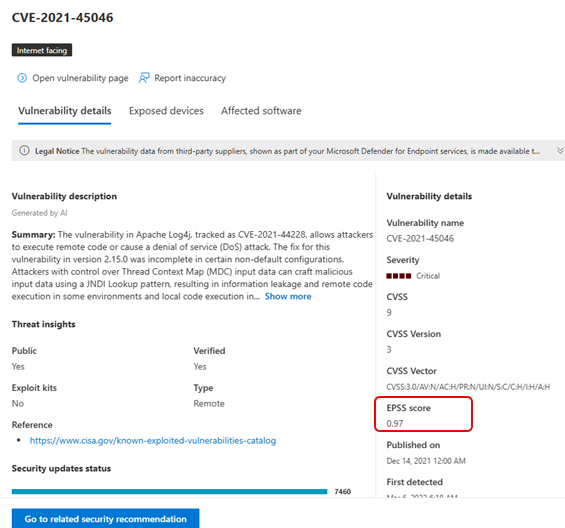
The Exploit Prediction Scoring System (EPSS) generates a data-driven score for the probability of a known software vulnerability being exploited in the wild. EPSS uses current threat information from the CVE and real-world exploit data. For each CVE, the EPSS model produces a probability score between 0 and 1 (0% and 100%). The higher the score, the greater the probability that a vulnerability could be exploited. Learn more about EPSS.
EPSS is designed to help enrich your knowledge of weaknesses and their exploit probability, and enable you to prioritize accordingly.
To see the EPSS score select a CVE from the list. A flyout panel opens with more information about the vulnerability. The EPSS score is visible in the Vulnerability details tab:
When the EPSS is greater than 0.9, the Threats column tooltip is updated with the value to convey the urgency of mitigation:

Note
If the EPSS score is smaller than0.001, it's considered to be 0.
You can use the Vulnerability API to see the EPSS score.
Related security recommendations
Use security recommendations to remediate the vulnerabilities in exposed devices and to reduce the risk to your assets and organization. When a security recommendation is available, you can select Go to the related security recommendation for details on how to remediate the vulnerability.

Recommendations for a CVE are often to remediate the vulnerability through a security update for the related software. However, Some CVEs don't have a security update available. This might apply to all the related software for a CVE or just a subset, for example, a software publisher might decide not to fix the issue on a particular vulnerable version.
When a security update is only available for some of the related software, the CVE has the tag, "Some updates available" under the CVE name. If there's at least one update available, you can go to the related security recommendation.
If there's no security update available, the CVE has the tag, "No security update" under the CVE name. In this case, there's no option to go to the related security recommendation. Software that doesn't have a security update available is excluded from the Security recommendations page.
Note
Security recommendations only include devices and software packages that have security updates available.
Linux considerations
In Linux systems, CVE detections are generally supported for software installed via the system’s package manager.
Create CVE exceptions
Use CVE exceptions to selectively exclude specific CVEs from analysis within your environment. For more information, see Create exceptions.
Request CVE support
A CVE for software that isn't currently supported by vulnerability management still appears in the Weaknesses page. Because the software isn't supported, only limited data is available. Exposed device information isn't available for CVEs with unsupported software.
To view a list of unsupported software, filter the vulnerabilities by the Not available option in the Exposed devices section. This option might be available in the Vulnerabilities or Weaknesses page, depending on if you're an XDR/MDI Preview customer. For more information, see Microsoft Defender Vulnerability Management and Microsoft Security Exposure Management integration.
To request support for a specific CVE:
Select a CVE in the list. This option might be available in the Vulnerabilities or Weaknesses page, depending on if you're an XDR/MDI Preview customer. For more information, see Microsoft Defender Vulnerability Management and Microsoft Security Exposure Management integration.
On the Vulnerability details tab, select Please support this CVE. Your request is sent to Microsoft and assists us in prioritizing this CVE among others in our system.
Note
Request CVE support functionality isn't available for GCC, GCC High, and DoD customers.

Top vulnerable software in the dashboard
Locate the Top vulnerable software card. This might be available in the Overview or Dashboard page, depending on if you're an XDR/MDI Preview customer. For more information, see Microsoft Defender Vulnerability Management and Microsoft Security Exposure Management integration.
You see the number of vulnerabilities found in software applications, along with threat information and a high-level view of device exposure over time.

Select the software you want to investigate.
Select the Discovered vulnerabilities tab.
Select the vulnerability that you want to investigate to open up a flyout panel with the CVE details.

Discover vulnerabilities in the device page
View related vulnerabilities information in the device page.
Under Assets, select Devices.
In the Device Inventory page, select the device name that you want to investigate.
Select Open device page and select Discovered vulnerabilities.
Select the vulnerability that you want to investigate to open up a flyout panel with the CVE details.
CVE detection logic
Similar to the software evidence, you can view the detection logic applied on a device to state that it's vulnerable. To see the detection logic:
Under Assets, select Devices to open the Device Inventory page. Then select a device.
Select Open device page and select Discovered vulnerabilities from the device page.
Select the vulnerability you want to investigate. A flyout opens and the Detection logic section shows the detection logic and source.

The "OS Feature" category is also shown in relevant scenarios. This is when a CVE would affect devices that run a vulnerable OS if a specific OS component is enabled. For example, if a device running Windows Server 2019 or Windows Server 2022 has vulnerability in its DNS component, the CVE is attached only to the devices that have the DNS capability enabled.
Report an inaccuracy
Report a false positive when you see any vague, inaccurate, or incomplete information. You can also report on security recommendations that are already remediated.
Select a vulnerability, and then select Report inaccuracy. This option might be available in the Vulnerabilities or Weaknesses page, depending on if you're an XDR/MDI Preview customer. For more information, see Microsoft Defender Vulnerability Management and Microsoft Security Exposure Management integration.
From the flyout pane, choose an issue to report.
Fill in the requested details about the inaccuracy. This varies depending on the issue you're reporting.
Select Submit. Your feedback is immediately sent to the Defender Vulnerability Management experts.

Related articles
Tip
Did you know you can try all the features in Microsoft Defender Vulnerability Management for free? Find out how to sign up for a free trial.