Note
Access to this page requires authorization. You can try signing in or changing directories.
Access to this page requires authorization. You can try changing directories.
[This article is prerelease documentation and is subject to change.]
Themes are groupings of questions taken from the pool of user questions that trigger generative answers. Themes cluster related user questions into intelligently organized but fewer and more manageable groups. With themes you can gain category-level insights into customer intent, identify frequent topics, and focus efforts on areas needing improvement. You can then drill down to a theme's individual questions and monitor performance at this more granular level to better understand theme-level metrics.
Important
This article contains Microsoft Copilot Studio preview documentation and is subject to change.
Preview features aren't meant for production use and may have restricted functionality. These features are available before an official release so that you can get early access and provide feedback.
If you're building a production-ready agent, see Microsoft Copilot Studio Overview.
Key value proposition
The Themes feature automatically analyzes all unclassified questions that triggered generative AI responses in the past week and suggests themes based on this analysis. This process runs weekly. Between weekly theme-suggestion runs, the feature performs daily classification of any new questions that trigger generative AI responses, adding this data to the theme metrics. The suggested Themes list is refreshed regularly so your themes stay relevant and reflect the latest user data. This automatic refresh saves you time by:
- Continuously evaluating theme relevance against new data
- Automatically classifying individual questions into themes
- Automating retrieval of raw metric data for each theme
- Calculating aggregated metric data for each theme
Prerequisites
To optimize the value of the Themes feature, including being able to drill down to each theme's component questions and answers:
You need a Bot Transcript Viewer security role to view the list and its metrics. Only admins can grant this role by assigning the Bot Transcript Viewer security role during agent sharing.
The environment-level settings for storing conversation transcripts in Dataverse are turned on.
Suggested themes and classified questions
Copilot Studio suggests themes based on records of questions asked in the recent past. By tailoring each suggested theme to suit your organization's structure and customer experience strategy, you can gain better insight through theme-specific key performance indicators (KPIs). This deeper granularity makes it easier to find where agents underperform.
Themes help makers understand what questions users are asking the agent and how the agent performs. On the initial run of Theme-based analytics, Copilot Studio looks at all questions from the past week and suggests up to 10 themes that group user questions based on similarities to one another. Each theme includes metrics such as the total number of questions, answer rate, and user reaction. The displayed data in the Themes list is adjusted based on the selected analytics period.
After the initial run, Copilot Studio classifies new questions to existing themes on an ongoing, daily basis, and generates a fresh list of suggested themes on a weekly basis.
Note
- There must be at least 50 questions with generative answers logged in the past seven days before Copilot Studio generates suggested themes.
- It's possible for a question that triggers a generative AI response to be classified into more than one theme. This scenario might become more common in Generative Orchestration mode, where an agent answer can come from several different sources.
- Any questions that remain unclassified are put into an Unclassified theme.
- The weekly suggestions run might take a few minutes to complete. During this time, the Themes section is unavailable for use.
The Themes list
By default, the Themes list displays the top five (5) themes, ranked by total number of questions classified to each theme. Select See all to expand the list to display all themes.
With automatic weekly theme suggestion runs and daily question classification, the Themes feature evolves automatically and adapts to changes in user behavior.

The Themes list displays metrics for each listed theme.
| Column | Description |
|---|---|
| Name | Name of the theme. |
| Total questions | Total number of questions classified into this theme for the configured time period. |
| Answered questions | Proportion of Total questions that resulted in an answer to the user question. |
| Response quality | Proportion of the sum of all responses (based on a sample of questions) having a Good quality response. |
| Reactions | Raw count of positive (thumbs up) and negative (thumbs down) reactions from the questions classified to each theme. |
Note
Why are there 'Unanswered questions' in my theme when all classified questions triggered generative AI answers?
By definition, only questions that triggered a generative AI answer can be classified into a theme. But triggering a call to generative answers isn't the same as having an answer to a user query.
For example, it's common for there to be a conversational boosting topic connected to a knowledge source. In this case, if an intent isn't recognized, this topic might be triggered which calls the knowledge source even though there's no answer to the question in that knowledge source.
Drill down on a theme
To drill down to the questions grouped into any one theme, select the theme in the Themes list. When you drill down, a panel specific to the selected theme opens up, displaying metrics at the levels of both the theme and individual questions.
Note
The Themes list includes:
- Up to the most recent 100 questions classified into each theme.
- Questions from the last 30 days, regardless of the configured time period. If the configured period is fully outside the last 30 days, Copilot Studio displays a notification that the list is unavailable.

In a theme's drill-down panel, metrics at the theme level are displayed first.
| Theme-level metric | Description |
|---|---|
| Total questions | Total number of questions (classified into this theme) that triggered generative AI responses for the configured time period. |
| Answered questions | Proportion of this theme's Total questions that resulted in an answer to the user question. |
| Unanswered questions | Proportion of this theme's Total questions that didn't result in an answer to the user question. |
| Reactions | Raw count of positive (thumbs up) and negative (thumbs down) reactions from the questions classified to this theme, as recorded in the Learn Feedback mechanism. |
To display a breakdown of the quality of response for a sampling of answered questions, and all referenced knowledge sources in this theme, select Show more.

On the Theme metrics panel, to see more information about any one response quality value at the level of the theme, under Response quality, hover over an individual bar segment. The tooltip includes the value of that segment's relative weighting and the number of questions sampled to arrive at that value.
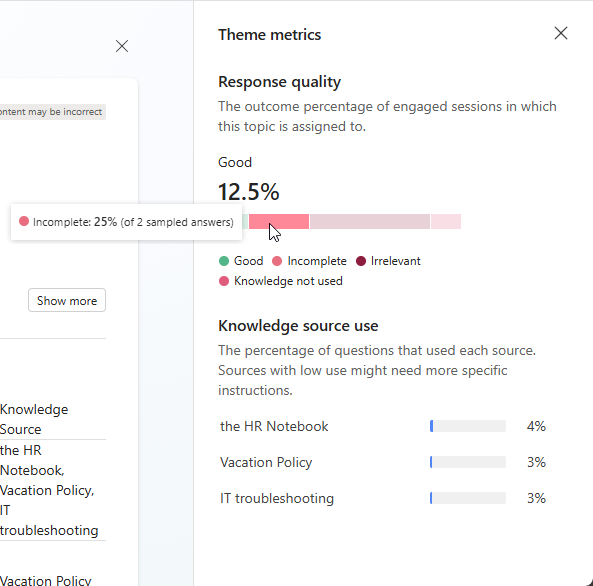
To see more information at the level of any one of the listed knowledge sources in the theme, under Knowledge source use, select an individual knowledge source. The tooltip includes:
- The total number of questions that referenced this knowledge source as well as the number of thumbs up and thumbs down reactions.
- A stacked bar chart showing the breakdown of the quality of response relative weightings for questions referencing this knowledge source. Hover over any segment of the bar chart to see the value of that segment's relative weighting and the number of questions sampled to arrive at that value.

In an individual theme's drill-down panel, the User questions section lists all questions that triggered generative AI responses in the configured time period and were classified into this theme, and displays metrics on a per question basis. Question-level metrics include:
| Question-level dimension or metric | Description |
|---|---|
| Question (dimension) | Question (that triggered a generative AI response) classified to this theme. |
| Answered? | Response to the question of whether the user query was answered or not. Possible values are Answered and Unanswered. |
| Response quality1 | Response to the question of what the quality of response to the user query was. Possible values are Poor and Good. |
| Reaction | Two parameters, being the Boolean Thumbs up / Thumbs down metric, and a text-based Comment parameter. |
| Knowledge Source | Comma-separated list of knowledge sources referenced by this question in this theme. |
1 Response quality isn't always available and shows up only if the question was sampled for quality analysis.
Select any question in the list to display more information about the question in a Question details panel. This panel includes:
| Detailed question-level parameter | Description |
|---|---|
| Time stamp | Time stamp of the most recent instance of when the question was answered. |
| User query | The question asked. |
| Response | The generative AI response. |
| Thumbs up / Thumbs down value | Value for the most recent instance of this question for the Thumbs up / Thumbs down parameter. |
| Comment | Optional extra text-based comment, provided by the user, in addition to the Thumbs up / Thumbs down reaction. |
| Response quality1 | Response to the question of what the quality of response to the user query was. Possible values are Poor and Good. |
| Reason2 | In the case where the response quality is Poor, this parameter explains why. |
1 Response quality isn't always available and shows up only if the question was sampled for quality analysis.
2 If the Response quality is Good or if the question wasn't sampled, the Reason parameter isn't assigned any value.
