Note
Access to this page requires authorization. You can try signing in or changing directories.
Access to this page requires authorization. You can try changing directories.
Code interpreter in Microsoft Copilot Studio and prompt builder prompts lets makers build AI agents that:
- Execute Python code for data analysis, processing Word, Excel, PowerPoint, and PDF files, and visualizations
- Use language models for generative responses
This feature is tailored for developers, business analysts, and low-code makers. Code generation and execution integrate seamlessly with the Copilot Studio ecosystem to create powerful, AI-driven solutions.
Developers should read Code interpreter for developers and review the Code interpreter Power Apps Component Framework (PCF) component sample to understand how they can use the Dataverse Predict message to invoke prompts and process the responses returned.
Requirements
Licensing: Microsoft Copilot Studio billing and licensing. Code generation and execution count as text and generative AI tools (premium) features.
Supported regions: Available for all public clouds. Sovereign clouds aren't currently supported.
Code interpreter capabilities in a glance
Code interpreter lets agents write and execute Python code for advanced tasks. Use cases include:
- Excel file processing: Create, copy, and update Excel worksheets in a workbook, read StyleNames, apply StyleNames, copy formatting across cells, copy and update formulas across cells, and so on.
- Word and PowerPoint file processing.
- PDF file processing: Create and copy PDF files, read tables, and text paragraphs.
- Dataverse table data processing.
- Complex mathematical and statistical computations.
- Data analysis, manipulation, and visualization (for example, charts and graphs).
Code interpreter adds the following capabilities to prompts:
- Support for files as an output type in prompts
- Support for Excel files as input and output types for prompts
You can create prompts in two ways:
- Using the Build your own prompt option in AI Hub in Power Apps
- Within a prompt tool added to an agent in Copilot Studio at the agent level
For more information on prompts, see Prompts overview.
You can also use code interpreter in agent chat in Copilot Studio.
Create a new empty prompt and turn on code interpreter for the prompt
First, you start by creating a new empty prompt in either AI Hub or Copilot Studio. Then, you turn on code interpreter in the prompt settings.
Create prompt in Power Apps AI Hub and turn on code interpreter
You can create a new empty prompt in AI Hub in Power Apps and turn on code interpreter in the prompt settings. You can see examples of how to write and configure prompts that use code interpreter, see Use code interpreter in prompts examples.
Go to Power Apps.
Select AI hub in the left pane.
Select Prompts.
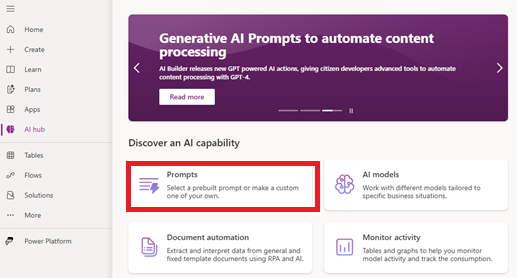
Select Build your own prompt.
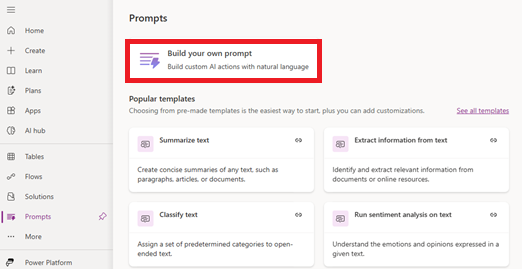
Provide the name of your prompt.
In the Instructions section, select the three dots (…), then select Settings.

On the Settings page, turn on code interpreter.
Close the settings page to return to the prompt editor.
An empty prompt is created with code interpreter turned on. Next, you can write the prompt instructions and configure the prompt as needed.
Create a prompt as a tool within an agent and turn on code interpreter
You can create a new empty prompt as a tool within an agent in Copilot Studio and turn on code interpreter for that prompt. Later in this article we show you how to write and configure a prompt that uses code interpreter.
In Copilot Studio, go to the agent where you want to turn on code interpreter.
Select the Tools tab, and then select Add a tool > New tool > Prompt.

The embedded prompt builder prompt authoring interface opens in Copilot Studio.
On the information bar, select the three dots (…), then select Settings .
On the Settings page, select Enable code interpreter.
Close the settings page to return to the prompt editor.
An empty prompt is created with code interpreter turned on. Next, you can write the prompt instructions and configure the prompt as needed.
Next steps with code interpreter in prompts
Next, you can write the prompt instructions and configure the prompt as needed.
For detailed examples of how to use code interpreter in prompts, see Code interpreter prompt examples.
Best practices for code interpreter in prompts
- Use other AI tools like Copilot to get the optimized prompt to start.
- Use precise prompts with examples (few-shot prompting).
- Specify outputs (for example, "Return as JSON" or "Excel" or "PDF").
Limitations
- Analyzing multiple files uploaded in a single prompt isn't supported.
- Returning multiple file outputs in a single prompt isn't supported.
- Asking questions about an uploaded file over multiple turns isn't supported.
- To use code interpreter, you need to configure your agent, in agent settings, to use user authentication. For example, using Direct line with No authentication selected will not work for scenarios using code interpreter.