Note
Access to this page requires authorization. You can try signing in or changing directories.
Access to this page requires authorization. You can try changing directories.
To test custom Copilot Studio agents, create an Agent Configuration record that includes the required information to connect to the agents and run tests.

The following configuration types are supported:
- Test Automation: Allows bulk testing of custom agents.
- Conversation KPIs: Parses conversation transcripts of selected custom agents and generates Conversation KPI (Key Performance Indicator) records.
- File Synchronization: Enables selectively synchronizing content from SharePoint locations to custom agent knowledge base as files.
You can support multiple configuration types in a single agent configuration record. In the Agent Configuration view, you see only the relevant configuration sections.
Create a new Agent Configuration record
Go to Agents.
Create a New Agent Configuration record.
Enter the following information, required for all configuration types:
Column name Required Description Name Yes Name of the agent configuration. The name doesn't have to match the agent you target. Configuration Type(s) Yes Select one or more configuration types. Follow the configuration steps that follow for each configuration type you selected.
Configure a new agent for Test Automation
Select Test Automation from Configuration Type(s).
In addition to Base Configuration, provide the following information:
Column name Required Description Region Yes Region where the agent is deployed. Required to target the appropriate Direct Line API endpoint. Token Endpoint Depends If Channel Security isn't used or enforced, use the token endpoint that's available in the Email app channel. Channel Security Depends Enable this option if web and Direct Line channel security is enabled to ensure that a token can be obtained in exchange for a secret.
Note: Channel security needs to be enabled if user authentication is enabled.Secret Location Depends When Channel Security is checked, choose where to store the Direct Line channel secret. Dataverse stores the secret in a secured column, while Azure Key Vault uses an environment variable of type secret and stores the secret in Azure Key Vault. Secret Depends When Dataverse is selected as the Secret Location, this column stores the Direct Line channel secret. Environment Variable Depends When Key Vault is selected as the Secret Location, this column stores the schema name for the environment variable of type secret that links to the Azure Key Vault secret. Follow the steps in Configure secrets in Azure Key Vault. User Authentication Depends Select Entra ID v2 if user authentication is required. To use Microsoft Authentication, follow the steps in Set up Microsoft authentication for Copilot Studio Kit testing
Note: Channel Security needs to be enabled if user authentication is enabled.Client ID Depends Enter the application (client) ID of the application created to enable end user authentication for the custom agent. Learn more in Configure user authentication with Microsoft Entra ID. Tenant ID Depends Enter the tenant ID of the application created to enable end user authentication for the custom agent. Secret Location (user auth) Depends When User Authentication is selected, choose where you prefer to store the client secret. Dataverse stores the secret in a secured column, while Key Vault requires an environment variable of type secret and stores the secret in Azure Key Vault. Client Secret Depends Enter the client secret that you created when enabling authentication support. For example: KitAuthApp secret.Scope Depends Enter the custom scope that you created when enabling authentication support. Use the full scope URI format; for example: api://1234-4567/scope.name.Enrich With Azure Application Insights Depends Enable this option to enrich test results for Generative Answers tests with Azure Application Insights telemetry data.
Note: To enrich test results from Application Insights, you need to register the app in the same tenant as the Application Insights resource. The Application Insights resource and the application can be in a different tenant than the custom agent you're testing. Learn more about how to register the application and get the required information for the Application Insights resource. Make sure the custom agent is set up to send telemetry to the Application Insights resource and that it matches the agent configuration in Copilot Studio Kit. Learn more about connecting your custom agent to Application Insights.App Insights Client ID Depends Enter the application (client) ID of the application that has permission to read data from the Application Insights resource. App Insights Application ID Depends Enter the AppId of your Application Insights resource. See Steps to locate AppId. App Insights Secret Location Depends Choose where to store the Application Insights application secret. Dataverse stores the secret in a secured column, while Azure Key Vault requires an environment variable of type secret, and stores the secret in Azure Key Vault. App Insights Tenant ID Depends Enter the tenant ID of the Application Insights resource and the application. App Insights Secret Depends When Dataverse is selected as the Secret Location, this column stores the App Insights application secret. App Insights Environment Variable Depends When Key Vault is selected as the Secret Location, this column stores the schema name for the environment variable of type secret that links to the App Insights application secret. Enrich With Conversation Transcripts No Enable this option to enrich test results with data from conversation transcripts stored in Dataverse.
Note: For Copilot Studio Kit to retrieve conversation transcript records from other Power Platform environments, the Microsoft Dataverse connection used when setting up the solution must haveReadaccess on theConversationTranscripttable records in the target environments. You can only target environments within the same tenant.Dataverse URL Depends When Enrich With Conversation Transcripts is enabled, enter the URL of the Dataverse environment (for example, https://org123.crm.dynamics.com). You can obtain the URL in Copilot Studio from Settings ( ) by selecting Session details. Look for Instance url.
Copy Full Transcript No When Enrich With Conversation Transcripts is enabled, this option copies the full Conversation Transcript JSON as an attachment to the test result record for further analysis. Analyze Generated Answers No When you enable this option, a large language model (LLM) analyzes AI-generated tests. It compares the response with a sample answer or validation instructions. Generative AI Provider Depends When Analyze Generated Answers is enabled, specify the LLM model used for the analysis.
Note: Currently, only AI Builder is supported.Select Save.
Configure a new agent for Conversation KPIs
Select Conversation KPIs from Configuration Type(s).
In addition to Base Configuration, provide the following information:
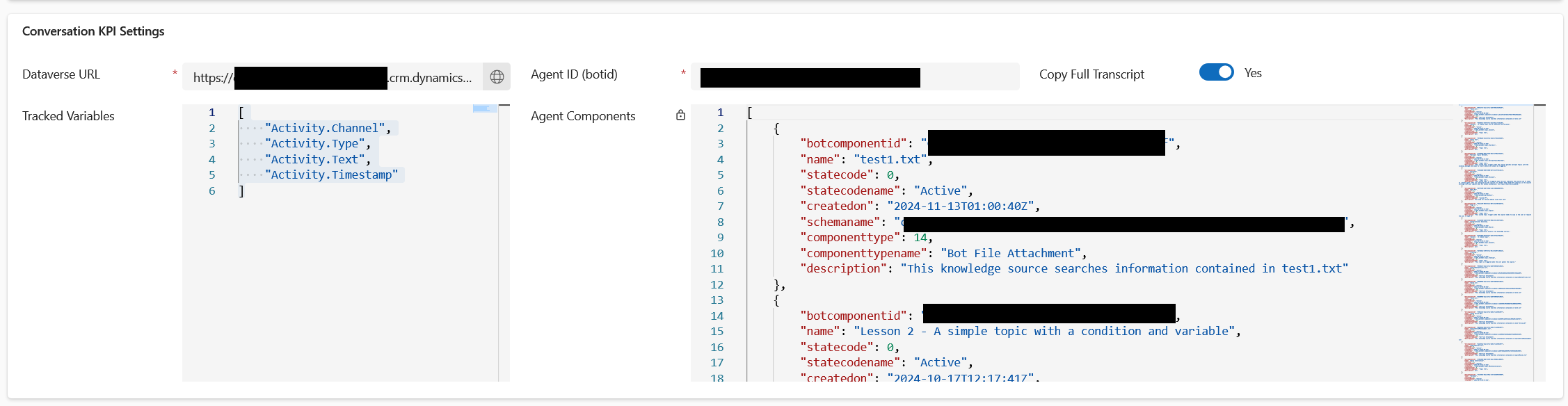
Column name Required Description Dataverse URL Yes Dataverse URL where the conversation transcripts and the agent are located. For example: https://organizationname.crm.dynamics.comAgent ID Yes Bot ID of the custom agent you're targeting. You can find this value in Copilot Studio from Settings (
) by selecting Session details. Looks for Copilot Id.Copy Full Transcript No Required if you want to inspect the conversation in the transcript visualizer (Transcript tab on the Conversation KPI record). When enabled, the full transcript of the conversation is copied over and associated with the KPI record. Tracked Variables No You can specify up to five custom variables to track from the conversations (for example, custom Net Promoter Score or NPS). The format is a JSON array.
Example:[ Activity. Channel, Activity.Type ]Agent Components No Read-only field populated with the components of the agent specified, such as topics, knowledge sources, and so on. Select Save.
Configure a new agent for File Synchronization
Select File Synchronization from Configuration Type(s).
Enter the following information in addition to the base configuration:
Column Name Required Description Agent ID (bot id) Yes Bot ID of the custom agent you're targeting. You can find this ID in Copilot Studio from Settings (
) by selecting Session details. Look for Copilot Id.Dataverse URL Yes Dataverse URL where the custom agent is located and content is synchronized. For example: https://organizationnname.crm.dynamics.com. Obtain the URL in Copilot Studio from the Session details. Look for Instance url.Add at least one File Indexer Configuration and enter the following information:
Column Name Required Description Name Yes Name of the File Indexer configuration. For example: HR documents. Agent Configuration Yes The agent configuration this record belongs to. This value is automatically populated if you create a new record through the agent configuration view. Site Address Yes Address of the SharePoint site you're synchronizing the content from. For example: https://organizationname.sharepoint.com/sites/sitenameLibrary Name Yes The library in the SharePoint site you're synchronizing the content from. Example: Documents Include Nested Items Yes Specifies if content synchronization is limited to the exact location you specify (No), or whether the child items of that location are included in the synchronization as well (Yes, default). Limit Entries to Folder No Optionally specify a folder in the library to synchronize. Example: /HR-documents SharePoint Files Filter Query No Optionally specify filters to use when selecting files to be synchronized. Leave empty for no additional filtering. Example: PublicContent eq 'true' Include SharePoint Pages No Optionally include SharePoint pages in the synchronization. SharePoint Pages Filter Query No Optionally specify filters to use when selecting pages to synchronize. Leave empty for no additional filtering. Example: PublicContent eq 'true' Optionally, you can validate your File Indexer Configuration by selecting Validate Connection from the command bar.
Select Save.
