Note
Access to this page requires authorization. You can try signing in or changing directories.
Access to this page requires authorization. You can try changing directories.
[This article is prerelease documentation and is subject to change.]
Prompt Advisor helps you create well-structured prompts to improve user input.
Note
Some features of Prompt Advisor are incorporated in AI Builder. Learn more in Get started with Copilot.
Enter a prompt to receive a confidence score and a detailed analysis. Refine the prompts based on the suggestions and repeat until the prompt returns a satisfactory confidence score.

Prerequisites
- A Microsoft Dataverse environment with prompts enabled in the Power Platform admin center
- Copilot Studio Kit installed
- Required pPermission: System customizer security role
- AI Builder: Ensure AI Builder credits are assigned to your environment
- Power Apps component framework feature enabled in your environment
Fine-tune your prompts
Use Prompt Advisor to analyze and improve your prompts to achieve a high confidence score.
Enter the Prompt you want to analyze.

Select Analyze.
Evaluate the confidence score and feedback in the evaluation pane.

Review the list of Optimized prompts:
- Expand to view the list of refined prompts, including the confidence score and the reason for the score.
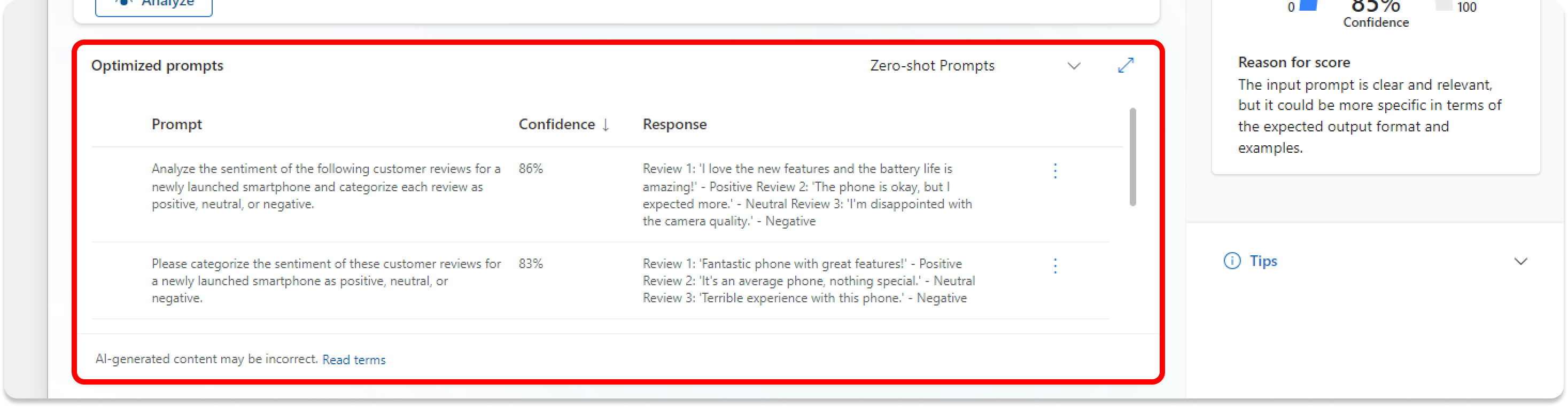
- Filter the prompts as needed.

Select a suggested prompt to improve your input.
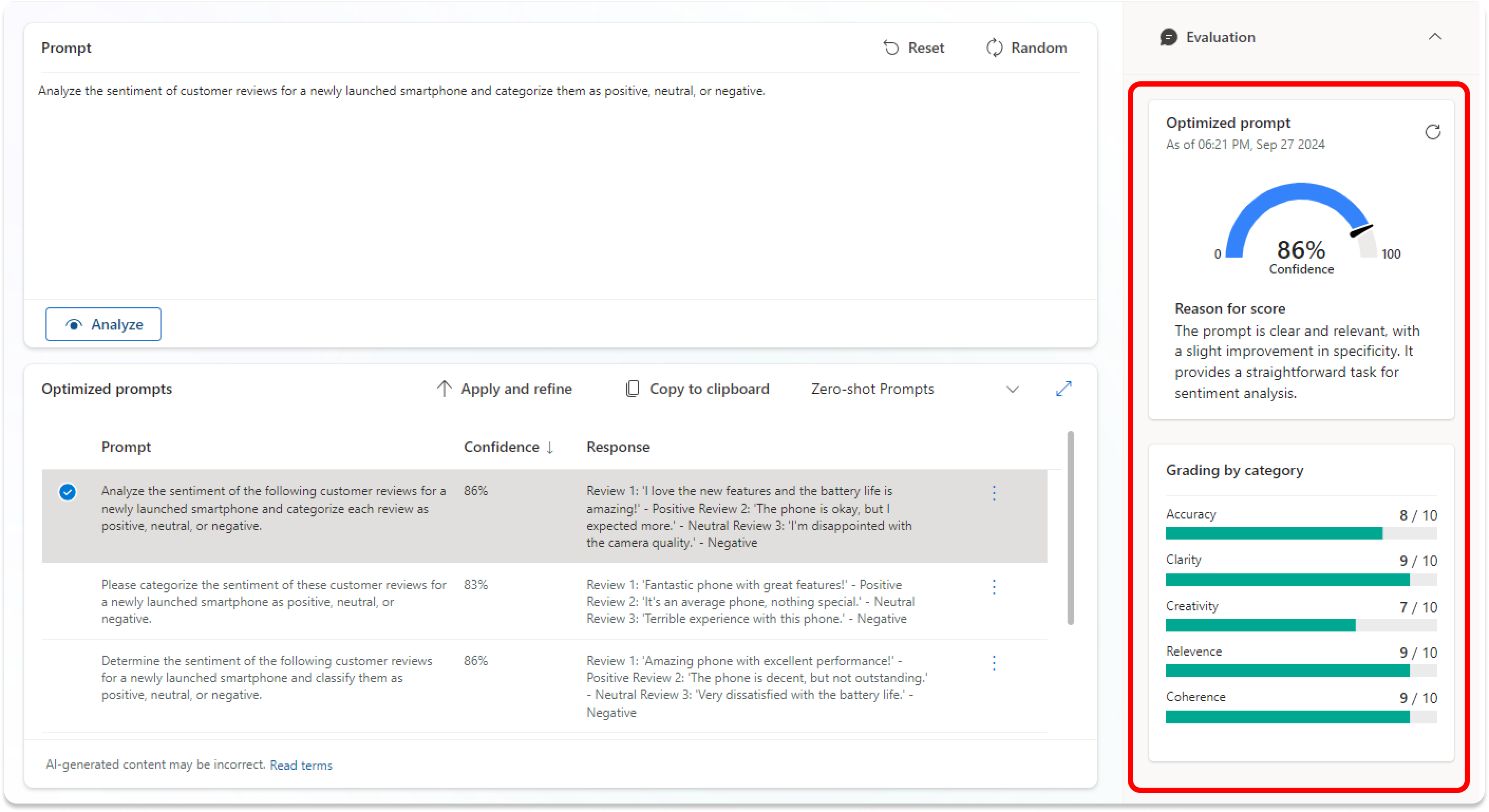
Select Apply and refine to keep iterating until the prompt meets your use case needs.

Select Copy prompt when you're satisfied and paste the new prompt in AI Builder.


Understand the confidence score
The confidence score is a numerical value that shows how likely your prompt provides accurate and relevant results.
Here's how to interpret the score:
- High (80-100): Indicates that your prompt is well-structured and likely to produce accurate results. The reasoning highlights the strengths of your prompt.
- Medium (50-79): Suggests that your prompt is good but might need some improvements. The reasoning points out areas that you can enhance for better performance.
- Low (0-49): Indicates that your prompt might not be effective and requires significant changes. The reasoning provides feedback on what aspects you need to improve.
Note
If you enter too few words, the evaluation can't provide a response.
What do the different techniques mean?
- Zero-shot prompting means giving the AI a task with just instructions and no examples, relying on its general knowledge to figure it out.
- Few-shot prompting means showing the AI a few examples of the task first so it can learn the pattern or style before giving the answer.
- Chain-of-thought prompting means asking the AI to explain its reasoning step by step, which helps it solve complex problems more accurately.
Frequently asked questions
Find answers to frequently asked questions in this section.
What should I do if I don't see the Analyze button or get an AI Builder credits error?
Make sure you have the necessary permissions and enough AI Builder credits in your environment.
How do I get more AI Builder credits?
Buy more credits through your Microsoft account or contact your admin.
Why is my confidence score low?
The confidence score depends on clarity and relevance. To improve the prompt, check the evaluation pane feedback.