Note
Access to this page requires authorization. You can try signing in or changing directories.
Access to this page requires authorization. You can try changing directories.
After you publish your agent, you can make it available to users in Teams and Microsoft 365. This way you, your teammates, and your broader organization can interact with it. You must publish the agent at least once before users can interact with the agent in Teams and Microsoft 365.
You can:
- Customize your agent's appearance in Teams and Microsoft 365 Copilot
- Install the agent for yourself in Teams and Microsoft 365 Copilot
- Share the agent's installation link with other users
- Show the agent in the Teams app store.
- Show the agent to shared users by adding it to the Teams app store Built with Power Platform section.
- Share the agent with the organization by submitting the agent for admin approval to be featured in the Built for your org section of the Teams app store.
- Add the agent to a team channel.
- Download the app manifest for your agent to distribute it within your Teams tenant.
When you add an agent to Teams, some of your data, such as agent content and user chat content, is shared with Teams. Your data might flow outside of your organization's compliance and geographic or regional boundaries. For more information, see Understand the permissions of and the information accessed by Teams apps.
Prerequisites
- All agent users in your organization can use Microsoft 365 Copilot.
- Agent makers have permissions to create and access a Copilot Studio environment.
- Share your agent with other users so they can install and chat with the agent in Teams and Microsoft 365 Copilot.
- Your organization must allow Microsoft Power Platform apps to be added to Teams before you or other users can directly install an agent in Teams or find it in the Built with Power Platform section in the Teams app store. Work with your admin to Manage Microsoft Power Platform apps in the Microsoft Teams admin center if it's disabled for your organization.
- Admins manage agents that appear in the Built for your org section (approved by an admin) separately in the Teams admin center's Manage apps page.
- Before installing an agent for yourself or sharing it with others, publish the agent at least once.
Connect an agent to the Teams and Microsoft 365 Copilot channels
After you publish your agent at least once, you can connect it to the Teams and Microsoft 365 Copilot channels so users can chat with it in both Teams and Microsoft 365 Copilot.
Note
To prevent individuals outside of your organization from using these agents, turn on security settings for agents built for Teams, Microsoft 365 Copilot, or internal employee use.
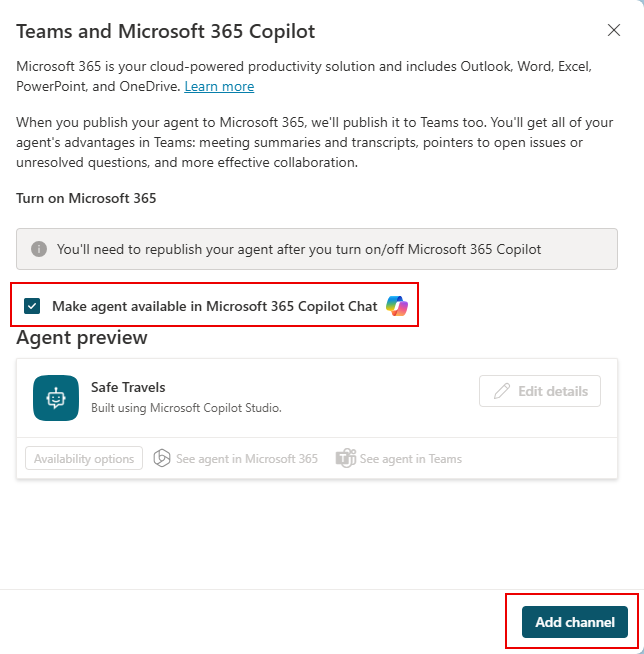
Open the configuration panel for the Teams and Microsoft 365 Copilot channels.
If you want your agent to be available in both Microsoft 365 Copilot and Teams, under Turn on Microsoft 365, make sure Make agent available in Microsoft 365 Copilot is selected.
Note
If you don't select Make agent available in Microsoft 365 Copilot, your agent is only available in Teams.
Select Add channel.
Customize the appearance of an agent for Teams and Microsoft 365 Copilot
Before you make an agent available to other users, provide the right description and appearance. This information helps users understand the agent's purpose and branding.
Open the configuration panel for the Teams and Microsoft 365 Copilot channels.
Select Edit details to change the agent's icon, color, and descriptions. These attributes are visible in the Teams app store and on the app's About tab after the user installs the agent. Review the app icon format guidelines for Teams.
Important
Users who already installed the agent from a shared link or from the Built with Power Platform section of the Teams app store don't see changes to an agent's details. Users must reinstall the agent to get the updates.
For agents already approved by an admin, you must submit the agent again for approval.
Select More to add the following information:
- Developer name
- Website
- Privacy statement
- Terms of use
Provide this information to inform users about your agent. For more information, see Create a privacy statement and terms of use in Microsoft Teams.
Select Save. Your changes to the color, icon, and short description are now visible on the configuration panel.
Note
Icon customization in this section only applies to the agent avatar for agents that are approved by an admin. It doesn't apply to users who install the agent with a direct installation link or from the Teams app store Built with Power Platform section. You can customize the agent avatar at Customize the look and feel of the agent.
Install an agent in Teams and Microsoft 365 Copilot
After you publish your agent, you can add it to your Teams profile directly from Copilot Studio.
Important
New content in a freshly published agent doesn't appear in conversations that are currently ongoing.
You can enter Start over in an existing conversation to start a new conversation right away and see the latest updates to the agent.
Add your agent to your own profile in Teams first, before sharing it with others.
Open the configuration panel for the Teams and Microsoft 365 Copilot channels.
Select See agent in Teams.
If you configured your agent to be available in Microsoft 365 Copilot when you first added the channel, selecting See agent in Teams installs your agent to both Teams and Microsoft 365 Copilot. If you didn't configure your agent for Microsoft 365 Copilot, your agent installs only to Teams.
Select Add.
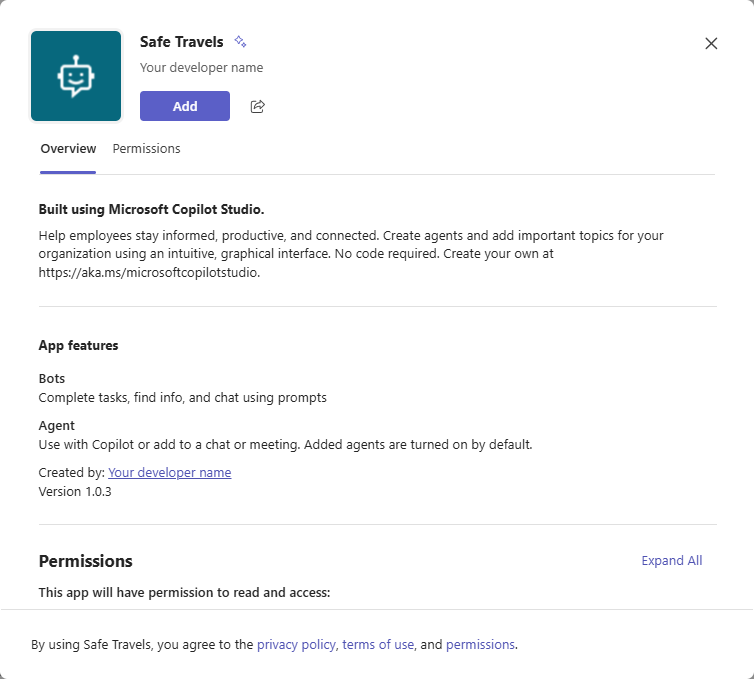
The agent appears in the agent list on the left.
To ask your new agent a question in Microsoft 365 Copilot, enter @, select your agent from the list that appears, then enter your question and select Enter.
Share a link so others can install an agent
Open the configuration panel for the Teams and Microsoft 365 Copilot channels.
Select Availability options.
Select Copy link.
Share the link with users so they can install the agent in Teams.
Important
Only users who can access the agent can use the link to install the agent. You can share the agent to give users access to the agent.
It's not possible to use an installation link in the Teams mobile app. To make sure your agent is available to Teams mobile users, configure it to show in the Teams app store.
Show an agent in the Teams app store or in the Microsoft 365 Agent Store
Once you publish your agent, you can show it in the Teams app store or in the Microsoft 365 Agent Store so users can find and install it.
Show to shared users in Teams
You can share your agent by adding it to the Built with Power Platform section of the Teams app store. Only shared users can find the agent there.
Important
Only shared users can find and install the agent in the Built with Power Platform section of the Teams app store. The agent doesn't show for everyone in the organization even if it's configured to allow everyone to use the agent. To show the agent to the organization, submit the agent for an admin's approval to show it in the Built for your org section of the Teams app store or in the Built by your org section of the Microsoft 365 Agent Store.
An agent can only appear in the Built with Power Platform section of the Teams app store if the total number of shared users doesn't exceed the limits imposed by the Teams app store discovery policy for your tenant. To make your agent available to a larger number of users, partner with your admin to show the agent to the organization.
Open the configuration panel for the Teams and Microsoft 365 Copilot channels.
Select Availability options.
Select Show to my teammates and shared users and review who has access to the agent.
Confirm the Show in Built By Your Colleagues checkbox is selected and select Update.
Your agent becomes available in the Built with Power Platform section of the Teams app store, and a green Added to Teams label appears in the availability options page.

Note
If your app doesn't appear in the Built with Power Platform section, your Teams app might be caching information.
Try signing out and back in (if you're using the Teams desktop app) or refreshing your browser (if you're using the Teams web app).
Remove an agent from the Built with Power Platform section
You can remove an agent from the Built with Power Platform section. Removing the agent from this section doesn't affect users with the agent installed.
Open the configuration panel for the Teams and Microsoft 365 Copilot channels.
Select Availability options.
Select Show to my teammates and shared users and clear the Show in Built By Your Colleagues checkbox.
Select Share. The agent no longer appears in the Built with Power Platform section of the Teams app store.
Show to the organization
You can share an agent with your organization by submitting it for admin approval to be featured in the Built for your org section of the Teams app store. If you also publish your agent to Microsoft 365, submitting it for admin approval applies the Microsoft 365 Agent Store as well. Featuring your app in the Teams app store and in the Microsoft 365 Agent Store is a great way to broadly distribute your agent by partnering with your admin to roll it out to everyone in the organization or to a subset of users.
Admins can also use app setup policies to automatically install and pin an agent for users in the organization so they can access it directly from their app bar in Teams.
Before submitting an agent to your organization, make sure that:
- Your agent is ready for release and in compliance with company standards, rules, and policies.
- You coordinate with other agent managers. Once you submit an agent, a different user can't resubmit it until an admin approves or rejects the previous submission.
- You remove the agent, if applicable, from the Built with Power Platform section of the Teams app store. Otherwise if you submit your agent for admin approval it could end up showing up in two places.
Note
Once an agent is approved by an admin, the admin manages the agent availability in the Built for your org section of the Teams app store or the Built by your org section of the Microsoft 365 Agent Store. Only an admin can remove the agent from these sections.
Submit an agent for admin approval
Open the configuration panel for the Teams and Microsoft 365 Copilot channels.
Select Availability options.
Confirm the agent isn't shown to teammates or shared users. Remove it if it says Added to Teams.
Select Show to everyone in my org.
Review the requirements for submission, and select Submit for admin approval.
Note
Make sure you review the content and it's ready for an admin to review. You must submit a new approval request to update the icon and descriptions for agents that were previously approved.
Once an agent is approved, all new and existing users of the agent in Teams and Microsoft 365 Copilot receive the update.
A new approval is only required if you modify the agent details. You can make content updates to your agent and publish it as often as desired. You don't need to submit your agent for approval again after publishing such content changes.
A final confirmation prompt appears.
Select Yes to continue. The agent is sent to your admin for approval, and you can see a note indicating the status of your submission.
Note
After submitting the agent for admin approval, don't change the agent's access setting to be less than everyone in your organization.
Setting to less than everyone results in users in the organization being unable to chat with the agent after installing it from the Teams app store or the Microsoft 365 Agent Store.
Work with your admin on the Microsoft Teams app policy to determine who can find and install the agent.
Wait for your admin's approval. You can check the latest status by selecting Refresh, or opening the Make the agent available to others window from the Publish page.
After your admin approves the agent, the status is updated to Approved. You can directly open the agent and share the approved version's link with other users.
Optionally, ask your admin to use app setup policies to automatically install and pin an agent for users in the organization so they can access it directly from their app bar in Teams.
Note
If your app is marked as Approved but doesn't appear in the Built for your org section of the Teams app store, your Teams app might be caching information.
Try signing out and back in again (if you're using the desktop app) or refreshing your browser (if you're using the Teams web app).
Allow users to add an agent to a team in Teams
In Teams, users can add an agent to a specific team. Once an agent is available for a team, team members can "@mention" it in any team channels, and all teammates see the responses from the agent. This feature is useful for situations such as the following examples:
- Your agent supports collaboration, like sharing the latest sales report insight with the rest of the Sales team.
- You want to allow all team members to engage with the agent in a team channel or via private chat without needing to manually install the agent themselves.
Two options determine whether users can add an agent to any team that they're part of, or to group and meeting chats in Teams. With these options selected, the agent has access to the conversation history from the team channel, group chat, or meeting chat, which helps the agent provide answers better suited to the context of the conversation.
When users install an agent from the Teams app store or by using the installation link they can see one of the following options, depending on the collaborative scope you set for the agent:
- Add the agent to a team channel
- Add the agent to group and meeting chats in Teams
Team members can also remove an agent from a team.
Important
The agent should be configured to allow everyone in the organization to chat with it. This setting ensures all team members have permission to chat with the agent. Don't change the security setting of the agent after enabling this capability. Otherwise, users might see permission errors when they try to interact with the agent in Teams channels or group chats.
To allow users to add an agent to a team:
Open the configuration panel for the Teams and Microsoft 365 Copilot channels.
Select Edit details.
Select Allow your users to add this agent to a team.
Select Save.
Teams caches information, so it can take a while before users see the option to add the agent to a team or group chat. Users can refresh the browser (or sign out of the Teams desktop client and sign back in) to get the latest changes.
If you previously submitted the agent for admin approval, you must submit it again after enabling this option. The admin must approve your changes before users can add the agent to their teams from the Built for your org section of the Teams app store.
Prevent users from adding an agent to a team, or group and meeting chats
When you turn off this option, users can't add an agent to a new team, group, or meeting chat. It doesn't remove the agent for users who already have it. You must manually remove the agent.
To prevent users from adding an agent to a team:
Open the configuration panel for the Teams and Microsoft 365 Copilot channels.
Select Edit details.
Clear the Users can add this agent to a team checkbox.
Select Save.
Configure private greeting behavior
Private greetings from an agent are useful when you want team members to have one-on-one conversations with the agent without needing to manually install the agent themselves.
Note
Private greeting configuration is available for classic chatbots only.
When you configure this behavior, your agent automatically starts a conversation with team members. To customize the agent's greeting message, modify the Greeting system topic.
Consider how relevant the agent is to team members. Make sure the agent's greeting helps them understand what to do with it, describes its limitations, and, most importantly, gets them comfortable interacting with it.
To configure when an agent sends a private greeting:
Open the configuration panel for the Teams and Microsoft 365 Copilot channels.
Select Settings.
Configure the private greeting options.
Select Save.
Download the Teams app manifest for an agent (advanced)
You can download the agent's Teams app manifest to make detailed changes to the manifest directly and share with your admin or users in the tenant. You can also directly upload an app manifest into Teams if your organization's policy allows you to upload custom applications.
Open the configuration panel for the Teams and Microsoft 365 Copilot channels.
Select Availability options.
Select Download .zip. The manifest is generated as a .zip file and saved according to your browser's settings.
In Teams, select Apps > Manage your apps > Upload an app.
Select Upload a customized app.
Browse for the downloaded .zip file.
Disconnect an agent from Teams
You can take your agent offline so users can no longer chat with it in Teams. When your agent is offline, it doesn't respond to anyone who tries to chat with it. Consider the need to disconnect your agent before you do so.
Disconnected agents don't appear in the Built with Power Platform section of the Teams app store and can't be installed from a shared link. If a user already has such an agent installed in Teams, it remains available until the user uninstalls it.
After you disconnect an agent that an admin approved, it continues to appear in the Built for your org section of the Teams app store. You must ask your admin to remove it.
Open the configuration panel for the Teams and Microsoft 365 Copilot channels.
Select Remove channel.
Review the information about disconnecting your agent, and select Disconnect to continue.
You can always reconnect your agent by selecting Add channel in the configuration panel for the Teams and Microsoft 365 Copilot channels, republishing, and then reinstalling the agent in Teams.
Note
If you add the Teams channel again, without first uninstalling the agent from Teams, an Update now button appears instead of the Add button. In this case, select Update now to reinstall the agent in Teams.
Open the configuration panel for the Teams and Microsoft 365 Copilot channels
Open your agent in Copilot Studio.
On the top menu bar, select Channels.
Select the Teams and Microsoft 365 Copilot tile. The configuration panel appears.
Known limitations
The known limitations differ depending on whether you're using Teams or Microsoft 365 Copilot.
Known limitations in Teams
Agents that use the upgraded unified authoring canvas don't support the private greeting configuration.
Agents approved by an admin don't have the option for setting the avatar icon on the details page. These agents use the app icon as their avatar.
Teams applies rate limiting to agents. Depending on your business needs, you might want to keep your agent content concise for agents that you publish to Teams.
If your agent supports user authentication, the user can't explicitly sign out. This behavior fails the Teams AppSource certification if you're publishing your agent in the Seller Dashboard. This limitation doesn't apply to personal or tenant usage of the agent. Learn how to publish your app to the Teams Store and about the AppSource certification policy.
After you disconnect your agent from the Teams channel, it might take a few minutes before the agent becomes unreachable by users in Teams.
Group chats and meeting chats don't support agents configured for manual authentication with single sign-on (SSO) for Teams. Depending on your business needs, you could either authenticate with Microsoft or remove SSO for Teams from your manual authentication.
Known limitations in Microsoft 365 Copilot
Conversation Start topic not supported: The Microsoft 365 Copilot channel doesn't support the Conversation Start topic, so general greetings aren't possible. Instead, the agent offers suggested prompts. You can set variables through Activity Event-triggered topics, but this method isn't ideal for greetings due to side effects.
Unsupported media types: Media like GIF images aren't rendered.
Embedded URLs: Microsoft 365 Copilot might remove embedded URLs for security. Citations from generative answers should include URLs in the citation section.
Unsupported node types:
- Speech operations
- Hand-off to customer service representative
- Adaptive Cards with
Action.Execute
Unsupported message types:
- Basic cards (
ContentFilterederror) - Video (
ContentFilterederror) - Image (
ContentFilterederror) - File
- Speech (not sent)
Note
You can use Adaptive Cards to show images.
- Basic cards (
Inactivity trigger fires but doesn't post messages back to Microsoft 365 Copilot.
Agents published to Microsoft 365 Copilot don't support user feedback (reactions).