Note
Access to this page requires authorization. You can try signing in or changing directories.
Access to this page requires authorization. You can try changing directories.
This article provides detailed instructions about how to enable, manage, configure, and disable the Dataverse Model Context Protocol (MCP) server for environments within the Power Platform admin center. It's intended for Power Platform administrators managing managed environments and also covers prerequisites for enabling the server.
Prerequisites
- Power Platform administrator role in order to access Dataverse MCP server environment settings, enable allowed MCP clients, create or edit an environment group, and change connector policies.
- The steps described in this article require that the environment be a Managed Environment.
- By default, the Dataverse MCP server is enabled for all environments in Microsoft Copilot Studio. You must enable the additional clients in the Power Platform admin center before you can connect to the client.
Configure and manage the Dataverse MCP server for an environment
By default, Dataverse MCP server is enabled for Microsoft Copilot Studio. To enable non-Microsoft MCP clients, such as Visual Studio GitHub Copilot and Claude, follow these steps:
Go to Power Platform admin center. Select Manage > Environments.
Select the Environment Name where you want to turn on the Dataverse MCP server, and then select Settings. Under Settings, select Product > Features. Scroll down to locate Dataverse Model Context Protocol and make sure Allow MCP clients to interact with Dataverse MCP server is turned on.
Select Advanced Settings.

The list of available clients is shown. Open the client record you want. In this example, the Microsoft GitHub Copilot client is enabled.
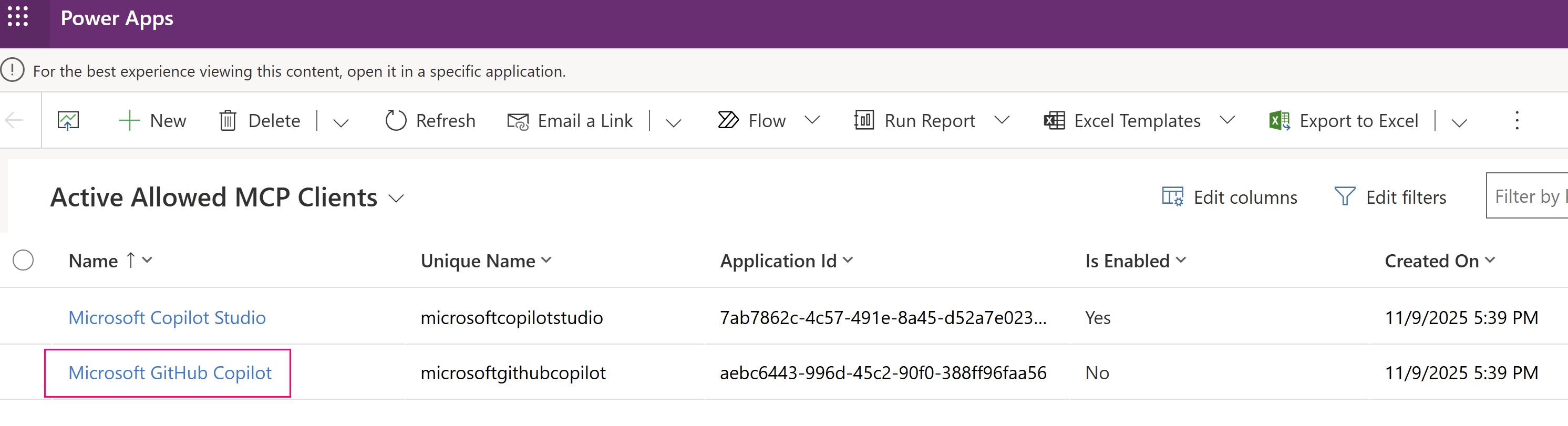
On the MCP client record, set Is Enabled to Yes.

Select Save & Close.
Repeat steps 4-7 to enable other clients as needed.

Disable the Dataverse MCP server for an environment
By default the Allow MCP clients to interact with Dataverse MCP server is turned on for Microsoft Copilot Studio. Admins can disable MCP for Dataverse by clearing the setting.
Warning
Disabling the Dataverse MCP Server stops all tools and agents that rely on it. Any ongoing development or AI integration testing using MCP is also interrupted.
Related articles
Advanced connector policies - Power Platform