Note
Access to this page requires authorization. You can try signing in or changing directories.
Access to this page requires authorization. You can try changing directories.
In this article, a view definition is opened that displays properties and options to configure a table view using the view designer for use with model-driven apps.
Open a view for editing in Power Apps
Sign in to Power Apps.
Select Solutions on the left navigation pane, and then open the solution that needs to be modified. If the item isn’t in the side panel pane, select …More and then select the item you want.
Select the table that contains the required view, such as the Account table.
Select the Views area.
Select the view, such as the account table All Accounts view.
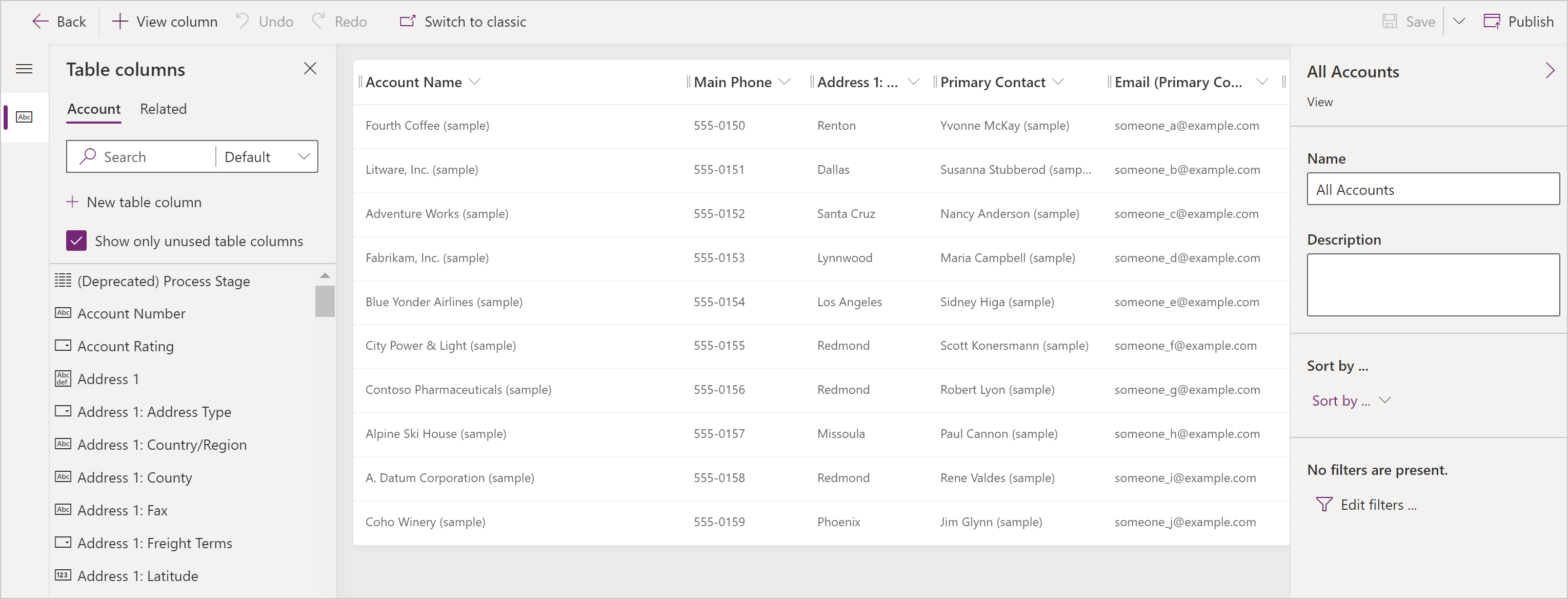
From the view editor, the following tasks can be performed: