Note
Access to this page requires authorization. You can try signing in or changing directories.
Access to this page requires authorization. You can try changing directories.
Use natural language to build a generative page that's created using AI. Generative pages are an AI-driven experience designed to simplify, accelerate, and improve your app design process in model-driven apps. By interacting with the app agent, you create fully functional pages in your model-driven apps by describing what you need in natural language and specifying which Microsoft Dataverse tables to reference. You can even attach an image of what you’d like the page to look like.
After you describe the page, the system then processes your requirements and specifications and intelligently generates React code that covers both the front-end user experience by selecting the right components and determining the best layout, and the corresponding business logic. Through an interactive, conversational experience, you can refine the page design in real time, adjusting elements, layout, and functionality to perfectly match your vision.
Prerequisites
- The Power Platform environment must be located in the US region. This feature is not available in other regions yet.
Create a generative page in model-driven apps
Sign in to Power Apps.
Open a model-driven app for editing.
In the app designer, select Add a page > Describe a page.
A full-page generative page experience opens.
In the textbox, type a description of the type of page you want to create. The description should include functional requirements and optionally any UX specifications. For example, you could enter Build a page showing Account records as a gallery of cards using a modern look and feel. Include name, entityimage on the top, and website, email, phone number. Make the gallery scrollable by using data from the Account table.
Add tables and images as appropriate by selecting Add data > Add table. You can link up to six Dataverse tables. In the screenshot, the account table is added.

Optionally upload one or more images to guide the UI of your generated page by selecting Add data > Attach image. This can be a rough napkin sketch or a higher resolution image. The image can represent the structure or layout of the entire page you want to create or it can be visuals for a certain section or component you want to mimic.
Note
If you want the generated page to display a particular image, instead of attaching the image to the prompt, you can (1) include the image in a referenced Datatable table and have the agent retrieve the image from there, (2) host the image publicly and give the agent the URL, or (3) add the image as a web resource and give the agent the URL for the web resource.
Optionally enable or disable the Include images (preview) tool to allow the agent to utilize images from a curated, safe library of 25,000 stock images to support use cases like default/placeholder images, decorative backgrounds, static content blocks, and richer empty or error states.

Optionally choose the AI model you want to use to generate the page.

When you're finished describing the page, select Generate page.


The agent begins a multi-step build process that you can observe in real time:
- Thought streaming: The agent first outlines its interpretation of your prompt, listing requirements, assumptions, and an execution plan.
- Code generation: Next, it writes the underlying code for your page based on the plan.
- Transpilation: The generated code is then transpiled to ensure compatibility and proper rendering.
- Final rendering: Finally, the completed user experience is displayed.
If the user experience isn't displayed at the end of this process, you can view it by selecting the Preview tab.

View the generated code, iterate, and publish
After generating your page, you have several options to refine and finalize it:
View and edit the generated code Select the Code tab to view the code generated by the app agent.
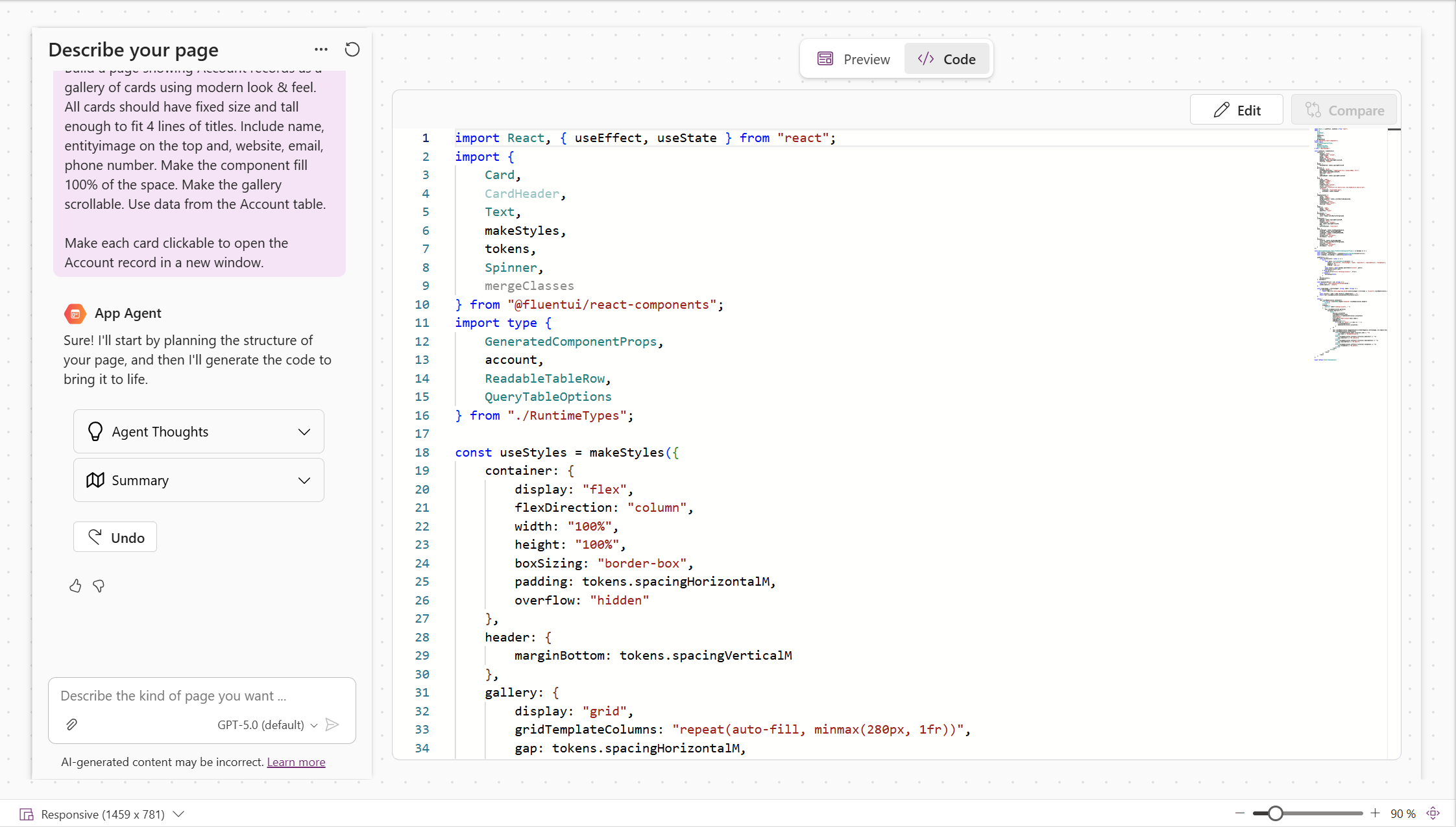
You can refine the output in two ways:
- Iteratively chat with the app agent to fix errors, adjust layout, or add functionality.
- Manually edit the code by selecting Edit on the Code tab. After making some edits, you can select Save to commit your changes as a new iteration, or Cancel to discard your changes.
Compare iterations After completing two or more iterations with the agent, you can select Compare on the Code tab to view a code diff between the current and previous iteration.
Note
This capability is currently only available starting with the second iteration in the current session.
Attach a screenshot for quick reference In the chat experience, select Attach > Add screenshot to include a screenshot of the current preview with your next interaction with the app agent. A screenshot is useful for helping to adjust the visuals of the page. You can alternatively attach other images to help refine the visuals of the entire page or a particular piece of the page.
Check for accessibility issues (new) After each iteration of code generation, the Accessibility assistant at the bottom of the screen scans the generated code assessing it with respect to accessibility. You can see a high level status update directly on screen and can choose to open the detailed results in a panel. Select Auto fix to pass any violations directly to the agent for it to try to automatically resolve.
Save and publish In the command bar, select Save to avoid losing progress on your page.
When you're satisfied with your page, select Save and Publish to publish all pending changes for the app, including any generative pages.
Important
While the agent makes a best-effort attempt to generate complete, production-ready code, including considerations for accessibility and security best practices, you're ultimately responsible for validating the code. Ensure the generated code meets your organization's standards and compliance requirements.
Adding generative pages to solutions
Generative pages are solution-aware and can be added to a solution (via an app) to facilitate moving between environments. To add a generative page to a solution, do the following:
Important
If your generative page was created during the preview phase, you must load the generative page in the model app designer to initiate a one-time migration to the new solution-aware data model. When the page loads in the designer, you'll see an "Upgrading your page" progress message. Don't close the window until migration completes.
- Add the app containing your generative pages to a solution
- In Power Apps, select Solutions on the left navigation pane, and open the desired solution.
- Select Add existing > App > Model-driven app.
- Select the app that contains the generative pages.
- Export the solution (as managed or unmanaged)
- Ensure the app sitemap is included in the solution. If not, it should be requested during dependency checks.
- Generative pages (shown as UX Agent Project rows) will also be requested based on their dependency on the sitemap.
Note
Check these items if no generative pages are requested during dependency checks:
- Pages created during preview will only appear if they've been migrated. Load them in the designer to trigger migration.
- If the sitemap is included in the solution and your generative pages have been migrated, try making a minor change to the sitemap, such as reordering or renaming a page, republishing the app, and then trying the export again.
After export, you can import the app and generative pages into another environment. When opened in the designer in the target environment, only the first prompt and published code are available. The full agent conversation doesn't transfer with the page.
Limitations
These are the current limitations of generative pages:
- Your page can connect to only Dataverse tables (up to 6 for a single page). No other data sources can be used.
- Your prompt can have a maximum of 50,000 characters.
- Only US English is supported.
- Collaboration isn't supported. Ensure only one maker is working on a generative page at a time to avoid unintended conflicts.
- Only these data types are supported:
- Choice
- Currency
- Customer
- Date and Time
- Date Only
- Decimal Number
- Floating Point Number
- Image
- Lookup
- Multiline Text
- Status
- Status Reason
- Text
- Whole Number
- Yes/No
- Unique Identifier
Frequently asked questions
Can I start designing my app in Plan Designer and then use generative pages?
Yes, while there's currently no direct integration between plans and generative pages, you can use plans to define your tables and apps, and then switch to the model-driven app designer to create any desired generative pages.
Are there any additional fees or credits needed to use generative pages?
No, the maker experience for generative pages (and plans) don't require any additional AI or message credits.
What kind of images work best for guiding the UI generation?
It depends on your goal. If you know exactly how you want the final page to look, clear and detailed sketches or wireframes (whether hand-drawn or digital) are most effective. If you only have a general concept and want the agent to fill in the details, quick whiteboard sketches or even napkin drawings can work well.
Can I use generative pages with canvas apps or other app types?
No, generative pages are currently only supported in model-driven apps.
Is there a way to reuse or clone a generative page across environments?
Yes, generative pages are solution-aware elements that can be moved across environments. Only the last published version of the code and the first prompt are maintained with the solution; the full revision history remains on the original environment.
Can I edit the generated code manually?
Yes. You can manually edit the generated code by selecting Edit on the Code tab. Your changes are saved as a new iteration. Select Cancel to cancel your edits if you choose not to keep them.
Is the code generated by generative pages guaranteed to be production-ready and compliant with my organization's standards?
No. While the agent makes a best-effort attempt to produce high-quality, production-ready code with accessibility and security best practices in mind, it's your responsibility to validate the output. Always review the generated code to ensure it aligns with your organization's standards, policies, and compliance requirements.
How do I give feedback on the feature?
The best way to give feedback on generative pages is to use the thumbs up/down buttons in the chat experience that are available after each iteration. We also strongly encourage you to select Yes on Share relevant content samples and additional log files so that we can debug or attempt to recreate any issues you encountered with the feature.
What if I don't see generative pages enabled in my environment?
Confirm that your environment is in the US region.