Note
Access to this page requires authorization. You can try signing in or changing directories.
Access to this page requires authorization. You can try changing directories.
In the Power BI service, you can create, share, and manage cloud connections for various artifacts and experiences:
- Semantic models
- Paginated reports
- Datamarts
- Dataflows
- Power Query Online experiences that you access by selecting Get data
This article shows you how to create a shareable cloud connection and share that connection with others. Creating and sharing shareable cloud connections have many advantages, as described in Advantages of shareable cloud connections.
Create a shareable cloud connection
To create a shareable cloud connection, take the following steps:
Go to the Power BI service, select Settings
 , and then select Manage connections and gateways.
On the Manage Connections and Gateways page, go to the Connections tab, and then select New.
In the New connection dialog, take the following steps:
- Select Cloud.
- Under Connection name, enter a name for the new connection.
- Under Connection type, select an appropriate type.

The dialog expands as several fields are added for configuring the connection.
In the expanded New connection dialog, enter connection information for your data source, and then select Create.

Scroll to the top of the dialog and check for notifications about the connection status.


After Power BI creates your connection, you can share it with others.
Note
When you publish a .pbix file with a cloud data source from Power BI Desktop, a cloud connection is created automatically.
Share a shareable cloud connection
To share a shareable cloud connection, take the following steps:
In the Power BI service, select Settings
, and then select Manage connections and gateways.Locate the connection that you want to share. Next to it, select More actions
 , and then select Manage users.
In the Manage users dialog, search for users you want to share the connection with. You can search by their name or email address. Grant them the permission level you want them to have. You must at least grant User permission to allow users to connect their artifacts to the connection's data source.
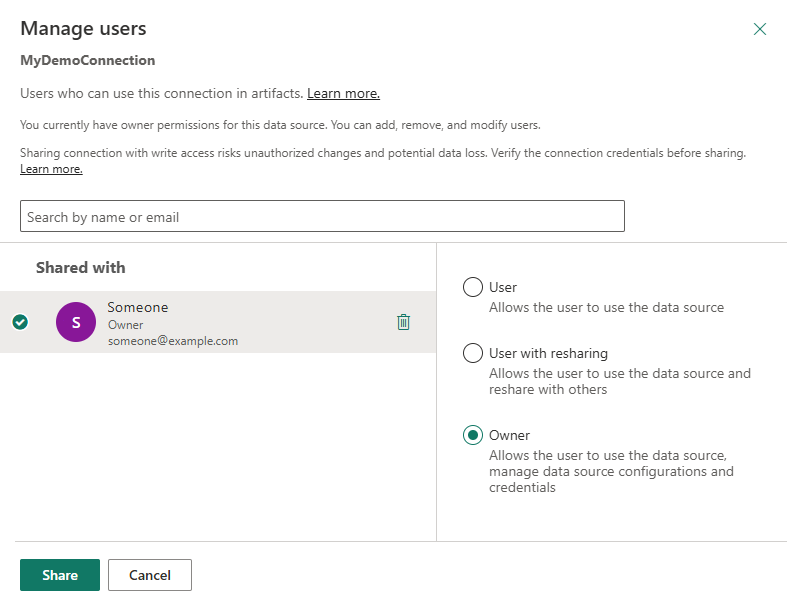
Select Share to apply your selections.
Assign a shared cloud connection to a semantic model
After you create a shareable cloud connection, you can assign it to a semantic model.
Go to the workspace that contains the semantic model that you want to apply the shareable connection to.
Locate the semantic model in the list. Next to the name of the model, select More options
 , and then select Settings.
On the settings page, expand the Gateway and cloud connections section. The connection is mapped to a personal cloud connection by default.
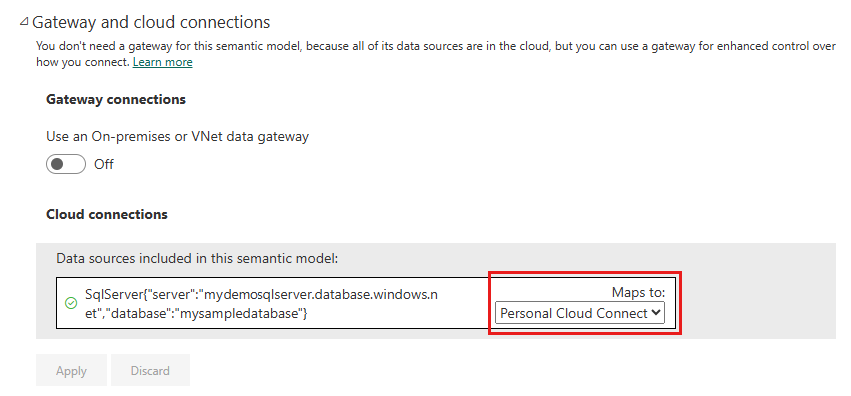
In the Maps to list, select the name of the shareable connection that you want to use, and then select Apply.
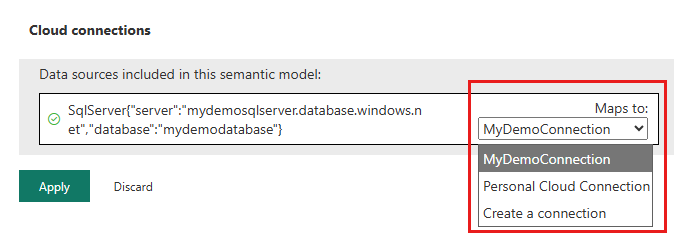
Power BI assigns your shareable cloud connection to the semantic model.
If you open the Gateway and cloud connections settings of a semantic model before you create a shareable connection, you can select Maps to > Create a connection. The New connection dialog opens, as described earlier in Create a shareable cloud connection. The input fields are prepopulated with information about the data source of the semantic model.
Granular access control
Power BI enforces granular access control for shareable cloud connections. For all other data types, you can turn on access control at the tenant, workspace, and semantic model level. The following image combines screenshots of the settings at those three levels:
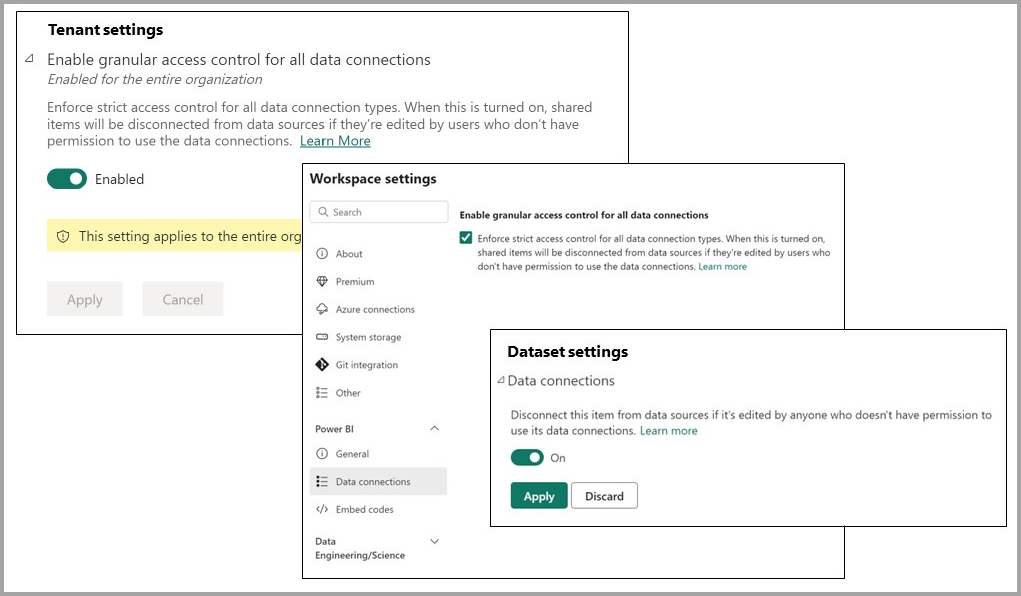
Each setting provides granular access control. Power BI applies the settings in the following way:
- If a tenant admin turns on granular access control for all connection types, Power BI enforces granular access control for the entire organization. Workspace admins and artifact owners can't overrule granular access control that's turned on at the tenant level.
- If granular access control isn't enforced at the tenant level, workspace admins can enforce granular access control for their workspaces.
- If workspace admins don't enforce granular access control, artifact owners can decide whether to enforce granular access control for each of their artifacts independently.
By default, granular access control is turned off at all three levels. As a result, individual artifact owners can enforce granular access control for each data connection type selectively. However, it's likely more efficient to enable granular access control on a workspace-by-workspace basis.
Related content
For important information about shareable cloud connections, including limitations and considerations, see Connect to cloud data sources in the Power BI service.