Note
Access to this page requires authorization. You can try signing in or changing directories.
Access to this page requires authorization. You can try changing directories.
Manage semantic model access permissions in Power BI to keep your sensitive data secure. The semantic model manage permissions page enables you to monitor and control who has access to your semantic model through two tabs:
- Direct access: Monitor, add, modify, or delete access permissions for specific people or groups (distribution groups or security groups).
- Shared report links: Review and remove links that were generated for sharing reports, which may also grant access to your semantic model.
This article explains how to use the manage permissions page to control access to your semantic model.
Note
To access a semantic model's manage permissions page, you must have an Admin or Member role in the workspace where the semantic model is located.
Open the semantic model manage permissions page
To open the semantic model manage permissions page:
From the OneLake data hub or from the workspace for the semantic model: Select Manage permissions from the More options (…) menu available next to the semantic model name in the list.

From the semantic model details page: Select the Share icon on the action bar at the top of the page and choose Manage permissions.

These actions open the semantic models manage permissions page. The manage permissions page has two tabs to help you manage semantic model access.
Manage direct access
The direct access tab lists users who have been granted access. For each user, you can see their email address and the permissions they have.
To modify a user's permissions, select More options (…) and choose one of the available options.

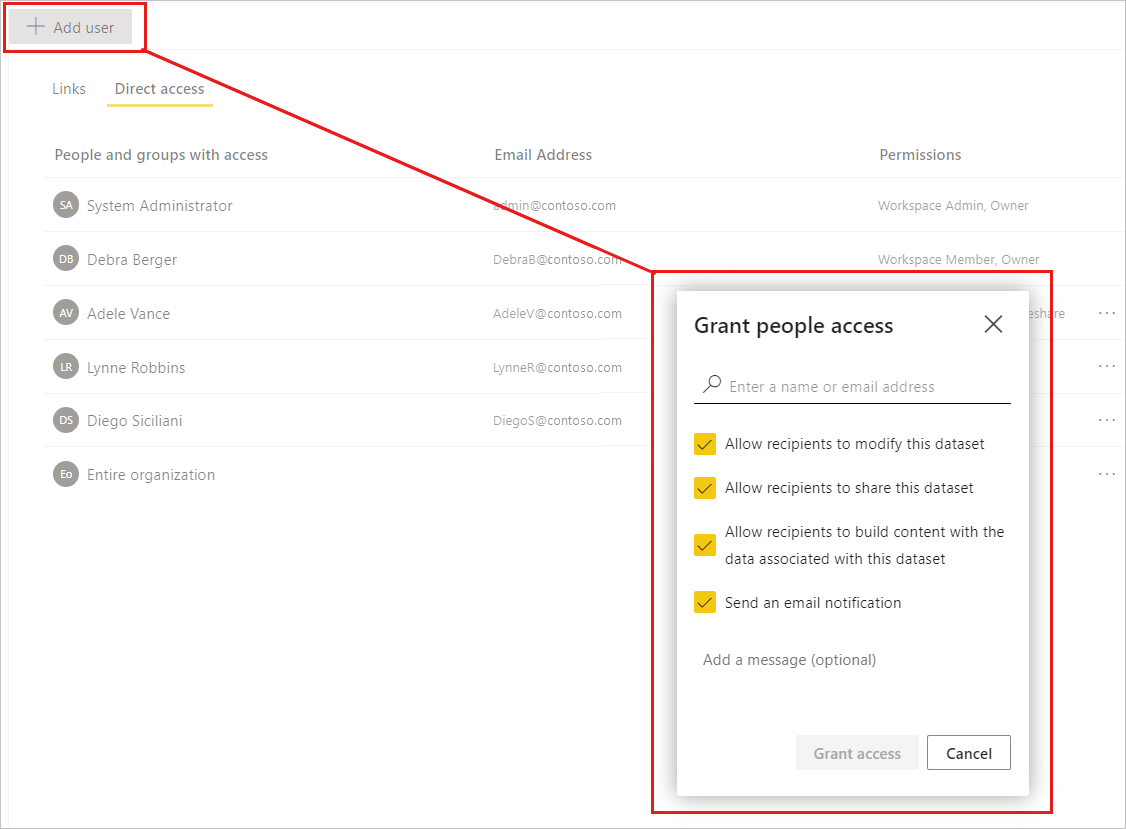
To grant semantic model access to another user, select + Add user. The Share semantic model dialog opens.
Managing permissions granted through an app
Permissions on the semantic model granted through an app are indicated by the word "App" followed by the permissions enclosed in parentheses, as shown in the following image:

You can't modify permissions granted through an app directly from the Direct access tab. You must first remove them from the app configuration. To remove such permissions:
Edit the app and unselect the relevant permissions on the Permissions tab of the app's configuration settings.
Republish the app.
Go to the Direct access tab of the semantic model's manage semantic model permissions page as described in Manage direct access. The user still has the permissions granted via the app before update, but now they're not tied to the app (note that the parentheses are gone). Now you can remove whatever permissions you desire.

Manage links generated for report sharing
The shared report links tab lists links that have been created to shared reports that are based on your semantic model. Such links might also grant access to the report's underlying semantic model, and so these links are listed here. You can see what permissions the link carries and who created the link. You can also delete the link from the system if you so desire.
Warning
Deleting a link removes it from the system. Users who use the link to access a report may lose access to that report.
