Note
Access to this page requires authorization. You can try signing in or changing directories.
Access to this page requires authorization. You can try changing directories.
APPLIES TO:  Power BI service for business users
Power BI service for designers & developers
Power BI service for business users
Power BI service for designers & developers  Power BI Desktop
Requires Pro or Premium license
Power BI Desktop
Requires Pro or Premium license
Use the Filters pane in the Power BI service to control what data appears in your reports. You can modify existing filters to focus on specific data, reset filters to their defaults, or clear filters to view all available data.
Power BI offers multiple filtering methods. This article focuses on the Filters pane. For information about cross-filtering and cross-highlighting through visual interactions, see How visuals cross-filter each other in a Power BI report.
Open the Filters pane
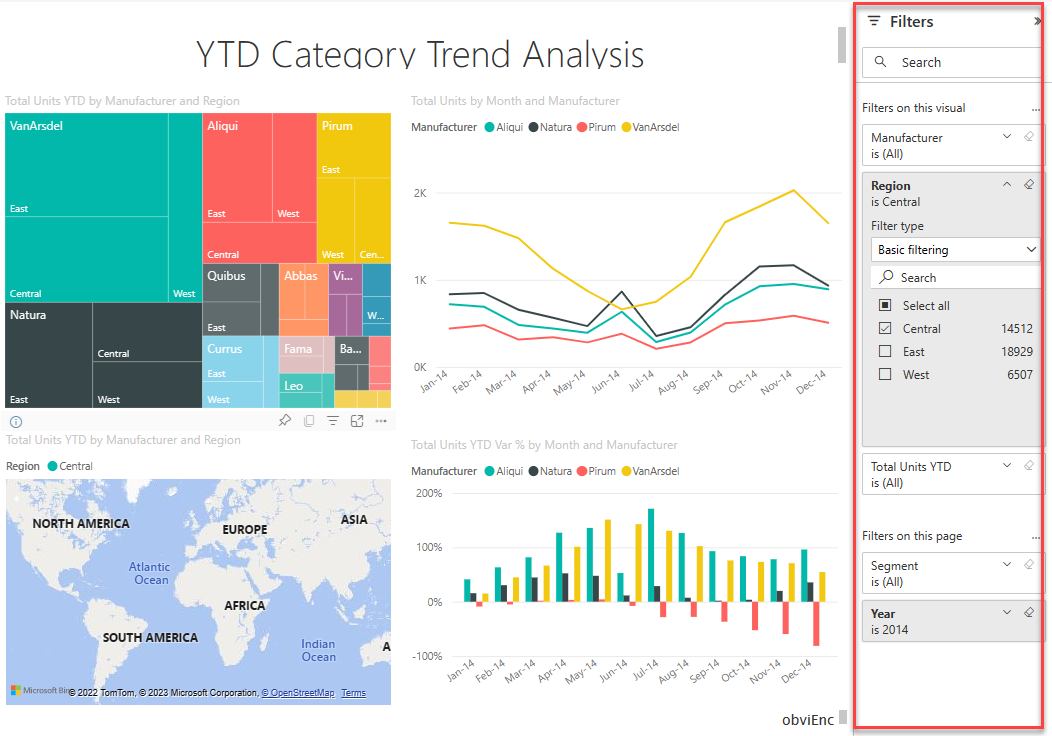
The Filters pane appears on the right side of your report. If the pane is collapsed, select Filters on the right edge to expand it.
Understand filter types
The Filters pane displays filters that the report designer adds to the report. You can modify existing filters and save your changes, but you can't add new filters.
The Filters pane organizes filters into three types:
- Filters on all pages - Apply to every page in the report
- Filters on this page - Apply only to the current page
- Filters on this visual - Apply only to a selected visual
Shaded filter cards indicate active filters that exclude some data. For example, a Region filter set to Central displays only Central region data and excludes West and East regions.
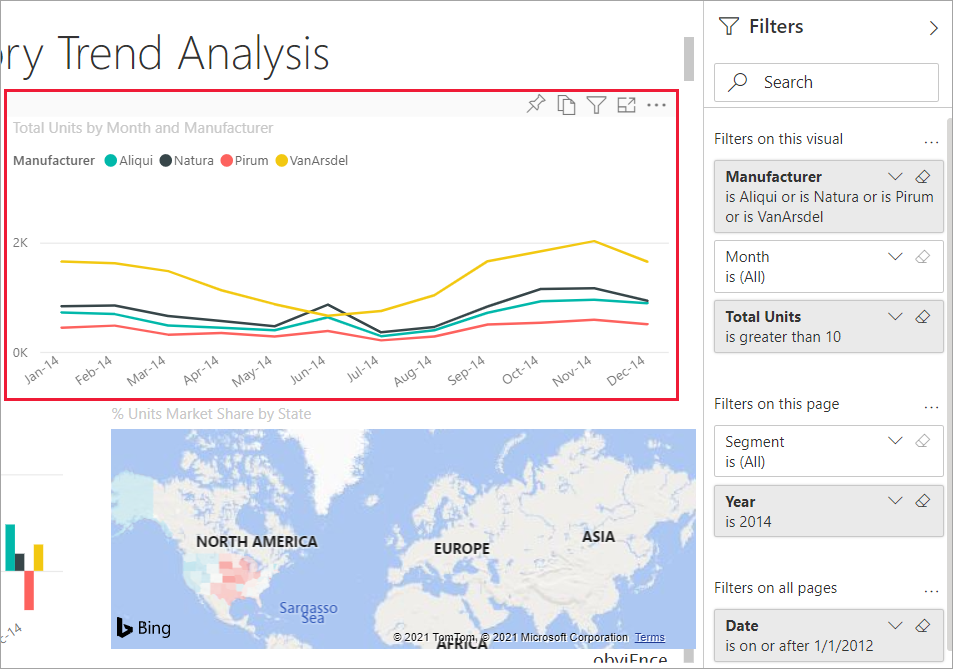
Filters showing (All) include all available values. Anyone with view permissions can modify these filters.
View filters for a visual
To see all filters affecting a specific visual, hover over the visual and select the filter icon  . This opens a pop-up showing all active filters, including basic filters, slicers, cross-filters, advanced filters, Top N filters, relative date filters, and URL-based filters.
Modify filters
Expand a filter
Select the arrow next to the filter name to view available values and counts.
Change filter values
- Select the drop-down arrow next to the field name.
- Choose one or more values from the list. Hold CTRL to select multiple values.
- For numeric or date filters, specify ranges or conditions as needed.
Search for filter values
For filters with many values, use the search box to find specific items.
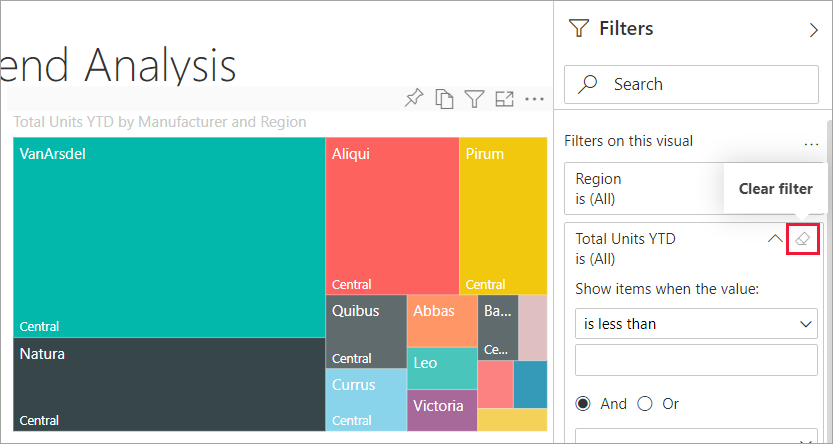
Clear a single filter
Select the eraser icon next to the filter name to reset it to (All).
Reset all filters
Select Reset to default from the top menu bar to revert all filters to their original settings.

Note
If you don't see Reset to default, the report designer disabled this option. Designers can also lock specific filters to prevent changes.
Save filter changes
The Power BI service automatically saves your filter changes, including in the mobile version of the report. To save specific filter combinations, create a personal bookmark. For more information, see Bookmarks in the Power BI service.