Note
Access to this page requires authorization. You can try signing in or changing directories.
Access to this page requires authorization. You can try changing directories.
Important
This feature is in preview.

|
|

|
|
|---|---|---|---|
| iPhones | iPads | Android phones | Android tablets |
The standalone Copilot in Power BI mobile apps provides a full-screen chat experience that you can use to ask questions about your data directly from the app's home page. Unlike the in-report Copilot button, this standalone experience enables you to query any report, semantic model, or data agent in your organization without first opening a specific item. Copilot analyzes your question, suggests relevant data sources, and generates instant insights with both textual summaries and interactive visuals. This mobile experience is based on the standalone Copilot available in the Power BI service.
Tip
Looking for Copilot within a specific report? See In-report Copilot in Power BI mobile apps (preview) to learn about the in-report Copilot experience that provides summaries and insights for the report you're currently viewing.
Access the standalone Copilot
To start using the standalone Copilot:
Open the Power BI mobile app on your device to view the home page.
Select the Copilot button in the bottom navigation bar.
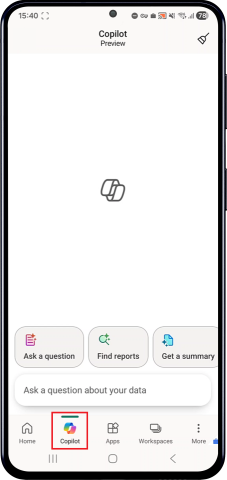
The full-screen Copilot chat interface opens, ready to accept your questions.
Note
Admins need to turn on the tenant setting: To try it out, admins need to enable Copilot in Power BI, and additionally enable the following new tenant setting: Users can access a standalone, cross-item Power BI Copilot experience.
Data must be prepped for Copilot: Copilot works best when the report author has prepared the data specifically for Copilot. If that setup hasn't been done, answers may be limited or inaccurate. For more information, see Prepare your data for AI.
Approve your data for Copilot: Semantic model authors have the ability to approve a model for use with Copilot in model settings. This impacts the appearance of content warnings for end users. For more information, see Approve your model for use with AI.
Warnings on unprepped data: Models that aren't approved for Copilot will appear with warnings that the answer quality could be low.
Ask questions about your data
When you ask questions about your data, Copilot works to understand your topic of interest and use that context to identify the most relevant and accessible report, semantic model, or data agent to use as its source.

The standalone Copilot experience can summarize data from reports, and use the report visuals to answer specific questions. If the answer can't be found in the report, Copilot will then use the measures and other data fields in your semantic model (or even create new DAX calculations) to generate the answer for you.
Voice input (iPhone and iPad)
On iPhone and iPad devices, you can dictate questions by using voice input. Tap the microphone icon in the Copilot chat box, speak your question clearly, and Copilot transcribes and processes it the same as typed input.
Get Copilot responses
The standalone Copilot response might include:
- Textual summary: A written answer to your question
- Interactive visual: A screenshot of a chart or graph representing the data
- Tap the visual to open it in a drawer where you can interact with it in live mode, select elements, use tooltips, and drill down into the data.
- Tap the Share option in the visual drawer to send it as a screenshot via email, Teams, messaging apps, or other sharing methods.
- References: Items such as reports, apps, data agents, or semantic models that the answer is based on
- Tap the References button to open a drawer with the referenced items and related information
- How Copilot arrived at this (when applicable): Details about how Copilot generated the response
- DAX query (when applicable): The query used to generate the answer
- Copy option: An icon to copy responses and visuals to your clipboard for sharing with colleagues
- Select the Copy icon at the top of any Copilot response to copy the text to your clipboard. You can then paste it into email, Teams, or other platforms.
- Feedback: Thumbs up or thumbs down icons to provide feedback on the response

Prep data for AI
Great answers start with great data. The clearer and more structured your data is, the better Copilot can help. Semantic model authors have tooling features to help prepare your data for AI.
When querying semantic models or reports that haven't been prepped for AI, Copilot displays a warning message indicating the results should be carefully checked for accuracy.
Answers from models that haven't been prepped are clearly marked with this message to ensure you're aware of potential limitations before proceeding. You can still view and interact with the answer by tapping View answer, and the response will appear inline. However, you should review the results carefully to ensure accuracy.

Copilot requirements
Read about the requirements to use the standalone Copilot experience.
Limitations and considerations
- Voice dictation is available only on iPhone and iPad devices.
- Conversation context is maintained only during the current session and is cleared when you close the app or clear the chat.
- The standalone Copilot experience is only available to customers with home tenants in geographical regions that support Fabric—so it's only available for customers with home tenants in this list. You don't need to have Fabric enabled to use Copilot, they just need to have home tenants in one of the listed regions.
- Mobile standalone Copilot doesn't support Microsoft Entra B2B integration, which means that the Copilot button isn't available when user opens the external org from the mobile app.