Note
Access to this page requires authorization. You can try signing in or changing directories.
Access to this page requires authorization. You can try changing directories.
APPLIES TO:  Power BI Desktop
  Power BI service
Keyboard shortcuts are helpful for moving around in Power BI reports using a keyboard. The tables in this article describe the shortcuts available in a Power BI report.
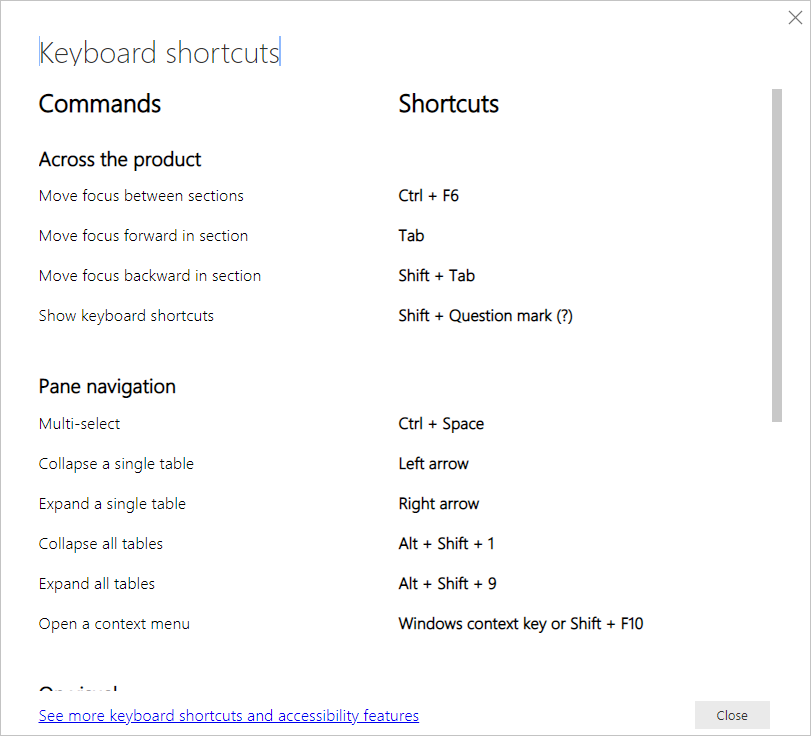
When using Power BI Desktop, you can press Shift + ? to show keyboard shortcuts, as shown in the following image.
In addition to using these keyboard shortcuts in Power BI Desktop, these shortcuts work in the following experiences as well:
- Q&A Explorer dialog
- Getting Started dialog
- File menu and About dialog
- Warning bar
- File Restore dialog
- Frowns dialog
In our continued effort to improve accessibility, the previous list of experiences also supports screen readers and high contrast settings.
Frequently used shortcuts
| To do this action | Press |
|---|---|
| Move focus between sections | Ctrl + F6 |
| Move focus forward in a section | Tab |
| Move focus backward in a section | Shift + Tab |
| Select or clear selection of an object | Enter or spacebar |
| Multi-select objects | Ctrl + spacebar |
| Keytips to navigate and select ribbon buttons | Alt |
On visual
| To do this action | Press |
|---|---|
| Move focus to visual menu | Alt + Shift + F10 |
| Show data | Alt + Shift + F11 |
| Enter a visual | Ctrl + Right arrow |
| Enter a layer | Enter |
| Exit a layer or visual | Esc |
| Select or clear selection of a data point | Enter or spacebar |
| Multi-select | Ctrl + Enter or Ctrl + spacebar |
| Right-click |
|
| Clear selection | Ctrl + Shift + C |
| Show or hide tooltip | Ctrl + H |
| Move a visual on the canvas (small moves)* | Arrow keys (up, down, right, left) |
| Move a visual on the canvas (bigger moves)* | Shift + arrow keys |
| Resize a visual* | Arrow keys |
| Maintain aspect ratio* | Shift + drag the resize handles |
| Group Visuals* | Select visuals + Ctrl + G |
* Must be in editing mode
Table navigation
| To do this action | Press |
|---|---|
| Move focus up / down one cell (across all cells in all areas) | Up arrow key / Down arrow key |
| Move focus left / right one cell (across all cells in all areas) | Left arrow key / Right arrow key |
| Moves the focus to the last cell in the current row | Ctrl + Right arrow key / End key |
| Moves the focus to the first cell in the current row | Ctrl + Left arrow key / Home key |
| Moves the focus to the last element in the current column | Ctrl + Down arrow key |
| Moves the focus to the first element in the current column | Ctrl + Up arrow key |
| Moves the focus to the first element in the table (top left corner) | Ctrl + Home key |
| Moves the focus to the last element in the table (bottom right corner) | Ctrl + End key |
| Moves the focus to the last row displayed in the current column | Page down key |
| Moves focus to the first row displayed in the current column | Page up key |
| Selecting multiple noncontiguous rows | Ctrl + Enter / Ctrl + Space |
| Selecting multiple contiguous rows | Shift + Down arrow key or Up arrow key |
| Clear selected rows | Ctrl + Shift + C |
| Open URL links | Ctrl + Alt + O or Alt + Shift + O |
| Open Context Menu | Shift + F10 |
Matrix navigation
| To do this action | Press |
|---|---|
| Expand matrix | Shift + Right arrow key |
| Collapse matrix | Shift + Left arrow key |
Pane navigation
| To do this action | Press |
|---|---|
| Multi-select | Ctrl + Spacebar |
| Collapse a single table | Left arrow key |
| Expand a single table | Right arrow key |
| Collapse all tables | Alt + Shift + 1 |
| Expand all tables | Alt + Shift + 9 |
| Open a context menu |
|
Canvas zoom
| To do this action | Press |
|---|---|
| Zoom in | Ctrl + Plus or Ctrl + (mouse scroll wheel forward) |
| Zoom out | Ctrl + Minus or Ctrl + (mouse scroll wheel backward) |
| Scroll canvas up | Page up key |
| Scroll canvas down | Page down key |
| Scroll canvas left | Alt + Page up key |
| Scroll canvas right | Alt + Page down key |
Slicer
| To do this action | Press |
|---|---|
| Interact with a slicer | Enter |
| Move focus between menu items | Up arrow key / Down arrow key |
| Move focus to first menu item | Home |
| Move focus to last menu item | End |
| Select multiple contiguous items | Shift + Up arrow key / Down arrow key |
| Open context menu | Shift + F10 |
Selection pane
| To do this action | Press |
|---|---|
| Activate selection pane | F6 |
| Move up an object in the layering | Ctrl + Shift + F |
| Move down an object in the layering | Ctrl + Shift + B |
| Hide / show (toggle) an object | Ctrl + Shift + S |
DAX formula bar
| To do this action | Press |
|---|---|
| Submit | Ctrl + Enter or Enter |
| Go to line number | Ctrl + G |
| Move line up / down | Alt + Up arrow key / Down arrow key |
| Copy line up / down | Shift + Alt + Up arrow key / Down arrow key |
| Insert line below | Shift + Enter or Alt + Enter |
| Insert line above | Ctrl + Shift + Enter |
| Delete selected word | Ctrl + Del |
| Delete all selected lines | Ctrl + Shift + K |
| Jump to matching bracket | Ctrl + Shift + \ |
| Jump to start of a line of code | Ctrl + Home |
| Jump to the end of a line of code | Ctrl + End |
| Indent line / Extend line into the margin | Ctrl + ] or Ctrl + [ |
| Insert cursor | Alt + Click |
| Select current line | Ctrl + L |
| Select all occurrences of current selection | Ctrl + Shift + L |
| Select all occurrences of current word | Ctrl + F2 |
| Select next occurrences of current selection | Ctrl + D |
| Select the line above | Shift + Up arrow key |
| Select the line below | Shift + Down arrow key |
| Enter multiple lines of code up / down | Ctrl + Alt + Up arrow key / Down arrow key |
| Comment a line | Ctrl + / or Ctrl + K + C |
| Uncomment a line | Ctrl + / or Ctrl + K + U |
| Increase font size | Ctrl + + or Scroll Up |
| Decrease font size | Ctrl + - or Scroll Down |
| Show or hide "Read more" tooltips | Ctrl + I |
| Show accessiblity widget | Alt + F1 |
| Close widget, suggestions, other dialogs, or closes DAX formula bar | Esc |
| Show suggestions | Ctrl + Space |
| Expand or Collapse DAX formula bar | Ctrl + J |
| Focus on the DAX formula bar itself to tab to next UI element | Ctrl + M |
Enter data
| To do this action | Press |
|---|---|
| Exit editable grid | Ctrl + Tab |
Model view navigation
| To do this action | Press |
|---|---|
| Move focus to first card in relationship diagram | Tab |
| Move focus to the next card | Tab / Right arrow key / Down arrow key |
| Move focus to the previous card | Shift + Tab / Left arrow key / Up arrow key |
On card in model view
| To do this action | Press |
|---|---|
| Move focus to relationship line connected to card | Ctrl + Alt + R |
| Move focus to first field list item on the card | Enter |
| Move focus to next item within the card | Tab |
| Move focus back to entire card | Esc |
| Open context menu | Shift + F10 |
| Move focus to the next field list item | Right arrow key / Down arrow key |
| Move focus to the previous field list item | Up arrow key / Left arrow key |
On relationship in model view
| To do this action | Press |
|---|---|
| Move focus to next card connected to relationship line | Ctrl + Alt + R |
| Move focus to previously focused card connected to relationship line | Shift + Alt + R |
| Open relationship properties pane | Enter |
| Move focus to next relationship line connected to card | Tab / Right arrow key / Down arrow key |
| Move focus to previous relationship line connected to card | Shift + Tab / Left arrow key / Up arrow key |
| Select focused relationship | Enter |
Considerations and limitations
There are a few known issues and limitations with the accessibility features. You can view descriptions of those issues and limitations in the following list:
- When using screen readers with Power BI Desktop, you'll have the best experience if you open your screen reader before opening any files in Power BI Desktop.
- If you're using Narrator, you'll have some limitations around navigating Show data as an HTML table.
Related content
The collection of articles for Power BI accessibility are the following:
- Overview of accessibility in Power BI
- Design Power BI reports for accessibility
- Consume Power BI reports by using accessibility features
- Creating reports in Power BI using accessibility tools
- Report accessibility checklist
You might also be interested in the following: