Note
Access to this page requires authorization. You can try signing in or changing directories.
Access to this page requires authorization. You can try changing directories.
APPLIES TO:  Power BI Desktop
Power BI service
Power BI Desktop
Power BI service
Organizational themes (preview) allow Power BI administrators to centrally manage and distribute custom report themes across the organization. Maintaining a consistent visual identity across Power BI reports is now simpler and more scalable, thanks to organizational themes. Whether reports are built manually or generated with Copilot, this feature ensures that styling and branding stay aligned with your organization's identity and design standards.
The Organizational themes feature is available exclusively to tenant administrators through the Fabric admin portal. While report creators benefit from the themes and styling options defined through this feature, they can't configure them directly. Instead, administrators can upload custom JSON theme files, validate them, add descriptions, rename them for clarity, and control their visibility across the organization. Once published, these themes appear in the theme gallery, making them easily accessible to report creators in both Power BI Desktop and Power BI Service.
Important
The Organizational themes feature is currently in preview. The information in this article relates to a prerelease product that might be substantially modified before it's released. Microsoft makes no warranties, expressed or implied, with respect to the information provided here.
Organizational themes in the admin portal
Adding a new organizational theme in Power BI is a streamlined process designed for admin control and governance. First, navigate to the admin portal, where a dedicated section for Organizational themes (preview) is available. This is the central hub for managing all theme-related assets.

Upload a theme file
Administrators can upload a custom theme using a .JSON file. This file defines the visual styling—colors, fonts, and layout preferences—that are applied to reports. To upload a theme, admins fist have to select the + Add theme button, this opens the Theme settings pane that requires to upload a .JSON file, assign a name, and it's optional to add a description.
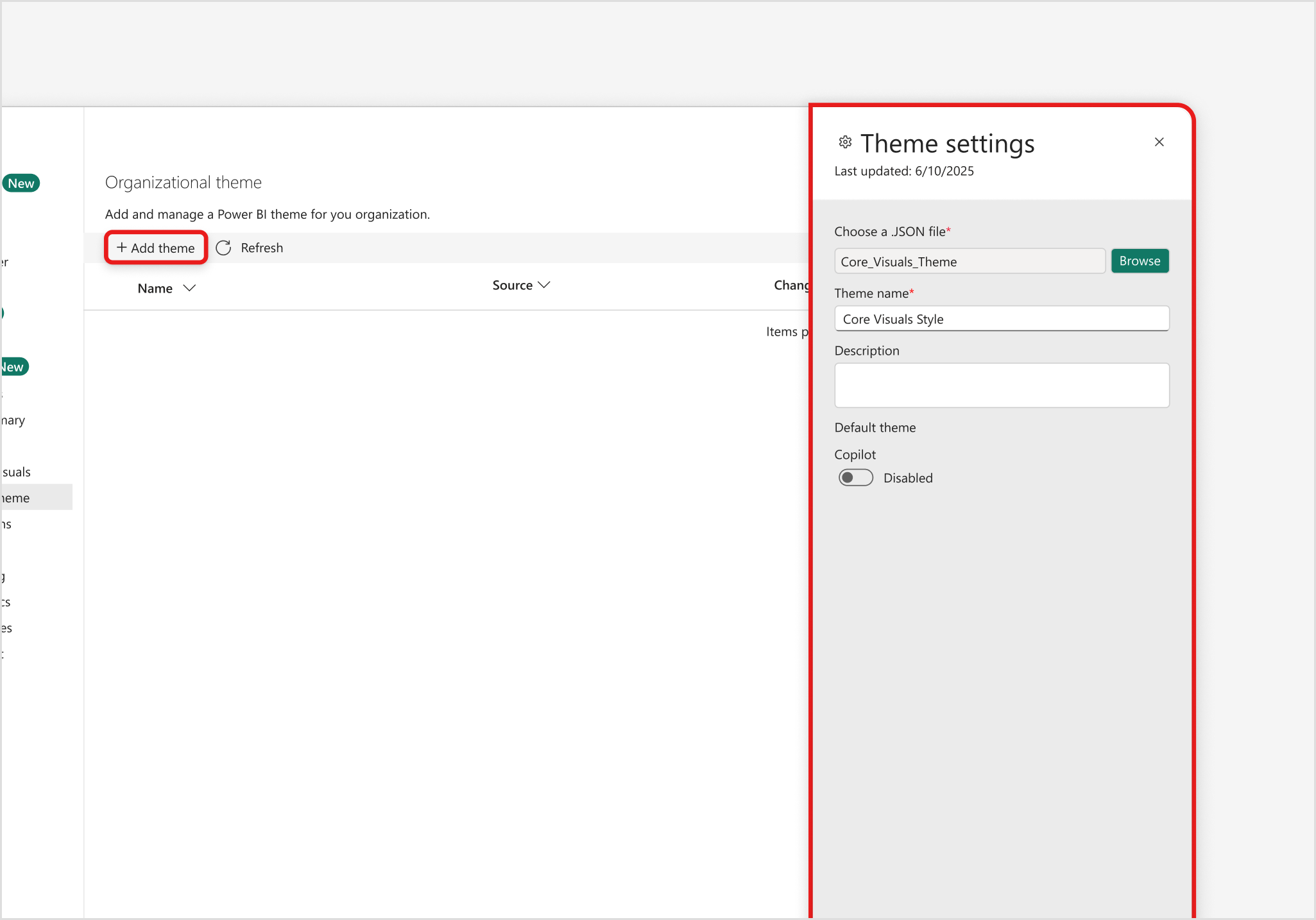
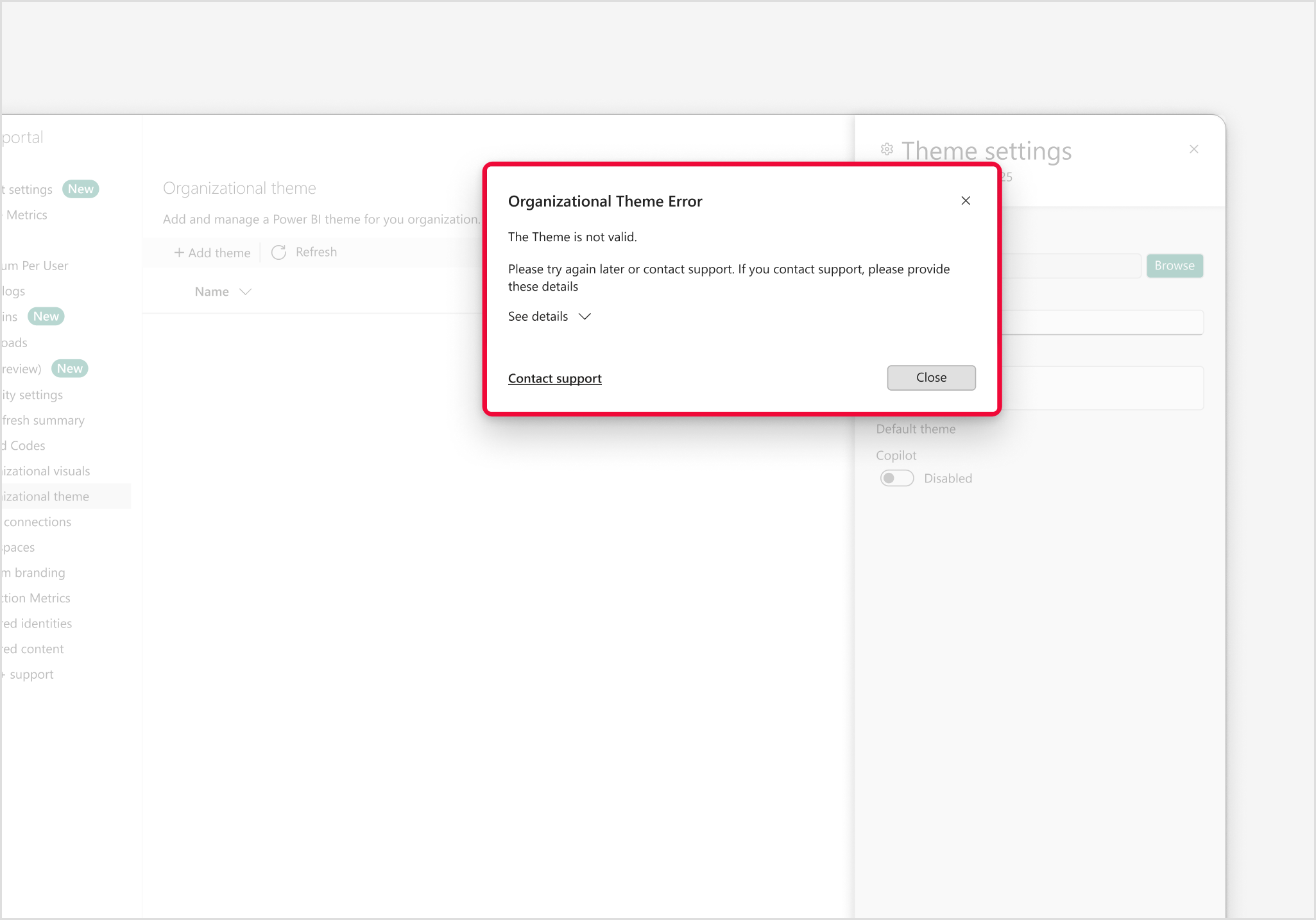
After selecting and uploading a custom theme .JSON file, the system automatically validates the file format and structure. If the file is unsupported or incorrectly formatted, a clear error message is displayed.
Keep in mind that each theme must have a unique name. The admin portal includes a real-time name-checking mechanism to prevent duplicates, ensuring clarity and consistency across the organization.
Manage uploaded themes
When a Power BI administrator uploads a theme to the Organizational themes section of the admin portal, four key management options automatically appear. In the following sections, we walk through each option to explain what they do, when to use them, and how they affect report creators and Copilot-generated reports.
Export – Download the theme's JSON file for backup or reuse.
Details – View and edit the theme's name and description.
Delete – Permanently remove the theme from the organizational gallery.
Set theme visibility – Control whether the theme is visible to report creators.


Alternatively, the Details, Delete, and Enable/Disable for theme gallery options can also be accessed via the ellipsis button (three-dot menu) next to the theme's name in the admin portal. This provides a quick way for admins to manage individual themes directly from the list view.

Export a theme
The Export option allows administrators to download the theme's JSON file directly from the admin portal. This is useful for:
- Backing up the theme configuration for safekeeping.
- Sharing the theme with other admins or teams.
- Editing the theme offline before reuploading a revised version.
Exporting ensures you always have access to the original theme file, even if changes are made later.
View and edit theme details
The Details option opens the Theme settings panel where you can view and edit the theme's metadata:
- Replace the existing JSON file with a new version.
- Rename the theme to make it more descriptive or easier to identify.
- Add or update the theme description to clarify its purpose, usage, or intended audience, and provide context for report creators.
This helps maintain clarity, especially when multiple themes are available in the gallery, and ensures users understand which theme to apply.
Delete a theme
The Delete option permanently removes the theme from the admin portal and the organizational theme list. Use the Delete option when:
- A theme is outdated or no longer aligns with your organization's branding.
- You want to clean up unused or test themes.
- You're replacing it with an updated version.
Important
The Delete action can't be undone, so use it with caution. Deleting a theme doesn't affect reports that already have the theme applied. Those reports retain the styling unless manually changed.
Set theme visibility
The Enable/Disable for theme gallery toggle controls whether the theme is visible to report creators in the theme gallery within Power BI Desktop and Service.
- Enable: By default, newly uploaded themes are hidden from the theme gallery in Power BI Desktop and Service. Selecting this option makes the theme visible to report creators, allowing them to apply it directly from organizational themes in the theme gallery.
- Disable: This option gives administrators flexibility to test or reserve themes without exposing them to all users. If a theme is already enabled, the Disable option appears instead. Selecting the Disable option will hide the theme from the gallery, though it will remain available in the admin portal for future use, editing, or reactivation. The theme can still be used by Copilot if it's set as the default.
Use the theme gallery
Organizational themes that are enabled for the Theme gallery instantly become accessible to report creators within Power BI Desktop. These themes appear under the Organizational themes section of the gallery, making it easy for users to apply approved, branded styles to their reports with just a few clicks. This streamlined access helps reinforce consistent visual standards across reports, regardless of who creates them.

Previously, the Theme gallery was only available in Power BI Desktop. However, with the introduction of organizational themes, it's now also accessible in Power BI service. This enhancement allows report creators to apply consistent branding and styling, regardless of whether they're building reports in Power BI Desktop or directly in Power BI service.
To access the theme gallery in Power BI service, go to the View tab in the ribbon and select Theme from the menu.

Enable a theme for Copilot
When uploading or editing an organizational theme in the admin portal, administrators can enable the Copilot toggle. This setting determines whether the selected theme is used by Copilot when it generates the first page of a new report.
- If enabled: Copilot applies this theme by default when creating a report from scratch, ensuring that the output aligns with your organization's visual identity and styling preferences.
- If disabled: Copilot falls back to its own default theme, which might not reflect your organization's branding.
The Copilot toggle gives administrators control over how AI-generated content adheres to governance and design standards, making it easier to maintain consistency across both manually authored and Copilot-assisted reports.

Only one theme can be enabled as the default theme for Copilot. Enabling a new default theme replaces the previous default theme, and the new theme is applied when COpilot generates the initial page.
Find the Copilot theme in the theme gallery
As an added bonus to the organizational themes rollout, the Copilot theme is surfaced in the Power BI theme gallery. The Copilot theme, which was originally applied only when Copilot generated a report, can now be selected and applied by any report creator, regardless of whether Copilot was used.
The Copilot theme is at the end of the theme gallery list in both Power BI Desktop and in Power BI Service. This gives users the flexibility to apply the same clean, professional styling that Copilot uses by default, even when building reports manually.
