Note
Access to this page requires authorization. You can try signing in or changing directories.
Access to this page requires authorization. You can try changing directories.
To refresh data in your Power BI report in Power BI Report Server, you must create a scheduled refresh plan. You create this plan in the Manage area of a Power BI report on the report server.

Configure data source credentials
You need the necessary permissions to create a scheduled refresh plan. Permissions are defined in the role definitions for the report server. See Role definitions - predefined roles in the SQL Server Reporting Services documentation for details.
Before creating a schedule data refresh plan, you need to set the credentials for each data source used in your Power BI report.
In the web portal, right-click on the Power BI report and select Manage.

In the left menu, select the Data sources tab.
For each data source that appears, choose the type of authentication to use when connecting to that data source. Enter the appropriate credentials.

Creating a Schedule Refresh Plan
Follow these steps to create a scheduled refresh plan.
In the web portal, right-click on the Power BI report and select Manage.
In the left menu, select the Scheduled refresh tab.
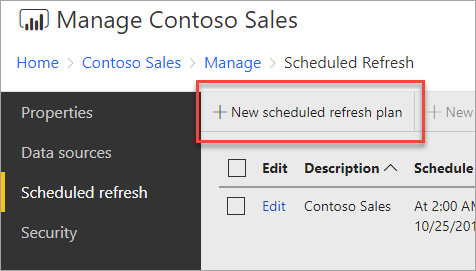
On the Scheduled refresh page, select New scheduled refresh plan.
On the New Scheduled Refresh Plan page, enter a description and set a schedule for when you want your data model to be refreshed.
Select Create scheduled refresh plan when done.

Modifying a Schedule Refresh Plan
Modifying a scheduled refresh plan is similar to creating one.
In the web portal, right-click on the Power BI report and select Manage.
In the left menu, select the Scheduled refresh tab.
On the Scheduled refresh page, select Edit beside the refresh plan you want to manage.

On the Edit Scheduled Refresh Plan page, enter a description and set a schedule for when you want your data model to be refreshed.
Select Apply when done.

Viewing the status of Schedule Refresh Plan
View the status of a schedule refresh plan in the web portal.
In the web portal, right-click on the Power BI report and select Manage.
In the left menu, select the Scheduled refresh tab.
On the Scheduled refresh page, the rightmost column displays the status of a plan.
Status Description New Scheduled Refresh Plan The plan was created but didn't yet run. Refreshing The refresh process started. Streaming model to Analysis Server Copying the model from the report server catalog database to the hosted Analysis Services instance. Refreshing data Refreshing the data within the model. Removing credentials from the model Removed the credentials used to connect to the data source from the model. Saving model to the catalog Refreshing of data is complete and the refreshed model is being saved back to the report server catalog database. Completed: Data Refresh Refresh is done. Error: An error occurred during refresh and is displayed.
The web page must be refreshed to see the current status. The status doesn't change automatically.
Related content
To learn more about creating and modifying schedules, see Create, modify, and delete schedules.
For information on how to troubleshoot scheduled refresh, see Troubleshoot scheduled refresh in Power BI Report Server.
More questions? Try asking the Power BI Community