Note
Access to this page requires authorization. You can try signing in or changing directories.
Access to this page requires authorization. You can try changing directories.
Microsoft regularly performs updates and maintenance on customer engagement apps (Dynamics 365 Sales, Dynamics 365 Customer Service, Dynamics 365 Field Service, Dynamics 365 Marketing, and Dynamics 365 Project Service Automation) to ensure security, performance, and availability, and to provide new features and functionality. This update process delivers security and minor service improvements on a weekly basis. Each update rolls out region by region according to a safe deployment schedule, arranged in Stations. For information about your default maintenance window for environments, see Policies and Communications for service incidents.
Note
- You can only manage your maintenance window for production environments.
- Maintenance can be conducted any day, so the maintenance window is a time within the day when these updates could be delivered.
- Only database and application updates are delivered in this maintenance window. Platform updates continue to execute based on region-specific times.
- It might take up to 48 hours for the maintenance window settings to take effect.
- There's no downtime or performance degradation during the maintenance window.
To view or update the maintenance window for a specific environment based on your business preferences, follow these steps:
Sign in to the Power Platform admin center.
In the navigation pane, select Manage.
In the Manage pane, select Environments.
Select a production environment.
Select Settings > Updates > Maintenance window settings.
On the Maintenance window settings page, choose the hours to receive updates from Microsoft.
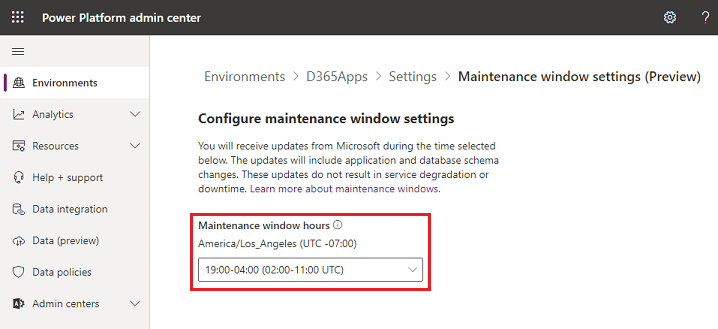 1.. Select Save. It might take up to 48 hours for the maintenance window settings to take effect.
See also
Policies and Communications for Power Platform and Dynamics 365 Services
Manage email notifications to admins