Note
Access to this page requires authorization. You can try signing in or changing directories.
Access to this page requires authorization. You can try changing directories.
In this article, you learn how to use Power BI Desktop to analyze and visualize data stored in a storage account that has a hierarchical namespace (Azure Data Lake Storage Gen2).
Prerequisites
Before you begin this tutorial, you must have the following prerequisites:
- An Azure subscription. Go to Get Azure free trial.
- A storage account that has a hierarchical namespace. Follow the instructions at Create a storage account to create one. This article assumes that you've created a storage account named
contosoadlscdm. - Ensure you are granted one of the following roles for the storage account: Blob Data Reader, Blob Data Contributor, or Blob Data Owner.
- A sample data file named
Drivers.txtlocated in your storage account. You can download this sample from Azure Data Lake Git Repository, and then upload that file to your storage account. - Power BI Desktop. You can download this application from the Microsoft Download Center.
Create a report in Power BI Desktop
Launch Power BI Desktop on your computer.
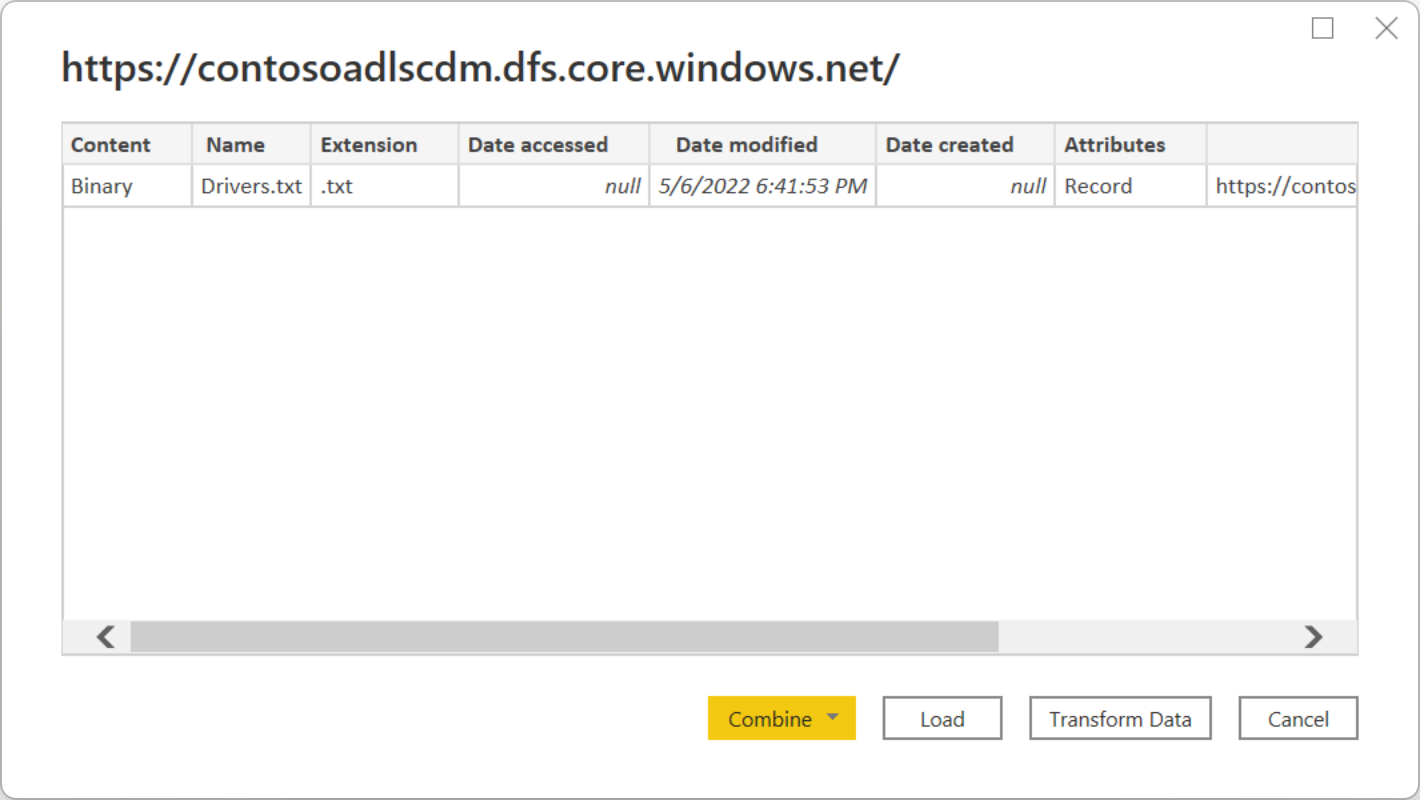
To connect to the sample data, follow the instructions in the Azure Data Lake Storage Gen2 connector article.
From the Power Query Navigator, select Load.

After the data is successfully loaded into Power BI, the following fields are displayed in the Fields panel.

However, to visualize and analyze the data, you might prefer the data to be available using the following fields.

In the next steps, you update the query to convert the imported data to the desired format.
From the Home tab on the ribbon, select Transform Data. The Power Query editor then opens, displaying the contents of the file.

In the Power Query editor, under the Content column, select Binary. The file is automatically detected as CSV and contains the following output. Your data is now available in a format you can use to create visualizations.

From the Home tab on the ribbon, select Close & Apply.

Once the query is updated, the Fields tab displays the new fields available for visualization.

Now you can create a pie chart to represent the drivers in each city for a given country/region. To do so, make the following selections.
From the Visualizations tab, select the symbol for a pie chart.

In this example, the columns you're going to use are Column 4 (name of the city) and Column 7 (name of the country/region). Drag these columns from the Fields tab to the Visualizations tab.

The pie chart should now resemble the one in the following image.

If you select a specific country/region from the page level filters, the number of drivers in each city of the selected country/region is displayed. For example, under the Visualizations tab, under Page level filters, select Brazil.

The pie chart is automatically updated to display the drivers in the cities of Brazil.

From the File menu, select Save to save the visualization as a Power BI Desktop file.


Publish report to Power BI service
After you create the visualizations in Power BI Desktop, you can share it with others by publishing it to the Power BI service. For instructions on how to do that, go to Publish from Power BI Desktop.