Note
Access to this page requires authorization. You can try signing in or changing directories.
Access to this page requires authorization. You can try changing directories.
Summary
| Item | Description |
|---|---|
| Release State | General Availability |
| Products | Excel Power BI (Semantic models) Power BI (Dataflows) Fabric (Dataflow Gen2) Power Apps (Dataflows) Dynamics 365 Customer Insights |
| Authentication Types Supported | Basic Database Windows |
| Function Reference Documentation | DB2.Database |
Note
Some capabilities might be present in one product but not others due to deployment schedules and host-specific capabilities.
Prerequisites
By default, the IBM Db2 database connector uses the Microsoft driver to connect to your data. If you choose to use the IBM driver in the advanced options in Power Query Desktop, you must first install the IBM Db2 driver for .NET on the machine used to connect to the data. The name of this driver changes from time to time, so be sure to install the IBM Db2 driver that works with .NET. For instructions on how to download, install, and configure the IBM Db2 driver for .NET, go to Download initial Version 11.5 clients and drivers. More information: Driver limitations, Ensure the IBM Db2 driver is installed
Capabilities Supported
- Import
- DirectQuery (Power BI semantic models)
- Advanced options
- Driver (IBM or Microsoft)
- Command timeout in minutes
- Package collection
- SQL statement
- Include relationship columns
- Navigate using full hierarchy
Connect to an IBM Db2 database from Power Query Desktop
To make the connection, take the following steps:
Select the IBM Db2 database option from Get Data.
Specify the IBM Db2 server to connect to in Server. If a port is required, specify it by using the format ServerName:Port, where Port is the port number. Also, enter the IBM Db2 database you want to access in Database. In this example, the server name and port are
TestIBMDb2server.contoso.com:4000and the IBM Db2 database being accessed isNORTHWD2.
If you're connecting from Power BI Desktop, select either the Import or DirectQuery data connectivity mode. The rest of these example steps use the Import data connectivity mode. To learn more about DirectQuery, go to Use DirectQuery in Power BI Desktop.
Note
By default, the IBM Db2 database dialog box uses the Microsoft driver during sign in. If you want to use the IBM driver, open Advanced options and select IBM. For more information, go to Connect using advanced options.
If you select DirectQuery as your data connectivity mode, the SQL statement in the advanced options is disabled. DirectQuery currently doesn't support query push down on top of a native database query for the IBM Db2 connector.
Select OK.
If you're connecting to this IBM Db2 database for the first time, select the authentication type you want to use, enter your credentials, and then select Connect. For more information about authentication, go to Authentication with a data source.

By default, Power Query attempts to connect to the IBM Db2 database using an encrypted connection. If Power Query can't connect using an encrypted connection, an "unable to connect" dialog box appears. To connect using an unencrypted connection, select OK.

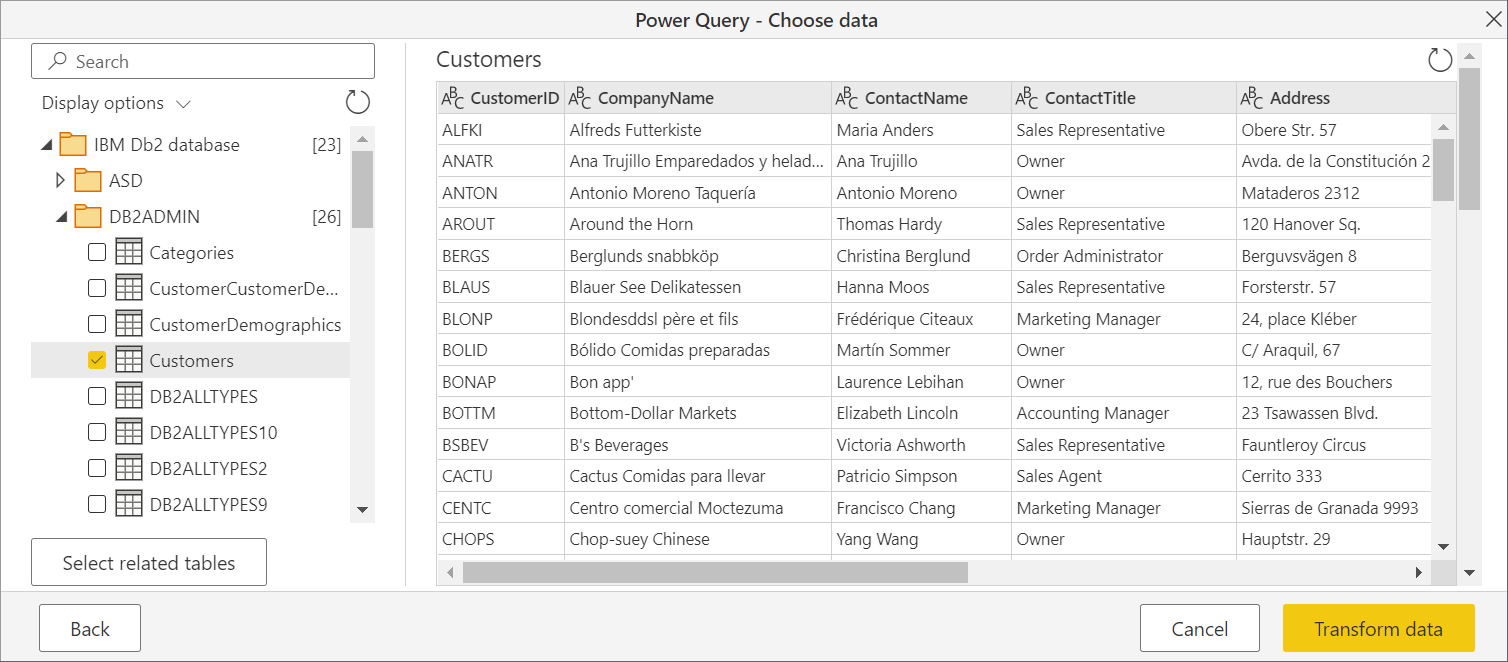
In Navigator, select the data you require, then either select Load to load the data or Transform Data to transform the data.


Connect to an IBM Db2 database from Power Query Online
To make the connection, take the following steps:
Select the IBM Db2 database option in the Power Query - Connect to data source page.
Specify the IBM Db2 server to connect to in Server. If a port is required, specify it by using the format ServerName:Port, where Port is the port number. Also, enter the IBM Db2 database you want to access in Database. In this example, the server name and port are
TestIBMDb2server.contoso.com:4000and the IBM Db2 database being accessed isNORTHWD2Select the name of your on-premises data gateway.
Note
You must select an on-premises data gateway for this connector, whether the IBM Db2 database is on your local network or online.
If you're connecting to this IBM Db2 database for the first time, select the type of credentials for the connection in Authentication kind. Choose Basic if you plan to use an account created in the IBM Db2 database instead of Windows authentication.
Enter your credentials.
Select Use Encrypted Connection if you want to use an encrypted connection, or clear the option if you want to use an unencrypted connection.

Select Next to continue.
In Navigator, select the data you require, then select Transform data to transform the data in the Power Query editor.
Connect using advanced options
Power Query provides a set of advanced options that you can add to your query if needed.

The following table lists all of the advanced options you can set in Power Query.
| Advanced option | Description |
|---|---|
| Driver | Determines which driver is used to connect to your IBM Db2 database. The choices are IBM and Windows (default). If you select the IBM driver, you must first ensure that the IBM Db2 driver for .NET is installed on your machine. This option is only available in Power Query Desktop. More information: Ensure the IBM Db2 driver is installed |
| Command timeout in minutes | If your connection lasts longer than 10 minutes (the default timeout), you can enter another value in minutes to keep the connection open longer. |
| Package collection | Specifies where to look for packages. Packages are control structures used by Db2 when processing a SQL statement, and is automatically created if necessary. By default, this option uses the value NULLID. Only available when using the Microsoft driver. More information: DB2 packages: Concepts, examples, and common problems |
| SQL statement | For information, go to Import data from a database using native database query. |
| Include relationship columns | If checked, includes columns that might have relationships to other tables. If this box is cleared, you don't see those columns. |
| Navigate using full hierarchy | If checked, the navigator displays the complete hierarchy of tables in the database you're connecting to. If cleared, the navigator displays only the tables whose columns and rows contain data. |
Once you select the advanced options you require, select OK in Power Query Desktop or Next in Power Query Online to connect to your IBM Db2 database.
Issues and limitations
Driver limitations
The Microsoft driver is the same one used in Microsoft Host Integration Server, called the "ADO.NET Provider for DB2." The IBM driver is the IBM Db/2 driver that works with .NET. The name of this driver changes from time to time, so be sure it's the one that works with .NET, which is different from the IBM Db2 drivers that work with OLE/DB, ODBC, or JDBC.
You can choose to use either the Microsoft driver (default) or the IBM driver if you're using Power Query Desktop. Currently, Power Query Online only uses the Microsoft driver. Each driver has its limitations.
- Microsoft driver
- Supports Transport Layer Security (TLS) only with the December 2024 release of Power BI Desktop or later
- IBM driver
- The IBM Db2 database connector, when using the IBM Db2 driver for .NET, doesn't work with Mainframe or IBM i systems
- Doesn't support DirectQuery
Microsoft provides support for the Microsoft driver, but not for the IBM driver. However, if your IT department has already set it up and configured on your machines, your IT department should know how to troubleshoot the IBM driver.
Native queries not supported in DirectQuery
When you select DirectQuery as the data connectivity mode in Power Query Desktop, the SQL statement text box in the advanced options is disabled. The box is disabled because the Power Query IBM Db2 connector doesn't currently support query push down on top of a native database query.
Troubleshooting
Ensure the IBM Db2 driver is installed
If you choose to use the IBM Db2 driver for Power Query Desktop, you first have to download, install, and configure the driver on your machine. To ensure the IBM Db2 driver is installed:
Open Windows PowerShell on your machine.
Enter the following command:
[System.Data.Common.DbProviderFactories]::GetFactoryClasses() | ogvIn the dialog box that opens, you should see the following name in the InvariantName column:
IBM.Data.DB2
If this name is in the InvariantName column, the IBM Db2 driver is installed and configured correctly.
SQLCODE -805 and SQLCODE -551 error codes
When attempting to connect to an IBM Db2 database, you might sometimes come across the common error SQLCODE -805, which indicates the package isn't found in the NULLID or other collection (specified in the Power Query Package connection configuration). You might also encounter the common error SQLCODE -551, which indicates you can't create packages because you lack package binding authority.
Typically, SQLCODE -805 is followed by SQLCODE -551, but only the second exception is displayed. In reality, the problem is the same. You lack the authority to bind the package to either NULLID or the specified collection.
Typically, most IBM Db2 administrators don't provide bind package authority to end users—especially in an IBM z/OS (mainframe) or IBM i (AS/400) environment. Db2 on Linux, Unix, or Windows is different in that user accounts have bind privileges by default, which create the MSCS001 (Cursor Stability) package in the user's own collection (name = user sign in name).
If you don't have bind package privileges, you need to ask your Db2 administrator for package binding authority. With this package binding authority, connect to the database and fetch data, which autocreates the package. Afterwards, the administrator can revoke the packaging binding authority. Also, afterwards, the administrator can "bind copy" the package to other collections—to increase concurrency, to better match your internal standards for where packages are bound, and so on.
When you connect to IBM Db2 for z/OS, the Db2 administrator can do the following steps.
Grant authority to bind a new package to the user with one of the following commands:
- GRANT BINDADD ON SYSTEM TO <authorization_name>
- GRANT PACKADM ON <collection_name> TO <authorization_name>
Using Power Query, connect to the IBM Db2 database and retrieve a list of schemas, tables, and views. The Power Query IBM Db2 database connector autocreates the package NULLID.MSCS001, and then grants execute on the package to public.
Revoke authority to bind a new package to the user with one of the following commands:
- REVOKE BINDADD FROM <authorization_name>
- REVOKE PACKADM ON <collection_name> FROM <authorization_name>
When you connect to IBM Db2 for Linux, Unix, or Windows, the Db2 administrator can do the following steps.
GRANT BINDADD ON DATABASE TO USER <authorization_name>.
Using Power Query, connect to the IBM Db2 database and retrieve a list of schemas, tables, and views. The Power Query IBM Db2 connector autocreates the package NULLID.MSCS001, and then grants execute on the package to public.
REVOKE BINDADD ON DATABASE FROM USER <authorization_name>.
GRANT EXECUTE ON PACKAGE <collection.package> TO USER <authorization_name>.
When you connect to IBM Db2 for i, the Db2 administrator can do the following steps.
WRKOBJ QSYS/CRTSQLPKG. Type "2" to change the object authority.
Change authority from *EXCLUDE to PUBLIC or <authorization_name>.
Afterwards, change authority back to *EXCLUDE.
SQLCODE -360 error code
When attempting to connect to the IBM Db2 database, you might come across the following error:
Microsoft Db2 Client: The host resource could not be found. Check that the Initial Catalog value matches the host resource name. SQLSTATE=HY000 SQLCODE=-360
This error message indicates that you didn't put the right value in for the name of the database.
SQLCODE -1336 error code
The specified host could not be found.
Double check the name, and confirm that the host is reachable. For example, use ping in a command prompt to attempt to reach the server and ensure the IP address is correct, or use telnet to communicate with the server.
SQLCODE -1037 error code
Host is reachable, but is not responding on the specified port.
The port is specified at the end of the server name, separated by a colon. If omitted, the default value of 50000 is used.
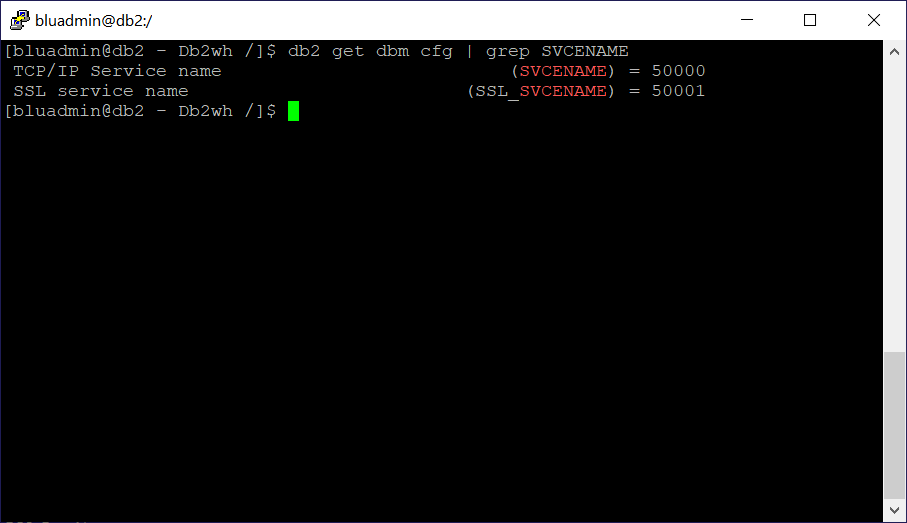
To find the port Db2 is using for Linux, Unix, and Windows, run this command:
db2 get dbm cfg | findstr SVCENAME
Look in the output for an entry for SVCENAME (and SSL_SVCENAME for TLS encrypted connections). If this value is a number, that's the port. Otherwise cross reference the value with the system's "services" table. You can usually find this table at /etc/services, or at c:\windows\system32\drivers\etc\services for Windows.
The following screenshot shows the output of this command in Linux/Unix.
The following screenshot shows the output of this command in Windows.

Determine database name
To determine the database name to use:
On IBM i, run
DSPRDBDIRE.
One of the entries has a Remote Location of *LOCAL. This entry is the one to use.
Determine port number
The Microsoft driver connects to the database using the Distributed Relational Database Architecture (DRDA) protocol. The default port for DRDA is port 446. Try this value first.
To find for certain what port the DRDA service is running on:
Run the IBM i command
WRKSRVTBLE.Scroll down until your find the entries for DRDA.

To confirm that the DRDA service is up and listening on that port, run
NETSTAT.
Choose either option 3 (for IPv4) or option 6 (for IPv6).
Press F14 to list the port numbers instead of names, and scroll until you find the port in question. It should have an entry with a "Listen" state.
