Note
Access to this page requires authorization. You can try signing in or changing directories.
Access to this page requires authorization. You can try changing directories.
Self-serve analytics and insights refer to data, tools, and platforms that enable business users to access, analyze, and generate insights from data independently. Microsoft Purview data governance publishes a domain model of metadata into Microsoft Fabric OneLake and Microsoft Azure Data Lake Storage Gen2, so you can analyze and generate insights by bringing your own tools and compute. Self-service analytics of data governance metadata is valuable in driving continuous improvement of your data estate health management and fostering a data-driven culture across your organization by democratizing access to data estate insights and health management.
Key components
- Data Model: 3NF Model with domains and dimensions details.
- Metadata: Data governance metadata that includes:
- Governance domains
- Data products
- Data assets
- Glossary terms
- Subscription request
- Data quality rules
- Dimensions
- Data quality facts (pass and fail counts)
- Data health actions (including data quality actions)
- And many more
Benefits
- Empowerment: Empowers data practitioners, data product owners, data stewards, and analysts to explore data governance metadata and link metadata from various sources to derive insights.
- Flexibility and Efficiency: You can create custom reports in addition to out-of-the-box reports in health management.
- Agility: Allows your organization to respond more swiftly to health management issues and remediation.
- Cost-effective: Reduces the need for setting up platforms and build tools. All data is available in OneLake and you can use available tools (Fabric semantic model, Microsoft Power BI reporting, data flow, and notebook) in OneLake.
Currently available reports (out-of-the-box)
Here are the available out-of-the-box reports. You can't customize these reports.
- Classic assets - an overview of assets by type and collection, and their curation status.
- Classic catalog adoption - to understand at a glance how Unified Catalog is being used. your glossary, providing a snapshot of terms and their status.
- Classic classifications - an overview of assets classified and the types of classifications.
- Classic data stewardship - an overview of assets classified and the types of classifications.
- Classic glossary - health and use of glossary terms.
- Classic sensitivity labels -an overview of assets that have sensitivity labels applied and the types of labels applied.
- Data governance - The data governance health report allows your team to track your health progress at a glance, and identify areas that need more work.
- Data quality health - Data quality dimensions and data quality rules performance reporting.
Data model for self-serve analytics metadata
The 3NF domain model is part of the normalization process in relational database design. It ensures that the database is free of redundancy and update anomalies. A database schema is in the Third Normal Form if it meets the requirements of the First and Second Normal Forms and all its attributes are functionally dependent only on the primary key. Use the 3NF domain model to structure data in a way that minimizes duplication and ensures data integrity. It focuses on breaking down data into smaller, related tables where each piece of information is stored only once.
Characteristics:
- Elimination of Transitive Dependencies: Nonkey attributes shouldn't depend on other nonkey attributes.
- Logical Grouping: Data is logically grouped into domains based on its function or meaning.
- Entity-Relationship Diagrams (ERDs): Commonly used to represent 3NF domain models, showing how entities relate to each other.
| Table name | What's stored in the table | Relationship keys |
|---|---|---|
| Access Policy Provisioning State | Information about provisioning state | ProvisioningStateId |
| Access Policy Resource Type | Access policy resource information | ResourceTypeId |
| Access Policy Set | Overall information about access policy, policy use case details, and where the policy applied one | AccessPolicySetId (UniqueId), ResourceTypeId (FK), ProvisioningStateId (FK) |
| Business Domain* | Business domain (called "Governance Domain" in Unified Catalog) name, description, status, and ownership details | Parent Business Domain ID (FK), Created By User ID (FK), Last Modified By User ID (FK) |
| Classification | Data asset classification information | ClassificationId |
| Critical Data Column | Store glossary terms associated to data asset column in this field | Critical Data Column Id, Business Domain Id, Asset Id |
| Critical Data Element | Critical data elements of the data assets | Critical Data Element Id |
| Custom Access Use Case | Access use case information | AccessPolicySetId |
| Data Asset | Data asset name, description, and source information | DataAssetId (UniqueId), DataAssetTypeId (FK), CreatedByUserId (FK), LastModifiedByUserId (FK) |
| Data Asset Column | Data asset column name, column description, and references | DataAssetId (FK), ColumnId (Unique), DataAssetTypeId (FK), DataTypeId (FK), Created By User Id (FK), Last Modified By User Id (FK) |
| Data Asset Column Classification Assignment | Data classification assignment related reference keys | DataAssetId (FK), ColumnId (FK), ClassificationId (FK) |
| Data Asset Column Critical Data Element Assignment | Data asset column associating with critical data element | ColumnId |
| Data Asset Domain Assignment | Data asset governance domain assignment related information | DataAssetId (FK), BusinessDomainId (FK), AssignedByUserId (FK) |
| Data Asset Owner | Data asset owner information | DataAssetOwnerId |
| Data Asset Owner Assignment | Data asset owner assignment information | DataAssetId, DataAssetOwnerId |
| Data Asset Type Data Type | Data asset type information | DataTypeId (UniqueId), DataAssetTypeId (FK) |
| Data Product | Data product name, description, use cases, status, and other relevant information | DataProductId (UniqueId), DataProductTypeId (FK), DataProductStatusId (FK), UpdateFrequencyId (FK), CreatedByUserId (FK), LastUpdatedByUserId (FK) |
| Data Product Asset Assignment | Data product and data asset assignment information | DataProductId, DataAssetId |
| Data Product Business Domain Assignment | Data product and governance domain assignment information | DataProductId (FK), BusinessDomainId (FK), AssignedByUserId (FK) |
| Data Product Critical Data Element Assignment | Critical data element assignment to data product | DataProductId |
| Data Product Documentation | Data product documentation reference information is stored in this table. | DataProductId, DocumentationId |
| Data Product OKR Assignment | Assigned objectives and key results to data product | Data Product Id, Objective Id, Key Result Id |
| Data Product Owner | Data product owner information | DataProductId, DataProductOwnerId |
| Data Product Status | Data product status (like published or draft) related information | DataProductStatusId |
| Data Product Terms Of Use | Data product usage terms information | DataProductId, TermOfUsedId, DataAssetId |
| Data Product Type | The information about data product types, such as master, reference, or operational | DataProductTypeId |
| Data Product Update Frequency | The information about how often this data product's data are updated | UpdateFrequencyId |
| Data Quality Asset Rule Execution | Data quality scanning results | RuleId (FK), DataAssetId (FK), JobExecutionId (FK) |
| Data Quality Job Execution | Data quality job execution status | JobExecutionId (UniqueId) |
| Data Quality Rule | Information about data quality rules | RuleId (UniqueId), RuleTypeId (FK), BusinessDomainId (FK), DataProductId (FK), DataAssetId (FK), JobTypeDisplayName (FK), RuleOriginDisplayName (FK), RuleTargetObjectType (FK), CreatedByUserId (FK), LastUpdatedByUserId (FK) |
| Data Quality Rule Column Execution | Information about data quality rules pass and fail count, data quality score in columns level, and data quality job execution details | RuleId (FK), DataAssetId (FK), ColumnId (FK), JobExecutionId (FK) |
| Data Quality Rule Type | Data quality rule type and associated dimensions | RuleTypeId (UniqueId), DimensionDisplayName (FK) |
| Data Subscription Request | Information about data subscribers, policies applied, subscription request status, and other relevant information | SubscriberRequestId (UniqueId), SubscriberIdentityTypeDisplayName (FK), RequestorIdentityTypeDisplayName (FK), RequestorStatusDisplayName (FK) |
| Glossary Term | Information about glossary term, description, and overall status of the glossary term | GlossaryTermId (UniqueId), ParentGlossaryTermId (FK), CreatedByUserId (FK), LastModifiedByUserId (FK) |
| Glossary Term Business Domain Assignment | Information about glossary term governance domain assignment and statuses | GlossaryTermId (FK), BusinessDomainId (FK), AssignedByUserId (FK), GlossaryTermStatusId (FK), CreatedByUserId (FK), LastUpdatedByUserId (FK) |
| Glossary Term Critical Data Element Assignment | Associating glossary term with critical data element | GlossaryTermId |
| Glossary Term Data Product Assignment | Information about glossary term data product assignment | GlossaryTermId (FK), DataProductId (FK), AssignedByUserId (FK), GlossaryTermStatusId (FK), CreatedByUserId (FK), LastUpdatedByUserId (FK) |
| Health Action | Information about data governance and data quality actions | ActionId, TargetEntityId, CreatedByUserId |
| Health Action Finding Type | Data health actions Finding Types | FindingTypeId |
| Health Action Finding Sub Type | Data health actions Finding Sub Types | FindingSubTypeId, FindingTypeId |
| Health Action User Assignment | Data health actions User Assignment information | ActionId, AssignedToUserId |
| Key Result | Key result of data product objective, including details description | Key Result Id, Objective Id |
| Objective | Objective of the data product contains objective Id, objective description, and objective status | Objective Id |
| Policy Set Approver | Policy set and the approver information | SubscriberRequestId (FK), AccessPolicySetId (FK), ApproverUserId (FK) |
| Relationship | Information about source type and target information. The relationship of glossary terms association with assets and columns is available in this relationship table. | AccountId, SourceId, TargetId |
* Business Domain was renamed "Governance Domain" in the new Unified Catalog user experience, but it isn't renamed in the physical model in the database. The name change doesn't affect the usage scenario described here for Business Domain.
This diagram shows the entity relationship for the domain model described in the preceding table:

Subscribe Unified Catalog metadata to Fabric OneLake
Subscribe to Microsoft Purview data governance metadata for analytics and get insights by following these steps:
In the Microsoft Purview portal, select Settings, then select Unified Catalog, then select Solution integrations (preview).
Make sure that you have the Data Governance Administrator role (learn more about roles and permissions).
Select Edit.
Add Storage type and Enabled the setup.
Add Location URL (example:
https://onelake.dfs.fabric.microsoft.com/workspace name/lakehouse name/Files/purviewmetadata)Select Properties to copy URL.

Copy the URL from the Properties page.

Add the folder name at the end of the URL; for example,
/DEH, as seen in the preceding image.Grant contributor accesses to Microsoft Purview Manage Service Identity (MSI) to your Fabric workspace.
Test the connection.
Select Save to save the configuration and publish Microsoft Purview metadata to your OneLake workspace.


Enable managed V-NET
To enable and disable managed virtual network, follow these steps:
- In the Microsoft Purview portal, select Settings.
- Under Solution settings, select Unified Catalog, then select Solution integrations (preview).
- On the Configure storage flyout pane, select the Enable managed V-NET toggle to enable managed virtual network for your storage.

- Enter the Target Resource ID. For example, the target resource ID is:
/subscriptions/e2223ea4f73-6833-439d-b40e 615c78e2d8af/resourceGroups/vnettesting/providers/. To copy a resource ID of your storage, select the Json View of your storage and copy the Json string. - Select Update/Refresh MPE status to see the update. The status changes from Provisioning to Pending.
- You need to approve the MPE request in the Microsoft Azure portal to complete the setup. Once you approve the request, the MPE status changes from Pending to Approved.

Disable the virtual network setup by selecting the Enable managed V-NET toggle to turn it to the off position. If you disable it, then you need to change non-virtual network storage endpoint.
Remove a configured virtual network
To remove a managed virtual network setup, select Delete MPE on the Configure storage flyout pane. This action deletes the virtual network configuration and removes it from the Configure storage pane. The Test connection area reappears, allowing you to test a non-virtual network connection. Test connection is only enabled for non-virtual storage setup.
Managed virtual network configuration for Fabric storage
If your Fabric tenant is configured to run on Virtual Network or in Private Link, you need to select Enable managed V-NET on the Configure storage pane, then add a Private Link Resource ID as listed here:
/subscriptions/07d669d6-83f2-4f15-8b5b-4a4b31a3432/resourceGroups/pdgbugbashfabricvnet/providers/Microsoft.PowerBI/privateLinkServicesForPowerBI/fabricvnetpl.
To set up compute for virtual networks, refer to Set up data quality for managed virtual networks. You need to set up the private link for the Fabric tenant before configuring data quality virtual network connection and compute allocation.
Helpful information about virtual network setup
- Make sure that you're using Location URL or Endpoint from virtual network storage when you're enabling managed virtual network to store Microsoft Purview metadata.
- To avoid using incorrect resource group, use JSN View to copy “Target Resource ID” from your Azure portal.
- If you deleted configured virtual network, then make sure that you changed the endpoint or Location URL to use non virtual network storage and test connection for non virtual network storage.
Note
To store data quality error records, create separate folder locations for each domain. This approach organizes and stores domain-specific data quality error records in dedicated folders.
Create a semantic model in OneLake
A semantic model in the context of data and analytics refers to a structured representation of data that defines the meaning, relationships, and rules within a specific domain. It provides a layer of abstraction that helps users understand and interact with complex data by making it more intuitive and accessible, especially in the context of business intelligence (BI) and analytics platforms. A semantic model is always required before any reports can be built. Within the warehouse, a user can add warehouse objects - tables or views to their default Power BI semantic model. They can also add other semantic modeling properties, such as hierarchies and descriptions. These properties are then used to create the Power BI semantic model's tables. Users can also remove objects from the default Power BI semantic model.
To create a semantic model from the Microsoft Purview Data Governance metadata domain model:
Open the Lakehouse in your Fabric workspace.
Use shortcut to create a shortcut of the domain model from OneLake and within OneLake.
- Select the Tables ellipsis button (...).
- Select New Shortcut and select Microsoft OneLake from New Shortcut sources page.
- Select the DomainModel table to shortcut.

Create shortcut directly in table level for all files, which eliminates duplicate records.


After you publish all files to delta tables via shortcut, you can add the delta tables to semantic model.
- Switch to SQL analytics endpoint page from the Lakehouse page.
- Select Reporting from top left corner of the SQL analytics endpoint page.
- Select Manage default semantic model.
- Select the tables from dbo > Tables that you want to add to the semantic model for reporting.

To add objects such as tables or views to the default Power BI semantic model, select Automatically update semantic model.

Note
You can right-click to add related tables to create relationship.
If you prefer not to subscribe Microsoft Purview metadata for self-serve analytics, you can manually disable self-serve analytics (metadata subscription): go to Solution settings > Unified Catalog > Solution Integrations > Self-serve analytics and select the toggle to disable it. You need the Data Governance Administrator role to enable and disable this feature.
Subscribe to Purview catalog metadata to Data Lake Storage Gen2 storage
Subscribe to Microsoft Purview's data governance metadata to publish and store it in your AdlsG2 storage for analytics and insights by following these steps:
In the Microsoft Purview portal, open Unified Catalog.
Select Settings on the left navigation, then under Solution settings, select Unified Catalog.
Select Solution integration, then select Edit.
Select Storage type and Enabled the setup.
Add Location URL. This URL needs to be the Data Lake Storage Gen2 path plus the container name, formatted as Data Lake Storage Gen2 + "/(container name)".
- Go to portal.azure.com.
- Select your Data Lake Storage Gen2 storage (Home > adlsg2).
- Go to Settings > Endpoints and select the primary endpoint of your Microsoft Azure Data Lake storage.
- Go to portal.azure.com.
Grant Storage Blob Data Contributor access to Microsoft Purview Manage Service Identity (MSI) for your Data Lake Storage Gen2 container.
Test the connection.

Select Save to save the configuration and publish the domain model to your Data Lake Storage Gen2 storage.

Note
To store data quality error records, create separate folder locations for each domain. This approach organizes and stores domain-specific data quality error records in dedicated folders.
Review published model and data
Open portal.azure.com.
Select your Data Lake Storage Gen2 storage.
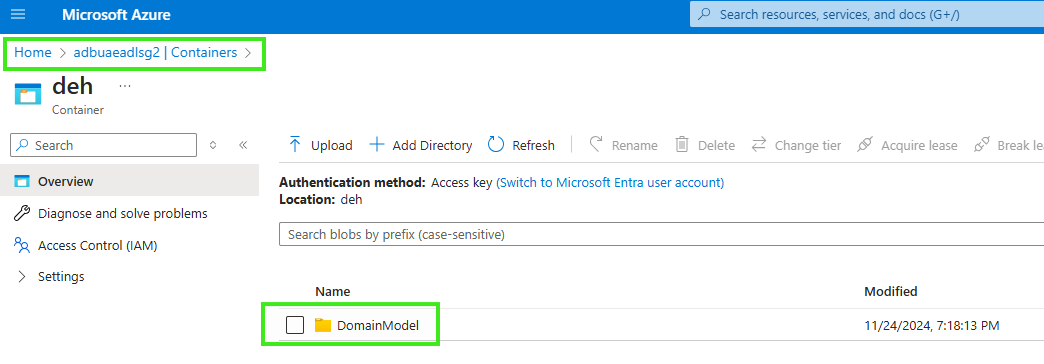
Select the container that you added with the Data Lake Storage Gen2 endpoint in Microsoft Purview.
Browse the list of Delta Parquet files published in the container.
Browse published model and metadata (see the following images).


Create a Power BI report
Power BI is natively integrated in the whole Fabric experience. This native integration includes a unique mode, called DirectLake, for accessing the data from the lakehouse to provide the most performant query and reporting experience. DirectLake is a groundbreaking new capability that allows you to analyze large semantic models in Power BI. With DirectLake, you load parquet-formatted files directly from a data lake without needing to query a data warehouse or lakehouse endpoint, and without needing to import or duplicate data into a Power BI semantic model. DirectLake is a fast path to load the data from the data lake straight into the Power BI engine, ready for analysis.
In traditional DirectQuery mode, the Power BI engine directly queries the data from the source for each query execution, and the query performance depends on the data retrieval speed. DirectQuery eliminates the need to copy data, ensuring that any changes in the source are immediately reflected in query results.
For more information, see how to create a Power BI report in Microsoft Fabric.
Set up the schedule
Data Governance Administrators can set up the self-serve analytics metadata refreshing schedule by following these steps:
- In the Microsoft Purview portal, open Unified Catalog.
- Select Settings on the left navigation, then under Solution settings, select Unified Catalog.
- Select Solution integration, then select the scheduler icon.
- On Schedule self-serve analytics, turn on the Enabled toggle, and set the start date, frequency, and end date.
- Select Save.
Job history
You can browse Job history by clicking Job history icon located in the self-serve analytics page. You can filter job status Complete or Failed for a date range.

Important
- Default refreshing cycle is every 24 hours.
- Purview MSI needs contributor access to your Fabric workspace if you're subscribing Microsoft Purview metadata to publish into your Fabric workspace.
- Purview MSI needs Storage Blob Data Contributor access to your Azure Data Lake Storage Gen2 if you're subscribing purview metadata to publish into your adlsg2 container.
- Scheduling the data refreshing job isn't yet supported.
- Virtual network isn't supported yet.
- We're only publishing governed assets data. Data assets associated with a data product are categorized as governed assets. Data Map assets that aren't governed won't appear in the self-service analytics data asset table.
- We have RBAC implemented in the Catalog, ensuring that not all users can view all domains or data products. However, for self-service analytics, we publish all data, allowing anyone with access to this data to view the entire catalog. Access control for self-service metadata depends on where the data is stored—either the Fabric workspace owner or the ADLS Gen2 storage owner can manage access.
- If you prefer not to subscribe Microsoft Purview metadata for self-serve analytics, you can manually disable self-serve analytics (metadata subscription): go to Solution settings > Unified Catalog > Solution Integrations > Self-serve analytics and select the toggle to disable it. You need the Data Governance Administrator role to enable and disable this feature.
