Note
Access to this page requires authorization. You can try signing in or changing directories.
Access to this page requires authorization. You can try changing directories.
Site permissions for your organization report is one of the Data access governance snapshot reports available with SharePoint Advanced Management. This report provides a snapshot of your organization's current permission structure across all SharePoint and OneDrive sites, helping you understand how broadly your data is exposed and identify potential oversharing risks. This snapshot approach helps you quickly assess your overall security posture and identify sites that need immediate attention.
What does the site permissions for your organization report show me?
The site permissions for your organization report captures your organization's permission state at a specific point in time, giving you a complete overview of:
- Total permissioned users: All unique users who can access the site and its content at site level and item level. This helps you compare sites and identify those with the broadest exposure.
- Microsoft Entra groups: Number of cloud-only groups with permissions at all scopes. This helps you understand how group-based access contributes to overall exposure.
- Broken inheritance: Reveals how many items have unique permissions that override the site's default settings.
- Everyone except external users (EEEU) permissions: Content shared with all internal users
- Everyone permissions: Content shared with all users, including guests
- Guest user permissions: Access granted to guests marked with #EXT# in their identities
- External participant permissions: Access for external users who can sign in with their own credentials
- Sharing links: Counts the number of:
- Anyone links
- People in your organization links
...and more. For the complete list of metrics captured in the report, see the Download the site permissions for your organization reports section later in this article.
When to use the site permissions for your organization report?
We recommend running the site permissions for your organization report in combination with other Data access governance reports, to get a complete and ongoing picture of your organization's data access landscape. Here's how to use them together effectively:
- Start with snapshot reports: Run site permissions for your organization and for your users reports, along with sensitivity label reports first to understand your baseline permission structure and identify sites with the broadest exposure. We recommend running these reports quarterly to maintain a comprehensive view of your organization's data access.
- Follow up with activity reports: Use sharing links and EEEU activity reports to monitor recent oversharing activities and catch emerging risks. We recommend running these monthly to stay on top of ongoing sharing activities.
Why the site permissions for your organization report matters for Copilot?
Since Copilot respects existing permissions, understanding your current permission structure is critical before deployment. Sites with many users accessing content pose higher risk for unintended data exposure through Copilot interactions. The site permissions for your organization report prioritizes sites with the highest user counts, helping you focus remediation efforts where they're most needed.
Run the site permissions for your organization report
Important
Review these important details before creating your first report:
- The system creates separate reports for SharePoint and OneDrive sites
- The first report takes up to 5 days to complete, regardless of your organization's size
- Subsequent reports complete within 24 hours
- Reports capture data from up to 48 hours before generation
- You can run reports again every 30 days
Here's how to run the site permissions for your organization report:
- From the Data access governance landing page, select View reports under Site permissions across your organization.
- Select Create report to generate your first report. If you've already created reports, select Run reports (when enabled) to get the latest data.
How to view the site permissions for your organization report?
After your report is ready, you can view a summary of the permissions across your organization.
The report summary page displays:
- Total sites scanned: The number of SharePoint and OneDrive sites analyzed for permissions
- Sites without users: How many sites have no user permissions assigned
- Sites with user permissions: The remaining sites that have at least one user with access permissions (separated by SharePoint and OneDrive)
- Report date: When the data was captured (up to 48 hours before generation)
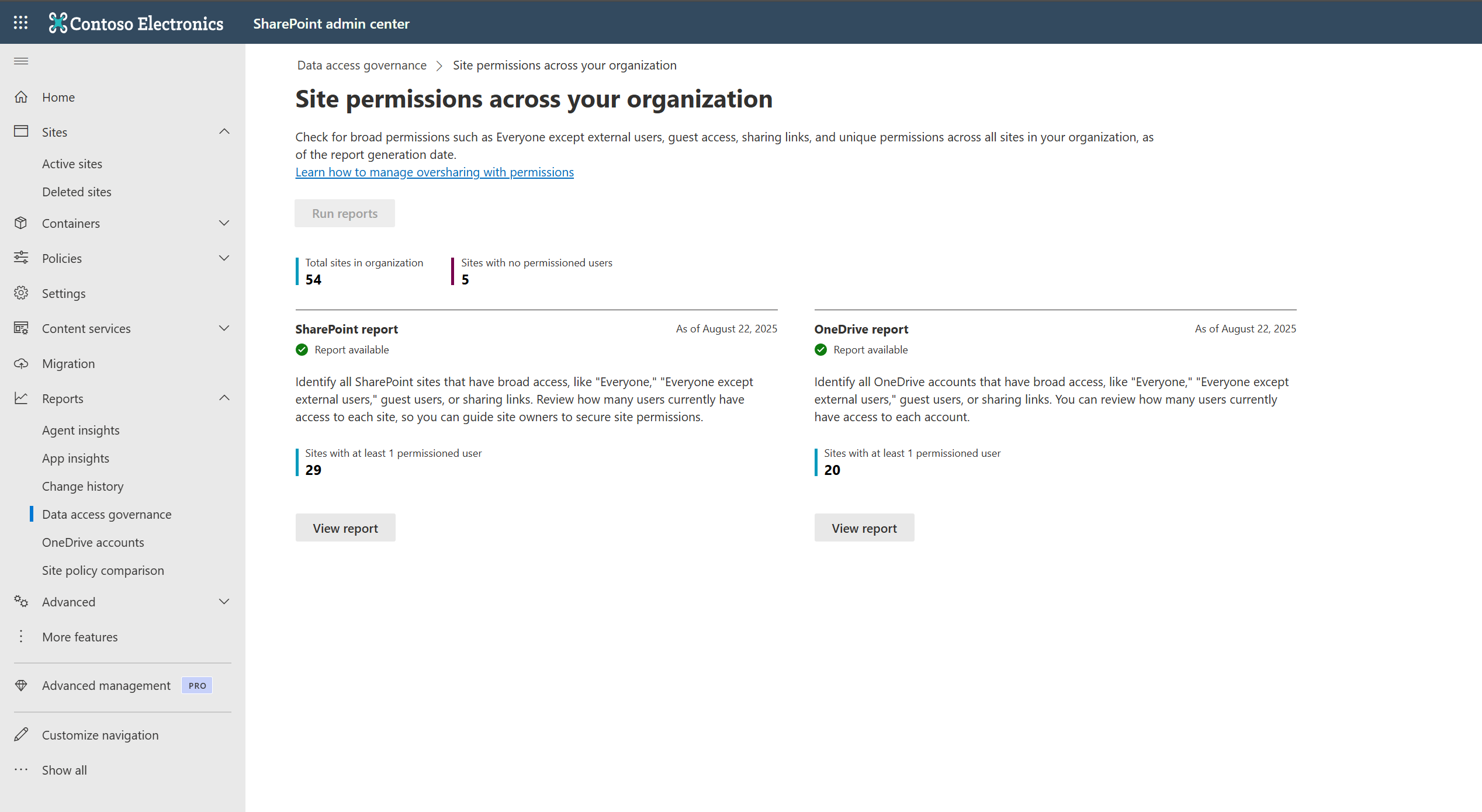
To view detailed results:
Select View report under either the SharePoint or OneDrive section
The report displays the top 100 sites with the highest number of users who have permissions

This visualization helps you quickly identify sites with the broadest access, making them priority candidates for review and potential remediation.
How "Total permissioned users" is calculated
This critical metric represents all unique users who can access the site and its content at any level:
Site-level access: Users in SharePoint groups (owners, members, visitors) have access to all site content. These groups can include both individual users and Microsoft Entra groups.
Item-level access: Users granted permissions to specific files or folders through broken inheritance. These permissions can be assigned to individuals, SharePoint groups, or Microsoft Entra groups.
The system calculates this number by:
- Expanding all groups across all permission levels
- Removing duplicate users
- Counting the remaining unique users
Understanding current vs. potential exposure
Current exposure: When you add users directly or through Microsoft Entra groups, the "Total permissioned users" count increases immediately based on the group size or number of individuals added.
Potential exposure: Creating sharing links or granting access to "Everyone except external users" doesn't automatically increase the user count. These actions create potential exposure that only becomes actual exposure when users access the content through these links.
Download the site permissions for your organization reports
You can download the report as a CSV file to analyze up to 1 million sites offline.
The downloaded report contains the following information:
| Column | Description |
|---|---|
| TenantID | GUID identifying the organization |
| Site ID | GUID identifying the organization |
| Site Name | Name of the site |
| Site URL | URL of the site |
| Site Template | Specifies the type of site. Has values such as Communication site, Team site, Team site (no Microsoft 365 Groups), Other sites |
| Primary admin | Site administrator marked as Primary in Active sites page |
| Primary admin email | Email of primary site administrator |
| ExternalSharing | Specifies whether content can be shared with external guests. Yes or No. |
| Site Privacy | Applicable in Microsoft 365 connected team sites. Specifies the privacy setting of the group. Has values Public or Private |
| Site Sensitivity | Specifies the sensitivity label applied to the site |
| Number of users having access | Unique number of users having access to site content at any level/scope |
| Guest user permissions | Count of permissions to guests at any level/scope. These users are marked with #EXT# in their Microsoft Entra identities |
| External participant permissions | Count of permissions to external users who can directly use their own credentials to sign-in and collaborate, such as in Shared channels |
| Microsoft Entra group count | Number of Microsoft Entra cloud only groups at all scopes |
| File count | Approximate number of all files in the site |
| Items with unique permissions count | Extent of broken inheritance. Count of all items where inheritance was broken and unique permissions were assigned |
| People In Your Org link count | Number of existing PeopleInYourOrg links across all the files in the site |
| Anyone link count | Number of existing Anyone links across all the files in the site |
| EEEU permission count | Number of permissions with 'Everyone except external users' as the recipient at any level/scope |
| Everyone permission count | Number of permissions with 'Everyone' as the recipient at any level/scope |
| Report Date | Time of generation of report. It might take up to 48 hours to reflect any changes in the report |
Take action based on site permissions for your organization report findings
After discovering potential oversharing through site permissions for your organization reports, you can take action to remediate risks and improve your organization's data access governance. Learn more here.