Note
Access to this page requires authorization. You can try signing in or changing directories.
Access to this page requires authorization. You can try changing directories.
Applies to:  SQL Server
Azure SQL Managed Instance
SQL Server
Azure SQL Managed Instance
Linked servers enable the SQL Server Database Engine and Azure SQL Managed Instance to read data from remote data sources and execute commands against remote database servers (for example, OLE DB data sources), outside of the instance of SQL Server. Typically, you configure linked servers to enable the Database Engine to execute a Transact-SQL statement that includes tables in another instance of SQL Server, or another database product such as Oracle. You can configure many types of OLE DB data sources as linked servers, including third-party database providers and Azure Cosmos DB.
Note
Linked servers are available in SQL Server and Azure SQL Managed Instance (with some constraints). Linked servers aren't available in Azure SQL Database.
When to use linked servers?
Linked servers enable you to implement distributed databases that can fetch and update data in other databases. Use linked servers in scenarios where you need to implement database sharding without creating custom application code or directly loading from remote data sources. Linked servers offer the following advantages:
The ability to access data from outside of SQL Server.
The ability to issue distributed queries, updates, commands, and transactions on heterogeneous data sources across the enterprise.
The ability to address diverse data sources similarly.
You can configure a linked server by using SQL Server Management Studio or by using the sp_addlinkedserver statement. OLE DB providers vary greatly in the type and number of parameters required. For example, some providers require you to provide a security context for the connection using sp_addlinkedsrvlogin. Some OLE DB providers allow SQL Server to update data on the OLE DB source. Others provide only read-only data access. For information about each OLE DB provider, consult documentation for that OLE DB provider.
Linked server components
A linked server definition specifies the following objects:
An OLE DB provider
An OLE DB data source
An OLE DB provider is a DLL that manages and interacts with a specific data source. An OLE DB data source identifies the specific database that you can access through OLE DB. Although data sources queried through linked server definitions are ordinarily databases, OLE DB providers exist for various files and file formats. These files include plain text, spreadsheet data, and the results of full-text content searches.
Starting with SQL Server 2019 (15.x), the Microsoft OLE DB Driver for SQL Server (PROGID: MSOLEDBSQL) is the default OLE DB provider. In earlier versions, the SQL Server Native Client (PROGID: SQLNCLI11) was the default OLE DB provider.
Important
The SQL Server Native Client (often abbreviated SNAC) has been removed from SQL Server 2022 (16.x) and SQL Server Management Studio 19 (SSMS). Both the SQL Server Native Client OLE DB provider (SQLNCLI or SQLNCLI11) and the legacy Microsoft OLE DB Provider for SQL Server (SQLOLEDB) are not recommended for new development. Switch to the new Microsoft OLE DB Driver (MSOLEDBSQL) for SQL Server going forward.
Microsoft supports linked servers to Excel and Access sources only when you use the 32-bit Microsoft.JET.OLEDB.4.0 OLE DB provider.
Note
SQL Server distributed queries work with any OLE DB provider that implements the required OLE DB interfaces. However, SQL Server has been tested against the default OLE DB provider.
Linked server details
The following illustration shows the basics of a linked server configuration.
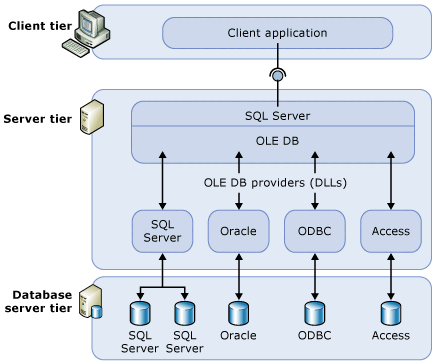
Typically, you use linked servers to handle distributed queries. When a client application executes a distributed query through a linked server, SQL Server parses the command and sends requests to OLE DB. The rowset request might be in the form of executing a query against the provider or opening a base table from the provider.
For a data source to return data through a linked server, the OLE DB provider (DLL) for that data source must be present on the same server as the instance of SQL Server.
Linked servers support Active Directory pass-through authentication when using full delegation. Starting with SQL Server 2017 (14.x) CU17, pass-through authentication with constrained delegation is also supported; however, resource-based constrained delegation isn't supported.
Important
When you use an OLE DB provider, the account under which the SQL Server service runs must have read and execute permissions for the directory, and all subdirectories, in which the provider is installed. This requirement applies to Microsoft-released providers and any third-party providers.
Manage providers
There's a set of options that control how SQL Server loads and uses OLE DB providers that are specified in the registry.
Manage linked server definitions
When you set up a linked server, register the connection information and data source information with SQL Server. After it's registered, you can refer to that data source with a single logical name.
Use stored procedures and catalog views to manage linked server definitions:
Create a linked server definition by running
sp_addlinkedserver.View information about the linked servers defined in a specific instance of SQL Server by running a query against the
sys.serverssystem catalog view.Delete a linked server definition by running
sp_dropserver. You can also use this stored procedure to remove a remote server.
You can also define linked servers by using SQL Server Management Studio. In Object Explorer, right-click Server Objects, select New, and select Linked Server. You can delete a linked server definition by right-clicking the linked server name and selecting Delete.
When you execute a distributed query against a linked server, include a fully qualified, four-part table name for each data source to query. This four-part name should be in the form <linked_server_name>.<catalog>.<schema>.<object_name>.
References to temporary objects always resolve to the local instance's tempdb where applicable, even when prefixing with the linked server name.
You can define linked servers to point back (loop back) to the server on which you define them. Loopback servers are most useful when testing an application that uses distributed queries on a single server network. Loopback linked servers are intended for testing and aren't supported for many operations, such as distributed transactions.
Linked servers with Azure SQL Managed Instance
Azure SQL Managed Instance linked servers support both SQL authentication and authentication with Microsoft Entra ID.
To use SQL Agent jobs on Azure SQL Managed Instance to query a remote server through a linked server, use sp_addlinkedsrvlogin to create a mapping from a login on the local server to a login on the remote server. When the SQL Agent job connects to the remote server through the linked server, it executes the T-SQL query in the context of the remote login. For more information, see SQL Agent jobs with Azure SQL Managed Instance.
Microsoft Entra authentication
Two supported Microsoft Entra authentication modes are: managed identity and pass-through. Use managed identity authentication to allow local logins to query remote linked servers. Use pass-through authentication to allow a principal that can authenticate with a local instance to access a remote instance through a linked server.
To use Microsoft Entra pass-through authentication for a linked server in Azure SQL Managed Instance, you need the following prerequisites:
- The same principal is added as a login on the remote server.
- Both instances are members of the SQL trust group.
Note
Existing definitions of linked servers that you configured for pass-through mode support Microsoft Entra authentication. The only requirement is to add SQL Managed Instance to the Server trust group.
The following limitations apply to Microsoft Entra authentication for linked servers in Azure SQL Managed Instance:
- Microsoft Entra authentication isn't supported for SQL managed instances in different Microsoft Entra tenants.
- Microsoft Entra authentication for linked servers is supported only with OLE DB driver version 18.2.1 and higher.
SQL Server 2025 and MSOLEDBSQL version 19
Starting with SQL Server 2025 (17.x), the MSOLEDBSQL provider uses Microsoft OLE DB Driver 19 by default. This updated driver introduces significant security enhancements, including support for TDS 8.0 and TLS 1.3.
TDS 8.0 improves security by adding a new encryption option and introduces a breaking change: the Encryption parameter is no longer optional. You must set it in your connection string when targeting another SQL Server instance.
Note
Without the Encrypt parameter, linked servers in SQL Server 2025 (17.x) default to Encrypt=Mandatory and require a valid certificate. Connections without a valid certificate fail.
The Encryption parameter offers three distinct settings:
Yes, orTrue, orMandatoryNo, orFalse, orOptionalStrict
The Strict option mandates the usage of TDS 8.0, and requires a server certificate for secure connections. For Yes/True/Mandatory, a trusted certificate is expected. You can't use a self-signed certificate.
| OLE DB version | Encryption parameter | Possible values | Default value |
|---|---|---|---|
| OLE DB 18 | Optional | True or Mandatory, False or No |
No |
| OLE DB 19 | Required | No or False, Yes or Mandatory, Strict (new) |
Yes |
The TrustServerCertificate parameter is supported, but not recommended. Setting Trust Server Certificate to Yes disables certificate validation, weakening the security of encrypted connections. To use Trust Server Certificate the client must also enable it in the machine registry. For information about enabling Trust Server Certificate, see Registry settings. Setting TrustServerCertificate=Yes isn't recommended for production environments.
When you use Encrypt=False or Encrypt=Optional:
- No certificate is required.
- If a trusted certificate is provided, the driver doesn't validate it.
- The connection doesn't provide any encryption.
When you use Encrypt=True or Encrypt=Mandatory, and don't use TrustServerCertificate=Yes:
- The connection requires a valid CA-signed certificate.
- The certificate must match the server's FQDN.
- If the alternate name in the certificate differs from the SQL Server Host name, then
HostNameInCertificatemust be set to the FQDN. - The certificate must be installed in the Trusted Root Certification Authorities store on the client machine.
When you use Encrypt=Strict:
- The connection enforces TDS 8.0.
- The connection requires a valid CA-signed certificate with FQDN match.
HostNameInCertificatemust be set to the FQDN.- The certificate must be trusted by the client system.
TrustServerCertificateconfiguration isn't supported. A valid certificate must be present.
| Trust Server Certificate client setting | Connection string/connection attribute Trust Server Certificate | Certificate validation |
|---|---|---|
| 0 | No (default) |
Yes |
| 0 | Yes |
Yes |
| 1 | No (default) |
Yes |
| 1 | Yes |
No |
You must correctly specify these settings in the connection string when configuring linked server connections, to ensure compatibility and security with the new driver.
Update from previous OLEDB versions
Applies to: SQL Server 2025 (17.x) and later versions
When you migrate from previous editions of SQL Server to SQL Server 2025 (17.x) with Microsoft OLE DB Driver 19, existing linked server configurations might fail. Different default values for the encryption parameter might cause this failure unless you provide a valid certificate.
Alternatively, you can recreate the linked server and include Encrypt=Optional in the connection string. If you can't modify the linked server configuration, enable trace flag 17600 to maintain OLE DB 18 behavior and defaults.
In the SQL Server Management Studio (SSMS) Linked Server Creation Wizard, use the option Other Data Sources to manually configure the linked server Encryption options.
For more information about OLE DB 19 and encryption, certificate and Trust Server Certificate behavior for OLE DB 19, see Encryption and certificate validation in OLE DB.