Note
Access to this page requires authorization. You can try signing in or changing directories.
Access to this page requires authorization. You can try changing directories.
Applies to:  SQL Server 2016 (13.x) and later versions on Windows
To troubleshoot authentication problems when using PolyBase with a Kerberos-secured Hadoop cluster, use the interactive diagnostics built into PolyBase.
This article serves as a guide to walk through the debugging process of such issues by using these built-in diagnostics.
Tip
Instead of following the steps in this guide, you can choose to run the HDFS Kerberos Tester to troubleshoot HDFS Kerberos connections for PolyBase, when you experience HDFS Kerberos failure while creating an external table in a Kerberos secured HDFS cluster.
This tool helps to rule out non-SQL Server issues, to help you concentrate on resolving HDFS Kerberos setup issues, namely identifying issues with username/password misconfigurations, and cluster Kerberos setup misconfigurations.
This tool is independent from SQL Server. It's available as a Jupyter Notebook and requires Azure Data Studio.
Prerequisites
SQL Server 2016 (13.x) RTM CU6 / SQL Server 2016 (13.x) SP1 CU3 / SQL Server 2017 (14.x) or higher with PolyBase installed
A Hadoop cluster (Cloudera or Hortonworks) secured with Kerberos (Active Directory or MIT)
Introduction
It helps to first understand the Kerberos protocol at a high level. Three actors are involved:
- Kerberos client (SQL Server)
- Secured resource (HDFS, MR2, YARN, Job History, etc.)
- Key distribution center (referred to as a domain controller in Active Directory)
When you configure Kerberos on the Hadoop cluster, you register each Hadoop secured resource in the Key Distribution Center (KDC) with a unique Service Principal Name (SPN). The client needs to get a temporary user ticket, called a Ticket Granting Ticket (TGT), so it can request another temporary ticket, called a Service Ticket (ST), from the KDC for the specific SPN it wants to access.
In PolyBase, when you request authentication against any Kerberos-secured resource, the following four-round-trip handshake takes place:
SQL Server connects to the KDC and gets a TGT for the user. The KDC private key encrypts the TGT.
SQL Server calls the Hadoop secured resource, HDFS, and determines which SPN it needs an ST for.
SQL Server goes back to the KDC, passes the TGT back, and requests an ST to access that particular secured resource. The secured service's private key encrypts the ST.
SQL Server forwards the ST to Hadoop and gets authenticated to have a session created against that service.
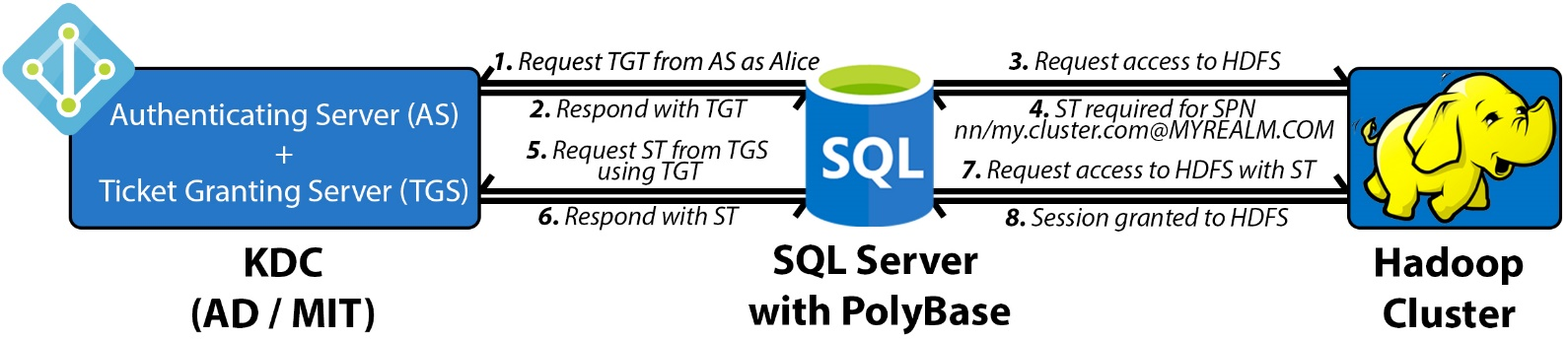
Issues with authentication fall into one or more of the previous steps. To help with faster debugging, PolyBase provides an integrated diagnostics tool to help identify the point of failure.
Troubleshooting
PolyBase uses the following configuration XML files to store properties of the Hadoop cluster:
core-site.xmlhdfs-site.xmlhive-site.xmljaas.confmapred-site.xmlyarn-site.xml
You can find these files in the following path:
[System Drive]:{install path}{MSSQL##.INSTANCENAME}\MSSQL\Binn\PolyBase\Hadoop\conf
For example, the default path for SQL Server 2016 (13.x) is C:\Program Files\Microsoft SQL Server\MSSQL13.MSSQLSERVER\MSSQL\Binn\PolyBase\Hadoop\conf.
Edit core-site.xml and add these properties. Set the values according to your environment:
<property>
    <name>polybase.kerberos.realm</name>
    <value>CONTOSO.COM</value>
</property>
<property>
    <name>polybase.kerberos.kdchost</name>
    <value>kerberos.contoso.com</value>
</property>
<property>
    <name>hadoop.security.authentication</name>
    <value>KERBEROS</value>
</property>
Note
The value for polybase.kerberos.realm property needs to be all uppercase.
You need to update the other XML files if you want to enable pushdown operations. You can access the HDFS file system with just this file configured.
The tool runs independently of SQL Server, so it doesn't need to be running. You don't need to restart it if you update the configuration XML files. To run the tool, execute the following commands on the host with SQL Server installed:
cd C:\Program Files\Microsoft SQL Server\MSSQL13.MSSQLSERVER\MSSQL\Binn\PolyBase
java -classpath ".\Hadoop\conf;.\Hadoop\*;.\Hadoop\HDP2_2\*" com.microsoft.polybase.client.HdfsBridge {Name Node Address} {Name Node Port} {Service Principal} {Filepath containing Service Principal's Password} {Remote HDFS file path (optional)}
In SQL Server 2019 (15.x) and later versions, when you install the PolyBase feature, you can either reference an existing Java Runtime Environment, or install AZUL-OpenJDK-JRE. If you select AZUL-OpenJDK-JRE, java.exe isn't part of the $PATH environment variable and you might encounter the error
'java' isn't recognized as an internal or external command, operable program or batch file.
If this error occurs, you need to add the path to java.exe to the session $PATH environment variable. The default installation path of the Java executable is C:\Program Files\Microsoft SQL Server\MSSQL15.<instance name>\AZUL-OpenJDK-JRE\bin. If that is the path, then you need to execute the following command before executing the java command to run the Kerberos Connectivity Troubleshooting tool.
set PATH=%PATH%;C:\Program Files\Microsoft SQL Server\MSSQL15.{instance name}\AZUL-OpenJDK-JRE\bin
Arguments
| Argument | Description |
|---|---|
| Name Node Address | The IP or FQDN of the name node. Refers to the "LOCATION" argument in your CREATE EXTERNAL DATA SOURCE Transact-SQL. Note: the SQL Server 2019 version of the tool requires hdfs:// to precede the IP or FQDN. |
| Name Node Port | The port of the name node. Refers to the "LOCATION" argument in your CREATE EXTERNAL DATA SOURCE T-SQL. For example, 8020. |
| Service Principal | The admin service principal to your KDC. Matches the "IDENTITY" argument in your CREATE DATABASE SCOPED CREDENTIAL T-SQL. |
| Service Password | Instead of typing your password at the console, store it in a file and pass the file path here. The contents of the file should match what you use as your "SECRET" argument in your CREATE DATABASE SCOPED CREDENTIAL T-SQL. |
| Remote HDFS file path (optional) | The path of an existing file to access. If not specified, the root folder (/) is used. |
Examples
java -classpath ".\Hadoop\conf;.\Hadoop\*;.\Hadoop\HDP2_2\*" com.microsoft.polybase.client.HdfsBridge 10.193.27.232 8020 admin_user C:\temp\kerberos_pass.txt
The output is verbose for enhanced debugging, but there are only four main checkpoints to look for regardless of whether you're using MIT or AD. They correspond to the four steps outlined earlier.
The following excerpts are from an MIT KDC. Refer to complete sample outputs from both MIT and AD at the end of this article in the Related content.
Checkpoint 1
There should be a hex dump of a ticket with Server Principal = krbtgt/MYREALM.COM@MYREALM.COM. It indicates that SQL Server successfully authenticated against the KDC and received a TGT. If not, the problem lies strictly between SQL Server and the KDC, and not Hadoop.
PolyBase doesn't support trust relationships between AD and MIT and must be configured against the same KDC as configured in the Hadoop cluster. In such environments, manually create a service account on that KDC, and use it to perform authentication.
>>> KrbAsReq creating message
>>> KrbKdcReq send: kdc=kerberos.contoso.com UDP:88, timeout=30000, number of retries =3, #bytes=143
>>> KDCCommunication: kdc=kerberos.contoso.com UDP:88, timeout=30000,Attempt =1, #bytes=143
>>> KrbKdcReq send: #bytes read=646
>>> KdcAccessibility: remove kerberos.contoso.com
>>> EType: sun.security.krb5.internal.crypto.Des3CbcHmacSha1KdEType
>>> KrbAsRep cons in KrbAsReq.getReply myuser
[2017-04-25 21:34:33,548] INFO 687[main] - com.microsoft.polybase.client.KerberosSecureLogin.secureLogin(KerberosSecureLogin.java:97) - Subject:
Principal: admin_user@CONTOSO.COM
Private Credential: Ticket (hex) =
0000: 61 82 01 48 30 82 01 44 A0 03 02 01 05 A1 0E 1B a..H0..D........
0010: 0C 41 50 53 48 44 50 4D 53 2E 43 4F 4D A2 21 30 .CONTOSO.COM.!0
0020: 1F A0 03 02 01 02 A1 18 30 16 1B 06 6B 72 62 74 ........0...krbt
0030: 67 74 1B 0C 41 50 53 48 44 50 4D 53 2E 43 4F 4D gt..CONTOSO.COM
0040: A3 82 01 08 30 82 01 04 A0 03 02 01 10 A1 03 02 ....0...........
*[...Condensed...]*
0140: 67 6D F6 41 6C EB E0 C3 3A B2 BD B1 gm.Al...:...
Client Principal = admin_user@CONTOSO.COM
Server Principal = krbtgt/CONTOSO.COM@CONTOSO.COM
*[...Condensed...]*
[2017-04-25 21:34:34,500] INFO 1639[main] - com.microsoft.polybase.client.HdfsBridge.main(HdfsBridge.java:1579) - Successfully authenticated against KDC server.
Checkpoint 2
PolyBase makes an attempt to access the HDFS and fails because the request didn't contain the necessary Service Ticket.
[2017-04-25 21:34:34,501] INFO 1640[main] - com.microsoft.polybase.client.HdfsBridge.main(HdfsBridge.java:1584) - Attempting to access external filesystem at URI: hdfs://10.193.27.232:8020
Found ticket for admin_user@CONTOSO.COM to go to krbtgt/CONTOSO.COM@CONTOSO.COM expiring on Wed Apr 26 21:34:33 UTC 2017
Entered Krb5Context.initSecContext with state=STATE_NEW
Found ticket for admin_user@CONTOSO.COM to go to krbtgt/CONTOSO.COM@CONTOSO.COM expiring on Wed Apr 26 21:34:33 UTC 2017
Service ticket not found in the subject
Checkpoint 3
A second hex dump shows that SQL Server successfully uses the TGT and gets the right Service Ticket for the name node's SPN from the KDC.
>>> KrbKdcReq send: kdc=kerberos.contoso.com UDP:88, timeout=30000, number of retries =3, #bytes=664
>>> KDCCommunication: kdc=kerberos.contoso.com UDP:88, timeout=30000,Attempt =1, #bytes=664
>>> KrbKdcReq send: #bytes read=669
>>> KdcAccessibility: remove kerberos.contoso.com
>>> EType: sun.security.krb5.internal.crypto.Des3CbcHmacSha1KdEType
>>> KrbApReq: APOptions are 00100000 00000000 00000000 00000000
>>> EType: sun.security.krb5.internal.crypto.Des3CbcHmacSha1KdEType
Krb5Context setting mySeqNumber to: 1033039363
Created InitSecContextToken:
0000: 01 00 6E 82 02 4B 30 82 02 47 A0 03 02 01 05 A1 ..n..K0..G......
0010: 03 02 01 0E A2 07 03 05 00 20 00 00 00 A3 82 01 ......... ......
0020: 63 61 82 01 5F 30 82 01 5B A0 03 02 01 05 A1 0E ca.._0..[.......
0030: 1B 0C 41 50 53 48 44 50 4D 53 2E 43 4F 4D A2 26 ..CONTOSO.COM.&
0040: 30 24 A0 03 02 01 00 A1 1D 30 1B 1B 02 6E 6E 1B 0$.......0...nn.
0050: 15 73 68 61 73 74 61 2D 68 64 70 32 35 2D 30 30 .hadoop-hdp25-00
0060: 2E 6C 6F 63 61 6C A3 82 01 1A 30 82 01 16 A0 03 .local....0.....
0070: 02 01 10 A1 03 02 01 01 A2 82 01 08 04 82 01 04 ................
*[...Condensed...]*
0240: 03 E3 68 72 C4 D2 8D C2 8A 63 52 1F AE 26 B6 88 ..hr.....cR..&..
0250: C4 .
Checkpoint 4
Finally, the file properties of the target path print along with a confirmation message. The file properties confirm that SQL Server authenticates by Hadoop using the ST and grants a session to access the secured resource.
Reaching this point confirms that: (i) the three actors communicate correctly, (ii) the core-site.xml and jaas.conf are correct, and (iii) your KDC recognizes your credentials.
[2017-04-25 21:34:35,096] INFO 2235[main] - com.microsoft.polybase.client.HdfsBridge.main(HdfsBridge.java:1586) - File properties for "/": FileStatus{path=hdfs://10.193.27.232:8020/; isDirectory=true; modification_time=1492028259862; access_time=0; owner=hdfs; group=hdfs; permission=rwxr-xr-x; isSymlink=false}
[2017-04-25 21:34:35,098] INFO 2237[main] - com.microsoft.polybase.client.HdfsBridge.main(HdfsBridge.java:1587) - Successfully accessed the external file system.
Common errors
If you run the tool and the file properties of the target path don't print (Checkpoint 4), an exception should throw midway. Review it and consider the context of where in the four-step flow it occurred. Consider the following common issues that can occur, in order:
| Exception and messages | Cause |
|---|---|
org.apache.hadoop.security.AccessControlExceptionSIMPLE authentication is not enabled. Available:[TOKEN, KERBEROS] |
The core-site.xml file doesn't set the hadoop.security.authentication property to KERBEROS. |
javax.security.auth.login.LoginExceptionClient not found in Kerberos database (6) - CLIENT_NOT_FOUND |
The admin Service Principal doesn't exist in the realm specified in core-site.xml. |
javax.security.auth.login.LoginExceptionChecksum failed |
Admin Service Principal exists, but bad password. |
Native config name: C:\Windows\krb5.iniLoaded from native config |
This message indicates that Java's krb5LoginModule detected custom client configurations on your machine. Check your custom client settings as they might be causing the issue. |
javax.security.auth.login.LoginExceptionjava.lang.IllegalArgumentExceptionIllegal principal name <admin_user@CONTOSO.COM>: org.apache.hadoop.security.authentication.util.KerberosName$NoMatchingRule: No rules applied to <admin_user@CONTOSO.COM> |
Add the hadoop.security.auth_to_local property to core-site.xml with the appropriate rules per the Hadoop cluster. |
java.net.ConnectExceptionAttempting to access external filesystem at URI: hdfs://10.193.27.230:8020Call From IAAS16981207/10.107.0.245 to 10.193.27.230:8020 failed on connection exception |
Authentication against the KDC succeeds, but it fails to access the Hadoop name node. Check the name node IP and port. Verify the firewall is disabled on Hadoop. |
java.io.FileNotFoundExceptionFile does not exist: /test/data.csv |
Authentication succeeds, but the location specified doesn't exist. Check the path or test with root / first. |
Debugging tips
MIT KDC
You can view all the SPNs registered with the KDC, including the admins, by running kadmin.local > (admin account) > listprincs on the KDC host or any configured KDC client. If you properly configure Kerberos on the Hadoop cluster, there should be one SPN for each service available in the cluster (for example: nn, dn, rm, yarn, spnego, and so on). You can see their corresponding keytab files (password substitutes) under /etc/security/keytabs, by default. The KDC private key encrypts these files.
To verify the admin credentials on the KDC locally, use kinit. For example, you can run kinit identity@MYREALM.COM. If the identity exists, you're prompted for a password.
The KDC logs are available in /var/log/krb5kdc.log, by default. The logs include all of the requests for tickets, including the client IP that made the request. There should be two requests from the SQL Server machine's IP where you ran the tool: first for the TGT from the Authenticating Server as an AS_REQ, followed by a TGS_REQ for the ST from the Ticket Granting Server.
[root@MY-KDC log]# tail -2 /var/log/krb5kdc.log
May 09 09:48:26 MY-KDC.local krb5kdc[2547](info): **AS_REQ** (3 etypes {17 16 23}) 10.107.0.245: ISSUE: authtime 1494348506, etypes {rep=16 tkt=16 ses=16}, admin_user@CONTOSO.COM for **krbtgt/CONTOSO.COM@CONTOSO.COM**
May 09 09:48:29 MY-KDC.local krb5kdc[2547](info): **TGS_REQ** (3 etypes {17 16 23}) 10.107.0.245: ISSUE: authtime 1494348506, etypes {rep=16 tkt=16 ses=16}, admin_user@CONTOSO.COM for **nn/hadoop-hdp25-00.local@CONTOSO.COM**
Active Directory
In Active Directory, you can view the SPNs by navigating to Control Panel > Active Directory Users and Computers, then going to <MyRealm> and selecting <MyOrganizationalUnit>. If you properly configure Kerberos on the Hadoop cluster, there's one SPN for each service available in the cluster (for example: nn, dn, rm, yarn, spnego, and so on).
General debugging tips
It's helpful to have some Java experience to look into the logs and debug the Kerberos issues, which are independent of SQL Server PolyBase feature.
If you're still having issues accessing Kerberos, follow these steps to debug:
Make sure you can access the Kerberos HDFS data from outside SQL Server. You can either:
Write your own Java program, or use
HdfsBridgeclass from PolyBase installation folder. For example:-classpath ".\Hadoop\conf;.\Hadoop\*;.\Hadoop\HDP2_2\*" com.microsoft.polybase.client.HdfsBridge 10.193.27.232 8020 admin_user C:\temp\kerberos_pass.txt
In the previous example,
admin_userincludes only the user name - not any domain part.If you can't access Kerberos HDFS data from outside PolyBase:
There are two types of Kerberos authentication: Active directory Kerberos authentication, and MIT Kerberos authentication.
Make sure the user exists in domain account and use the same user account while trying to access HDFS.
For active directory Kerberos, make sure you can see cached ticket using
klistcommand on Windows.Connect to the PolyBase machine and run
klistandklist tgtin command prompt to see if the KDC, username, and encryption types are correct.If KDC can only support AES-256, make sure JCE policy files are installed.