Note
Access to this page requires authorization. You can try signing in or changing directories.
Access to this page requires authorization. You can try changing directories.
Applies to:  SQL Server 2016 (13.x) Reporting Services and later versions
Power BI Report Server
SQL Server 2016 (13.x) Reporting Services and later versions
Power BI Report Server
Learn how to use the Power BI Integration page in the Reporting Services configuration manager to register the report server with your preferred Microsoft Entra tenant.
This process enables users of the report server to pin supported report items to Power BI dashboards. For a list of items that you can pin, see Pin Reporting Services paginated report items to dashboards in Power BI.
Note
The ability to pin paginated reports to Power BI dashboards is deprecated and discontinued for all releases of SQL Server Reporting Services and Power BI Report Server.
Requirements for Power BI integration
You need an active internet connection to browse to the Power BI service.
Your organization must use Microsoft Entra ID (formerly Azure Active Directory), which provides directory and identity management for Azure services and web applications. For more information, see What is Microsoft Entra ID?.
The Power BI dashboard that you want to pin report items to must be part of a Microsoft Entra tenant. A tenant is created automatically the first time your organization subscribes to Azure services such as Microsoft 365 and Microsoft Intune. Unmanaged tenants aren't supported.
The user who performs the Power BI integration needs to be:
- A member of the Microsoft Entra tenant.
- A Reporting Services system administrator.
- A system administrator for the ReportServer catalog database.
The user who performs the Power BI integration needs to start the Reporting Services configuration manager either with the account that was used to install Reporting Services, or the account that the Reporting Services service is running under.
You need to configure the server where Reporting Services is installed to use TLS 1.2 or newer. For more information, see Transport Layer Security (TLS) best practices with the .NET Framework.
Reports that you want to pin from must use stored credentials. Stored credentials aren't required for the Power BI integration, but you need them to refresh the pinned items.
When you pin a report item, a Reporting Services subscription is created that manages the refresh schedule of the tiles in Power BI. Reporting Services subscriptions require stored credentials.
If a report doesn't use stored credentials, a user can still pin report items, but when the associated subscription attempts to refresh the data to Power BI, you see an error message similar to the following example on the My Subscriptions page: PowerBI Delivery error: dashboard: IT Spend Analysis Sample, visual: Chart2, error: The current action cannot be completed. The user data source credentials do not meet the requirements to run this report or shared dataset. Either the user data source credential.
For more information on how to store credentials, see Configure stored credentials for a report-specific data source in Store Credentials in a Reporting Services Data Source.
An administrator can review the Reporting Services log files for more information. They see an alert that's similar to the following messages:
subscription!WindowsService_1!1458!09/24/2015-00:09:27:: e ERROR: PowerBI Delivery error: dashboard: IT Spend Analysis Sample, visual: Chart2, error: The current action cannot be completed. The user data source credentials do not meet the requirements to run this report or shared dataset. Either the user data source credentials are not stored in the report server database, or the user data source is configured not to require credentials but the unattended execution account is not specified.
notification!WindowsService_1!1458!09/24/2015-00:09:27:: e ERROR: Error occurred processing subscription fcdb8581-d763-4b3b-ba3e-8572360df4f9: PowerBI Delivery error: dashboard: IT Spend Analysis Sample, visual: Chart2, error: The current action cannot be completed. The user data source credentials do not meet the requirements to run this report or shared data set. Either the user data source credentials are not stored in the report server database, or the user data source is configured not to require credentials but the unattended execution account is not specified.
You can review and monitor Reporting Services logs files by using Microsoft Power Query with the files. For more information and to watch a short video, see Report server service trace log.
Integrate and register the report server
Complete the following steps from the Reporting Services configuration manager. For more information, see What is the Report Server configuration manager (native mode)?.
Select the Power BI integration page.
Select Register with Power BI. Make sure that port 443 isn't blocked.
In the Microsoft sign-in dialog, enter the credentials that you use to sign in to Power BI.
After you register, the Power BI Registration Details section displays the Azure tenant ID and the redirect URLs. Redirect URLs are used as part of the sign-in and communication process so that the Power BI dashboard can communicate with the registered report server.
Select the Copy button in the Results window to copy the registration details to the Windows clipboard. Save them for future reference.
Unregister With Power BI
When you unregister the report server from Microsoft Entra ID, the result is:
You can't see the My Settings link from the web portal's menu bar.
Report items that you pinned are still pinned to dashboards, but the tiles aren't updated on the dashboard.
The Reporting Services subscriptions that updated the tiles still exist on the report server. When they run on their configured schedule, they show an error message similar to
The delivery extension for this subscription could not be loaded.
To unregister, select Power BI > Unregister with Power BI in the configuration manager.
Update registration
Use the Update Registration option if you changed the configuration of your report server. For example, you might want to add or remove the URLs that users use to browse to the web portal.
In the Reporting Services configuration manager, select Web Portal URL > Advanced.
Select Add to add a new HTTP identity for the web portal, and then select OK.
The Power BI icon changes to indicate the change to the server configuration.

On the Power BI Integration page, select Update Registration. When the prompt appears, sign in to Microsoft Entra ID. The page refreshes and the new URL is listed under Redirect URLs.
Integrate your report server with Power BI
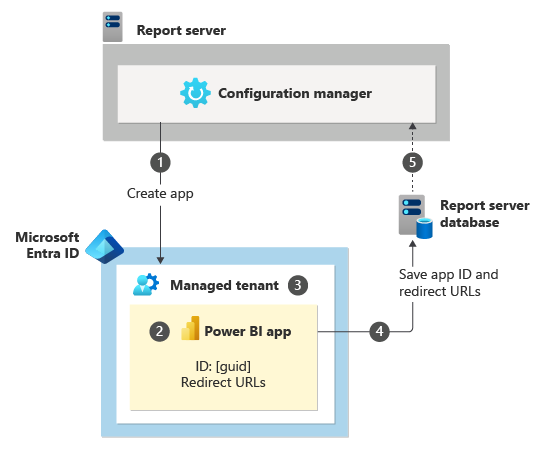
In the configuration manager, select the Register with Power BI button. When the prompt appears, sign in to Microsoft Entra ID.
The Power BI client app is registered with your managed tenant.
The Power BI client app is created in your managed tenant within Microsoft Entra ID.
The registration includes redirect URLs that are used when users sign in from the report server. The app ID and URLs are saved to the ReportServer database. The redirect URL is used during authentication calls to Azure so that the call can return to the report server. For example, it's used when users sign in or pin items to a dashboard.
You can see the app ID and URLs in the configuration manager.
Pin a report item to a dashboard
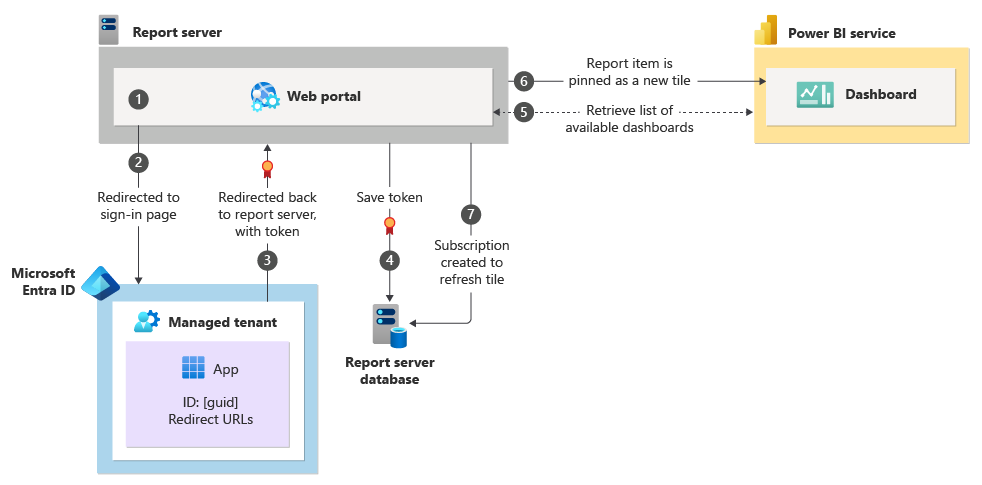
You can preview reports in the Reporting Services web portal. You can also preview reports the first time that you pin a report item from the web portal.
You can sign in through the Microsoft Entra sign-in page or from the My Settings page in the web portal. When you sign in to the Azure-managed tenant, a relationship is established between your Azure account and the Reporting Services permissions. For more information, see My Settings for Power BI integration (web portal).
A user security token is returned to the report server.
The user security token is saved to the ReportServer database.
A list of groups and dashboards that you have access to is retrieved from the Power BI service. Select the destination group and dashboard. Configure how often the data refreshes on the Power BI tile.
The report item is pinned to the dashboard.
A Reporting Services subscription is created. The subscription manages the scheduled refresh of the report item to the dashboard tile. The subscription uses the security token that was created when you signed in.
The token is good for 90 days. Users then need to sign in again to create a new user token. When the token is expired, you still see the pinned tiles on the dashboard but the data doesn't refresh.
The Reporting Services subscriptions that are used for the pinned items error until a new user token is created. For more information, see My Settings for Power BI integration (web portal).
The second time you pin an item, you don't need to follow steps 1-4. You can start with step 5 because the app ID and URLs are retrieved from the ReportServer database.
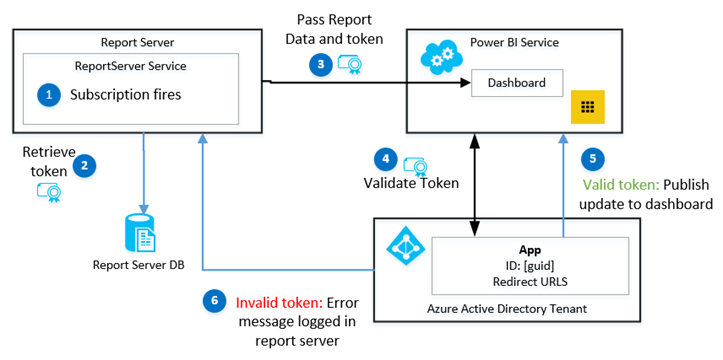
When a subscription fires to refresh a dashboard tile:
When the Reporting Services subscription fires, the report is rendered.
The user token is retrieved from the ReportServer database.
The report item state and data is sent with the token to the Power BI service.
The token is sent to Microsoft Entra ID for validation. If the token is valid, the report item data is sent to the dashboard tile and the date property of the tile updates.
If the token isn't valid, an error is returned and logged with the report server. No status or other information is sent to the dashboard.
Considerations and limitations
Viral and government tenants aren't supported.