Note
Access to this page requires authorization. You can try signing in or changing directories.
Access to this page requires authorization. You can try changing directories.
Applies to:  SQL Server 2025 (17.x)
This article describes known issues for SQL Server 2025 (17.x).
SQL Server 2025 (17.x) has currently identified the following known issues:
- Installation fails when TLS 1.2 is disabled
- Windows Arm64 not supported
- In-place upgrade fails due to Microsoft Visual C++ Redistributable
- SQL Server on Windows fails to start on machines with more than 64 logical cores per NUMA node
- Database mail on Linux
- SQLPS
- Incorrect behavior of SESSION_CONTEXT in parallel plans
- Issue when setting the backup compression algorithm to ZSTD
- Local ONNX models not supported on Linux operating systems
- PBKDF2 hashing algorithm can affect login performance
- Access violation exception can occur on readable secondary replicas under certain conditions
- Vector index
- SQL Server audit events don't write to the Security log
- Upgrade fails if Data Quality Services is installed
- Full-Text Search fails to index plaintext documents larger than 25 MB
SQL Server 2025 installation fails when TLS 1.2 is disabled
Issue: SQL Server 2025 (17.x) installation fails if TLS 1.2 is disabled on the machine, including failover cluster instances.
Workaround: Enable TLS 1.2 on the machine before attempting to install SQL Server 2025 (17.x).
To enable TLS 1.2, set the following registry entry for TLS 1.2 to true:
HKEY_LOCAL_MACHINE\SYSTEM\CurrentControlSet\Control\SecurityProviders\SCHANNEL\Protocols
Configure Windows to use TLS provides a PowerShell script to enable TLS 1.2 programmatically.
Windows Arm64 not supported
SQL Server 2025 (17.x) isn't supported on Windows Arm64. Only Intel and AMD x86-64 CPUs with up to 64 cores per NUMA node are currently supported.
In-place upgrade fails due to Microsoft Visual C++ Redistributable
An upgrade from the following versions might fail:
- SQL Server 2016 (13.x)
- SQL Server 2017 (14.x)
This can happen when the existing operating system environment is missing the Microsoft Visual C++ Redistributable for Visual Studio 2022, or an older version of this component is installed.
When this happens, the installation log includes an entry like the following example:
This application requires Microsoft Visual C++ Redistributable for
Visual Studio 2022 (x64/x86, version 14.34 at minimum).
Please install the Redistributable, then run this installer again.
For more information, see: https://go.microsoft.com/fwlink/?linkid=2219560.
To complete the upgrade, add or repair the redistributable component, and run the installation again.
To get the redistributable file, review Microsoft Visual C++ Redistributable latest supported downloads.
SQL Server on Windows fails to start on machines with more than 64 logical cores per NUMA node
Issue: SQL Server instances on Windows might fail to start after the installation if the machine has more than 64 logical cores per NUMA node.
For more information, see Limit number of logical cores per NUMA node to 64.
Database mail on Linux
Issue: Database mail on Linux doesn't work when SQL Server is configured to enforce strict encryption.
Currently, the only workaround is to not enforce strict encryption.
SQLPS
Issue: SQLPS.exe, the SQL Agent PowerShell subsystem, and the SQLPS PowerShell module don't work when SQL is configured to enforce strict encryption.
Currently, the only workaround is to not enforce strict encryption.
The SQL Server Agent job syspolicy_purge_history reports a failure on step 3. This job runs daily by default. An instance that doesn't enforce strict encryption doesn't reproduce this problem; another option is to disable the job.
Incorrect behavior of SESSION_CONTEXT in parallel plans
Queries that use the built-in SESSION_CONTEXT function might return incorrect results or trigger access violation (AV) dumps when executed in parallel query plans. This issue stems from the way the function interacts with parallel execution threads, particularly when the session is reset for reuse.
For more information, see the Known issues section in SESSION_CONTEXT.
Issue when setting the backup compression algorithm to ZSTD
There's a known issue when attempting to set the backup compression algorithm to ZSTD.
When specifying the ZSTD algorithm (backup compression algorithm = 3), the following error message returns:
Msg 15129, Level 16, State 1
Procedure sp_configure '3' is not a valid value for configuration option 'backup compression algorithm'.
Use the new compression algorithm directly in the BACKUP Transact-SQL command instead of setting the server configuration option.
Local ONNX models not supported on Linux operating systems
CREATE EXTERNAL MODEL local ONNX models hosted directly on the SQL Server aren't currently available for Linux on SQL Server 2025 (17.x).
PBKDF2 hashing algorithm can affect login performance
In SQL Server 2025 (17.x), password-based authentication uses PBKDF2 (RFC2898) as the default hashing algorithm. This enhancement improves password security by applying 100,000 iterations of SHA-512 hashing. The increased computational cost of PBKDF2 means slightly longer SQL Authentication login time. This effect is especially noticeable in environments without connection pooling, or where login latency is closely monitored. In pooled environments, the effect is typically minimal.
For more information, see CREATE LOGIN and Support for Iterated and Salted Hash Password Verifiers in SQL Server 2022 CU12.
Access violation exception can occur on readable secondary replicas under certain conditions
Consider a database enabled to use the Query Store for readable secondaries feature, using the following data definitional language (DDL) command:
ALTER DATABASE [Database_Name]
    FOR SECONDARY
    SET QUERY_STORE = ON
    (OPERATION_MODE = READ_WRITE);
Queries that meet the following conditions could experience an access violation when a PSP query variant can't determine the persisted state of its parent dispatcher statement:
- Executed on a secondary replica
- Sensitive to parameter sniffing
- Eligible for parameter sensitive plan (PSP) optimization
A fix has been identified and will be part of a future release of SQL Server 2025 (17.x).
Workaround: Disable PSP on secondaries for each database that was onboarded to use the Query Store for readable secondaries feature. From within the context of a specific database, issue the following Transact-SQL statement:
ALTER DATABASE SCOPED CONFIGURATION FOR SECONDARY
    SET PARAMETER_SENSITIVE_PLAN_OPTIMIZATION = OFF;
SQL Server audit events don't write to the Security log
Assume that you configured multiple SQL Server audit events to write to the Security log in SQL Server 2025 (17.x). In this scenario, you notice that all server audits, except the first server audit, don't write. Additionally, when you add the second server audit, you might receive an error that resembles the following message in the SQL Server error log:
Error: 33204, Severity: 17, State: 1.
SQL Server Audit could not write to the security log.
A fix has been identified and will be part of a future release of SQL Server 2025 (17.x).
Workaround: Use one of the following methods:
Write audit events to a file instead of the SQL Server Security log.
To let multiple server audits write to the Security log, change this registry subkey value from
0to1:HKEY_LOCAL_MACHINE\SYSTEM\CurrentControlSet\Services\EventLog\Security\MSSQL$<InstanceName>$Audit\EventSourceFlagsServer audits must be restarted for the new registry setting to take effect:
ALTER SERVER AUDIT [AuditName] WITH (STATE = OFF);
GO
ALTER SERVER AUDIT [AuditName] WITH (STATE = ON);
GO
Vector index
When you build a vector index using the CREATE VECTOR INDEX statement, or using the vector index via VECTOR_SEARCH, you get the following warning message:
Warning: The join order has been enforced because a local join hint is used.
The warning can be safely ignored, as it doesn't affect the correctness of the results.
When you use MAXDOP with CREATE VECTOR INDEX or VECTOR_SEARCH, the value set for MAXDOP is ignored. To set the desired value for MAXDOP, set the server-level max degree of parallelism configuration option instead. For more information, see Server configuration: max degree of parallelism or the database-level MAXDOP option in ALTER DATABASE SCOPED CONFIGURATION.
Upgrade fails if Data Quality Services is installed
If Data Quality Services is installed and you upgrade your SQL Server instance to SQL Server 2025 (17.x), the upgrade fails during the Feature Rules step of the SQL Server Upgrade wizard.
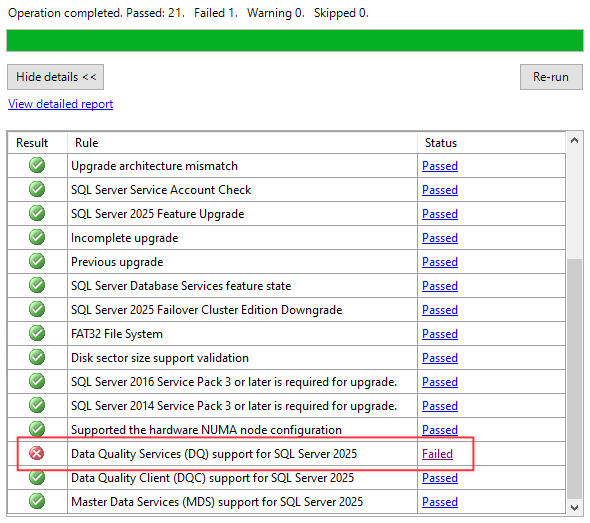
Workaround: Use the /IACCEPTDQUNINSTALL parameter from the command line. For more information, see Upgrade parameters in the article Install, configure, or uninstall SQL Server on Windows from the command prompt.
You can also run a full unattended upgrade from the command line, as long as you include the /IACCEPTDQUNINSTALL parameter.
Full-Text Search fails to index plaintext documents larger than 25 MB
If you try to index a plaintext document larger than 25 MB, you see the symbolic error FILTER_E_PARTIALLY_FILTERED in the crawl log:
Error '0x8004173e: The document was too large to filter in its entirety. Portions of the document were not emitted.' occurred during full-text index population for table or indexed view ...
Note
Plaintext documents include documents with a class_id of {C1243CA0-BF96-11CD-B579-08002B30BFEB}, as reported by sys.fulltext_document_types.
Workaround: Configure the maximum file size in the Windows registry:
Warning
Incorrectly editing the registry can severely damage your system. Before making changes to the registry, we recommend that you back up any valued data on the computer.
Edit the DWORD value MaxTextFilterBytes, which is located in HKEY_LOCAL_MACHINE\SYSTEM\CurrentControlSet\Control\ContentIndex. For example, to remove the size limit entirely from the command line with reg add, run the following command:
reg add "HKEY_LOCAL_MACHINE\SYSTEM\CurrentControlSet\Control\ContentIndex" /v MaxTextFilterBytes /t REG_DWORD /d ffffffff
After updating the registry value, re-issue the Full-Text crawl.