Note
Access to this page requires authorization. You can try signing in or changing directories.
Access to this page requires authorization. You can try changing directories.
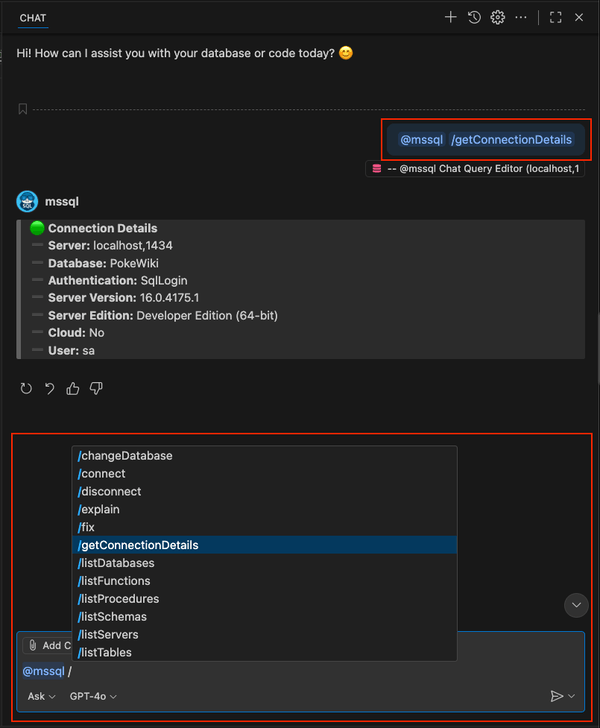
GitHub Copilot slash commands provide a quick, discoverable way to interact with your SQL Server databases directly from the GitHub Copilot chat in Visual Studio Code. You can access these commands through the MSSQL extension's integration with GitHub Copilot, using the @mssql chat participant. By typing / in the chat input, you can see a list of supported commands that accelerate common workflows like connecting, switching databases, exploring schemas, and running queries.
What are slash commands?
Slash commands provide a quick way to insert structured prompts directly into the GitHub Copilot chat. They're designed for speed and discoverability, helping you perform common database tasks without writing full natural language queries.
For example, you can type:
@mssql /getConnectionDetails
Note
Unlike Agent Mode tools, slash commands act as shortcuts: they insert structured prompts into the chat so you don't need to craft full natural language queries. Some commands run instantly (like switching databases), while others require follow-up input (like running or explaining a query).
MSSQL slash commands reference
This section provides a detailed reference for the SQL-specific slash commands available in GitHub Copilot. The MSSQL chat participant provides these commands, and you use them directly in the GitHub Copilot chat interface.
Important
All slash commands require an active editor connected to a database in order to work. If no connection is active, the commands don't execute.


Connection management
These commands let you establish, switch, or inspect connections. They don't require extra input: selecting one opens the connection panel or performs the action directly.
| Command | Description |
|---|---|
/connect |
Opens the connection panel to establish a new database connection. |
/disconnect |
Terminates the current active connection session. |
/changeDatabase |
Opens the connection panel to switch to a different database in the current server. |
/getConnectionDetails |
Displays details of the current connection, such as server, database, and authentication type. |
Examples
Use the following phrases to interact with GitHub Copilot.
@mssql /connect
@mssql /disconnect
@mssql /changeDatabase
@mssql /getConnectionDetails
Here's how these commands look in action, to get connection details:
How connection logic works
Slash commands for connection management act as true shortcuts. Unlike Agent Mode tools that attempt to resolve connections automatically, these commands open the MSSQL extension connection dialog inside Visual Studio Code. You must interact with the dialog to select or create a connection.
When you invoke /connect or /changeDatabase:
- GitHub Copilot inserts the command into chat.
- The MSSQL extension opens the standard connection dialog.
- You choose an existing profile or create a new one.
- Once confirmed, the connection is established or switched.
When you invoke /disconnect:
- The MSSQL extension terminates the active session immediately.
When you invoke /getConnectionDetails:
- The MSSQL extension uses the current connection details in the chat, without requiring further input.
Here's how these commands look in action, to connect, or change databases:
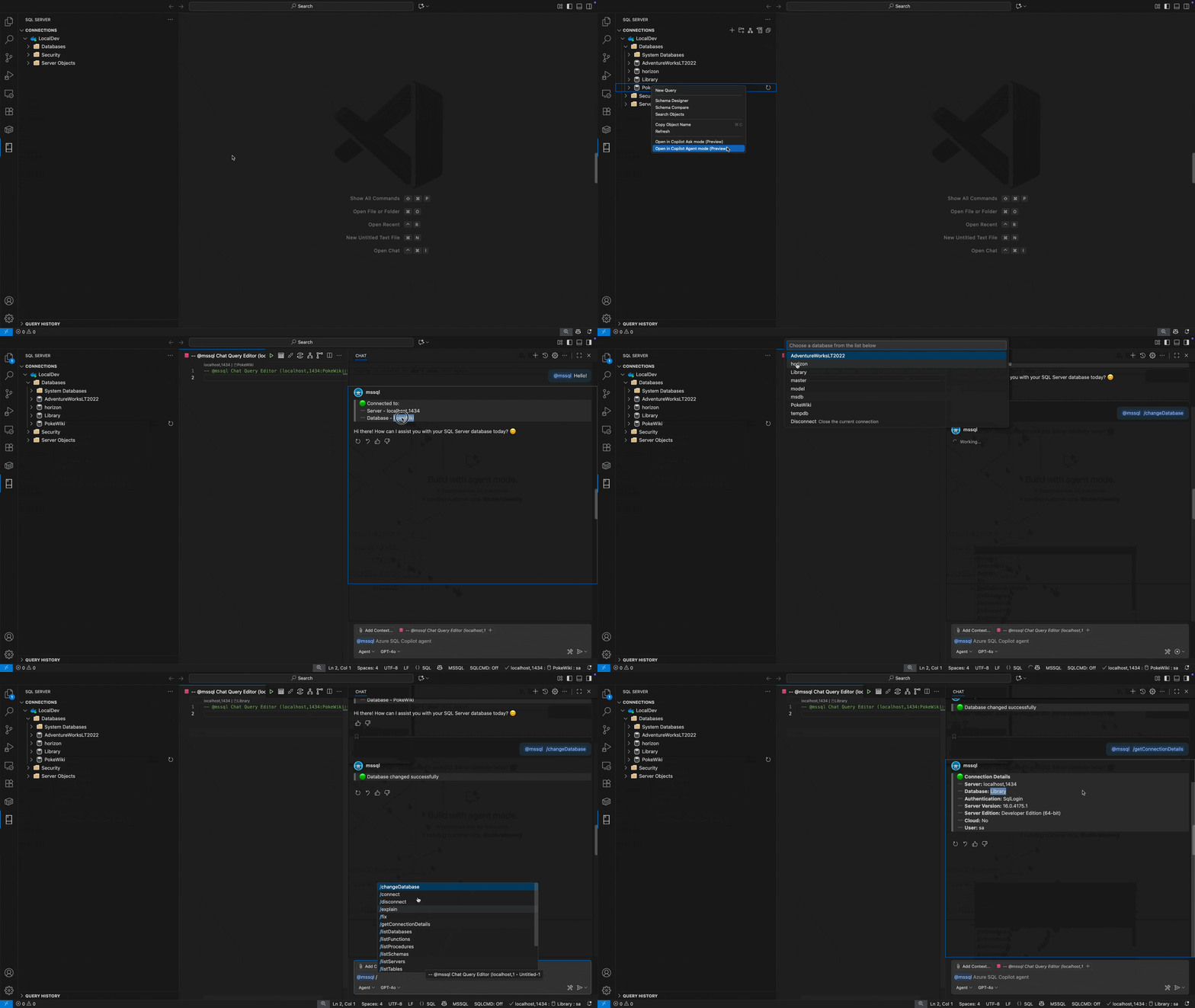
This design keeps the experience consistent with the MSSQL extension UI: the slash command accelerates access, while the dialog ensures you can review and confirm connection details interactively.
Query execution and performance
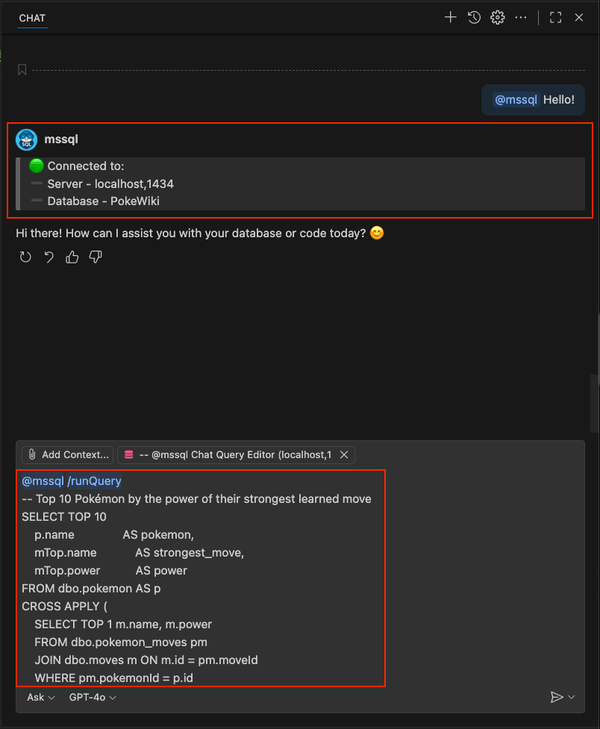
These commands require follow-up input. After selecting a command, provide the SQL statement or object you want to analyze.
| Command | Description |
|---|---|
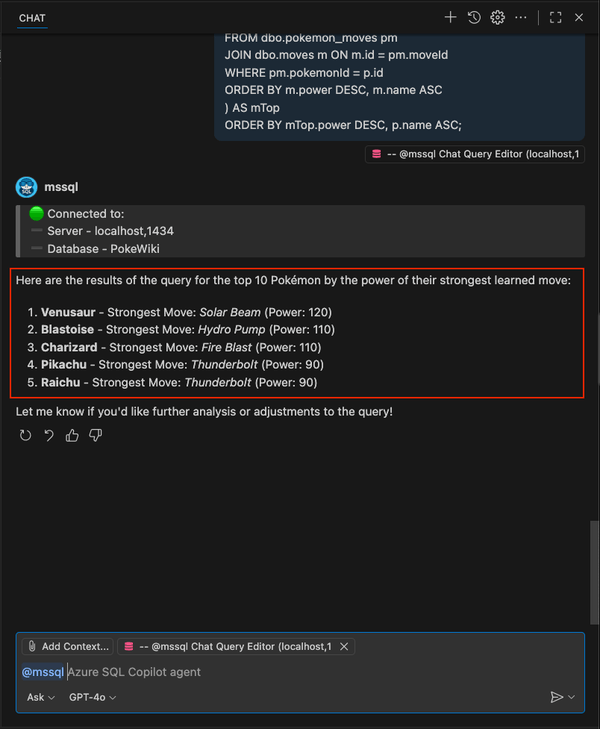
/runQuery |
Runs a SQL query against the connected database and shows results in chat. |
/explain |
Provides a natural-language explanation of SQL code or queries. |
/fix |
Detects and corrects syntax issues or missing constraints in SQL code. |
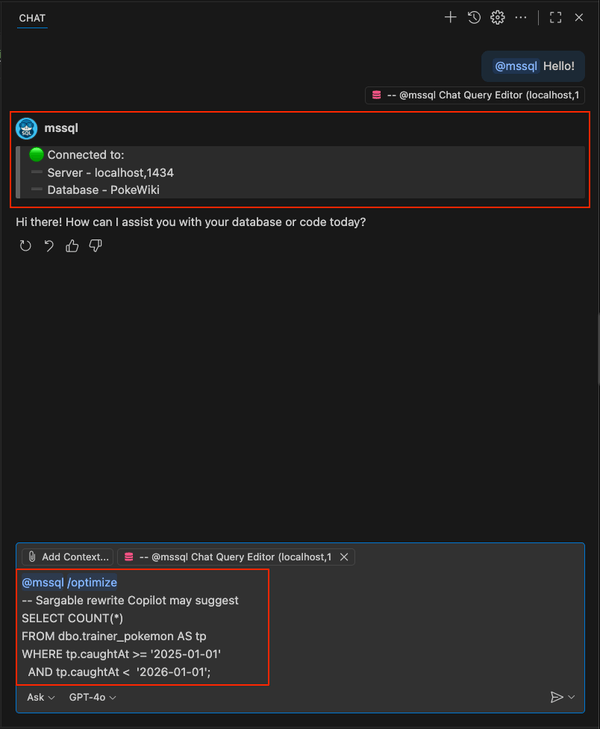
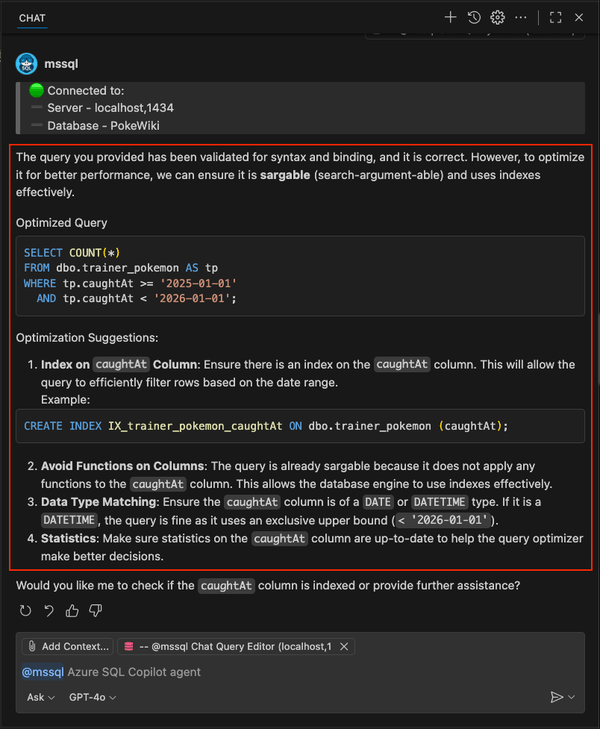
/optimize |
Analyzes query performance and suggests improvements (indexing, restructuring). |
Examples
Use the following phrases to interact with GitHub Copilot.
@mssql /runQuery SELECT TOP 10 * FROM Orders
@mssql /explain SELECT COUNT(*) FROM Customers
@mssql /fix any errors in my query: SELECT * FROM Orders WHERE OrderDate > '2025-01-01'
@mssql /optimize SELECT * FROM Products WHERE Price > 100
Here's how these commands look in action, to run or optimize a query:
Schema exploration and object management
These commands list or visualize schema objects in the connected database.
| Command | Description |
|---|---|
/showSchema |
Displays a high-level diagram of the database schema, including tables, relationships, and keys. |
/showDefinition |
Shows the definition of a specific table, view, function, or procedure. |
/listServers |
Lists all saved SQL Server connection profiles. |
/listDatabases |
Lists all databases on the current server. |
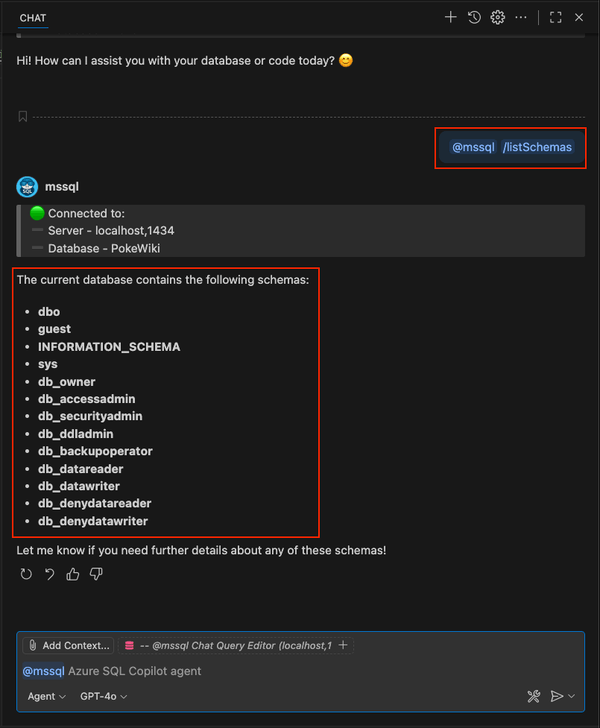
/listSchemas |
Lists all schemas in the current database. |
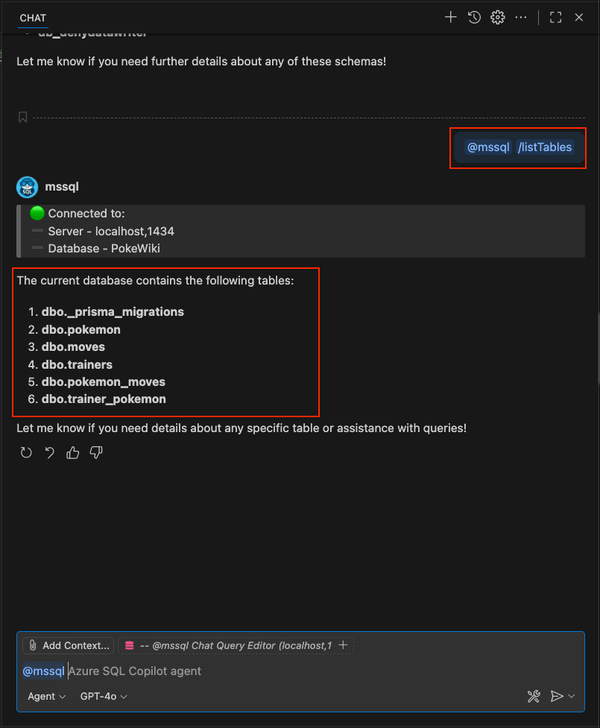
/listTables |
Lists all tables in the current database. |
/listViews |
Lists all views in the current database. |
/listFunctions |
Lists all functions in the current database. |
/listProcedures |
Lists all stored procedures in the current database. |
Examples
Use the following phrases to interact with GitHub Copilot.
@mssql /showSchema
@mssql /showDefinition Orders
@mssql /listDatabases
@mssql /listTables
@mssql /listViews
@mssql /listProcedures
Here's how these commands look in action, to explore schemas and list objects:
Key differences from Agent Mode
Slash Commands: Insert structured prompts into the chat. Some commands act immediately, like connection management, while others require user input. They're designed for quick access and discoverability.
Agent Mode: Uses extension-contributed tools that execute actions directly, with confirmation dialogs for secure execution. Agent Mode supports richer, more complex workflows inside your SQL development environment.
You can use both approaches together. Slash commands speed up prompt entry, and Agent Mode executes secure, confirmable actions.
Related content
- Quickstart: Use chat and inline GitHub Copilot suggestions
- Quickstart: Use GitHub Copilot Agent Mode
- Quickstart: Generate code
- Quickstart: Use the schema explorer and designer
- Quickstart: Use the smart query builder
- Quickstart: Query optimizer assistant
- Quickstart: Use the business logic explainer
- Quickstart: Security analyzer
- Quickstart: Localization and formatting helper
- Quickstart: Generate data for testing and mocking
- Limitations and known issues