Note
Access to this page requires authorization. You can try signing in or changing directories.
Access to this page requires authorization. You can try changing directories.
The MSSQL extension for Visual Studio Code supports connecting to SQL database in Microsoft Fabric. The Connection dialog includes a Fabric connectivity option that lets you sign in with Microsoft Entra ID. You can browse Fabric workspaces in a tree view, search across workspaces, and connect to SQL databases or endpoints without manually configuring connection strings. The extension supports persistent sign-in, tenant switching, and a seamless Open in MSSQL flow from the Fabric extension.
You can create new SQL databases in Fabric directly from Visual Studio Code. Authenticate, select or create a workspace, specify a database name, and connect after provisioning completes. The provisioning process displays a progress indicator, confirms successful creation before establishing the connection.
Tip
Fabric integration features are currently in preview and might change based on feedback. Join our community at GitHub Discussions to share ideas or report issues.
Fabric Connectivity (Browse)
The Fabric browse experience in the MSSQL extension allows developers to connect seamlessly to their SQL databases in Fabric or SQL analytics endpoints without manually copying connection strings from the Fabric portal. With a single Microsoft Entra ID authentication, you can browse available workspaces in a tree view and connect directly from within Visual Studio Code.
Capabilities
Dedicated Fabric experience: Provides an option within the Connection dialog tailored specifically for Fabric users, simplifying the connection process by focusing on Fabric databases.
Seamless authentication: Utilizes your Microsoft account for secure and persistent sign-in, so users only need to authenticate once to access all their Fabric workspaces and databases.
Workspace browsing: Displays all Fabric workspaces in a hierarchical tree view with resources loaded on demand, making it easy to explore and manage your Fabric environment.
Search and discovery: Offers real-time search functionality to quickly locate the appropriate workspace or database without scrolling through long lists.
Cross-extension support: Allows opening Fabric databases directly in MSSQL from the Fabric extension or portal, providing a consistent and integrated experience across tools.
Prerequisites
- Install the latest version of the MSSQL extension for Visual Studio Code.
- Active Fabric subscription and workspace permissions.
- A valid Microsoft account with access to your Fabric workspaces and resources.
- Microsoft Entra ID for authentication. After signing in, you can choose both the account and the specific tenant to browse the correct set of Fabric workspaces and databases.
Note
For this Fabric Connectivity (Browse) experience, you don't need connection strings or personal access tokens.
Get started
Open the Connection dialog and select Browse Fabric.
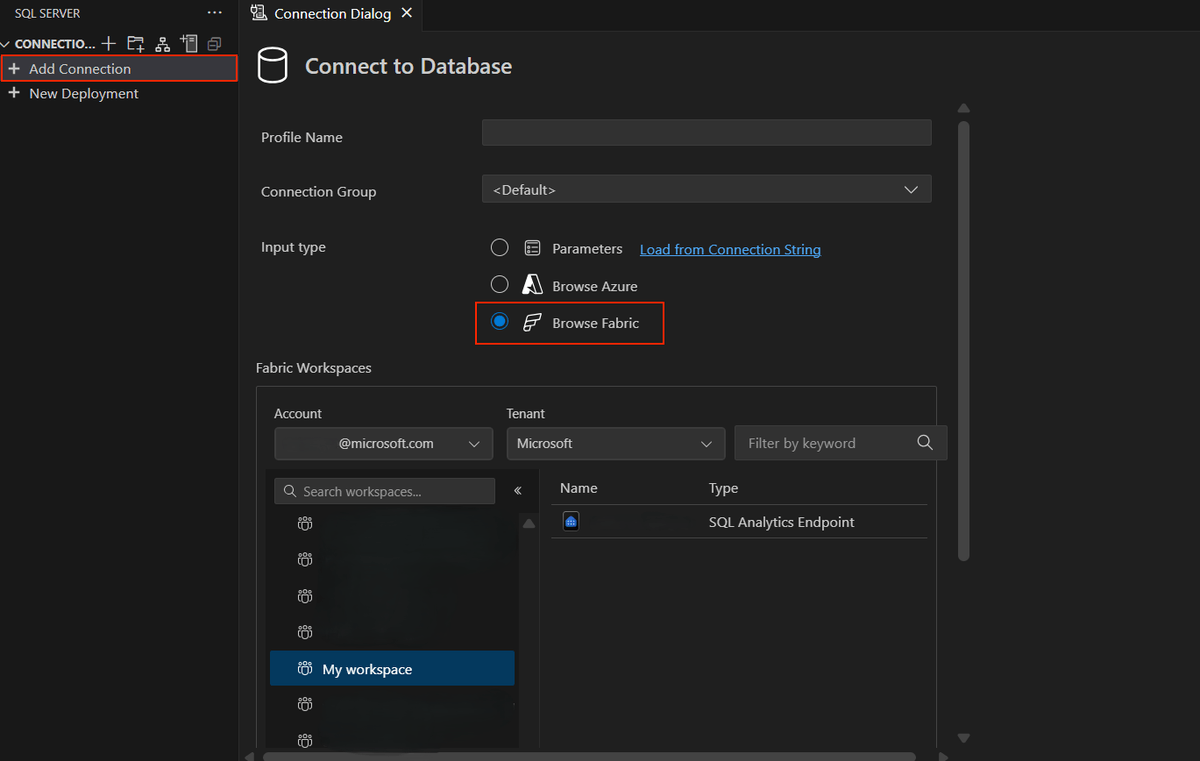
Sign in with Microsoft Entra ID.
First-time authentication
- The authentication type defaults to Microsoft Entra ID - Universal with MFA support.
- If you're not signed in, open the Account dropdown list and select Add an account.
- Choose your account and complete the sign-in process in the browser window that opens.
- Return to Visual Studio Code once the process finishes successfully.
Returning user authentication
- If you sign in frequently, your account information appears prepopulated.
- Verify the correct account is selected and proceed.
(Optional) Select a tenant.
- Use the Tenant ID dropdown list to choose your organization's tenant.
- This selection is useful if you have access to multiple tenant environments and need to browse resources in a different tenant.
Browse Fabric workspaces in the workspace tree.
Use the search bar at the top of the tree to quickly locate a workspace or database.
Select the desired database or analytics endpoint from the list.
Confirm authentication for the selected resource if prompted.

Select Connect to add the selected database to your Connections list.
The new connection appears in Connections, and a query window opens ready for use.


Tip
Use Search at the top of the tree to quickly locate a workspace or database. Results prioritize closest matches and recently used items.
Error handling and edge cases
If something goes wrong, the UI shows a clear message and recommended actions:
| Type | Message | Recommended action |
|---|---|---|
| No access to workspace | You do not have permission to view this workspace. |
Request access or switch account. |
| Service unavailable or throttled | Fabric service is temporarily unavailable. |
Retry or check service health. |
| Expired session | Your session has expired. |
Reauthenticate with Microsoft Entra ID. |
| Network restrictions | Connection blocked by network policy. |
Verify corporate, VPN, or firewall settings. |
Important
During Preview, browsing large tenants might load children on demand to keep the tree responsive. You might notice brief loading indicators when expanding nodes with many items.
Known limitations (Preview)
- Only SQL databases and SQL analytics endpoints are supported. Opening other Fabric item types from MSSQL isn't available.
- Cross-tenant browsing is supported by switching tenants, but each database connection must be created separately. There's no unified cross-tenant or multi-database connection.
- Offline sign-in and device-code authentication flows aren't supported.
SQL database in Fabric provisioning
The SQL database provisioning experience is integrated into the Deployments page of the MSSQL extension. You can create and connect to new Fabric SQL databases without leaving Visual Studio Code. This streamlined workflow reduces the need to switch between portals and simplifies database creation and connection.
Capabilities
Simple workflow: Guides you through authentication, workspace selection or creation, database naming, and provisioning all within the Deployments page, making database setup straightforward and efficient.
Immediate connection: Automatically adds the newly provisioned database to your connections list, so you can start querying and developing without extra configuration steps.
Consistent experience: Aligns the provisioning flow with other supported backends, such as local SQL Server containers, ensuring a familiar and unified user experience across different environments.
Capacity awareness: Clearly indicates when workspaces are disabled due to capacity constraints, providing guidance to help you understand and resolve provisioning limitations.
Prerequisites
- A valid Microsoft Fabric subscription.
- Sufficient capacity in the target workspace to provision new SQL databases.
- Microsoft Entra ID account with the required workspace permissions (Admin or Member).
- Visual Studio Code with the MSSQL extension installed.
Get started
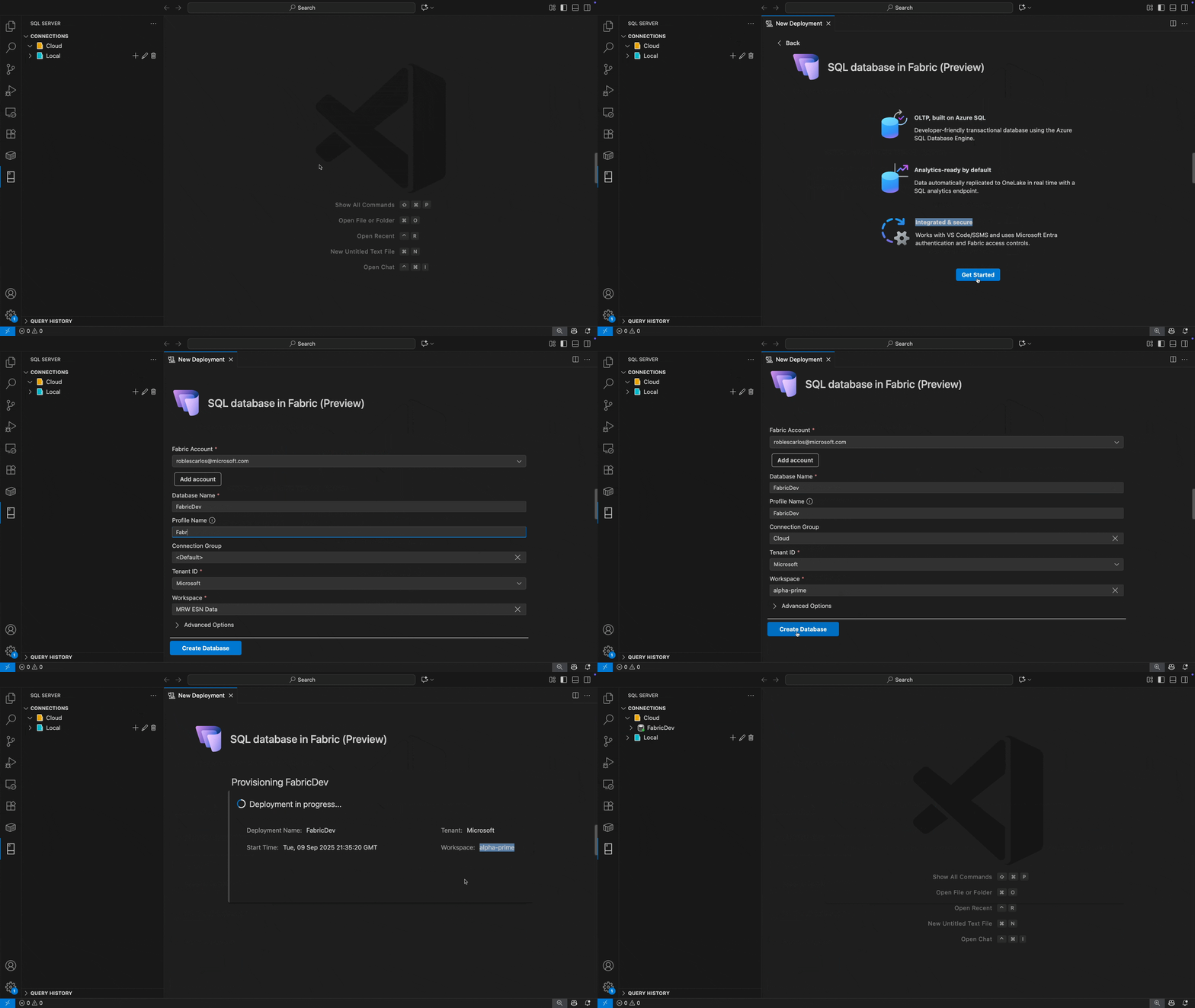
- Open the Deployments page and choose SQL database in Fabric.
- Authenticate with Microsoft Entra ID.
- Select or create a Fabric workspace.
- Enter a database name, and then select Create.
- When provisioning finishes, the database is auto-connected and appears under Connections, with a success confirmation.
Tip
The end-to-end flow typically finishes in less than a minute. This database provisioning experience lets you prototype quickly without switching to the Fabric portal.
The following animation shows the SQL database in Fabric provisioning workflow in action:
Capacity awareness details
- The provisioning flow validates the Fabric account and workspace capacity to ensure the database can be created successfully.
- The workspace dropdown list shows workspaces without available capacity as disabled, with a tooltip explaining the reason.

Post-provisioning behavior
- The new connection adopts the Connection Group you selected (optional) for quick visual identification.
- You can pair this experience with the Fabric browse feature in another Visual Studio Code environment, so you can discover and connect to the newly created database without manual setup.
Troubleshooting
- Name already exists: Choose a unique database name within the selected workspace.
- Insufficient permissions: Ensure you have Workspace Admin / Member rights to create databases.
- Network or tenant errors: Reauthenticate or switch the signed-in account from the account menu.
- Provisioning timeout or failure: If the wizard doesn't complete, retry the operation or check Fabric service health.
Known limitations (Preview)
- Provisioning is limited to SQL databases in Fabric. Other Fabric item types are out of scope.
- Cross-tenant provisioning is supported when you explicitly select a different tenant during authentication. However, scenarios involving multiple simultaneous tenants or automated cross-tenant workflows aren't yet supported.
- Provisioning can't be queued when capacity is fully consumed.
Feedback and support
If you have ideas, feedback, or want to engage with the community, join the discussion at https://aka.ms/vscode-mssql-discussions. To report a bug, visit aka.ms/vscode-mssql-bug. To request a new feature, go to https://aka.ms/vscode-mssql-feature-request.