Note
Access to this page requires authorization. You can try signing in or changing directories.
Access to this page requires authorization. You can try changing directories.
Warning
Review the General Safety Precautions and Battery Safety guidelines in their entirety before proceeding with any repair steps.
Important
Read this Guide in its entirety before starting any repairs. If at any point you're unsure or uncomfortable about performing the repairs, as detailed in this Guide, DO NOT proceed. Contact Microsoft for additional support options.
Warning
Failure to follow the instructions in this Guide, use of non-Microsoft (non-genuine), incompatible, or modified replacement parts, and/or failure to use proper tools could result in serious injury, death, and/or damage to the product or other property.
Prerequisite Steps
Steps outlined in this section should be conducted prior to starting any repair on a Surface device.
Power off device – Ensure the device is powered off completely and the battery has been fully discharged. Refer to the Repair-specific precautions and warnings for guidelines. Once discharged, the device should be disconnected from all power sources.
ESD Prevention – Ensure ESD prevention steps and general guidelines are followed prior to opening the device. Refer to the ESD Prevention section for guidelines.
Position Device – To prevent damage to the device, ensure the device is placed on a clean surface free of debris.
Feet Replacement
Preliminary Requirements
Important
Be sure to follow all special notes of caution within each process section.
Required Tools
Plastic Openings Pick
Soft ESD-Safe Mat
Primary Components
- Feet (Refer to the Illustrated Service Parts List)
Additional Components (Ordered Separately)
- N/A
Procedure – Removal (Feet)
Place Device – Carefully place the closed device Display side down with the Feet facing up on a soft ESD-Safe Mat.

Remove the Feet – Using the Nylon Spudger, carefully pry up all four feet to expose the screws.

Procedure – Installation (Feet)
Install the Feet - Line up the posts on the Foot to the matching hole pattern on the Enclosure. Press firmly until the foot clicks into place. Repeat for the other three feet.

Enclosure Replacement
Preliminary Requirements
Important
Be sure to follow all special (bolded) notes of caution within each process section.
- Device Serial Number Notation – The replacement Enclosure supplied for repair will not have a serial number. To ensure the customer has the best experience with future Microsoft support cases, it is recommended to create a notation of the device serial number and provide it to the customer upon completion of the repair.
Required Tools
Plastic Openings Pick
Soft ESD-Safe Mat
5IP (Torx-Plus) Driver
Primary Components
Enclosure (Refer to the Illustrated Service Parts List)
M1301718 Screws x 4 (Foot screws)
Additional Components (Ordered Separately)
- Feet (Refer to the Illustrated Service Parts List)
Procedure – Removal (Enclosure)
Place Device – Carefully place the closed device Display side down with the Feet facing up on a soft ESD-Safe Mat.
Remove the Feet – Refer to the Procedure – Removal (Feet) section of this document for detailed instructions.
Remove the Enclosure screws – Using a 5IP (Torx-Plus) driver, uninstall each of the 4 screws from under the feet.
Separate the Enclosure from the Device – Carefully insert the tip of a Plastic Opening Pick into the space between the Enclosure and the Keyboard Assembly as shown below. Move the Plastic Opening Pick around the perimeter of the device to create a gap. Using both hands, carefully lift the Enclosure off the device and place it on a soft ESD-Safe mat.

Caution
Do Not lift the Enclosure from the black plastic antenna.
Procedure – Installation (Enclosure)
Check for unexpected items within the Device - Perform a thorough visual inspection of the device interior, or Enclosure if re-using, for any loose articles that may be present. Of specific importance are the magnets (identified below).

Install the Enclosure - Using both hands, carefully lower the top or bottom edge of the Enclosure onto the device ensuring you line it up against the top edge as shown below. Once aligned, lower the Enclosure into place on to the Device. Finally, adjust the position of the Enclosure so that the gaps are even on all sides, and none of the sides are catching when you press the Enclosure down flat.

Fasten the Enclosure - Using a 5IP (Torx-Plus) driver, install the 4 screws into the foot wells on the Enclosure. Each screw should be tightened until snug, and then turned another 45-degrees (1/8th turn) to fully fasten. Adjust the position of the Enclosure as you go to ensure even gaps around the perimeter.
Caution
Ensure that the Enclosure is not stuck on a ledge as you are installing the screws. Shift the Enclosure as needed to avoid this condition.
- Install the Feet – Refer to the Procedure – Installation (Feet) section of this document for detailed instructions.
Removable Solid-State Drive Replacement
Preliminary Requirements
Important
Be sure to follow all special (bolded) notes of caution within each process section.
Required Tools
Plastic Openings Pick
Soft ESD-Safe Mat
5IP (Torx-Plus) Driver
Anti-Static wrist strap (1M Ohm resistance)
USB drive loaded with the Surface Diagnostic Toolkit
Primary Components
Removable Solid-State Drive (Refer to the Illustrated Service Parts List)
M1301718 Screws x 4 (Foot screws)
M1246215 Screws x 1 (Solid-State Drive)

M1234550 Tape x 1 (SSD)
M1318579 Spacer x 1 (SSD)
Additional Components (Ordered Separately)
- Feet (Refer to the Illustrated Service Parts List)
Procedure – Removal (Removable Solid-State Drive)
Place Device – Carefully place the closed device Display side down with the Feet facing up on a soft ESD-Safe Mat.
Remove the Feet – Refer to the Procedure – Removal (Feet) section of this document for detailed instructions.
Remove the Enclosure – Refer to the Procedure – Removal (Enclosure) section of this document for detailed instructions.
Remove the tape - Carefully peel up and completely remove the tape covering the Removable Solid-State Drive and the corresponding receptacle. The gray spacer will also be removed along with the tape. Clean the top surfaces of the Removable Solid-State Drive and receptacle with IPA to remove any residual adhesive.

Remove the Removable Solid-State Drive – Using a 5IP (Torx-Plus) driver, remove the screw
holding the Removable Solid-State Drive onto the Motherboard. Lift
the drive out of the device and place it on a soft ESD-Safe mat.
Procedure – Installation (Removable Solid-State Drive)
Insert the Removable Solid-State Drive – Carefully insert the connector end of the Removable Solid-State Drive into the receptacle on the motherboard while keeping the Removable Solid-State Drive as close as possible to horizontal.
Caution
Ensure that the Speaker wire does not get caught or trapped when fastening the Removable Solid-State Drive to the Motherboard.

Install Removable Solid-State Drive screw – Using a 5IP (Torx-Plus) driver, install the 1 new rSSD screw
 until the screw is just snug. Then turn the screw an additional
45-degrees (1/8th turn) until screw is fully fastened.
until the screw is just snug. Then turn the screw an additional
45-degrees (1/8th turn) until screw is fully fastened.
Install SSD Tape on Motherboard Receptacle – Carefully place a new tape on the receptacle, making sure the cutout on the tape matches the shape of the raised flange on the receptacle.
Install Spacer – Place a new spacer on top of the Black Tape, parallel and as close as possible to the edge of the connector receptacle. Ensure that the spacer is centered lengthwise within the black tape.

Install Enclosure - Refer to the Procedure – Installation (Enclosure) section of this document for detailed instructions.
Power on device – Carefully place the device with the screen side facing up. Connect the device to a power supply and open the Display.
Image the device – Reinstall the operating system and all drivers/firmware by using a USB-drive containing the latest Surface BMR for your model. Please see the Prerequisite Steps – Software section for links to instructions on how to get the latest image and install it.
Run the Surface Diagnostic Toolkit (SDT) – With Windows installed and sitting at the desktop, insert the USB drive containing SDT and launch the program. Run all diagnostics to ensure the device is functioning as expected before moving forward.
Power off the device – Once the SDT tests have completed, power down the device and close the display. Invert the device so that the bottom of the device is facing up.
Install the Feet - Refer to the Procedure – Installation (Feet) section of this document for detailed instructions.
Battery Replacement
Preliminary Requirements
Important
Be sure to follow all special (bolded) notes of caution within each process section.
Warning
Prior to handling the battery, the operator must remove all jewelry, wear gloves and safety glasses, and have a bucket of sand prepared in case of any battery event.
Warning
In the case of a battery event, submerge the entire device in sand. DO NOT attempt to pick up the device.
Required Tools
Plastic Openings Pick
Nylon Spudger
ESD-Safe Tweezers
Soft ESD-Safe Mat
5IP (Torx-Plus) Driver
3IP (Torx-Plus) Driver
Anti-Static wrist strap (1M Ohm resistance)
USB drive loaded with the Surface Diagnostic Toolkit
4 Gallon Bucket
2.0 Gallons of Clean Sand
Primary Components
Battery (Refer to the Illustrated Service Parts List)
M1301718 Screws x 4 (Foot screws)
M1246215 Screws x 1 (Solid-State Drive)
M1266593 Screws x 2 (Battery FPC Bracket)

M1243031 (13” Laptops) or M1272782 (15” Laptops) Screws x 8 (Battery)

M1234550 Tape x 1 (SSD)
M1318579 Spacer x 1 (SSD)
Additional Components (Ordered Separately)
- Feet (Refer to the Illustrated Service Parts List)
Procedure – Preparation (Battery)
Important
This section is only for instances where you are replacing the battery. If the battery is being re-used, then this section is not required.
Connect USB – Connect USB with the Surface Diagnostic Toolkit (SDT) loaded to an available USB port on the device under repair.
Power on device – Connect a power supply to the device. Press the power button on the device to power on the device. Allow it to boot to the Windows Desktop before continuing.
Launch SDT – From the Windows Desktop, use Windows Explorer to navigate to the USB drive. Select the SDT executable (.exe) to launch the Surface Diagnostic Toolkit.
Run Battery Repair (Setup) – From the SDT launch screen, select Repair from the drop-down menu. Next, select Repair Setup and Validation to enter the selection screen. Run the Battery Repair (Setup) to put your device into repair mode. Follow all on-screen instructions and allow the device to shut down when prompted. Disconnect the Power Supply and remove the USB drive before proceeding forward.
Procedure – Removal (Battery)
Place Device – Carefully place the closed device Display side down with the Feet facing up on a soft ESD-Safe Mat.
Remove the Feet – Refer to the Procedure – Removal (Feet) section of this document for detailed instructions.
Remove the Enclosure – Refer to the Procedure – Removal (Enclosure) section of this document for detailed instructions.
Remove the Removable Solid-State Drive - Refer to the Procedure – Removal (Removable Solid-State Drive) section of this document for detailed instructions.
Remove the Battery Connector Metal Bracket – Using a 3IP (Torx-Plus) driver, remove the 2 screws
 securing the metal bracket
to the motherboard. Lift the metal bracket out of the device to
expose the Battery FPC.
securing the metal bracket
to the motherboard. Lift the metal bracket out of the device to
expose the Battery FPC.
Disconnect the Battery FPC - Using a Nylon Spudger, pry the Battery FPC connector, starting from the side of the connector, from the Motherboard.

Remove the Battery Screws - Using a 5IP (Torx-Plus) driver, remove the 8 screws securing the Battery.

Remove the battery from the device - Using your hands, grab the battery at the four points identified below and carefully lift the battery out of the device. Place the battery on a clean ESD-Safe mat free of any debris.

Warning
Only handle the battery by the plastic frame. Bending, twisting, or impacting the battery may damage the battery, the device, and/or result in severe personal injury or property damage. Always use two hands when handling the battery.
Important
Place the battery somewhere where the battery cannot accidentally be contacted or damaged. DO NOT place anything on top of the battery.
Important
When disposing of the battery, ensure you are recycling according to local laws.
Important
The Motherboard Module and Battery are extremely sensitive to ESD and can be easily damaged. It is critical that you ensure proper grounding before performing any work on these parts.
Warning
In the instance of a battery event, submerge the entire device in a 4-gallon bucket filled with 2.0 gallons of clean sand. Ensure the entire device is submerged. DO NOT attempt to pick up the device.
Procedure – Installation (Battery)
Pre-installation device inspection – Check the device interior for any loose articles that may be present.
Check and remove any foreign objects that the magnets may have attracted.
Pay special attention to the magnetized areas around the edges of the interior.
Verify that all removed screws are accounted for and have not been misplaced inside the device.
Loose screws should never be stored on the magnetic areas of the bucket.
Important
Verify the battery’s condition. Batteries exhibiting any damage indicated in the Lithium-Ion Battery Inspection section must be replaced.
- Insert the Battery - Using the attached loops, carefully lower the battery into the new device.
Important
Only handle new batteries with the plastic loops that come attached. If reusing a battery, handle by the frame as indicated in the battery removal instructions. Bending, twisting, or impacting the battery may damage the battery, the device, and/or result in severe personal injury or property damage. Always use two hands when handling the battery.
- Install the Battery screws - Using a 5IP screwdriver, install
the 8 battery frame screws (
)
until the screws are just snug, then tighten each by an additional
45-degrees (1/8th turn).
Important
Do not overtighten the screws on the battery frame or battery. If the frame is cracked, the battery must not be used.
Assemble the Battery FPC and FPC Bracket - Assemble the Battery FPC to the Motherboard. Using a 3IP (Torx-Plus) driver, install 2 FPC Bracket screws (
)
until the screws are just snug. Turn each screw an additional
45-degrees (1/8th turn) until fully fastened.Install the Removable Solid-State Drive – Refer to Procedure – Installation (Removable Solid-State Drive) section of this document for detailed instructions.
Install the Enclosure – Refer to Procedure – Installation (Enclosure) section of this document for detailed instructions.
Procedure – Finalize (Battery)
Power on Device – Connect a Power Supply to the device and power it on until it reaches the Windows Desktop.
Connect USB – Connect USB with the Surface Diagnostic Toolkit (SDT) loaded to an available USB port on the device under repair.
Launch SDT – From the Windows Desktop, use Windows Explorer to navigate to the USB drive. Select the SDT executable (.exe) to launch the Surface Diagnostic Toolkit.
Allow the Battery to charge – With the device connected to a power supply, allow the battery to charge until the battery icon in Windows reads at least 50% remaining battery charge.
Run Battery Authentication – From the SDT launch screen, select Repair from the drop-down menu. Next, select Repair Setup and Validation to enter the selection screen. Select the Battery Repair (Validation) tool and follow the on-screen prompts until a successful authentication is completed.
Important
Battery authentication requires a stable internet connection and the latest version of the Surface Management Extension. If the battery validation tool fails or is not detected properly, install the Surface Management Extension, reboot the device, and try again with a new internet connection. If failures continue, reach out to Microsoft Support.
Run the Surface Diagnostic Toolkit (SDT) – Run all diagnostics to ensure the device is functioning as expected before moving forward.
Install Feet – Refer to Procedure – Installation (Feet) section of this document for detailed instructions.
Audio Jack Replacement
Preliminary Requirements
Important
Be sure to follow all special (bolded) notes of caution within each process section.
Required Tools
Plastic Openings Pick
Nylon Spudger
ESD-Safe Tweezers
Soft ESD-Safe Mat
6IP (Torx-Plus) Driver
5IP (Torx-Plus) Driver
3IP (Torx-Plus) Driver
Anti-Static wrist strap (1M Ohm resistance)
USB drive loaded with the Surface Diagnostic Toolkit
Primary Components
Audio Jack (Refer to the Illustrated Service Parts List)
M1301718 Screws x 4 (Foot screws)
M1246215 Screws x 1 (Solid-State Drive)
M1265600 Screws x 1 (Hinge & Chassis)

M1212080 Screws x 1 (Upper Audio Jack Bridge)

M1330715 Screws x 1 (Lower Audio Jack Bridge)
M1263960 Screws x 1 (Audio Jack)

M1234550 Tape x 1 (SSD)
M1318579 Spacer x 1 (SSD)
Additional Components (Ordered Separately)
- Feet (Refer to the Illustrated Service Parts List)
Procedure – Removal (Audio Jack)
Place Device – Carefully place the closed device Display side down with the Feet facing up on a soft ESD-Safe Mat.
Remove the Feet – Refer to the Procedure – Removal (Feet) section of this document for detailed instructions.
Remove the Enclosure – Refer to the Procedure – Removal (Enclosure) section of this document for detailed instructions.
Remove the Removable Solid-State Drive - Refer to the Procedure – Removal (Removable Solid-State Drive) section of this document for detailed instructions.
Remove the Audio Jack Bridge – Using a 3IP (Torx-Plus) and 6IP (Torx-Plus) driver, remove the 3 screws securing the Audio Jack Bridge to the interior. The 6IP screw is circled in red. Lift the Audio Jack Bridge out of the device.

Remove the Audio Jack –
Using a 3IP (Torx-Plus) screwdriver, remove the 1 screw securing the Audio Jack to the Motherboard.
Lift the Audio Jack out of the device by pulling on the orange tab.

Procedure – Installation (Audio Jack)
Install the Audio Jack –
Place the Audio Jack into its position on the Motherboard.
Using a 3IP (Torx-Plus) driver to install a new Audio Jack screw (
 )
until just snug. Then turn the screw an additional 45-degrees
(1/8th turn) until fully fastened.
)
until just snug. Then turn the screw an additional 45-degrees
(1/8th turn) until fully fastened.
Install the Audio Jack Bridge - Install the previously removed Audio Jack Bridge into its position over the Audio Jack. Using a 3IP (Torx-Plus) and 6IP (Torx-Plus) driver, install three new screws (1 x
 ,
1 x
,
1 x M1330715). All screws should be tightened until just snug, and
then turned another 45-degrees (1/8th turn) until fully
fastened.
,
1 x
,
1 x M1330715). All screws should be tightened until just snug, and
then turned another 45-degrees (1/8th turn) until fully
fastened.Install the Removable Solid-State Drive – Refer to Procedure – Installation (Removable Solid-State Drive) section of this document for detailed instructions.
Install the Enclosure – Refer to Procedure – Installation (Enclosure) section of this document for detailed instructions.
Power on device – Carefully place the device with the screen side facing up. Connect the device to a power supply and open the Display.
Run the Surface Diagnostic Toolkit (SDT) – Sitting at the desktop, insert the USB drive containing SDT and launch the program. Run all diagnostics to ensure the device is functioning as expected before moving forward.
Power off the device – Once the SDT tests have completed, power down the device and close the display. Invert the device so that the bottom of the device is facing up.
Install the Feet - Refer to the Procedure – Installation (Feet) section of this document for detailed instructions.
Right Speaker Replacement
Preliminary Requirements
Important
Be sure to follow all special (bolded) notes of caution within each process section.
Note: The Right Speaker is on the Left when the device is oriented for repair.
Required Tools
Plastic Openings Pick
Nylon Spudger
ESD-Safe Tweezers
Soft ESD-Safe Mat
5IP (Torx-Plus) Driver
3IP (Torx-Plus) Driver
Anti-Static wrist strap (1M Ohm resistance)
USB drive loaded with the Surface Diagnostic Toolkit
Primary Components
Right Speaker (Refer to the Illustrated Service Parts List)
M1301718 Screws x 4 (Foot screws)
M1246215 Screws x 1 (Solid-State Drive)
M1211914 Screws x 2 (Speaker)

M1167842 Tape x 1 (Right Speaker Tape)
M1234550 Tape x 1 (SSD)
M1318579 Spacer x 1 (SSD)
Additional Components (Ordered Separately)
- Feet (Refer to the Illustrated Service Parts List)
Procedure – Removal (Right Speaker)
Place Device – Carefully place the closed device Display side down with the Feet facing up on a soft ESD-Safe Mat.
Remove the Feet – Refer to the Procedure – Removal (Feet) section of this document for detailed instructions.
Remove the Enclosure – Refer to the Procedure – Removal (Enclosure) section of this document for detailed instructions.
Remove the Removable Solid-State Drive - Refer to the Procedure – Removal (Removable Solid-State Drive) section of this document for detailed instructions.
Remove the Speaker tape – Remove the tape and clean the surface with IPA to remove any residual adhesive. This is only required for 13” Laptops.

Remove the Right Speaker screws – Using a 3IP (Torx-Plus) driver to remove the 2 screws securing the Right Speaker (which is on the left side when working on the device) to the Chassis.

Remove the Right Speaker – Remove the Right Speaker from the Chassis and de-route the cable. To remove the connector from the Motherboard, pull up vertically on the wire until the connector comes free.
Procedure – Installation (Right Speaker)
Install the Right Speaker - Place the new Right Speaker into the Chassis. Using a 3IP (Torx-Plus) driver, install 2 new screws (
).
All screws should be installed until just snug, and then turned
another 45-degress (1/8th turn) until fully fastened.
Route and connect the Right Speaker wire – Route the Right Speaker wire as shown below. Install the speaker connector into the receptacle on the Motherboard by pressing vertically until a snap is felt.
NOTE: The connector will have 2 visible gold contacts if it is oriented in the correct direction.

Place new Speaker Tape - Place a new Tape over the speaker wire as shown below. This is only required on 13” Laptops.
Install the Removable Solid-State Drive – Refer to Procedure – Installation (Removable Solid-State Drive) section of this document for detailed instructions.
Install the Enclosure – Refer to Procedure – Installation (Enclosure) section of this document for detailed instructions.
Power on device – Carefully place the device with the screen side facing up. Connect the device to a power supply and open the Display.
Run the Surface Diagnostic Toolkit (SDT) – Sitting at the desktop, insert the USB drive containing SDT and launch the program. Run all diagnostics to ensure the device is functioning as expected before moving forward.
Power off the device – Once the SDT tests have completed, power down the device and close the display. Invert the device so that the bottom of the device is facing up.
Install the Feet - Refer to the Procedure – Installation (Feet) section of this document for detailed instructions.
Left Speaker Replacement
Preliminary Requirements
Important
Be sure to follow all special (bolded) notes of caution within each process section.
Required Tools
Plastic Openings Pick
Nylon Spudger
ESD-Safe Tweezers
Soft ESD-Safe Mat
5IP (Torx-Plus) Driver
3IP (Torx-Plus) Driver
Anti-Static wrist strap (1M Ohm resistance)
USB drive loaded with the Surface Diagnostic Toolkit
Primary Components
Right Speaker (Refer to the Illustrated Service Parts List)
M1301718 Screws x 4 (Foot screws)
M1246215 Screws x 1 (Solid-State Drive)
M1211914 Screws x 2 (Speaker)
M1234550 Tape x 1 (SSD)
M1318579 Spacer x 1 (SSD)
Additional Components (Ordered Separately)
- Feet (Refer to the Illustrated Service Parts List)
Procedure – Removal (Left Speaker)
Place Device – Carefully place the closed device Display side down with the Feet facing up on a soft ESD-Safe Mat.
Remove the Feet – Refer to the Procedure – Removal (Feet) section of this document for detailed instructions.
Remove the Enclosure – Refer to the Procedure – Removal (Enclosure) section of this document for detailed instructions.
Remove the Removable Solid-State Drive - Refer to the Procedure – Removal (Removable Solid-State Drive) section of this document for detailed instructions.
Remove the Left Speaker Screws – Using a 3IP (Torx-Plus), remove the 2 screws securing the Left Speaker, located on the Right side of the device when working on it, to the Chassis.

Remove the Left Speaker – Remove the Left Speaker from the Chassis. To Remove the connector from the Motherboard, pull up vertically on the wires until the connector comes free.
Procedure – Installation (Left Speaker)
Install the Left Speaker – Place the new Left Speaker into the Chassis. Using a 3IP (Torx-Plus) driver to install 2 new screws (
).
All screws should be installed until just snug, and then turned
another 45-degrees (1/8th turn) until fully fastened.Connect the Left Speaker – Insert the speaker connector into the receptacle on the Motherboard by pressing vertically until a snap is felt.
NOTE: The connector will have 2 visible gold contacts if it is oriented in the correct direction.

Install the Removable Solid-State Drive – Refer to Procedure – Installation (Removable Solid-State Drive) section of this document for detailed instructions.
Install the Enclosure – Refer to Procedure – Installation (Enclosure) section of this document for detailed instructions.
Power on device – Carefully place the device with the screen side facing up. Connect the device to a power supply and open the Display.
Run the Surface Diagnostic Toolkit (SDT) – Sitting at the desktop, insert the USB drive containing SDT and launch the program. Run all diagnostics to ensure the device is functioning as expected before moving forward.
Power off the device – Once the SDT tests have completed, power down the device and close the display. Invert the device so that the bottom of the device is facing up.
Install the Feet - Refer to the Procedure – Installation (Feet) section of this document for detailed instructions.
Micro SD Reader Replacement
Preliminary Requirements
Important
Be sure to follow all special (bolded) notes of caution within each process section. Note: Only 15” Laptops will have a Micro SD Reader.
Required Tools
Plastic Openings Pick
Nylon Spudger
ESD-Safe Tweezers
Soft ESD-Safe Mat
5IP (Torx-Plus) Driver
3IP (Torx-Plus) Driver
Anti-Static wrist strap (1M Ohm resistance)
USB drive loaded with the Surface Diagnostic Toolkit
Primary Components
Micro SD (Refer to the Illustrated Service Parts List)
M1301718 Screws x 4 (Foot screws)
M1246215 Screws x 1 (Solid-State Drive)
M1235998 Screws x 2 (Micro SD)

M1234550 Tape x 1 (SSD)
M1318579 Spacer x 1 (SSD)
Additional Components (Ordered Separately)
- Feet (Refer to the Illustrated Service Parts List)
Procedure – Removal (Micro SD Reader)
Place Device – Carefully place the closed device Display side down with the Feet facing up on a soft ESD-Safe Mat.
Remove the Feet – Refer to the Procedure – Removal (Feet) section of this document for detailed instructions.
Remove the Enclosure – Refer to the Procedure – Removal (Enclosure) section of this document for detailed instructions.
Remove the Removable Solid-State Drive - Refer to the Procedure – Removal (Removable Solid-State Drive) section of this document for detailed instructions.
Disconnect the Micro SD Reader Cable – Using a Nylon Spudger, flip up the latch on the Micro SD Reader board and disconnect the connector.

Remove the Micro SD Reader – Using a 3IP (Torx-Plus) driver, remove the 2 screws holding the Micro SD Reader into the Chassis and lift the Micro SD Reader out of the device.

Procedure – Installation (Micro SD Reader)
Install the Micro SD Reader –
Carefully place the new Micro SD Reader into the device chassis.
Verify that the reader is aligned with the opening on the outside of the device chassis.
Using a 3IP (Torx-Plus) driver, install 2 new screws (
)
until just snug and then turn each another 45-degrees
(1/8th turn) until fully fastened.
Connect the Micro SD Reader Cable - Insert the Micro SD Reader cable into the receptacle on the Micro SD Reader board and close the latch. There should be a click if the connector is inserted correctly, and the latch is fully closed.
Install the Removable Solid-State Drive – Refer to Procedure – Installation (Removable Solid-State Drive) section of this document for detailed instructions.
Install the Enclosure – Refer to Procedure – Installation (Enclosure) section of this document for detailed instructions.
Power on device – Carefully place the device with the screen side facing up. Connect the device to a power supply and open the Display.
Run the Surface Diagnostic Toolkit (SDT) – Sitting at the desktop, insert the USB drive containing SDT and launch the program. Run all diagnostics to ensure the device is functioning as expected before moving forward.
Power off the device – Once the SDT tests have completed, power down the device and close the display. Invert the device so that the bottom of the device is facing up.
Install the Feet - Refer to the Procedure – Installation (Feet) section of this document for detailed instructions.
Display Assembly Replacement
Preliminary Requirements
Important
Be sure to follow all special (bolded) notes of caution within each process section.
Required Tools
Plastic Openings Pick
Nylon Spudger
ESD-Safe Tweezers
Soft ESD-Safe Mat
6IP (Torx-Plus) Driver
5IP (Torx-Plus) Driver
3IP (Torx-Plus) Driver
Anti-Static wrist strap (1M Ohm resistance)
USB drive loaded with the Surface Diagnostic Toolkit
Primary Components
Display Assembly (Refer to the Illustrated Service Parts List)
M1301718 Screws x 4 (Foot screws)
M1246215 Screws x 1 (Solid-State Drive)
M1265600 Screws x 8 (Hinge & Chassis)
M1274578 Screws x 12 (13” Laptops) or x 14 (15” Laptops) (Antenna)

M1212080 Screws x 1 (Upper Audio Jack Bridge)
M1330715 Screws x 1 (Lower Audio Jack Bridge)
M1263960 Screws x 1 (Audio Jack)
M1235995 Screws x 1 (Motherboard)

M1265416 Shield x 2 (Coax Cable Lid)
M1271924 Shield x 1 (T3 Shield)
M1288973 Foam x 1 (T3 Shield Foam #1)
M1288974 Foam x 1 (T3 Shield Foam #2)
M1328581 Tape x 1 (Display Assembly FPC Tape)
M1328578 Tape x 1 (Display Assembly FPC Tape)
M1291196 Tape x 1 (Display Assembly FPC Tape)
M1234550 Tape x 1 (SSD)
M1318579 Spacer x 1 (SSD)
Additional Components (Ordered Separately)
- Feet (Refer to the Illustrated Service Parts List)
Procedure – Preparation (Display Assembly)
Important
This section is only for instances where you are replacing the Display. If the Display is being re-used, then this section is not required. If Display is unusable due to damage or fault, connect an external monitor to the device to perform these steps.
Connect USB – Connect USB with the Surface Diagnostic Toolkit (SDT) loaded to an available USB port on the device under repair.
Power on device – Connect a power supply to the device. Press the power button on the device to power on the device. Allow it to boot to the Windows Desktop before continuing.
Launch SDT – From the Windows Desktop, use Windows Explorer to navigate to the USB drive. Select the SDT executable (.exe) to launch the Surface Diagnostic Toolkit.
Run Touch Display Setup – From the SDT launch screen, select Repair from the drop-down menu. Next, select Repair Setup and Validation to enter the selection screen. Run the Touch Display (Setup) tool to prepare your device for Display replacement. Follow all on-screen instructions and allow the device to shut down when prompted. Disconnect the Power Supply and remove the USB drive before proceeding forward.
Procedure – Removal (Display Assembly)
Place Device – Carefully place the closed device Display side down with the Feet facing up on a soft ESD-Safe Mat.
Remove the Feet – Refer to the Procedure – Removal (Feet) section of this document for detailed instructions.
Remove the Enclosure – Refer to the Procedure – Removal (Enclosure) section of this document for detailed instructions.
Remove the Removable Solid-State Drive - Refer to the Procedure – Removal (Removable Solid-State Drive) section of this document for detailed instructions.
Remove the Audio Jack - Refer to the Procedure – Removal (Audio Jack) section of this document for detailed instructions.
Remove the Antenna –
- Using a Nylon Spudger, pry up the 2 Coax Cable Lids.

- Using a Nylon Spudger, disconnect the 2 Coax Cables.

- Using a 3IP (Torx-Plus) driver, remove the 12 or 14 screws from the
antenna.

- Lift the Antenna out of the Chassis
- Using a Nylon Spudger, pry up the 2 Coax Cable Lids.
Remove the T3 Shield Lid –
- Using a Nylon Spudger, pry up the T3 Shield Lid starting with
the right edge.
 NOTE: Removing the Motherboard screw next to the T3 Shield can give
better access for removal of the shield.
NOTE: Removing the Motherboard screw next to the T3 Shield can give
better access for removal of the shield. - Slide the Nylon Spudger under the shield moving right to left. Pause
and shift the shield up and down as you work your way left as the
shield will get stuck on its latches.


Caution
Ensure that the shield does not damage the Display FPC’s during removal.
- Using a Nylon Spudger, pry up the T3 Shield Lid starting with
the right edge.
Disconnect the Display Assembly FPCs - Using a Nylon Spudger, pry up the connectors from the side and gently wiggle them free. If the connectors start giving resistance as they are being pried up, lightly push the edge being pried back down.
Caution
Do not force the connector if it starts to give resistance. Rock the connector back in the other direction to remove.


Reorient the Device –
Open the Display Assembly to 90 Degrees.
Place the backside of the Display Assembly on the ESD-Safe Mat with the screen and keyboard facing up.

Remove the Left Hinge Screws – With one hand holding the device still, use a 6IP (Torx-Plus) driver to remove the 3 screws on the Left Hinge.

Remove the Right Hinge Screws - With one hand holding the device still, use a 6IP (Torx-Plus) driver to remove the 4 screws on the Right Hinge.
Remove the Display Assembly from the Device - Carefully lift the Chassis from the Display Assembly. Place the Display Assembly on an ESD-Safe mat.
Procedure – Installation (Display Assembly)
Orient Display Assembly – Place the backside of the new Display Assembly on the ESD mat with each of the hinges set at 90-degree angles.
Install the new Display Assembly – Carefully align the hinges into the packets on the device Enclosure.
Important
Ensure the Enclosure does not impact on the display assembly glass.
Pre-fasten the right hinge screws - Using a 6IP (Torx-Plus) driver, install 4 new right side hinge screws (
 )
and tighten until it is just snug.
)
and tighten until it is just snug.Pre-fasten the left hinge screws - Using a 6IP (Torx-Plus) driver, install 3 new left side hinge screws (
)
and tighten until just snug.
and tighten until just snug.Check alignment –
Close the device.
Loosen all 7 hinge screws 90 degrees (1/4th turn).
Adjust the alignment until the gap between the Display Assembly and the Chassis is as even as possible.
Tighten down 1 screw on the left hinge until snug. Adjust to the right side so that the Chassis surface is flush with the Display Assembly.
Tighten down 1 screw on the right hinge. Loosen the screw that was tightened down on the left hinge. Adjust the left side so that the Chassis surface is flush with the Display Assembly.
Repeat as necessary until the left and right gaps are even and the back surfaces are flush.


Tighten all hinge screws - Tighten all 7 hinge screws until they are snug, and then tighten an additional 90 degrees (1/4 turn) to ensure they are securely fastened.
Place the Display Assembly FPC Tape (as needed) – If re-using a Display Assembly, place the Display Assembly FPC Tape (M1291196) to the Display Assembly FPC as shown in blue.

If re-using a Display Assembly and 2 of the FPCs on the Display Assembly do not have connectors, remove the existing tapes and clean the FPC with IPA to remove any adhesive residue. Then install the new Display Assembly FPC Tapes (M1328578 and M1328581).

Install the T3 Shield Foams (as needed) – If the foams in the indicated areas were damaged during the removal of the T3 shield, completely remove them and clean the T3 shield with IPA to remove any adhesive residue. Then install the new foams.

Assemble the Display Assembly FPCs to the Motherboard - Assemble the Display FPCs to the Motherboard. If installing a new Display Assembly, remove the protective blue liners from the FPC and adhere the FPCs to the connectors on the Motherboard. Ensure that the FPCs are bent under the Motherboard. Do not crease the FPCs

Install the Motherboard screw – If this screw was removed during the disassembly process, using a 3IP (Torx-Plus) driver, install 1 new Motherboard screw
 until just snug and seated, and then turn another 45-degrees (1/8 turn) until fully fastened.
Install the Antenna –
- Install the previously removed Antenna. Using a 3IP (Torx-Plus)
driver, install 12 or 14 new screws
(
).
All screws should be installed until just snug, then turned
another 45-degrees (1/8th turn) until fully fastened.
- Connect the 2 Coax Cables to the Motherboard by aligning each with
the socket, and pressing down until a click is felt.

- Install 2 new Coax Cable Lids to the Motherboard over the Coax
Cables. Align and press into place until a click is felt.

- Install the previously removed Antenna. Using a 3IP (Torx-Plus)
driver, install 12 or 14 new screws
(
Install the Audio Jack – Refer to Procedure – Installation (Audio Jack) section of this document for detailed instructions.
Install the Removable Solid-State Drive – Refer to Procedure – Installation (Removable Solid-State Drive) section of this document for detailed instructions.
Install the Enclosure – Refer to Procedure – Installation (Enclosure) section of this document for detailed instructions.
Power on device – Carefully place the device with the screen side facing up. Connect the device to a power supply and open the Display.
Procedure – Finalize (Display Assembly)
Important
This section is only for instances where you are replacing the Display. If the Display is being re-used, then this section is not required. If Display is unusable due to damage or fault, connect an external monitor to the device to perform these steps.
Connect USB – Connect USB with the Surface Diagnostic Toolkit (SDT) loaded to an available USB port on the device under repair.
Launch SDT – From the Windows Desktop, use Windows Explorer to navigate to the USB drive. Select the SDT executable (.exe) to launch the Surface Diagnostic Toolkit.
Run Touch Display Calibration – From the SDT launch screen, select Repair from the drop-down menu. Next, select Repair Setup and Validation to enter the selection screen. Run the Touch Display (Calibration) tool to calibrate your new Display. Follow all on-screen instructions and allow the device to restart when prompted.
Important
If the calibration fails, reboot the device, and attempt again. If the failure continues, then the Display may be faulty and require replacement.
Launch SDT – Once the device has rebooted and is at the Windows Desktop, use Windows Explorer to navigate to the USB drive. Select the SDT executable (.exe) to launch the Surface Diagnostic Toolkit.
Run the Surface Diagnostic Toolkit (SDT) – Run all diagnostics to ensure the device is functioning as expected before moving forward.
Install Feet – Refer to Procedure – Installation (Feet) for steps to install Feet.
Surface Connect Replacement
Preliminary Requirements
Important
Be sure to follow all special (bolded) notes of caution within each process section.
Required Tools
Plastic Openings Pick
Nylon Spudger
ESD-Safe Tweezers
Soft ESD-Safe Mat
5IP (Torx-Plus) Driver
3IP (Torx-Plus) Driver
Isopropyl alcohol (91% or greater)
Cleaning swabs
Anti-Static wrist strap (1M Ohm resistance)
USB drive loaded with the Surface Diagnostic Toolkit
Primary Components
Surfaces Connect (Refer to the Illustrated Service Parts List)
M1301718 Screws x 4 (Foot screws)
M1246215 Screws x 1 (Solid-State Drive)
M1277572 Screws x 2 (Surface Connect)

M1301902 PSA x 1 (Surface Connect & Fan)
M1234550 Tape x 1 (SSD)
M1318579 Spacer x 1 (SSD)
Additional Components (Ordered Separately)
- Feet (Refer to the Illustrated Service Parts List)
Procedure – Removal (Surface Connect)
Place Device – Carefully place the closed device Display side down with the Feet facing up on a soft ESD-Safe Mat.
Remove the Feet – Refer to the Procedure – Removal (Feet) section of this document for detailed instructions.
Remove the Enclosure – Refer to the Procedure – Removal (Enclosure) section of this document for detailed instructions.
Remove the Removable Solid-State Drive - Refer to the Procedure – Removal (Removable Solid-State Drive) section of this document for detailed instructions.
Disconnect the Surface Connect connector – Using a Nylon Spudger, flip up the latch on the Motherboard, and disconnect the Surface Connect connector from the Motherboard.

Remove the Surface Connect Cable - Using a 3IP (Torx-Plus) driver, remove the 2 screws securing the Surface Connect port to the Motherboard. Lift the cable out of the device and place it on an ESD-Safe mat.

Remove residual adhesive - Gently peel up the PSA (pressure-sensitive adhesive) that adheres the Surface Connect Cable to the Fan and remove. Clean up the surface with IPA and cleaning swabs until all residual adhesive has been removed and the surface is clean.
Procedure – Installation (Surface Connect)
Install new PSA - Place a new piece of PSA down onto the Fan as shown.

Install the Surface Connect Cable –
Insert the connector of the Surface Connect Cable into the receptacle on the Motherboard and close the latch to secure it. There should be a click if the connector is inserted correct and the latch is fully closed.
Toe in the Surface Connect connector into the device chassis ensuring that the plastic housing is flush with the outside surface of the chassis. The port should be fully aligned with the external opening.
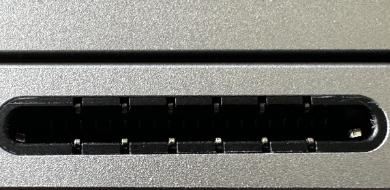
Using a 3IP (Torx-Plus) driver, install the 2 new Surface Connect screws (
)
until the screw is just snug and seated, and then turn each another
45-degrees (1/8th turn) until fully fastened.Lightly press the cable into the PSA to adhere the cable to the fan.
Install the Removable Solid-State Drive – Refer to Procedure – Installation (Removable Solid-State Drive) section of this document for detailed instructions.
Install the Enclosure – Refer to Procedure – Installation (Enclosure) section of this document for detailed instructions.
Power on device – Carefully place the device with the screen side facing up. Connect the device to a power supply and open the Display.
Run the Surface Diagnostic Toolkit (SDT) – Sitting at the desktop, insert the USB drive containing SDT and launch the program. Run all diagnostics to ensure the device is functioning as expected before moving forward.
Power off the device – Once the SDT tests have completed, power down the device and close the display. Invert the device so that the bottom of the device is facing up.
Install the Feet - Refer to the Procedure – Installation (Feet) section of this document for detailed instructions.
Motherboard Replacement Process
Preliminary Requirements
Important
Be sure to follow all special (bolded) notes of caution within each process section
Important
If replacing both the Motherboard and the Display Assembly – complete the Motherboard replacement prior to performing the Display Assembly Replacement to ensure proper part operation.
Required Tools
Plastic Openings Pick
Nylon Spudger
ESD-Safe Tweezers
Soft ESD-Safe Mat
6IP (Torx-Plus) Driver
5IP (Torx-Plus) Driver
3IP (Torx-Plus) Driver
Isopropyl alcohol (91% or greater)
Cleaning swabs
Anti-Static wrist strap (1M Ohm resistance)
USB drive loaded with the Surface Diagnostic Toolkit
Primary Components
Motherboard (Refer to the Illustrated Service Parts List)
M1301718 Screws x 4 (Foot screws)
M1266593 Screws x 2 (Battery FPC Bracket)

M1243031 (13” Laptops) or M1272782 (15” Laptops) Screws x 8 (Battery)
M1246215 Screws x 1 (Solid-State Drive)
M1265600 Screws x 1 (Hinge & Chassis)
M1274578 Screws x 12 (13” Laptops) or x 14 (15” Laptops) (Antenna)
M1212080 Screws x 1 (Upper Audio Jack Bridge)
M1330715 Screws x 1 (Lower Audio Jack Bridge)
M1263960 Screws x 1 (Audio Jack)
M1235995 Screws x 8 (Motherboard)

M1263961 Screws x 2 (Motherboard)

M1277573 Screws x 1 (Motherboard)

M1265416 Shield x 2 (Coax Cable Lid)
M1330714 Shield x 1 (T1 Shield) (13” Laptops)
M1330703 Shield x 1 (T1 Shield) (15” Laptops)
M1271924 Shield x 1 (T3 Shield)
M1328581 Tape x 1 (Display Assembly FPC Tape)
M1328578 Tape x 1 (Display Assembly FPC Tape)
M1288973 Foam x 1 (T3 Shield Foam #1)
M1288974 Foam x 1 (T3 Shield Foam #2)
M1287120 Tape x 1 (Touchpad FPC Tape)
M1019757 Syringe x 1 (Thermal Paste)
M1301902 PSA x 1 (Surface Connect & Fan)
M1304994 PSA x 1 (Micro SD Card Reader) (15” Laptops only)
M1234550 Tape x 1 (SSD)
M1318579 Spacer x 1 (SSD)
Additional Components (Ordered Separately)
- Feet (Refer to the Illustrated Service Parts List)
Procedure – Removal (Motherboard)
Place Device – Carefully place the closed device Display side down with the Feet facing up on a soft ESD-Safe Mat.
Remove the Feet – Refer to the Procedure – Removal (Feet) section of this document for detailed instructions.
Remove the Enclosure – Refer to the Procedure – Removal (Enclosure) section of this document for detailed instructions.
Remove the Removable Solid-State Drive - Refer to the Procedure – Removal (Removable Solid-State Drive) section of this document for detailed instructions.
Remove the Audio Jack - Refer to the Procedure – Removal (Audio Jack) section of this document for detailed instructions.
Remove the Battery – Refer to the Procedure – Removal (Battery) section of this document for detailed instructions.
Remove the Antenna –
Using a Nylon Spudger, pry up the 2 Coax Cable Lids.
Using a Nylon Spudger, disconnect the 2 Coax Cables.
Using a 3IP (Torx-Plus) driver, remove the 12 or 14 screws from the antenna.
Lift the Antenna out of the Chassis.
Remove the T3 Shield Lid –
Using a Nylon Spudger, pry up the T3 Shield Lid starting with the right edge.

NOTE: Remove the Motherboard screw next to the T3 Shield can give better access for removal of the shield.
Slide the Nylon Spudger under the shield moving right to left. Pause and shift the shield up and down as you work your way left as the shield will get stuck on its latches.

Caution: Ensure that the shield does not damage the Display FPCs during removal.
Disconnect the Display Assembly FPCs - Using a Nylon Spudger, pry up the connectors from the side and gently wiggle them free. If the connectors start giving resistance as they are being pried up, lightly push the edge being pried back down.
Caution: Do not force the connector if it starts to give resistance. Rock the connector back in the other direction to remove.

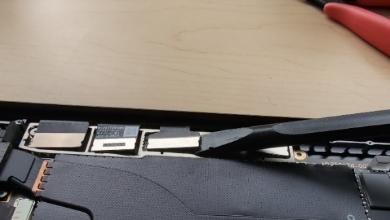
Disconnect the Surface Connect Cable – Using a Nylon Spudger, flip up the latch on the Motherboard and disconnect the Surface Connect connector from the Motherboard.
Disconnect the Fan FPC - Flip the latch on the Motherboard to disengage the lock on the Fan FPC. Remove the Fan FPC from the connector on the Motherboard.

Disconnect the Keyboard FPC. Flip the latch on the Motherboard to disengage the lock on the FPC. Remove the Keyboard FPC from the connector on the Motherboard by pulling on the black tab on the FPC.

Disconnect the Touch FPCs –
Remove the black tape covering the right Touchpad FPC and the connector. Clean the surface with IPA and cleaning swabs to ensure all residual adhesive is removed.

Flip the latch on the Motherboard to disengage the lock on the FPC. Remove the Touchpad FPC from the connector on the Motherboard. by pulling on the tab on the FPC.
Disconnect the Keyboard Backlight FPC - Flip the latch on the Motherboard to disengage the lock on the FPC. Remove the Keyboard Backlight FPC from the connector on the Motherboard.

Disconnect the Left Speaker - To remove the connector from the Motherboard, pull up vertically on the wires until the connector comes free.
Disconnect the Right Speaker - To remove the connector from the Motherboard, pull up vertically on the wires until the connector comes free.
Remove the Motherboard Steel Bracket – Using a 3IP (Torx-Plus) Driver, remove the 1 screw holding the Motherboard Steel Bracket to the Enclosure. Keep the Motherboard Steel Component for re-assembly

15” Laptops with Smart Card Reader Only: Disconnect the Smart Card Reader FPC - Using a nylon spudger, disconnect the Smart Card Reader FPC.

Remove the T1 Shield – Using a Nylon Spudger or ESD-Safe Tweezers, peel up the corner of the shield. Pry up the rest of the shield and remove.

Remove the Motherboard Screws - Using a 3IP (Torx-Plus) driver, remove the 10 remaining screws holding the Motherboard to the Chassis.

Remove the Motherboard – Using both hands, carefully lift the Motherboard out and up, taking care to avoid pulling on the thermal module or any connectors.
15” Laptops Only: Disconnect the Micro SD Reader Cable – Using a Nylon Spudger, flip up the latch on the Micro SD Reader board and disconnect the connector from the Motherboard.

Procedure – Installation (Motherboard)
15” Laptops Only: Install the Micro SD Reader Cable – Insert the Micro SD Reader Cable into the connector on the bottom side of the Motherboard. Flip down the latch on the connector to secure it.
Install the Motherboard –
Important
The Thermal Module should be installed onto the Motherboard. Take caution during installation of the Motherboard to avoid damage to the Thermal Module. Damage to the Thermal Module will require replacement of the Motherboard or device.
Lower the Motherboard USB-C side first into the device chassis.
Ensure that the USB-C connectors fit in the corresponding holes in the Chassis.Lower the left side of the Motherboard and use your other hand to keep the component FPCs out of the way.
Adjust the position of the Motherboard until all the holes line up with the screw bosses.
Using a 3IP (Torx-Plus) driver, install 7 new Motherboard screws
(
)
indicated in blue until just snug. Turn each screw another 45-degrees (1/8th turn) until fully fastened. Then install 2 new Motherboard screws indicated in red
(
),
until just snug. Turn each screw another 45-degrees (1/8th turn) until fully fastened.
Important
Ensure that the slots next to the thermal module screws sit over the posts in the device chassis.
Assemble the T1 Shield –
- Using the provided syringe of thermal paste, apply the equivalent of 1 tick mark (marked on the side of the syringe) of thermal paste to the components marked below.

- Assemble and install a new T1 Shield.
Assemble the Motherboard Steel Bracket - For 15” Laptops with Smart Card readers, First connect the Smart Card reader FPC. Using a 3IP (Torx-Plus) driver, install 1 new screw (
)
until just snug, and then turn another 45-degrees (1/8th
turn) until fully fastened.
Connect the Fan FPC - Ensure the latch on the Motherboard receptacle for the Fan FPC is in a vertical position before inserting the Fan FPC. Flip the latch on the Motherboard down to secure the Fan FPC.
Connect the Left Speaker wire - Insert the speaker connector into the receptacle on the Motherboard by pressing vertically until a snap is felt.
Connect the Right Speaker wire - Insert the speaker connector into the receptacle on the Motherboard by pressing vertically until a snap is felt.
Connect the Touchpad FPC -
Ensure the latch on the Motherboard connector for the Touchpad FPC is in the vertical position before inserting the Touchpad FPC. Flip the latch on the Motherboard down to secure the Touchpad FPC.
Apply a new Touchpad FPC Tape across the FPC and the Motherboard connector.
Connect the Keyboard FPC - Ensure the latch on the Motherboard connector for the Keyboard FPC is in the vertical position before inserting the Keyboard FPC. Flip the latch on the Motherboard down to secure the Keyboard FPC.
Connect the Keyset Backlight FPC - Ensure the latch on the Motherboard connector for the Keyset Backlight FPC is in a vertical position before inserting the Keyset Backlight FPC. Flip the latch on the Motherboard down to secure the Keyset Backlight FPC.
Install new PSA - Place a new piece of PSA down onto the Fan as shown. 15” Laptops with a MicroSD reader will require 2 pieces of tape. The location of the 2nd piece is indicated in red.

Install the Surface Connect Cable – Insert the connector of the Surface Connect Cable into the receptacle on the Motherboard and close the latch to secure it. There should be a click if the connector is inserted correct and the latch is fully closed.
Install the Display Assembly FPC’s, T3 Shield, and Antenna - Refer to the Procedure – Installation (Display Assembly) section of this document for detailed instructions.
Install the Audio Jack - Refer to the Procedure – Installation (Audio Jack) section of this document for detailed instructions.
Install the Battery - Refer to the Procedure – Installation (Battery) section of this document for detailed instructions.
Install the Removable Solid-State Drive – Refer to Procedure – Installation (Removable Solid-State Drive) section of this document for detailed instructions.
Install the Enclosure – Refer to Procedure – Installation (Enclosure) section of this document for detailed instructions.
Procedure – Finalize (Motherboard)
Important
If replacing both the Motherboard Module and the Display Assembly – complete the Motherboard Module replacement prior to performing the Display Assembly Replacement to ensure proper part operation.
Power on Device – Connect a Power Supply to the device and power it on until it reaches the Windows Desktop.
Connect USB – Connect USB with the Surface Diagnostic Toolkit (SDT) loaded to an available USB port on the device under repair.
Launch SDT – From the Windows Desktop, use Windows Explorer to navigate to the USB drive. Select the SDT executable (.exe) to launch the Surface Diagnostic Toolkit.
Run Touch Display Calibration – From the SDT launch screen, select Repair from the drop-down menu. Next, select Repair Setup and Validation to enter the selection screen. Run the Touch Display (Calibration) tool to calibrate your new Display. Follow all on-screen instructions and allow the device to restart when prompted.
Important
If the calibration fails, reboot the device, and attempt again. If the failure continues, then the Display may be faulty and require replacement.
Allow the Battery to charge – With the device connected to a power supply, allow the battery to charge until the battery icon in Windows reads at least 50% remaining battery charge.
Launch SDT – Once the device has rebooted and is at the Windows Desktop, use Windows Explorer to navigate to the USB drive. Select the SDT executable (.exe) to launch the Surface Diagnostic Toolkit.
Run Battery Authentication – From the SDT launch screen, select Repair from the drop-down menu. Next, select Repair Setup and Validation to enter the selection screen. Select the Battery Repair (Validation) tool to ensure the battery is detected as properly authenticated. If the battery reads anything other than authenticated, run the Validation tool in its entirety.
Important
Battery authentication requires a stable internet connection and the latest version of the Surface Management Extension. If the battery validation tool fails or is not detected properly, install the Surface Management Extension, reboot the device, and try again with a new internet connection. If failures continue, reach out to Microsoft Support.
Run the Surface Diagnostic Toolkit (SDT) – Run all diagnostics to ensure the device is functioning as expected before moving forward.
Install Feet – Refer to Procedure – Installation (Feet) for steps to install Feet.
Fan Replacement Process
Preliminary Requirements
Important
Be sure to follow all special (bolded) notes of caution within each process section.
Note: The procedures differ slightly between 13” and 15” Laptops. 15” Laptops will need to remove the Micro SD Reader in addition to the Surface Connect
Required Tools
Plastic Openings Pick
Nylon Spudger
ESD-Safe Tweezers
Soft ESD-Safe Mat
3IP (Torx-Plus) Driver
Isopropyl alcohol (91% or greater)
Cleaning swabs
Anti-Static wrist strap (1M Ohm resistance)
USB drive loaded with the Surface Diagnostic Toolkit
Primary Components
Fan Assembly (Refer to the Illustrated Service Parts List)
M1301718 Screws x 4 (Foot screws)
M1246215 Screws x 1 (Solid-State Drive)
M1277572 Screws x 2 (Surface Connect)
M1235134 Screws x 3 (Fan)

M1167842 Tape x 1 (Right Speaker Tape)
M1234550 Tape x 1 (SSD)
M1318579 Spacer x 1 (SSD)
Additional Components (Ordered Separately)
- Feet (Refer to the Illustrated Service Parts List)
Procedure – Removal (Fan Assembly)
Place Device – Carefully place the closed device Display side down with the Feet facing up on a soft ESD-Safe Mat.
Remove the Feet – Refer to the Procedure – Removal (Feet) section of this document for detailed instructions.
Remove the Enclosure – Refer to the Procedure – Removal (Enclosure) section of this document for detailed instructions.
Remove the Removable Solid-State Drive - Refer to the Procedure – Removal (Removable Solid-State Drive) section of this document for detailed instructions.
Remove the Surface Connect – Refer to the Procedure – Removal (Surface Connect) section of this document for detailed instructions.
15” Laptops Only: Disconnect the Micro SD Reader Cable – Using a Nylon Spudger, flip up the latch on the Micro SD Reader board and disconnect the connector. Peel the cable so that it is no longer adhered to the fan. Use care as to not damage the side of the cable that is connected to the Motherboard.

13” Laptops Only: Remove the Right Speaker tape – Remove the tape and clean the surface with IPA to remove any residual adhesive.
De-route the Right Speaker Cable: Remove the connector from the Motherboard by pulling up vertically on the wire with a nylon spudger until the connector comes free. Remove the cable from under the plastic routing guides on the fan.

Remove the Fan – Disconnect the Fan connector from the Motherboard by pulling horizontally on the protruding tab. Using a 3IP (Torx-Plus) driver, remove the three screws securing the Fan to the Keyboard Assembly. Note that screw locations are different on 13” and 15” Laptops. Remove the Fan from the device.

Procedure – Installation (Fan)
Install the Fan - Place the new Fan into the Chassis. Using a 3IP (Torx-Plus) driver, install three new screws. All screws should be installed until just snug, and then turned another 45-degress (1/8th turn) until fully fastened. Connect the Fan connector to the Motherboard by holding the protruding tab and inserting horizontally until the white marking is flush with the connector enclosure.
Route and connect the Right Speaker wire – Route the Right Speaker wire following the plastic routing guides on the fan. Install the speaker connector into the receptacle on the Motherboard by pressing vertically until a snap is felt.
NOTE: The connector will have 2 visible gold contacts if it is oriented in the correct direction.
13” Laptops Only: Place new Speaker Tape - Place a new Tape over the speaker wire as shown below.
Install new PSA - Place a new piece of PSA down onto the Fan as shown in blue. 15” Laptops will require 2 pieces of tape. The location of the 2nd piece is indicated in red.
15” Laptops Only: Connect the Micro SD Reader Cable - Insert the Micro SD Reader cable into the receptacle on the Micro SD Reader board and close the latch. There should be a click if the connector is inserted correctly, and the latch is fully closed.
Install the Surface Connect - Refer to the Procedure – Installation (Surface Connect) section of this document for detailed instructions.
Install the Removable Solid-State Drive – Refer to Procedure – Installation (Removable Solid-State Drive) section of this document for detailed instructions.
Install the Enclosure – Refer to Procedure – Installation (Enclosure) section of this document for detailed instructions.
Power on device – Carefully place the device with the screen side facing up. Connect the device to a power supply and open the Display.
Run the Surface Diagnostic Toolkit (SDT) – Sitting at the desktop, insert the USB drive containing SDT and launch the program. Run all diagnostics to ensure the device is functioning as expected before moving forward.
Power off the device – Once the SDT tests have completed, power down the device and close the display. Invert the device so that the bottom of the device is facing up.
Install the Feet - Refer to the Procedure – Installation (Feet) section of this document for detailed instructions.
Smart Card Reader Replacement Process
Preliminary Requirements
Important
Be sure to follow all special (bolded) notes of caution within each process section.
Note: Only certain 15” Laptops will have a Smart Card Reader
Required Tools
Plastic Openings Pick
Nylon Spudger
ESD-Safe Tweezers
Soft ESD-Safe Mat
5IP (Torx-Plus) Driver
Isopropyl alcohol (91% or greater)
Cleaning swabs
Anti-Static wrist strap (1M Ohm resistance)
USB drive loaded with the Surface Diagnostic Toolkit
Primary Components
Smart Card Reader Assembly (Refer to the Illustrated Service Parts List)
M1301718 Screws x 4 (Foot screws)
M1266593 Screws x 2 (Battery FPC Bracket)
M1272782 Screws x 8 (Battery)

M1246215 Screws x 1 (Solid-State Drive)
M1277573 Screws x 1 (Motherboard)
M1272784 Screws x 4 (Smart Card Reader)
M1308281 Tape x 1 (Smart Card Reader)
M1234550 Tape x 1 (SSD)
M1318579 Spacer x 1 (SSD)
Additional Components (Ordered Separately)
- Feet (Refer to the Illustrated Service Parts List)
Procedure – Removal (Keyboard Assembly)
Place Device – Carefully place the closed device Display side down with the Feet facing up on a soft ESD-Safe Mat.
Remove the Feet – Refer to the Procedure – Removal (Feet) section of this document for detailed instructions.
Remove the Enclosure – Refer to the Procedure – Removal (Enclosure) section of this document for detailed instructions.
Remove the Removable Solid-State Drive - Refer to the Procedure – Removal (Removable Solid-State Drive) section of this document for detailed instructions.
Remove the Battery – Refer to the Procedure – Removal (Battery) section of this document for detailed instructions.
Remove the Smart Card Reader FPC Bracket – Using a 3IP (Torx-Plus) driver, remove the screw holding down the Smart Card Reader FPC bracket.

Disconnect the Smart Card Reader FPC – Using a nylon spudger, disconnect the Smart Card Reader FPC.
Remove PSA - Gently peel up the PSA (pressure-sensitive adhesive) that adheres the Smart Card Reader FPC to the Chassis and remove. Clean up the surface with IPA and cleaning swabs until all residual adhesive has been removed and the surface is clean.

Remove the Smart Card Reader - Using a 3IP (Torx-Plus) driver, remove the 4 screws securing the Smart Card Reader to the Chassis. Remove the Smart Card Reader.

Procedure – Installation (Fan)
Apply Smart Card Reader Tape – Apply the Smart Card Reader Tape so that it covers the gold features on the bottom of the Smart Card Reader as shown.

Install new PSA - Place a new piece of PSA down onto the Chassis as shown.
Install Smart Card Reader – Mount the Smart Card Reader into the Chassis using a 3IP (Torx-Plus) driver with 4 screws at the locations shown. Ensure that the Smart Card Reader FPC is routed under the left speaker in the region indicated by the red arrow.

Connect the Smart Card Reader FPC – Connect the Smart Card Reader FPC.
Install the Smart Card Reader FPC Bracket – Using a 3IP (Torx-Plus) driver, install the screw holding down the Smart Card Reader FPC bracket
Install the Battery - Refer to the Procedure – Installation (Battery) section of this document for detailed instructions.
Install the Removable Solid-State Drive – Refer to Procedure – Installation (Removable Solid-State Drive) section of this document for detailed instructions.
Install the Enclosure - Refer to the Procedure – Installation (Enclosure) section of this document for detailed instructions.
Power on device – Carefully place the device with the screen side facing up. Connect the device to a power supply and open the Display.
Run the Surface Diagnostic Toolkit (SDT) – Sitting at the desktop, insert the USB drive containing SDT and launch the program. Run all diagnostics to ensure the device is functioning as expected before moving forward.
Power off the device – Once the SDT tests have completed, power down the device and close the display. Invert the device so that the bottom of the device is facing up.
Install the Feet - Refer to the Procedure – Installation (Feet) section of this document for detailed instructions.
Keyboard Replacement Process
Preliminary Requirements
Important
Be sure to follow all special (bolded) notes of caution within each process section.
Required Tools
Plastic Openings Pick
Nylon Spudger
ESD-Safe Tweezers
Soft ESD-Safe Mat
6IP (Torx-Plus) Driver
5IP (Torx-Plus) Driver
3IP (Torx-Plus) Driver
2IP (Torx-Plus) Driver
Isopropyl alcohol (91% or greater)
Cleaning swabs
Anti-Static wrist strap (1M Ohm resistance)
USB drive loaded with the Surface Diagnostic Toolkit
Primary Components
Keyboard Assembly (Refer to the Illustrated Service Parts List)
- M1301718 Screws x 4 (Foot screws)
M1266593 Screws x 2 (Battery FPC Bracket)
M1243031 (13” Laptops) or M1272782 (15” Laptops) Screws x 8 (Battery)
M1246215 Screws x 1 (Solid-State Drive)
M1265600 Screws x 1 (Hinge & Chassis)
M1274578 Screws x 14 (Antenna)
M1212080 Screws x 1 (Upper Audio Jack Bridge)
M1330715 Screws x 1 (Lower Audio Jack Bridge)
M1263960 Screws x 1 (Audio Jack)
M1235995 Screws x 8 (Motherboard)
M1263961 Screws x 2 (Motherboard)
M1277573 Screws x 1 (Motherboard)
M1211014 Screws x 4 (Speakers)
M1277572 Screws x 2 (Surface Connect)
M1235134 Screws x 3 (Fan)
M1249236 Screws x 4 (13” Laptops) or x 12 (15” Laptops) (Mounting Brackets)
M1265416 Shield x 2 (Coax Cable Lid)
M1330714 Shield x 1 (T1 Shield) (13” Laptops)
M1330703 Shield x 1 (T1 Shield) (15” Laptops)
M1271924 Shield x 1 (T3 Shield)
M1288973 Foam x 1 (T3 Shield Foam #1)
M1288974 Foam x 1 (T3 Shield Foam #2)
M1287120 Tape x 1 (Touchpad FPC Tape)
M1167842 Tape x 1 (Right Speaker Tape)
M1328581 Tape x 1 (Display Assembly FPC Tape)
M1328578 Tape x 1 (Display Assembly FPC Tape)
M1019757 Syringe x 1 (Thermal Paste)
M1301902 PSA x 1 (Surface Connect & Fan)
M1234550 Tape x 1 (SSD)
M1318579 Spacer x 1 (SSD)
Additional Components (Ordered Separately)
- Feet (Refer to the Illustrated Service Parts List)
Procedure – Removal (Keyboard Assembly)
Place Device – Carefully place the closed device Display side down with the Feet facing up on a soft ESD-Safe Mat.
Remove the Feet – Refer to the Procedure – Removal (Feet) section of this document for detailed instructions.
Remove the Enclosure – Refer to the Procedure – Removal (Enclosure) section of this document for detailed instructions.
Remove the Removable Solid-State Drive - Refer to the Procedure – Removal (Removable Solid-State Drive) section of this document for detailed instructions.
Remove the Audio Jack - Refer to the Procedure – Removal (Audio Jack) section of this document for detailed instructions.
Remove the Battery – Refer to the Procedure – Removal (Battery) section of this document for detailed instructions.
Remove the Left Speaker – Refer to the Procedure – Removal (Left Speaker) section of this document for detailed instructions.
Remove the Right Speaker - Refer to the Procedure – Removal (Right Speaker) section of this document for detailed instructions.
15” Laptops Only: Remove the Micro SD Reader – Refer to the Procedure – Removal (Micro SD Reader) section of this document for detailed instructions.
Remove the Display Assembly – Refer to the Procedure – Removal (Display Assembly) section of this document for detailed instructions.
Remove the Surface Connect – Refer to the Procedure – Removal (Surface Connect) section of this document for detailed instructions.
Remove the Motherboard - Refer to the Procedure – Removal (Motherboard) section of this document for detailed instructions. Omit Step 22.
Remove the Fan – Refer to the Procedure – Removal (Fan) section of this document for detailed instructions.
15” Laptops Only: Remove the Smart Card Reader – Refer to the Procedure – Removal (Smart Card Reader) section of this document for detailed instructions.
Remove the Mounting Brackets– Using a 2IP (Torx-Plus) driver, remove the 2 screws holding each of the Mounting Brackets to the Keyboard Assembly. Remove the 2 (13” Laptops) or 6 (15” Laptops) Mounting Brackets from the device. Retain the Mounting Brackets.

Procedure – Installation (Keyboard Assembly)
Install the Mounting Brackets –
- Place the 2 (13” Laptops) or 6 (15” Laptops) previously removed Mounting Brackets so that the yellow side is visible, and they are arranged as shown.

- Using a 2IP (Torx-Plus) driver, install 4 new Mounting Bracket screws until the screws are just snug, and then turn each another 45-degrees (1/8th turn) until fully fastened.
15” Laptops Only: Install the Micro SD Reader – Refer to the Procedure – Installation (Micro SD Reader) section of this document for detailed instructions.
Install the Fan - Refer to Procedure – Installation (Fan) section of this document for detailed instructions.
Install the Motherboard - Refer to the Procedure – Installation (Motherboard) section of this document for detailed instructions. Complete steps 1-5 in that section. Ensure the FPCs from the Keyboard Module are placed over the Motherboard.
15” Laptops with Smart Card Reader Only - Install the Smart Card Reader – Refer to the Procedure – Installation (Smart Card Reader) section of this document for detailed instructions.
Install the Left Speaker - Refer to Procedure – Installation (Left Speaker) section of this document for detailed instructions.
Install the Right Speaker - Refer to Procedure – Installation (Right Speaker) section of this document for detailed instructions.
Continue with Motherboard installation - Refer to the Procedure – Installation (Motherboard) section of this document for detailed instructions. You will start at Step 6.
Install the Display - Refer to the Procedure – Installation (Display) section of this document for detailed instructions.
Install the Audio Jack - Refer to the Procedure – Installation (Audio Jack) section of this document for detailed instructions.
Install the Surface Connect - Refer to the Procedure – Installation (Surface Connect) section of this document for detailed instructions.
Install the Battery - Refer to the Procedure – Installation (Battery) section of this document for detailed instructions.
Install the Removable Solid-State Drive – Refer to Procedure – Installation (Removable Solid-State Drive) section of this document for detailed instructions.
Install the Enclosure - Refer to the Procedure – Installation (Enclosure) section of this document for detailed instructions.
Power on device – Carefully place the device with the screen side facing up. Connect the device to a power supply and open the Display.
Run the Surface Diagnostic Toolkit (SDT) – Sitting at the desktop, insert the USB drive containing SDT and launch the program. Run all diagnostics to ensure the device is functioning as expected before moving forward.
Power off the device – Once the SDT tests have completed, power down the device and close the display. Invert the device so that the bottom of the device is facing up.
Install the Feet - Refer to the Procedure – Installation (Feet) section of this document for detailed instructions.