Note
Access to this page requires authorization. You can try signing in or changing directories.
Access to this page requires authorization. You can try changing directories.
Warning
Review the General Safety Precautions and Battery Safety guidelines in their entirety before proceeding with any repair steps.
Important
Read this Guide in its entirety before starting any repairs. If at any point you're unsure or uncomfortable about performing the repairs, as detailed in this Guide, DO NOT proceed. Contact Microsoft for more support options.
Warning
Failure to follow the instructions in this Guide, use of non-Microsoft (nongenuine), incompatible, or modified replacement parts, and/or failure to use proper tools could result in serious injury, death, and/or damage to the product or other property.
Prerequisite Steps
Steps outlined in this section should be conducted before starting any repair on a Surface device.
Power off device – Ensure the device is powered off completely and the battery has been fully discharged. Refer to the Repair-specific precautions and warnings section for guidelines. Once discharged, the device should be disconnected from all power sources.
ESD Prevention – Ensure ESD prevention steps and general guidelines are followed before opening the device. Refer to the ESD Prevention section for guidelines.
Position Device – To prevent damage to the device, ensure the device is placed on a clean surface free of debris.
Non-Skid Feet Replacement Process
Preliminary Requirements
Important
Be sure to follow all special (bolded) notes of caution within each process section.
Required Tools and Components
All tools required for repair are listed under Service Tools and Jigs.
All parts required for this repair will be provided in the CRU kit being purchased. CRU kits are listed on the (Illustrated Parts List).
Prerequisite Steps
- Power off device – Ensure device is powered off by fully discharging the battery. Refer to Repair-Specific Precautions and Warnings section for details. Ensure device is disconnected from a power supply and all cables and drives are removed.
- ESD Prevention – Check to make sure that general guidelines and ESD Prevention steps are followed before opening device. Refer to ESD Prevention section for details.
- Position device – To prevent scratches, flip device over onto a clean surface free of debris with the device bottom facing up for access to the feet for removal.
Procedure - Removal (Non-Skid Feet)
Remove Feet – Use a plastic tool to pry up he foot from one end and then peel to remove. Repeat for the other foot.
Important
The front and back feet aren't the same. There's one locating post on the rear foot near the left hinge and two locating posts for the front foot below the trackpad. – refer to illustration for details.

Feet removal technique – Use plastic tweezers / spudger to lift one edge of each foot. Grasp the loose end and pull the foot from the chassis. Ensure all adhesive tape remnants and glue residue are removed. Clean the chassis foot recesses with 70% Isopropyl Alcohol.
Important
Once removed, the Feet will be stretched out of shape and must be replaced with new ones.

Procedure - Installation (Non-Skid Feet)
Important
Any further repairs that are required on the device should be carried out before feet installation. Don't reuse feet previously removed from a device.
Prepare new front foot and press into place – To install the front foot, remove protective sheet to expose adhesive on foot. Align the two locating posts for the front foot. Press the foot in firmly. Then slide your hand up and down the length of the foot to ensure that it's secured in place.

Inspect for anomalies – Inspect foot to ensure no cosmetic damage or gaps between the foot and the chassis foot recesses exist.
Prepare new back foot and press into place – To install the back foot, remove protective sheet to expose adhesive on foot. Align the one locating post for the back foot. Press the foot in firmly. Then slide your hand up and down the length of the foot to ensure that it's secured in place.

Inspect for anomalies – Inspect foot to ensure no cosmetic damage or gaps between the foot and the chassis foot recesses exist.
Important
Before transporting the device, we recommend letting it sit feet-down on a tabletop for at least 12 hours. If this isn’t possible, it’s recommended to avoid placing the device in a backpack, purse, other types of carriers, until at least 12 hours after installing new feet.
Keyboard Assembly Replacement Processes
Preliminary Requirements
Important
Be sure to follow all special (bolded) notes of caution within each process section.
Required Tools and Components
All tools required for repair are listed under Service Tools and Jigs.
All parts required for this repair will be provided in the CRU kit being purchased. CRU kits are listed on the (Illustrated Parts List).
Important
There are Keyboards with and without a fingerprint reader. Ensure the new Keyboard used matches the original. The fingerprint reader is integrated into the power button. Without the fingerprint reader, a physical bump is present on the upper right-hand corner.

Prerequisite Steps
Power off device – Ensure device is powered off by fully discharging the battery. Refer to Repair-Specific Precautions and Warnings section for details. Ensure device is disconnected from a power supply and all cables and drives are removed.
ESD Prevention – Check to make sure that general guidelines and ESD Prevention steps are followed before opening device. Refer to ESD Prevention section for details.
Remove Feet – Follow steps for Procedure - Removal (Non-Skid Feet) section.
Procedure - Removal (Keyboard)
Remove Keyboard screws – Using a PH0 screwdriver uninstall the three screws from the rear, and four screws from the front chassis foot recesses.

Important
Ensure the plastic pick depth into the keyboard is kept shallow to avoid damaging snaps and impacting the battery.
Important
Remove keyboard exactly as described in this step to avoid damaging the Flexible Printed Circuit (FPC) connected between the keyboard and the Main Board. Don't pull the keyboard apart beyond 45 degrees otherwise damage to keyboard FPC could occur.
Separate keyboard from device
Note the locations of the snaps that secure the keyboard to the chassis.

Open the device to 90 degrees and place the display side down with the keyboard facing up.

Using a plastic opening tool to pry between the keyboard and chassis along the front between the snap locations. Rotate the opening tool by about 15 degrees and slowly run the tool along the seam between the keyboard and chassis. Start along the front seam and then the 2 sides until all snaps of keyboard are disengaged.

Gently rotate the opening tool at the hinge corner until you hear a soft pop from the snap. Repeat this for both hinges.

To disengage the 4 vent snaps, ensure the device is open to 90 degrees and the display is lying flat on the work surface. Gently push the Keyboard downward towards the work surface and rotate it for towards the screen.

Disconnect FPCs – With the Keyboard rotated towards the screen, lift the connector lock on the battery FPC and then pull the FPC out. Next lift the connector lock on the keyboard FPC and then pull the FPC out.

Warning
It's recommended that an ESD-safe battery cover be placed across the device to protect the battery from any physical contact or accidental damage whenever Keyboard is removed. Ensure corners of cover are always aligned with the corners of the device while battery is exposed. If battery cover is misaligned during activities in any way, re-align before continuing activities.
Important
When removed from the device, place the Keyboard in a safe place with key and trackpad side down and FPC facing up to avoid bending/creasing the FPC. Be sure the key and trackpad side of the Keyboard is protected from cosmetic damage during storage.
Important
Ensure battery FPC remains disconnected from the PCBA whenever Keyboard is removed from device for safety purposes.
Procedure - Installation (Keyboard)
Pre-installation Device Inspection
Warning
Verify the battery’s condition refer to, Lithium-Ion Battery Inspection.
Warning
Verify the condition of LDI (Liquid Damage Indicators). Any color other than white indicates liquids have entered the device. Devices exhibiting LDI require whole unit replacement.

Check Device for Debris – Check the keyboard (both sides) and device enclosure for any loose articles that might be present inadvertently on the Keyboard or within the device enclosure areas.
Check and remove any foreign objects that the magnets might have attracted or that might have been accidentally introduced into the device during replacement.

Carefully inspect the area around battery specifically for any foreign objects before removing battery cover.
Check Keyboard Snaps – Verify the 16 Keyboard snaps and the 4 Chassis snaps weren't damaged during device disassembly. Damaged Keyboard snaps require installing a new Keyboard. Damaged Chassis snaps can only be addressed by whole device replacement. Refer to illustrations for further details.

Remove Tape from New Keyboard FPC – Tape secures the Keyboard FPC during shipping. Remove this tape before continuing with assembly.
Connect Keyboard FPC – Remove the battery cover. Hover the Keyboard over the device while assembling the Keyboard FPC to the main board. Slide the FPC into the connector and then press down on the locking tab.
Important
Be sure that FPC bends fall in place properly as pre-bent, and no folds or creases are created during reassembly of Keyboard.

Connect Battery FPC – Connect the Battery FPC to the Motherboard. Slide the FPC into the connector and then press down on the locking tab.

Apply New Thermal Pads – Remove the original thermal pads from top of the shield marked below. Clean thermal pad residue with IPA and cotton swabs. Apply new thermal pads on the shield in the same approximate location.

Align the Keyboard – Properly align the cover to the device using the front edge alignment posts. Carefully place the Keyboard back onto the Chassis and shift the Keyboard snaps into place. Press gently on the Keyboard to engage the snaps correctly. Follow the direction of progress as shown in the picture below. Verify there are no visible gaps between the Keyboard and Chassis.
Important
Ensure that the Keyboard is correctly aligned and seated before closing the device. There's the risk of breaking the display if the device lid is closed before Keyboard is aligned.

Run SDT – Run SDT to ensure all device features and functions operate as expected. Refer to Surface Software Repair Tools for details on SDT.
Install New Keyboard Screws – Close the Display and turn the unit over. Use a PH0 screwdriver to install 5 Keyboard Screws (MM20048I000) to secure the Keyboard in the order pictured below. Then install 2 longer screws (MS20055I430) installed as marked below. All screws should be installed until snug and seated, and then turned another 90 degrees (1/4 turn).
Important
Ensure the longer screws (MS20055I430) are installed in the two corner locations under the rear foot pad.

Install Feet – If SDT tests pass and no further repairs are to be performed on the device, follow the steps for on (Procedure - Installation (Non-Skid Feet)).
rSSD Replacement Process
Preliminary Requirements
Important
Be sure to follow all special (bolded) notes of caution within each process section.
Required Tools and Components
All tools required for repair are listed under Service Tools and Jigs.
All parts required for this repair will be provided in the CRU kit being purchased. CRU kits are listed on the (Illustrated Parts List).
Prerequisite Steps
Power off device – Ensure device is powered off by fully discharging the battery. Refer to Repair Specific Precautions and Warnings section for details. Ensure device is disconnected from a power supply and all cables and drives are removed.
ESD Prevention – Check to make sure that general guidelines and ESD Prevention steps are followed before opening device. Refer to ESD Prevention for details.
Remove Feet – Follow steps for Procedure - Removal (Non-Skid Feet) section.
Remove Keyboard – Follow steps on Procedure - Removal (Keyboard)
Procedure - Removal (rSSD)
Remove SSD Shielding cover and Screw – Use a plastic opening tool to pry up Shielding cover. Slide the tool under the lip on the top side of the shield. Use a PH00 screwdriver to remove the screw securing the rSSD.

Clean TIM Residue – Inspect rSSD for TIM residue. Carefully wipe away any residue with IPA.
Remove SSD – Carefully grab sides of rSSD case and pull out of the mainboard socket at ~15-degree angle.

Remove rSSD Thermal Pad – After removing the SSD, peel the original Thermal Pad from the motherboard and clean off any residual with IPA and cotton swabs.

Procedure - Installation (rSSD)
Important
Only a Microsoft rSSD with part number as specified in the parts list, per device model, and of like capacity should be replaced in the device.
Apply New Thermal Pad – Align thermal pad on the Motherboard in approximate area shown below, use screw boss as alignment. Once positioned remove the release liner.

Install New rSSD – Insert the connector end of the rSSD into the SSD connector on Mainboard at ~15-degree angle.

Install rSSD Screw – Using a PH00 screwdriver install new MM16030I130S screw until the screw is snug and seated, and then turned another 45 degrees (1/8 turn).

Install rSSD Shield – Install a new shielding cover over the rSSD, a new thermal pad should be included with the shield lid. New shield should snap into place when pushed down along all edges.

Install Keyboard – Follow steps for on Procedure – Installation (Keyboard).
Important
Only snap the Keyboard in place. Don't secure Keyboard with screws.
Imaging new rSSD – Power on device. Apply a new image to the rSSD using a BMR Imaging key specific to the device model. Refer to Surface Imaging Process - Surface Imaging Tools.
Run SDT – Run SDT to ensure all device features and functions operate as expected. Refer to Surface Software Repair Tools for details on SDT. If SDT tests pass and no further repairs are to be performed on the device continue with the final assembly steps.
Install New Keyboard Screws – Power off device. Close the Display and turn the unit over. Use a PH0 screwdriver to install 7 new screws to secure the Keyboard as detailed on Procedure - Installation (Keyboard).
Install Feet – Follow the steps for Procedure – Installation (Non-Skid Feet) on Procedure - Installation(Non-Skid Feet).
Display Assembly Replacement Process
Preliminary Requirements
Important
Be sure to follow all special (bolded) notes of caution within each process section.
Required Tools and Components
All tools required for repair are listed under Service Tools and Jigs.
All parts required for this repair will be provided in the CRU kit being purchased. CRU kits are listed on the (Illustrated Parts List).
Prerequisite Steps
- Prep Device – Device must be set in TDM Replacement Mode before
removing a faulty Display. This isn't required if the original
Display will be reinstalled.
- Connect software tools USB drive with SDT to USB connector on device under repair.
- Connect power supply to device.
- Power on device – Depress the power button on the side of the device.
- Run software tool – At the device OS, use Windows Explorer, navigate to USB drive, and run:
SDT – Select Repair setup and validation. Run the Touch Display Setup. At the end of the tool process device will power down.
Warning
This step must be conducted on the device successfully before removal of a faulty display. If display is unusable, connect an external monitor to run these steps.
Power off device – Ensure device is powered off by fully discharging the battery. Refer to Repair-Specific Precautions and Warnings for details. Ensure device is disconnected from a power supply and all cables and drives are removed.
ESD Prevention – Check to make sure that general guidelines and ESD Prevention steps are followed before opening device. Refer to ESD Prevention for details.
Remove Feet – Follow steps for Procedure - Removal (Non-Skid Feet) section.
Remove Keyboard – Follow steps for on Procedure - Removal (Keyboard).
Procedure - Removal (Display Assembly)
Remove Thermal Module – Use a PH00 screwdriver to remove the four screws securing the thermal module and remove it from the PCBA.

Disconnect Antenna cable – Using plastic tweezers remove the clear Mylar shield covering the antenna connectors. Disconnect the two Antenna cables located on Mainboard. Remove the black tape securing the antenna cables to the Chassis.

Disconnect Display connector – Lift up on the metal buckle. Then slide out the display connector from the Mainboard connector.

Remove Two Inner Hinge Screws – Use a PH0 screwdriver to remove the 2 inner screws on the left and right hinges.

Set Display Angle to 90 Degrees – Place the display module at an angle of about 90 degrees. Use a PH0 screwdriver to remove the 2 outer screws at the left and right hinges while holding the display with your free hand.

Remove Display from Device – Lift the display module straight up vertically until detached from the Chassis.
Procedure - Installation (Display Assembly)
Install Display – Set the new Display in place in the device chassis hinge wells and hold in place. Use a PH0 screwdriver to install 2 new MS20055I430 outer screws on each hinge. Screws should be installed until snug and seated, and then turned another 90 degrees (1/4 turn).

Install Two Inner Hinge Screws – Using a PH0 screwdriver, install 2 new inner MM20048I000 screws on the left and right hinges. Screws should be installed until snug and seated, and then turned another 90 degrees (1/4 turn).

Install Display connector – Slide display connector into the Mainboard connector. Secure the cable with the metal buckle. Ensure the cable is routed below the metal tab near the hinge.

Connect Antenna cable – Carefully install two antenna connectors on the mainboard. Install a new clear Mylar shield over the antenna connectors. Secure the antenna cables to the Chassis with the supplied black tape.

Important
Ensure the antenna with the shrink wrap ring is connected to the top interface.

Important
Ensure the antenna cables are routed under the tab on the bracket near the hinge.

Install Thermal Module (Heatsink) – Gently clean off the residual thermal grease from the two IC chips with a lint free cloth. Make sure there are no contaminants or residual grease. Check that the thermal grease on the underside of the new thermal module is intact and not smeared. Place the thermal module over the two IC chips. Using a PH00 screwdriver Install 4 new MM16030I130 screws until snug and seated, and then turn another 45 degrees (1/8 turn).

Install Keyboard – Follow steps for on Procedure - Installation (Keyboard).
Important
Only snap the Keyboard in place. Don't secure Keyboard with screws.
Power On Device – Carefully place device top side up. Connect device to power supply, open display, and power on.
New Display TDM Calibration – On installation of a new Display TDM device final calibration relies on the successful completion of the TDM Replacement Mode. TDM calibration isn't required when installing the originally removed Display.
Connect software tools USB drive with SDT to USB connector on device under repair.
Run software tool – At the device OS, use Windows Explorer, navigate to USB drive, and run: SDT – Select Repair setup and validation. Run the Touch Display Calibration. Accept the restart prompt at the end of the tool process.
Important
This step must be conducted on the device successfully on installation of a new display or when installing any display onto a new motherboard.
Install Keyboard Screws – Power off device. Close the Display and turn the unit over. Use a PH0 screwdriver to install 7 new screws to secure the Keyboard as detailed on Install New Keyboard Screws.
Important
Ensure the longer MS20055I430 screws are installed in the two corner locations under the rear foot pad as detailed in the Installation (Keyboard).
Install Feet – Follow the steps on Procedure – Installation (Non-Skid Feet.
Surflink Replacement Process
Preliminary Requirements
Important
Be sure to follow all special (bolded) notes of caution within each process section.
Required Tools and Components
All tools required for repair are listed under Service Tools and Jigs.
All parts required for this repair will be provided in the CRU kit being purchased. CRU kits are listed on the (Illustrated Parts List).
Prerequisite Steps
- Power off device – Ensure device is powered off by fully discharging the battery. Refer to Repair-Specific Precautions and Warnings for details. Ensure device is disconnected from a power supply and all cables and drives are removed.
- ESD Prevention – Check to make sure that general guidelines and ESD Prevention steps are followed before opening device. Refer to ESD Prevention for details.
- Remove Feet – Follow steps for Procedure - Removal (Non-Skid Feet) section .
- Remove Keyboard – Follow steps for on Procedure - Removal (Keyboard).
Procedure - Removal (Surflink)
Remove Right Display Hinge Screws – Use a PH0 screwdriver to remove 2 screws securing the right Display hinge. Move the hinge up to make space for removal of the right bracket.

Remove Bracket – Use a PH0 screwdriver to remove 2 screws and a PH00 screwdriver to remove a 3rd screw securing the right bracket. Remove the bracket from the Chassis.

Remove Surflink – Remove foil tape. Use a spudger to unlock the Surflink cable connector and remove it from the mainboard. Remove the Surflink cable from the cooling fan shroud and then the Surflink assembly from the Chassis.

Procedure - Installation (Surflink)
Important
The Display hinge screws are of two lengths. Ensure the correct length screw is installed. Refer to the hinge screw installation step for further details.
Install Surflink – Place the Surflink into the Chassis. Route the Surflink cable around the cooling fan shroud. Slide Surflink connector into the mainboard and press down on the locking tab. Apply new foil tape as pictured below.

Install Bracket – Place right bracket in the Chassis over the Surflink. Use a PH0 screwdriver to install 2 new MM20045I080 screws and a PH00 screwdriver to a new MM16030I130 screw into the right bracket. Screws should be installed until snug and seated, and then turned another 45 degrees (1/8 turn).

Important
Ensure the antenna cables are routed under the tab on the bracket.

Install Right Display hinge Screws – Tilt the hinge down over the right bracket. Use a PH0 screwdriver to install one MS20055I430 screw, and one MM20048I000 screw into the Display hinge. Screws should be installed until snug and seated, and then turned another 45 degrees (1/8 turn).

Install Keyboard – Follow steps for on Procedure – Installation (Keyboard).
Important
Only snap the Keyboard in place. Don't secure Keyboard with screws.
Power On Device – Carefully place device top side up. Connect device to power supply, open display, and power on.
New display calibration – On installation of a new display, final calibration relies on the successful completion of the TDM Replacement Mode. Display calibration isn't required when installing the originally removed display.
- Connect software tools USB drive with SDT to USB connector on device under repair.
- Run software tool – At the device OS, use Windows Explorer, navigate to USB drive, and run:
SDT – Select Repair setup and validation. Run the Touch Display Calibration. Accept the restart prompt at the end of the tool process.
Important
This step must be conducted on the device successfully on installation of a new display.
Run SDT – Run SDT to ensure all device features and functions operate as expected. Refer to Surface Software Repair Tools for details on SDT. If SDT tests pass and no further repairs are to be performed on the device continue with the final assembly steps.
Install Keyboard Screws – Power off device. Close the Display and turn the unit over. Use a PH0 screwdriver to install 7 new screws to secure the Keyboard as detailed on Install New Keyboard Screws.
Important
Ensure the longer MS20055I430 screws are installed in the two corner locations under the rear foot pad as detailed in the Installation (Keyboard).
Install Feet – Follow the steps for Procedure – Installation (Non-Skid Feet) on Procedure - Installation(Non-Skid Feet).
Battery Replacement Process
Preliminary Requirements
Important
Be sure to follow all special (bolded) notes of caution within each process section.
Required Tools and Components
- All tools required for repair are listed under Service Tools and Jigs.
- All parts required for this repair will be provided in the CRU kit being purchased. CRU kits are listed on the (Illustrated Parts List).
Prerequisite Steps
- Power off device – Ensure device is powered off by fully discharging the battery. Refer to Repair-Specific Precautions and Warnings for details. Ensure device is disconnected from a power supply and all cables and drives are removed.
- ESD Prevention – Check to make sure that general guidelines and ESD Prevention steps are followed before opening device. Refer to ESD Prevention for details.
- Remove Feet – Follow steps for Procedure - Removal (Non-Skid Feet) section.
- Remove Keyboard – Follow steps on Procedure - Removal (Keyboard)
Procedure - Removal (Battery)
Remove Battery Screws – Use a PH00 screwdriver to remove the 4 screws securing the battery.

Remove Battery – Carefully lift battery up and out of the Chassis.

Procedure - Installation (New Battery)
Warning
Only handle new battery using the finger loops.
Pre-Installation Device Inspection – Check Chassis on both sides as well as device enclosure for any loose articles for foreign debris that might be present. Verify all removed screws are accounted for and have not been misplaced in the device.
Insert New Battery – Using the finger loops carefully place the new battery into the Chassis. Ensure the tabs along the front edge are fully seated into the Chassis.

Install New Battery Screws – Using a PH00 screwdriver install 4 new MM16035I040 screws. Screws should be installed until snug and seated, and then turned another 45 degrees (1/8 turn). Carefully remove the liner.

Install Keyboard – Follow steps for on Procedure – Installation (Keyboard).
Important
Only snap the Keyboard in place. Don't secure Keyboard with screws.
New Battery Charging – New batteries are shipped and stored at low states of charge in compliance with shipping regulations. They should be charged to at least 50%. This step will take between 20 minutes and 1 hour and is needed to validate full functionality of the new battery. Carefully place device right-side up. Open device, connect the power supply, and power it on.
New Battery Authentication – After charging the new battery to at least 50%, ensure new battery reads as authenticated in the Battery Authentication Workflow in SDT. If the battery shows as inauthentic run the SDT battery repair validation to ensure all features and functions operate as expected. Power off at completion of tests. Remove SDT USB drive and power supply. If no further repairs are required proceed with the final steps.
Install New Keyboard Screws – Power off device. Close the Display and turn the unit over. Use a PH0 screwdriver to install 7 new screws to secure the Keyboard as detailed on Install New Keyboard Screws
Important
Ensure the longer MS20055I430 screws are installed in the two corner locations under the rear foot pad as detailed in the Installation (Keyboard).
Install Feet – Follow the steps for Procedure – Installation
(Non-Skid Feet) on Procedure - Installation(Non-Skid Feet).
Motherboard Replacement Process
Preliminary Requirements
Important
Be sure to follow all special (bolded) notes of caution within each process section.
Required Tools and Components
All tools required for repair are listed under Service Tools and Jigs.
All parts required for this repair will be provided in the CRU kit being purchased. CRU kits are listed on the (Illustrated Parts List).
Prerequisite Steps
Important
If replacing both the Motherboard and Display, complete the Motherboard repair first and ensure functionality before beginning the Display replacement procedure. Failure to do so might result in TDM functionality being impacted.
Power off device – Ensure device is powered off by fully discharging the battery. Refer to Repair-Specific Precautions and Warnings for details. Ensure device is disconnected from a power supply and all cables and drives are removed.
ESD Prevention – Check to make sure that general guidelines and ESD Prevention steps are followed before opening device. Refer to ESD Prevention for details.
Remove Feet – Follow steps for Procedure - Removal (Non-Skid Feet).
Remove Keyboard – Follow steps on Procedure - Removal (Keyboard).
Remove Display - Follow steps for Procedure – Removal (Display) on Procedure – Removal (Display).
Remove rSSD – Follow steps on Procedure – Removal (rSSD)
Remove Surflink – Follow steps on Procedure – Removal (Surflink).
Procedure - Removal (Motherboard)
Warning
Place a Microsoft recommended ESD-safe battery cover across the device to protect the battery from any accidental damage during repair. Ensure corners of cover are always aligned with the corners of the device during repair. If battery cover is misaligned during the repair operation in any way, re-align before continuing repair activities.
Remove Fan assembly – Use a plastic spudger to disengage the fan cable from the connector on the motherboard. Using a PH00 screwdriver remove the 3 screws securing the fan assembly to the chassis. Lift out the fan assembly.
Important
Don't pull on the cable as the thin cables might be damaged

Remove Left Bracket – Using a PH00 screwdriver, remove the 2 screws on the left metal bracket. Remove bracket from chassis.

Disconnect Speakers – Use a plastic spudger to wiggle the speaker cable from the connector on the left side of the motherboard.
Important
Don't pull the cable wires as this might damage the cable assembly.
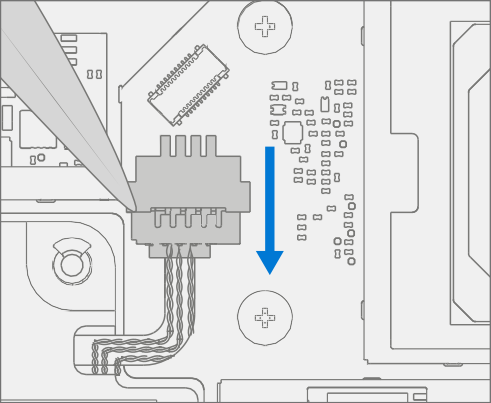
Remove Motherboard – Remove the small square foam piece from the screw located under the battery connector. Using a PH00 screw remove the 2 motherboard screws highlighted below. Remove the motherboard from the chassis by lifting the board at an angle and pulling it to the right.

Procedure - Installation (Motherboard)
Verify Fan Cable Routing – Verify the fan cable has not shifted in the chassis and that the wire runs through the alignment channel in the chassis.

Install Motherboard – Align the motherboard with the locating bosses in the chassis. Ensure that the ports on the left are aligned with the chassis and lower into place. Using a PH00 screwdriver, install 2 new MS16020I480 screws. Screws should be installed until snug and seated, and then turned another 45 degrees (1/8 turn). Install the square insulator on the marked screw.
Connect Speakers – Use a plastic spudger to wiggle the speaker cable into the connector on the left side of the motherboard.
Important
Don't pull the cable wires as this might damage the cable assembly.

Install Left Bracket – Place the left bracket into the chassis, aligning screw holes. Using a PH00 screwdriver install 2 new MM16030I130 screws. Screws should be installed until snug and seated, and then turned another 45 degrees (1/8 turn).

Install Fan assembly – Use a plastic spudger to install the fan cable in the connector on the motherboard. Using a PH00 screwdriver install 3 new MM16030I130 screws securing the fan assembly to the chassis. Screws should be installed until snug and seated, and then turned another 45 degrees (1/8 turn).
Important
Don't pull on the cable as the thin cables might be damaged

Install Surflink – Follow steps on (Procedure – Installation (Surflink))
Install Display - Follow steps on Procedure – Installation (Display).
Install rSSD – Follow steps on Procedure – Installation (rSSD)
Install Keyboard – Follow steps on Procedure – Installation (Keyboard).
Important
Only snap the Keyboard in place. Don't secure Keyboard with screws.
Install New Keyboard Screws – Power off device. Close the Display and turn the unit over. Use a PH0 screwdriver to install 7 new screws to secure the Keyboard as detailed on Install New Keyboard Screws
Power On Device – Carefully place device top side up. Connect device to power supply, open display, and power on.
Complete Display Calibration
- Connect software tools USB drive with SDT to USB connector on device under repair.
- Run software tool – At the device OS, use Windows Explorer, navigate to USB drive, and run:
SDT – Select Repair setup and validation. Run the Touch Display Calibration. Accept the restart prompt at the end of the tool process.
Important
This step must be conducted on the device successfully on installation of a new motherboard to ensure proper display functionality.
New Battery Authentication – Ensure the battery reads as authenticated in the Battery Repair (Validation) workflow in SDT. If the battery shows as inauthentic run the SDT Battery Repair (Validation) workflow in its entirety.
- Connect the SDT Configuration USB drive.
- Run the SDT Battery Repair (Validation) to ensure the battery is properly authenticated and all features and functions operate as expected.
Important
Battery authentication requires a stable internet connection. If any battery steps fail retry with a new internet connection. If failures continue, reach out to Microsoft Support.
Run SDT – Run SDT to ensure all device features and functions operate as expected. Refer to Surface Software Repair Tools for details on SDT.
Install Feet – Follow steps on Procedure – Installation (Display).