Exercise - Create a topic with Copilot
Create a conversational flow for your copilot.
Create a topic using Copilot
Sign into Microsoft Copilot Studio.
In the left navigation pane, select Agents, and then select the copilot you created in the previous exercise.

When the copilot opens up, select the Topics tab at the top.
Topics are discrete conversation paths that, when used together, allow for users to have a conversation that feels natural and flows appropriately. They can be created manually or generated using natural language.
Select + Add a topic > Create from description with Copilot.

In the new window that appears:
In the Name your topic field, enter:
Book a Real Estate Showing.In the Create a topic to... field, enter:
Let someone book a real estate showing providing their full name, email, address of the property, and date and time of the showing.
Select Create.

You should see a new topic generated by the agent:

Along with multiple question nodes, entity selection, and variable naming:

You should now see a topic generated with:
- A Trigger node for queries like book a real estate showing or schedule a property visit
- Question nodes requesting the user's:
- Full name
- Email address
- Property address
- Date and time of the showing
- A Message node confirming the booking
Delete any nodes that you don't need.
Note
Generated content may differ slightly from the examples shown.


Edit a topic using Copilot
Locate the question node titled What is your email address? and select it.
Select the Copilot icon in the upper area of the authoring canvas to open the Edit with Copilot panel on the right-hand side of the screen.
Selecting the icon after choosing a node ensures that updates are applied to that specific node.
In the What do you want to do? field, enter:
Update the Email Question node to say thank you to the FullName variable from the previous node and then proceed to ask the questionSelect Update.

Copilot updates the node to include a personalized message using the FullName variable.

Deselect all nodes by clicking in empty space around them. In the What do you want to do?, enter:
Summarize the information collected in an adaptive cardSelect Update.
A message node containing an Adaptive Card is added. Select the Adaptive Card.
In the Adaptive Card properties, select the diagonal arrow icon to expand the card formula.

If needed, replace the card content with the following formula:
{
type: "AdaptiveCard",
    body:
    [
        {
            type: "TextBlock",
            size: "Medium",
            weight: "Bolder",
            text: "Summary"
        },
        {
            type: "FactSet",
            facts:
            [
                {
                    title: "Full Name",
                    value: Text(Topic.FullName)
                },
                {
                    title: "Email Address",
                    value: Text(Topic.EmailAddress)
                },
                {
                    title: "Property Address",
                    value: Text(Topic.PropertyAddress)
                },
                {
                    title: "Date and Time",
                    value: Text(Topic.ShowingDateAndTime)
                }
            ]
        },
        {
            type: "TextBlock",
            text: "Thank you for providing the information."
        }
    ]
}
Close both Adaptive Card properties panes by selecting the X. You should be back on the Edit with Copilot panel.
With no node selected, enter the following in the What do you want to do? field:
Add a new multiple choice question to prompt the user if the details are correct with two options Yes or NoSelect Update. A new question node is added to the end of the topic with Yes and No options.

In the top-right of the screen, select Save to save your topic.
Once saved, select Test in the top-right of the screen to open the Test your copilot pane.
The Conversation Start message will appear, and your copilot will start a conversation. In response, enter a trigger phrase for the topic that you've created:
I want to book a real estate showingYour copilot should respond with the "What is your full name" question:
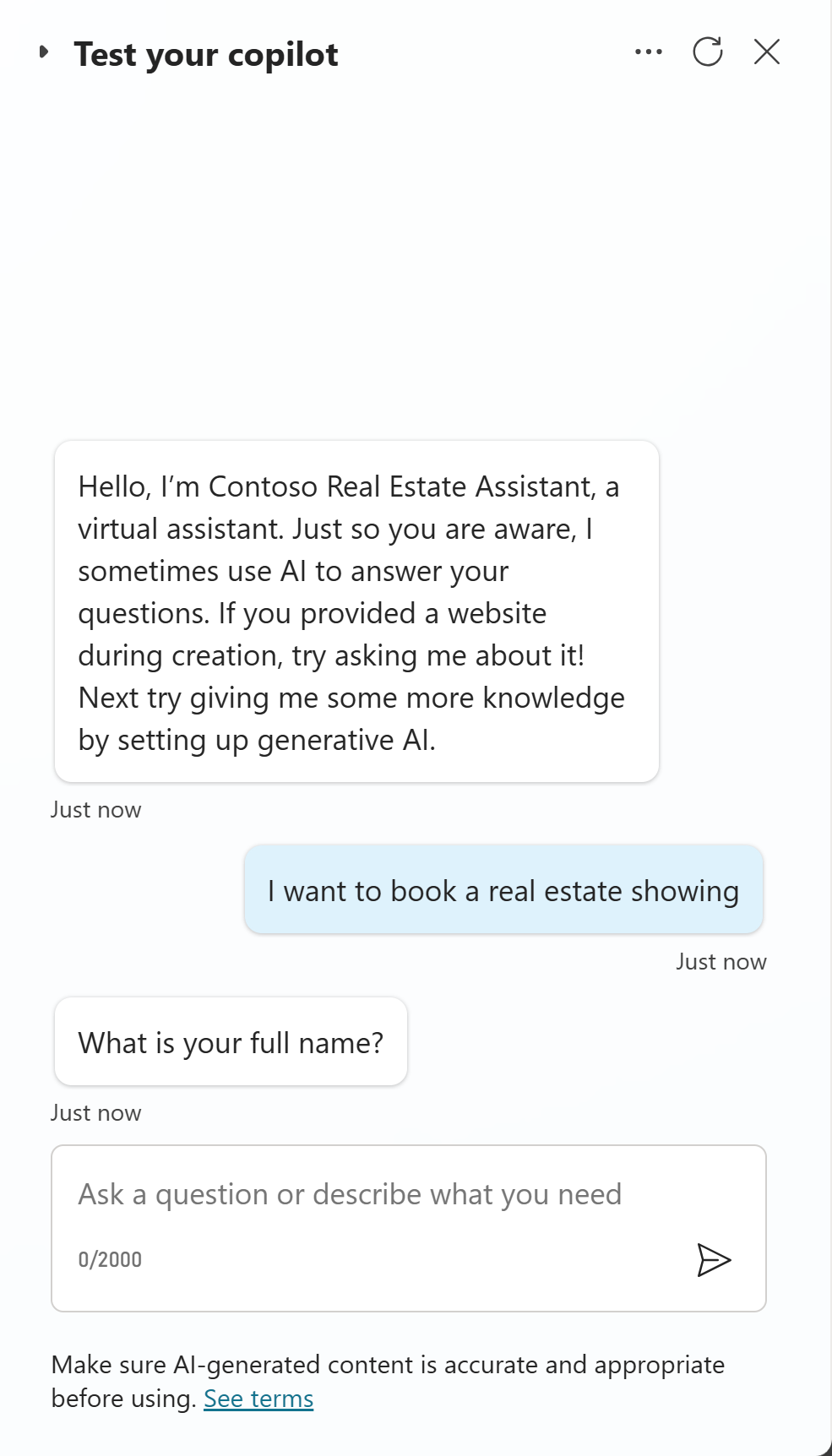
Input responses as prompted:
"What is your full name?"
<Your name>"Thank you, <Your name>! What is your email address?"
<Your email address>"What is the address of the property?"
555 Oak Lane, Denver, CO 80203"What date and time would you like to schedule the showing?"
06/10/2025 10:00 AMOnce all inputs are collected, the Adaptive Card displays a summary with Yes/No options to confirm the information.

After selecting one of the options, you could further develop the topic to either save the data in Microsoft Dataverse via a Power Automate flow or send an email. However these steps are outside of the scope of this module.


