Exercise - Create an HDInsight cluster via the Azure portal
In this exercise, you will create an Azure HDInsight Spark Cluster using the Azure portal:
- In the Azure portal (https://portal.azure.com), select Create a resource > Analytics > HDInsight

- Under Basics, provide the following values:
| Property | Description |
|---|---|
| Subscription | From the drop-down, select an Azure subscription used for this cluster. |
| Resource group | Specify whether you want to create a new resource group or use an existing one. |
| Cluster name | Give a name to your AzureHDInsight Spark cluster, for example myspark2019. |
| Location | Select a location for the resource group. |
| Cluster type | Select Spark as the cluster type. |
| Cluster version | This field will auto-populate with the default version once the cluster type has been selected. Select Spark 2.4 (HDI 4.0). |
| Cluster log in username | Enter the cluster log in username. The default name is admin. You use this account to log in in to the Jupyter notebook. |
| Cluster log in password | Enter the cluster log in password. |
| Secure Shell (SSH) username | Enter the SSH username. By default, this account shares the same password as the Cluster Log in username account. |

Select Next: Storage >> to continue to the Storage page. NOTE: ensure that the storage account is the same region as the cluster you are creating
Under Storage, provide the following values:
| Property | Description |
|---|---|
| Primary storage type | Use the default value Azure Storage. |
| Selection method | Use the default value Select from list. |
| Primary storage account | Use the auto-populated value. |
| Container | Use the auto-populated value. |
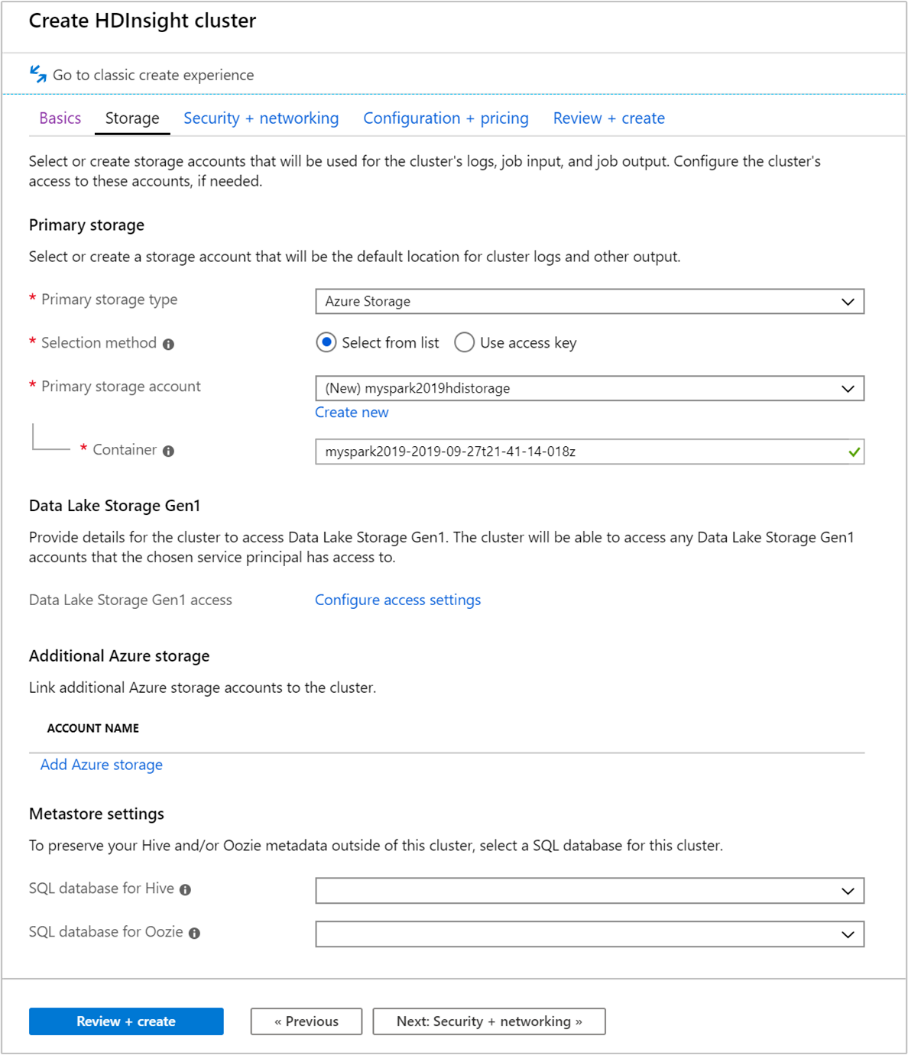
Select Review + create to continue.
Under Review + create, select Create. It takes about 20 minutes to create the cluster. The cluster must be created before you can proceed to the next session.