Buffer profile and levels
After you've set up decoupling points, the second step in DDMRP is to determine the amount of stock (buffer) that you'll hold of each item. Each stock buffer in DDMRP consists of a minimum quantity, a maximum quantity, and the reorder point. Though these values are singular, they mark the beginning of a threshold from one buffer level to another.
For more information, see Buffer profile and levels.
Dynamic adjustments
You can use dynamic adjustments to apply a demand adjustment factor during times of high or low demand. This adjustment would multiply the average daily usage in all calculations during that period of time. For instance, if your company sells insect repellent, you might experience higher demand in hot months, such as June and July. You can set your Demand adjustment factor value for the product to 1.5 for the weeks in June and July. This setting will allow you to continuously adjust your buffer values over time based on more relevant information. In a full DDMRP implementation, these new buffer values are calculated daily through a batch job, and the values would be automatically accepted. Afterward, you'd run a batch job for planning and then review the planned orders daily to refill the buffers.
Implement buffers in Supply Chain Management
Now that you've learned some basic principles of buffers, you'll learn how to implement your buffer strategy in Dynamics 365 Supply Chain Management. Your first step is to ensure that you've set an item as a decoupling point, as demonstrated in the previous unit. After you're finished, go to the item in Product information management > Products > Released products. When you've found the item, go to the Action Pane, and then select Item coverage under the Coverage group in the Plan tab. Then, go to the General tab, which should resemble the following image.
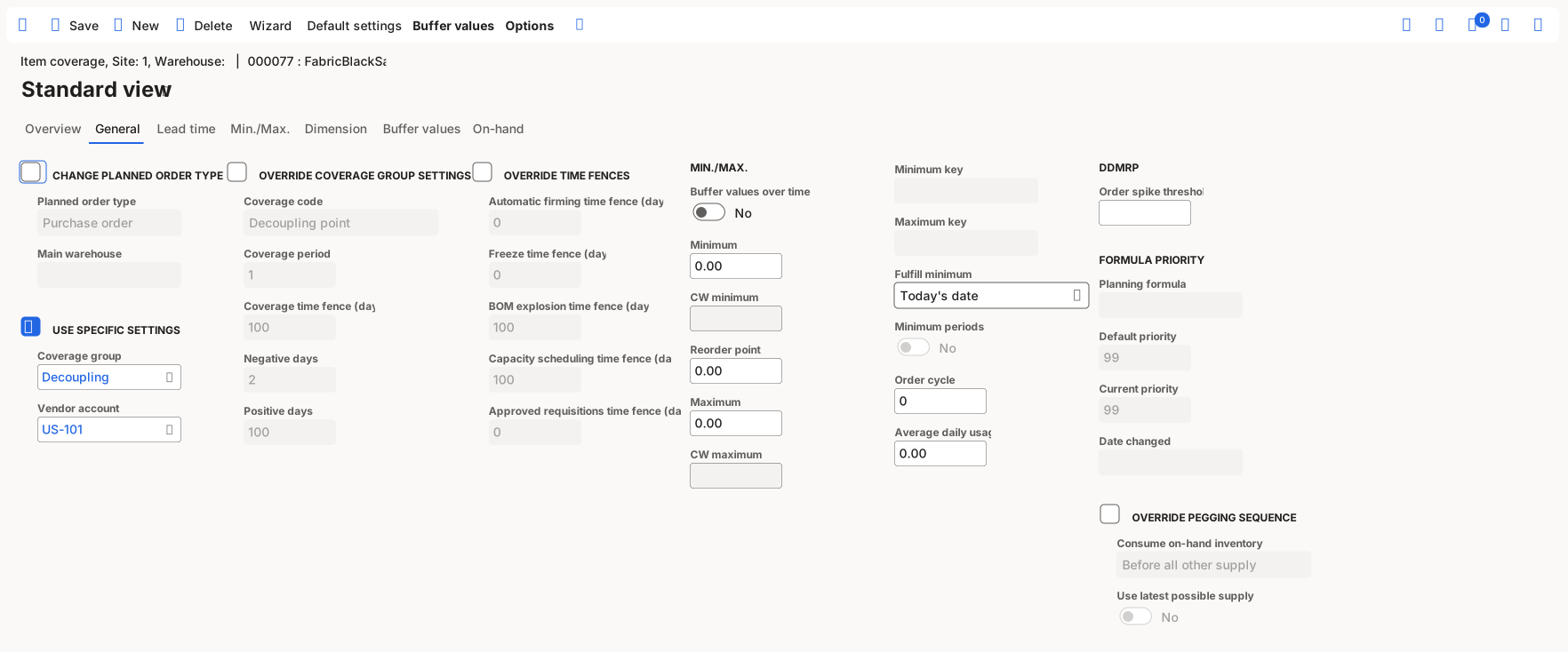
You can have the system recalculate your buffer values daily or weekly based on your sales history. To do so, set the Buffer values over time option to Yes. If you'd rather set the buffer values yourself, you would set the Buffer values over time option to No, and then you'd set the Minimum, Reorder point, and Maximum values that you've calculated. Additionally, you'll set the Order cycle field to specify the number of days that must pass between orders for the item. Optionally, you can set an estimated Average daily usage, though this value is calculated automatically as part of the buffer calculations. You can also use the order spike threshold to specify the minimum number of daily sales that constitute a spike in sales.
For more information, see Buffer profile and levels.