Describe options for importing and exporting data
This unit teaches the basics of importing and exporting data in Dataverse. It explains how to use tools like the Import Data Wizard to upload data into tables efficiently.
Understanding data import and export in Dataverse
Microsoft Dataverse provides a secure, centralized platform for storing and managing data used by business applications. A key feature of Dataverse is its ability to seamlessly import and export data from external sources, enabling integration with systems like customer relationship management (CRM) platforms, Excel files, and other formats. This functionality ensures that your data remains accessible, consistent, and ready to support critical business processes. Whether you’re bringing in new datasets or sharing information with external systems, Dataverse offers the tools needed to handle these tasks efficiently.
Tools for data import
Microsoft Dataverse provides several ways to import data into its tables. These include:
The Data Import Wizard.
Importing from Excel in model-driven apps.
Importing data from Excel in the Power Apps maker portal.
Data import wizard: This tool allows users to import data into any Dataverse table from various file types such as CSV, TXT, XML, and Excel. It supports simple column mapping and handles choice values but has limitations in performance and data transformation. It can also import multiple tables from a ZIP file. Use the Data Import Wizard when you need to import data into multiple tables, handle choice values, or work with various file types. It’s ideal for scenarios requiring flexibility but not advanced data transformations.

Import from Excel in model-driven apps: This method operates in a similar way to the Data Import Wizard, as it relies on a predefined Data Import Template to bring data into a single table from a single file. It supports the same types of files and mapping options as the wizard, meaning you can use formats like Excel or CSV and map columns in your file to fields in the table. However, it also shares the same strengths and limitations as the wizard, such as ease of use for basic imports but less flexibility for complex scenarios.
The Import from Excel in model-driven apps option is especially useful if you're working within model-driven apps and need a straightforward solution for importing data. This method is ideal when you have a predefined template ready. It provides a quick way to populate a single table without handling advanced or multitable import processes.

Import data from Excel in Power Apps maker portal: This basic import method only allows simple column mapping and doesn't support choice values or relationships. It supports CSV and Excel file types. Opt for Import Data from Excel in Power Apps maker portal for quick, straightforward imports of flat data structures without complex relationships or choice values.


Beyond traditional data imports, Dataverse also supports virtual tables, which allow you to work with external data without storing it directly in Dataverse. This feature is useful for scenarios where real-time access to external data is needed while minimizing storage requirements. If you’re interested in learning more about virtual tables, you can explore further details here.
Data export in Dataverse
Dataverse offers various methods for exporting data from its tables, catering to different user needs and scenarios.
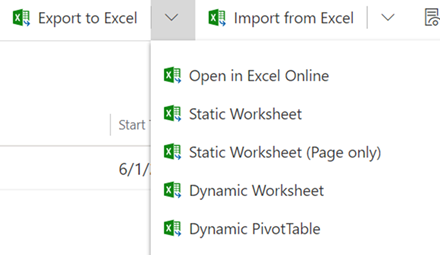
Export from Excel in model-driven apps: Users can export table data to Excel using Static, Dynamic, or Dynamic PivotTable options, with capabilities to edit and refresh data directly in Excel Online. Up to 100,000 rows can be exported at once. Use this option when you need to quickly analyze or edit data in Excel, especially if you require live updates or dynamic pivot tables for reporting.
Word and Excel templates: Model-driven apps allow the use of templates for exporting data. Excel templates can be customized for specific columns, while Word templates can generate structured outputs from single or multiple table rows. Choose this option for scenarios where you need to generate structured, presentation-ready documents, such as invoices, contracts, or detailed reports.

Power Apps maker portal: This option provides a straightforward way to export all rows and columns from selected tables into .CSV files, packaged in a zip file for download. Opt for this option when you need to extract raw data in bulk for integration with external systems or tools that rely on CSV files.

Power Automate and Azure Synapse Link: Power Automate enables custom data extraction using cloud flows, while Azure Synapse Link allows continuous data replication to Azure for analytics, supporting both standard and custom tables. Use Power Automate for automated, event-driven exports, and use Azure Synapse Link for continuous data replication to Azure when working with large-scale analytics or enterprise data warehouses.
Clickthrough demo
Step through this clickthrough demo to see how to import and export data in Dataverse