Create and manage events
Creating and managing calendar events is at the heart of staying organized in Outlook. Whether you're scheduling a quick check-in or coordinating a hybrid meeting, Outlook gives you flexible tools to manage your time and collaborate effectively.
Explore how to add and update events, appointments, and recurring meetings and learn how Copilot can assist with scheduling and managing events—automatically resolving conflicts and keeping your calendar aligned with your priorities.
Add and change events, appointments, and recurring meetings
Creating events in Outlook is fast and flexible—whether you're scheduling a personal appointment, a team meeting, or a recurring series. In this video, learn how to use the calendar tools in the new Outlook for Windows to set up events, customize details, and even create meetings directly from your inbox or email messages.
Watch how Outlook helps you stay organized and make the most of your time.
Manage hybrid meetings
Hybrid meetings bring together in-person and remote attendees—and Outlook makes it easy to schedule and manage them. In this video, you'll learn how to set up a hybrid meeting using the new Outlook for Windows, including how to request in-person attendance, add a Teams link for remote participants, and use scheduling tools to find the best time for everyone.
Watch how Outlook helps you coordinate across locations and time zones with confidence.
Create managed events with Copilot
Managed events help reduce conflicts on your calendar by automatically rescheduling personal events and 1:1 meetings for you. This helps save you time and provide a more organized and conflict-free calendar so you can better focus on your real priorities without the hassle of constant calendar adjustments.
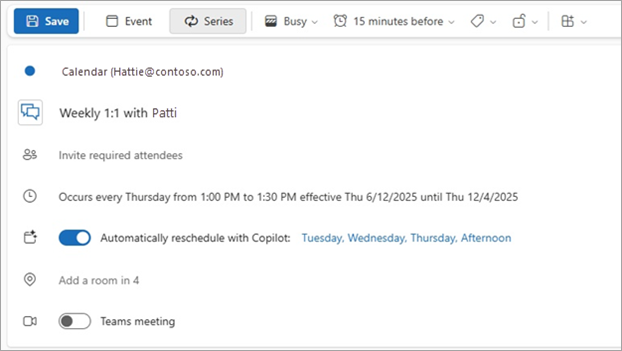
Set rescheduling preferences
When you create a new event, default rescheduling preferences are inferred from the current meeting time or other user-provided inputs when searching for intelligent time suggestions. After turning on automatic rescheduling, users can modify their preferences to provide Copilot with even more flexibility.

Automatic rescheduling
When you schedule a new event or an incoming conflicting meeting is accepted at the same time as a managed event, Copilot finds an alternative time based on user preferences. Conflicts within the next week are rescheduled in real time, while those within the next two weeks are processed periodically.
Notifications
Users will receive notifications in the Outlook Activity Feed for any changes to managed events, whether rescheduled, cannot be rescheduled, or can no longer be managed. Notifications also alert users if an attendee declines the meeting.