Manage your contacts in People hub
The People Hub in new Outlook for Windows offers a modern, unified experience for managing your contacts. It automatically merges duplicate entries, enriches profiles with organizational data, and provides tools to organize, filter, and export contacts—all in one place.
Access the People Hub
To open the People Hub, select the People icon from the navigation pane on the left side of Outlook.
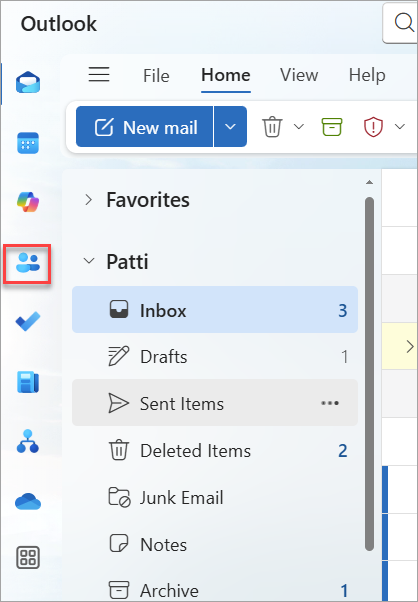
Your contacts appear in a unified view, with profile-enriched details and autohidden duplicates.
Create and manage contacts
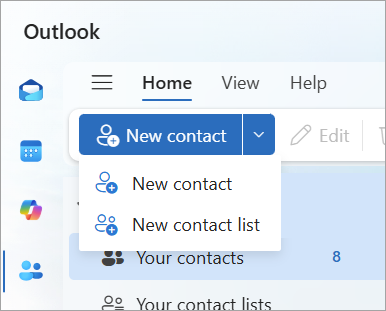
You can create a new contact or contact list directly from the ribbon in the People Hub.
- To create a new contact, select New contact from the ribbon.
- To create a contact list, select New contact list. If you don’t have any lists yet, Outlook prompts you to create one from the reading pane.
Import and export contacts
Use the ribbon controls in the People Hub to quickly import or export your contacts.
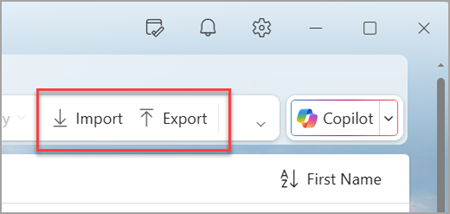
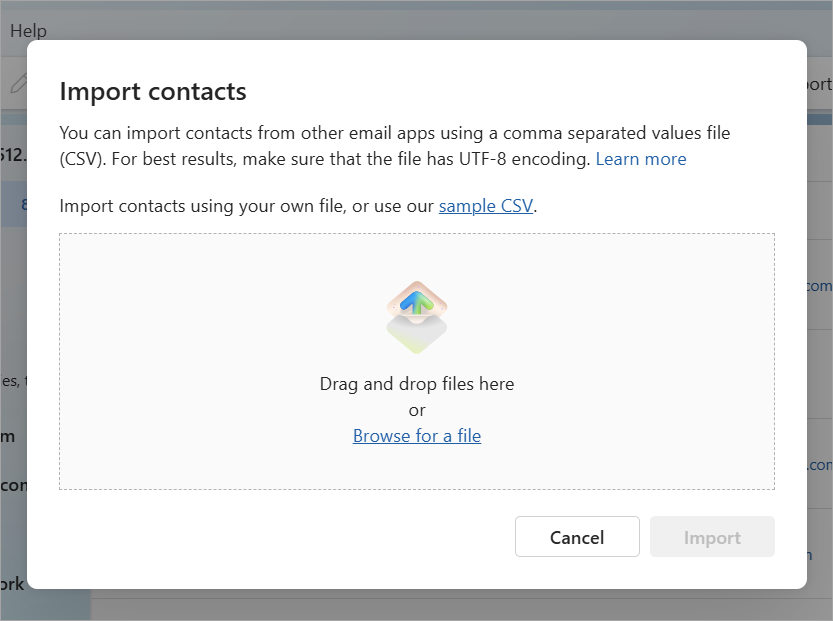
Select Import to bring in contacts from a file or another account.
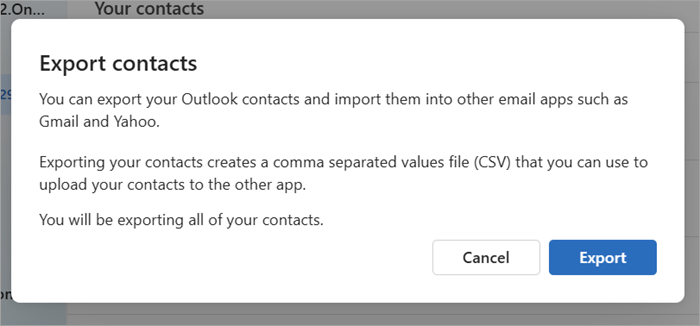
Select Export to save your contacts to a file for backup or transfer.
Organize contacts with categories
Categories help you group and filter contacts for easier access. Categories assigned in the People card automatically appear in the People Hub.
To assign or edit categories:
Select the ellipsis (…) next to a contact name and choose Add category. Or, select the checkbox next to one or more contacts and choose Add category from the ribbon.
You can create new categories, assign colors, and apply multiple categories to a single contact.

Note
Categories assigned to contacts are not the same categories used in email and calendar.
The People Hub in new Outlook for Windows offers a centralized, modern experience for managing your contacts. From creating contact lists to importing, exporting, and organizing with categories, you can efficiently maintain and personalize your contact network—all from one unified view.
Next, test your knowledge with a short quiz.