Prioritize incoming mail
Keeping your inbox organized helps you stay focused and productive. In the new Outlook for Windows, you can prioritize incoming messages using features like Focused Inbox, Copilot’s AI-powered prioritization, and flags and pins. These tools work together to surface what matters most so you can spend less time sorting and more time responding.
Focused Inbox
Focused Inbox separates your inbox into two tabs—Focused and Other. Your most important email messages are on the Focused tab while the rest are easily accessible—but out of the way—on the Other tab.
To create an inbox that feels right to you, the system considers emails and contacts you interact with, then filters out noisy sources like automatically generated or bulk email. The more you use it, the better it gets.
Tip
If you're working on a mobile device, review Focused Inbox on mobile devices. If you are working in Outlook for Mac, review Focused Inbox in Outlook for Mac.
Turn Focused Inbox on or off
Important
Focused Inbox is designed for individual mailboxes, so it isn’t available for shared mailboxes.
- Open new Outlook.
- Select View, then View Settings.

- Next, select Mail, then Layout. If you added additional accounts, be sure to select the account where you want to apply these settings. To turn it on select the option Sort messages into Focused and Other. To turn it off select the option Don't sort my messages.

- If you made any changes, be sure to select Save.

Tip
As soon as you enable Focused Inbox, you see the Focused and Other tabs at the top of your Inbox. The more you use Focused Inbox, the smarter it gets about how it organizes your messages. You can also teach Outlook what matters most to you by moving emails between Focused and Other, and setting overrides to make sure emails from certain senders always show up in a particular destination.
Change how your messages are organized
From your inbox, select the Focused or Other tab, and then right-click the message you want to move.
To move a message from Focused to Other, select Move, then Move to Other inbox. Select Always move to Other inbox if you want all future messages from the sender to be delivered to the Other tab.
To move a single message from Other to Focused, select Move, then Move to Focused inbox. Select Always move to Focused Inbox if you want all future messages from the sender to be delivered to the Focused tab.
Prioritize your inbox with Copilot
Managing a busy inbox can be overwhelming, especially when you're juggling multiple priorities. In the new Outlook for Windows, Copilot introduces a smarter way to stay focused with Prioritize my inbox. This feature uses AI to help you identify and act on the messages that matter most.
Warning
You must have a Microsoft 365 Copilot license to use the Prioritize my inbox feature. If you don't have a license, you can still filter and sort your email.
Copilot’s Prioritize my inbox feature analyzes your email messages using both the content of each message and the context of your role. It then highlights the messages that are most important to you, helping you cut through the noise and focus on what needs your attention.
Note
How does Prioritize my inbox work?
- AI-powered analysis: Copilot reviews your inbox and evaluates each message based on relevance, urgency, and your work context.
- Priority sorting: Once Copilot identifies key messages, you can sort your inbox by priority to surface the most important items at the top.
Use Prioritize my inbox
In new Outlook, select your Inbox folder. Locate the Copilot panel drop-down menu, and select Prioritize.

A setup wizard guides you through enabling the feature. You provide instructions on how to prioritize your mail, both as high priority and low priority, using natural language instruction. You must provide at least one instruction to help Copilot understand what to prioritize (for example, "It’s from my manager" or "It’s about a customer complaint"). It might take some time for Copilot enable this feature based on your inputs.

Once the analysis is complete, choose to sort your inbox by priority to start tackling your most important messages first.

Select the Filter icon to filter your message list in different ways, including by High Priority items.

To help Outlook better understand your priorities, select Prioritize in the Copilot drop down menu. This takes you directly to Copilot Prioritize settings, where you can further refine and configure your prioritization experience.

Once prioritization is enabled, Copilot adds a Summarize view at the top of high-priority emails. This view gives you a quick overview of the message’s key points, helping you decide what action to take without reading the entire thread. It’s a fast, efficient way to stay informed and responsive.
Organize your message list
Need a cleaner, more focused inbox? In the new Outlook for Windows, you can organize your message list using sort and filter tools that work together to help you find what you are looking for. In this video, you learn how to sort messages by date, sender, or subject, filter for flagged items or attachments, and even adjust your view for better visibility. It’s a simple way to take control of your inbox and stay on top of your work.
Keep important messages at the top of your inbox
Need to keep a key email front and center? In the new Outlook for Windows, you can pin messages so they stay at the top of your inbox—making it easier to find and act on them quickly. This section shows you how to use the pin and unpin options to stay organized.
- To pin a message or see pinned messages, your inbox must be sorted by date. Select the Sort by icon at the top of the message list, then select Date to change how your inbox is sorted.

- In your message list, hover over a message to view the pin option, and select the Pin icon to keep the message at the top of your inbox.
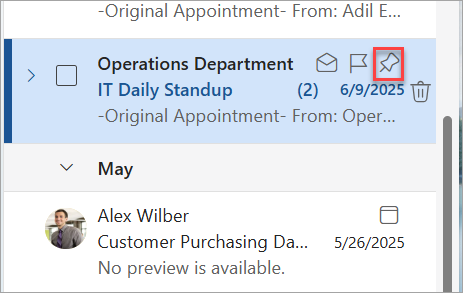
- Select the Unpin icon to unpin the message.

Flag an email
Need a quick way to stay on top of important emails? Flags help you track messages and manage follow-ups with ease. In this video, learn how to flag emails, choose follow-up times, and view flagged items in your To Do list. Whether you're planning ahead or just trying to stay organized, flags keep your priorities front and center.
With tools like Focused Inbox and Copilot’s Prioritize my inbox, Outlook helps you intelligently manage incoming mail. You can separate routine messages from high-priority ones, customize how message sorting, pin and flag emails to bring special attention, and even get quick summaries of important emails. These features make it easier to stay on top of your work and respond with confidence.
Next, explore other ways to organize your inbox.