Customize forms and fields
The information that users see on Copilot for Sales forms and lists are based on CRM views. Views define which columns are displayed, how the records are sorted by default, and what default filters are applied. Since different organizations use data differently, in Copilot for Sales you have the ability define which view you want to use. You don't have to define a view for every record type. For account and opportunity record types, it isn't mandatory. If you decide not to select a view, the default view is used. For other record types however, you must select a view.
When you make changes to views for different record types, those changes reflect in the different apps in which you use Copilot for Sales. In Outlook, they show in the Copilot for Sales pane. In Microsoft Teams, they reflect in the Copilot for Sales panel, and in Teams chat, they display in shared Adaptive Cards. Based on the application that you use, you can search for records based on the different added record types.
Based on the CRM system that you connect to, you can modify the different forms and views. It's important to note that based on the CRM system you tailor it to, record types might be referenced differently.
Dynamics 365: Record type is displayed.
Salesforce: Object is displayed.

Annotation description
Select to customize forms and fields.
Add a new custom or out-of-the-box record type.
Refresh data from CRM.
Add record types to Copilot for Sales.
Use CRM view to control the form of a record type.
You can select a record type to view and edit its settings.
Add a new record type (Salesforce object)
As mentioned previously, you can add out-of-the-box or custom record types to Copilot for Sales. For example, if your organization creates a record type called Project to track the project that you deliver to customers, you can add it to Copilot for Sales. You can add a maximum of 10 record types (objects).
Record types are defined in the Copilot for Sales admin settings. Select Forms and choose either Select Add a record type or Add an object depending on the CRM system you're connected to.

Once you select the record type you want to use, select any existing relationships with other record types to use. This is important, as the relationships that are selected determine how the record type shows in Copilot for Sales.

Based on the record type you select, you can select the view that you want to use.

For a more detailed step-by-step walkthrough on defining Record Types, see: Add a new record type (or a Salesforce object).
Modify existing record types
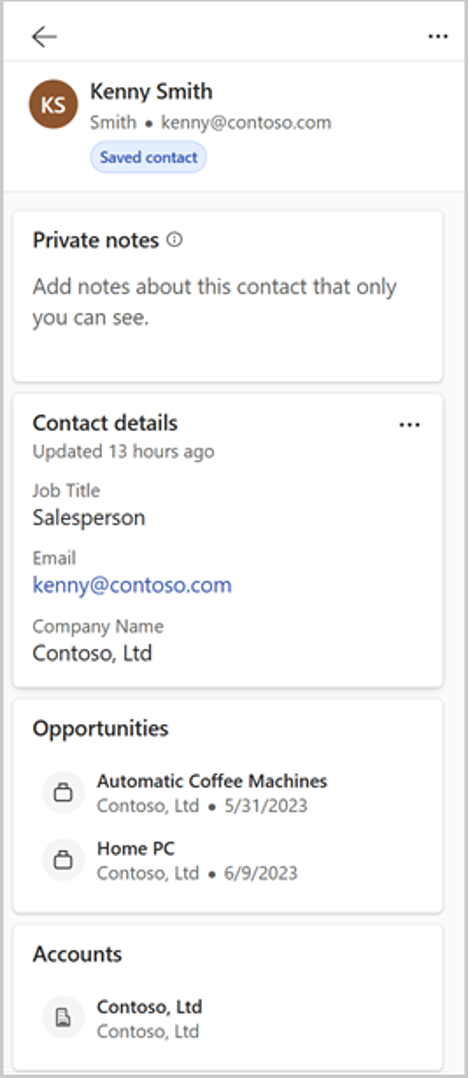
Once you add a record type, you can modify it based on your needs. You and do things such as changing its view, adding/removing fields, and reordering fields. The actions that you can perform depend whether the record type is based on a CRM view or not. Changes to the detailed view are reflected in the Copilot for Sales pane in Outlook, Copilot for Sales panel in Microsoft Teams, and Adaptive Cards shared in Teams chat.

Modify record types based on a CRM view
When a record type is based on a CRM view, you need to change the CRM view to change the fields and the order in which they should appear. Once you edit the view based on your needs, you can change the view that a record type is based on by choosing a different view. For example, if you only want to show active accounts instead of all accounts, you can select a view that only displays active accounts.
When you change the view, the following existing settings for the record type are cleared and set to default.
Existing key fields are removed, and new defaults are set.
Edit behavior for record type remains unchanged.
Edit behavior for fields is reset. If the record type is set to editable, and a new view is selected, the fields become editable.
Selecting a new view is done in Copilot for Sales admin settings by selecting forms, selecting a record type for which you want to change by selecting Change.
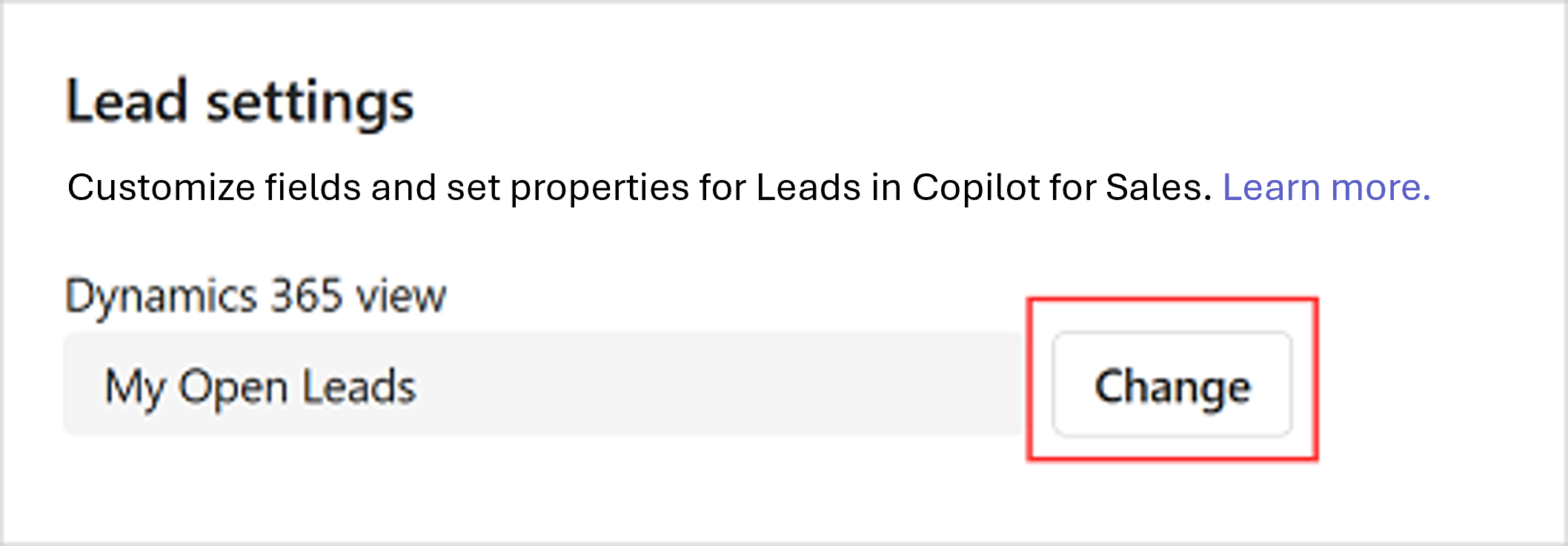
View filters used in a view
Sometimes you want to have a better understanding of how a record is configured. For example, you want to view the query that is behind a view that only shows active accounts. By doing so, it helps you to have a clear understanding on how a record type is configured. For example, filtering and sorting criteria of fields, and order of fields. The query is displayed in a view-only mode, and you can't make any changes to the query.
Once you select the record type you want to see the query for, select View filters under the Manage fields section.

For step-by-step instructions on how to modify views for record types, see: Modify record types based on a CRM view.
Modify record types NOT based on a CRM view
Sometimes you need to modify a record type that isn't based on a CRM view. In these instances, you can select fields to include in the view and the order in which they should appear. You can add up to 40 out-of-the-box and custom fields to a record form.
In Copilot for Sales admin settings, select Forms, identify the record type you want to add field to and in the Manage fields section, select Add fields.
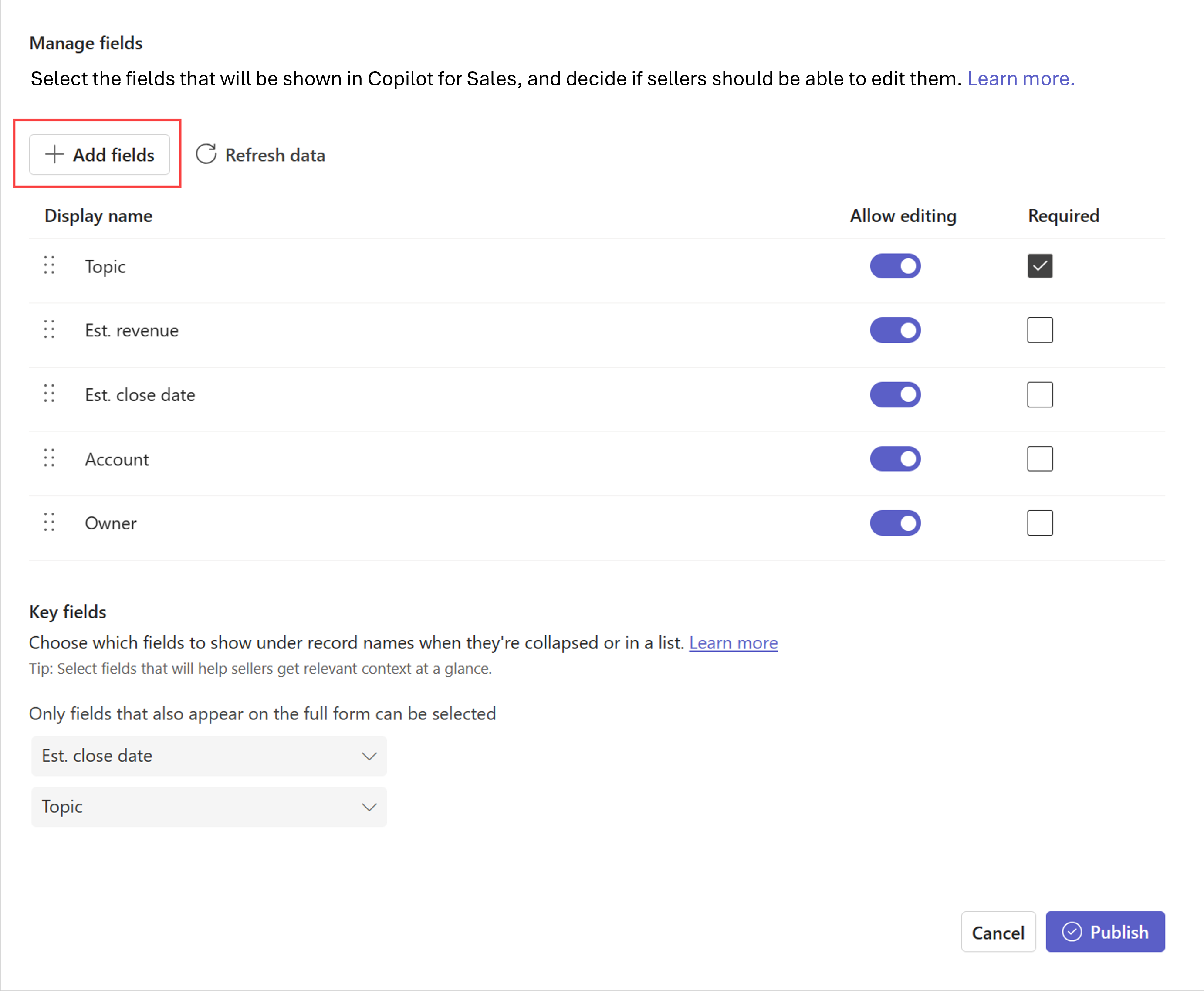
Remove and reorder fields
There might be times where specific fields that are being used on a form are no longer needed, in those instances, in the Manage fields section, hover over the field you want to remove from the form, and then select Remove field. Additionally, you can hover over any field you want to reorder, and then select the Move up or Move down arrows to change the order they're displayed in the application.
For step-by-step instructions on how to modify record types not based on a view, see: Modify record types not based on a CRM view.
Mark fields as required in Copilot for Sales
From time-to-time, you might encounter a scenario where a field should be required in Copilot for sales, but not necessarily in your CRM System. In those instances, you take fields that aren't required in your CRM system and mark them as required only for Copilot for Sales. Sellers are required to enter values for these fields before they can save the record in Copilot for Sales. If a field is marked as required in CRM, it's marked as required in Copilot for Sales as well and you can't make it optional.
In Copilot for Sales admin settings, go to Forms, and on the record type you want to work with, in the Manage fields section, select Required for the fields that you want to mark as required.

Configure editing of records and fields
When sellers are working in Copilot for Sales, they might encounter scenarios where it would be helpful to be able to edit records directly from the application. Organizations can allow sellers to not only edit records, but you can also control which fields sellers can edit directly in Copilot for Sales.
Out of the box, only contacts are editable. If you want to allow editing for other records, you need to turn on the option to allow editing. This is done in Forms and by selecting the Edit records inside Copilot for Sales option.

Configure new record creation
In addition to allowing users to edit records, you also can allow sellers to create new records from Copilot for Sales. You must select the record type that you want to configure new record creation for.
In the Creating records section, select one or both of the following options:
Create new records inside Copilot for Sales: Allow sellers to create new records inline, directly in Copilot for Sales.
Create new records by opening (CRM) from a link: Allow sellers to create new records in CRM by opening a link in a browser.

Select key fields for the mini view
Each record type has a mini view that displays limited information when they're collapsed or shown in a list. The mini view includes a fixed title and two configurable subtitle fields. The fields available in the mini view are the ones that are available in the detailed view. Key fields setting affect the Search behavior in Copilot for Sales add-in for Outlook.

You can identify which fields you want to use for the mini view is the Key fields section.
