Install Copilot for Sales in Outlook
When your organization is getting ready to deploy Microsoft 365 Copilot for Sales, the first thing you need to do is deploy the app. Administrators can install Copilot for Sales as an integrated app from Microsoft 365 admin center. The app is installed in Fixed mode by default. A Fixed deployment means that users receive the app automatically and can't remove it. From within the Microsoft 365 admin center, you can also manage the app's configuration, add, and remove users, and view its usage in the Microsoft 365 admin center.
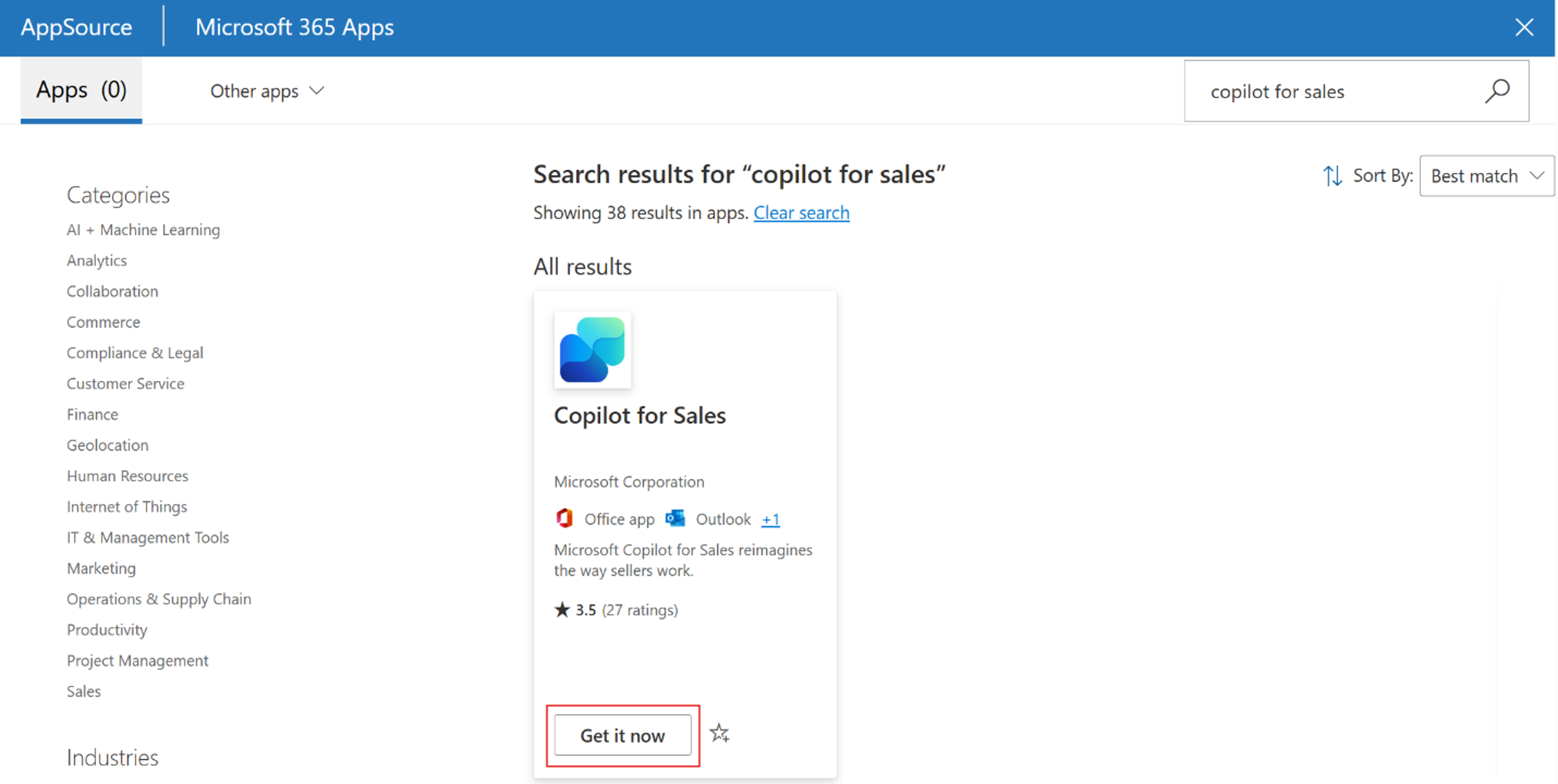
From within the Microsoft 365 admin center, Copilot for Sales is added by going to Settings - integrated apps and locating the Copilot for Sales application in AppSource. Once you locate the application, select Get-it-now. It takes a few minutes, but once the AppSource window closes, you're taken back to the Microsoft 365 admin center to complete the remaining steps.
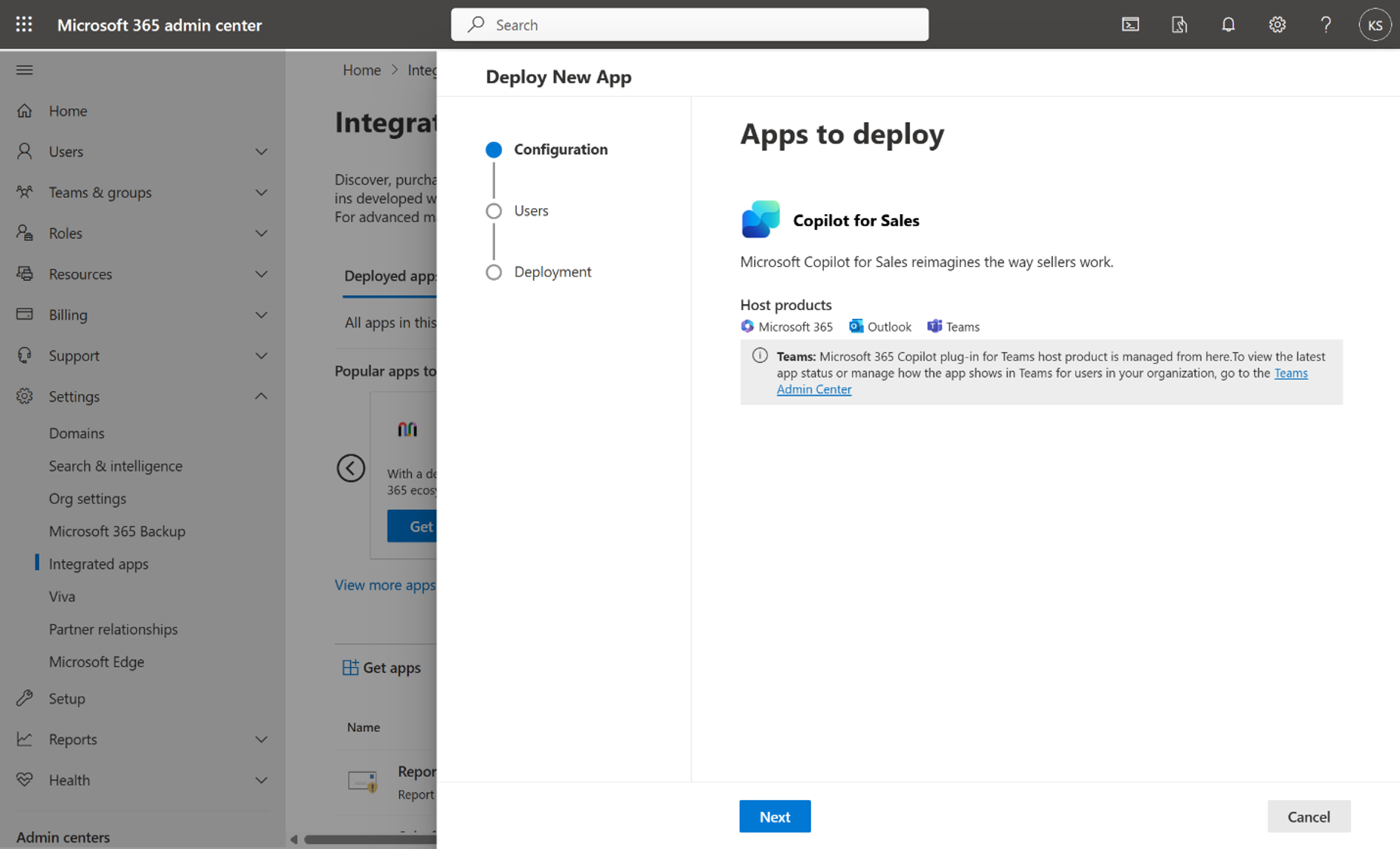
Not every user in your organization requires access, and based on the number of licenses that you purchase, not every user has a license to use the application. Since the app is automatically deployed to users, the first thing that you need to establish is which users have access to Copilot for Sales. In the Users step, select the users or groups who have access to the app. You also need to read the app permissions and Accept Permissions for the app. Once you complete configuration, it can take up to six hours for Copilot for Sales to appear in each users' Outlook ribbon.
Important
The app is installed in Outlook and other Microsoft 365 applications but not in Teams. You need to go to the Microsoft Teams admin center and create setup policies to install the app and assign users.
It can take up to 48 hours for the app to appear in Outlook and other Microsoft 365 apps. If users can't see the app after 48 hours, it might be due to the public attachment handling policy.
If you're running into issues with it not being displayed, see: Why can't users see the Copilot for Sales app in Outlook after it's deployed?
Manage the Copilot for Sales app
After you install Copilot for Sales as an integrated app, you perform management of the application such as configuration, adding and removing users, and view its usage in the Microsoft 365 admin center. Management is done In the Microsoft 365 admin center, by going to Settings > Integrated apps, and selecting the Microsoft 365 Copilot for Sales app.
The Microsoft 365 Copilot for Sales panel includes the following tabs to help with management.
Overview: Displays basic information about the add-in, deployed apps, and assigned users. This is also where you can deploy any application updates as they become available.
Configuration: This is where you can remove the app from a selected product. To remove the app, select it, and then select Remove.
Users: This is where you can edit the users who can use the app.
Usage: Displays the number of active users of the app based on the selected platform and date range.
User-deployed app installation
If you choose not to automatically roll out the application to users in Outlook, you end users can install the Outlook add-in and Teams app from within Microsoft AppSource in Outlook or Teams respectively, if the administrator doesn't explicitly block them.
If end users install the Outlook add-in, it's considered user-deployed instead of admin-deployed and doesn't have full feature support. User-deployed apps don't support Copilot for Sales banner notifications that appear within the top of new or reply emails. Also, the Copilot for Sales isn't added automatically to meeting invites. However, sellers can manually add Copilot for Sales to the meeting to get meeting summaries.
Install and pin Copilot for Sales in Teams
As mentioned previously, installing the Copilot for Sales app in Teams is a different process, and needs to be done in the Teams admin center. You can do this in the Teams admin center. This allows you to create setup policies to install the app and assign users. We also recommend that you pin it to increase its discoverability and encourage your sellers to use it.
To install and pin the app in Teams, you create a custom Teams app setup policy and assign the policy to a user group (security group, organizational unit, or distribution list).
Create a custom Teams app setup policy
Sign in to the Teams admin center.
In the left pane, select Teams apps > Setup policies.
On the Manage policies tab, select Add.
Enter a name and description for the policy.
Turn on User pinning.
Under Installed apps, select Add apps.
In the Add installed apps panel, search for the Copilot for Sales app. You can also filter apps by app permission policy.
Select Add to add Copilot for Sales to the list of apps to install.
Select Add again to install the listed apps.
Under Pinned apps, select Add apps.
In the Add pinned apps panel, search for the Copilot for Sales app. You can also filter apps by app permission policy.
Select Add to add Copilot for Sales to the list of apps to pin.
Select Add again to pin the listed apps.
Under App bar or Messaging extensions, arrange the apps in the order that you want them to appear in Teams.
Select Save.
For more information about managing Teams app setup policies, go to Manage app setup policies in Microsoft Teams.
Assign the custom Teams app setup policy to a user group
Sign in to the Teams admin center.
In the left pane, select Teams apps > Setup policies.
On the Group policy assignment tab, select Add.
Search for and add the group you want to assign the policy to.
Ideally, this is the group that sellers belong to. If your sellers are spread across multiple groups, you need to create multiple group policy assignments.
Set the ranking for the group assignment.
Select the policy you created earlier.
Select Apply.
For more information about assigning user and group policies, go to Assign policies to users and groups.
Enable Teams meeting transcripts
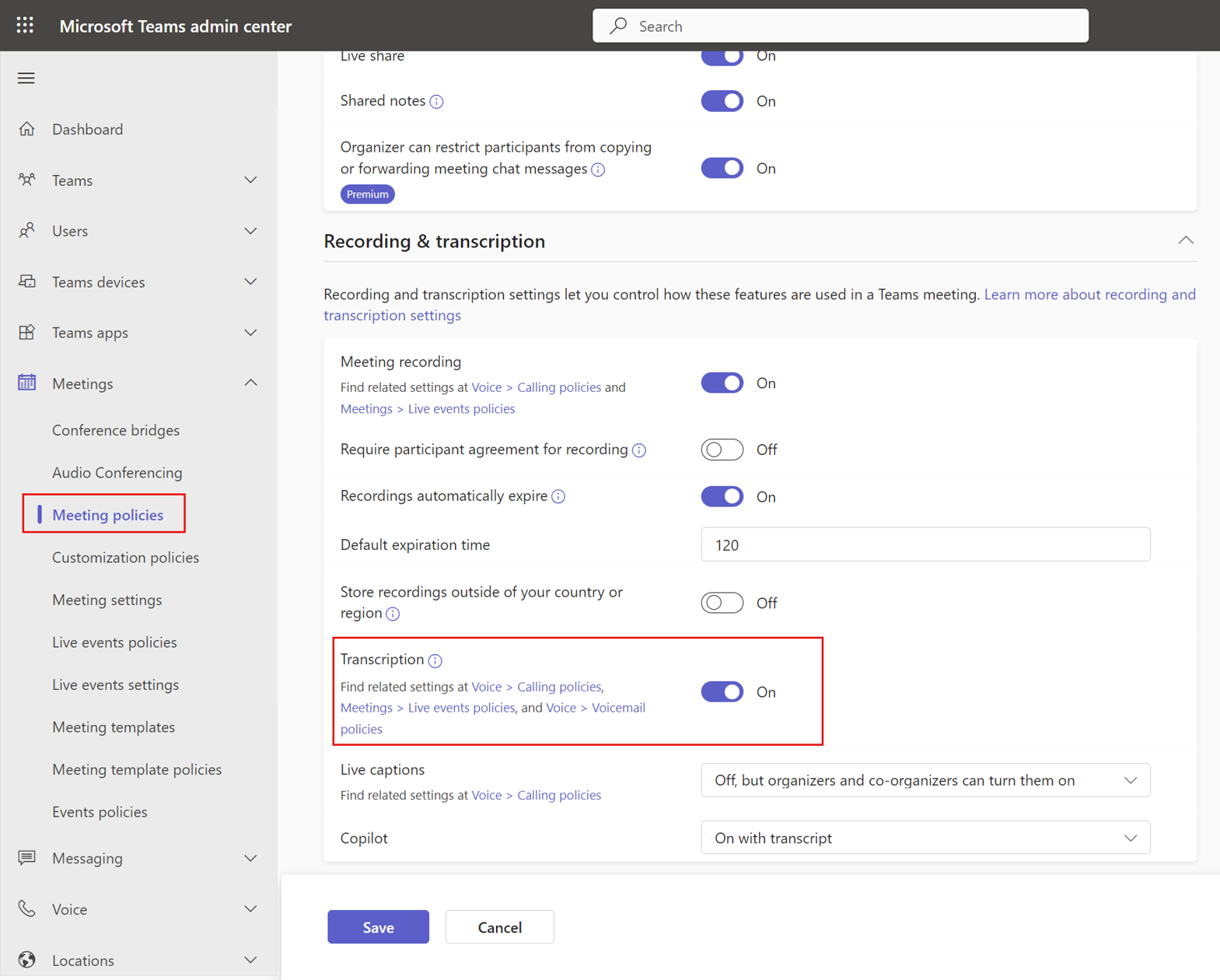
You can enable transcripts for Teams calls so that when Copilot for Sales is added to a recorded Teams meeting, it can generate a meeting summary. This is done in the Teams admin center by going to Meetings > Meeting policies.
Set up server-side synchronization of emails and appointments
Copilot for Sales allows sellers to save Outlook emails and appointments to Dynamics 365. Saving Outlook activities to Dynamics 365 requires server-side synchronization for emails and appointments to be enabled. Sellers can enable server-side synchronization for their own mailboxes when they save Outlook activities to Dynamics 365 using Copilot for Sales for the first time. But, you can simplify their experience by setting up server-side synchronization of emails and appointments for all Copilot for Sales users.
For information about enabling server-side synchronization, see Connect to Exchange Online.
Confirm users have the right security roles
If you're using the following out-of-the-box Dynamics 365 Sales security roles, you don't need to do anything. Copilot for Sales privileges are added automatically for:
Primary sales roles: Salesperson or Sales Manager
Administration roles: System Administrator or System Customizer
Welcome message
Once the Copilot for Sales app is deployed, each user is welcomed by an engaging message from the Copilot for Sales bot in Teams. This message outlines the key capabilities in Copilot for Sales and provides direct links to comprehensive feature documentation and other learning resources.
You can find an example of a welcome message here: Welcome sellers to Copilot for Sales.
Deployment to Salesforce:
The information outlined in the previous section refers to deployment of Copilot for Sales for Dynamics 365 users. You can find the Deployment guide for Salesforce users here: Deployment guide for Salesforce users.