Onboard Azure Arc-enabled servers to Microsoft Sentinel
Tailwind Traders has onboarded its machines to Azure Arc-enabled servers, and now wants to onboard those servers to Microsoft Sentinel. In this unit, you learn how to onboard your Azure Arc-enabled servers to Microsoft Sentinel. First, you connect the Azure Arc-enabled server to a Log Analytics workspace. Second, you enable Microsoft Sentinel on this workspace.
Deploy the Azure Monitor Agent
The Azure Monitor Agent can forward information to Microsoft Sentinel.
You can deploy the Azure Monitor Agent to your Arc-enabled servers by installing the Azure Monitor Agent extension. This can be done individually on each machine, or at scale via Azure Policy or Azure Automation. For more information, see Deployment options for Azure Monitor Agent on Azure Arc-enabled servers.
Create a Log Analytics workspace
Microsoft Sentinel must be added to a Log Analytics workspace. IIf you don't already have a workspace, you can create one by following these steps.
- In the Azure portal, search for and select Microsoft Sentinel.
- Select Create a new workspace.
- Fill in the required fields to create a new workspace, and then select Review + create.
- After validation passes, select Create and wait for the deployment to complete.
Enable Microsoft Sentinel on the Log Analytics workspace
In the Azure portal, search for and select Microsoft Sentinel.
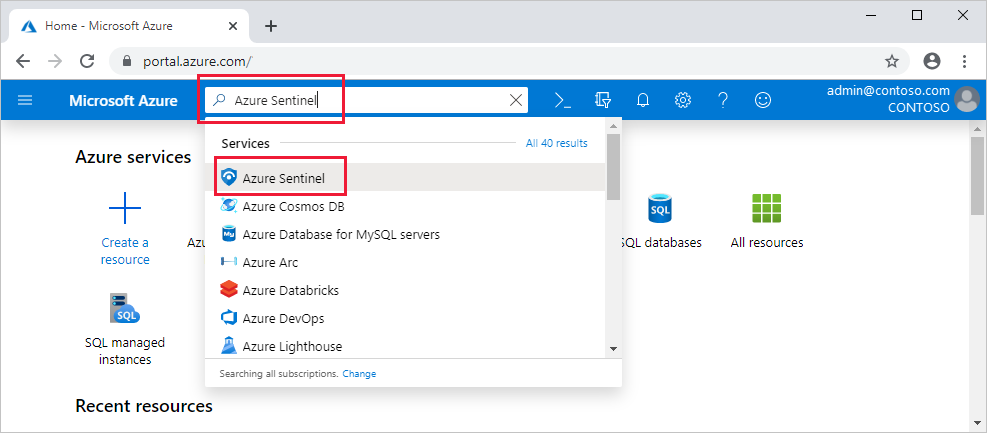
Select Create.
Select the workspace you want to use, then select Add. You can run Microsoft Sentinel on more than one workspace, but the data is isolated to a single workspace.
After your Arc-enabled servers are connected, your data starts streaming into Microsoft Sentinel and is ready for you to start working with. You can view the logs in the built-in workbooks and start building queries in Log Analytics to investigate the data.