Exercise- Implement RAG with your own data and Azure OpenAI models
For the exercises in this learning path we will go over creating a custom agent with Microsoft 365 Agents SDK specifically for Microsoft Teams.
In this module, you'll learn how to implement RAG by adding your own data with Azure OpenAI and generate responses based on both that data.
In the Azure portal, select the Azure OpenAI service resource that you created previously.
Select Go to Azure Foundry portal

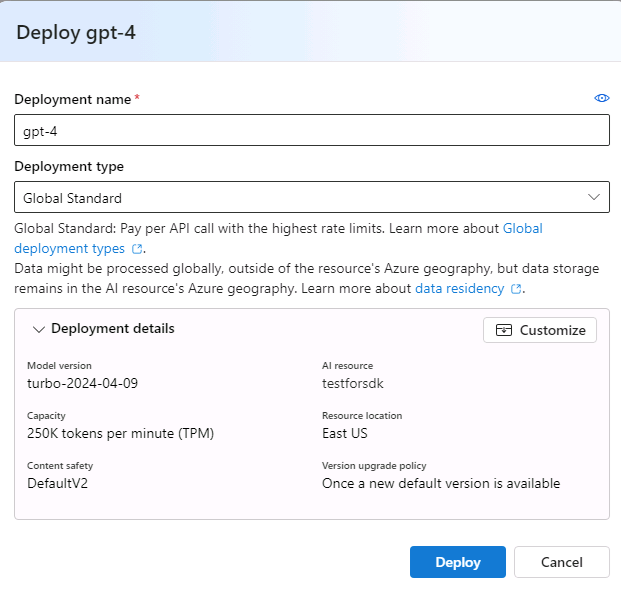
Select Chat > Create new deployment > From base models.
Update the values for the following fields:
a. Select a model: gpt-4
b. Click Confirm
c. Deployment type: Global Standard
d. Deployment name: gpt-4
Select Deploy.
Select Chat > Add your data > Add a data source.
From the dropdown, select Upload files (preview).
Select Create a new Azure Blob storage resource and follow the onscreen instructions.
Select Create a new Azure AI Search resource and follow the onscreen instructions.
Select the newly created Azure Blob storage and Azure AI Search from the dropdown.
Note
Save Azure AI Search endpoint and key details as they're necessary for the subsequent steps.
Enter a unique index name and select Next.
Select Browse for a file and upload files you prefer to use as your data, then select Upload files.
Note
Files must be in .txt, .md, .html, .pdf, .docx, or .pptx format with 16-MB size limit.
Select the Data management settings as default and select Next.
Select API key under Data connection and select Next.
Select Save and close.
After the data ingestion process is complete, you can choose to test your responses in the Chat playground within the studio.
Gathering your API keys
To find your API keys, go to View code in the Chat playground and select json as your sample code to find your:
- Azure OpenAI Endpoint
- Azure OpenAI Service API key
- Azure Search Resource Key
- Azure Search Endpoint
- Azure Search Index Name
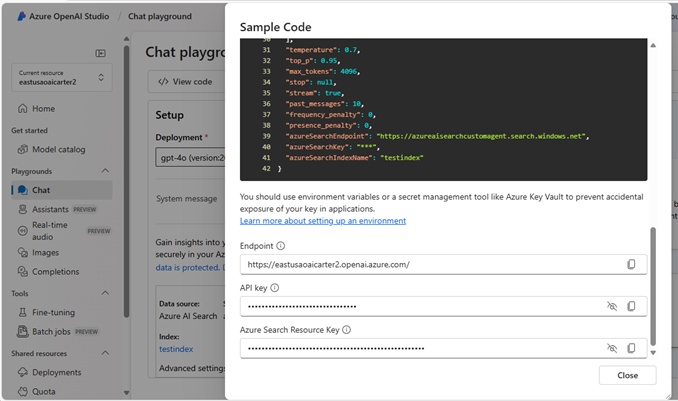
You will need these keys and endpoints when setting up your custom agent’s Teams App, which will be created in Visual Studio Code with the Microsoft 365 Agents Toolkit.