Exercise - Install and set up Microsoft 365 Toolkit for Visual Studio Code
In this exercise, you'll install Teams Toolkit for Visual Studio Code and set up your environment.
Install Microsoft 365 Agents Toolkit for Visual Studio Code
To install the extension, select the Extensions icon from the sidebar. Search for Microsoft 365 Agents Toolkit in the Extensions section by using the search bar. Then select Install.
Install Node.js: Install Node.js as your back-end JavaScript runtime environment. For these exercises using Microsoft 365 Agents Toolkit Version 5.0.0, Node.js versions 16 or 18 are required. For more information, see Node.js version compatibility table for project type.
To install Node.js 16 or 18, use the drop-down menu on Node.js to select the compatible Node version and follow the installation instructions.
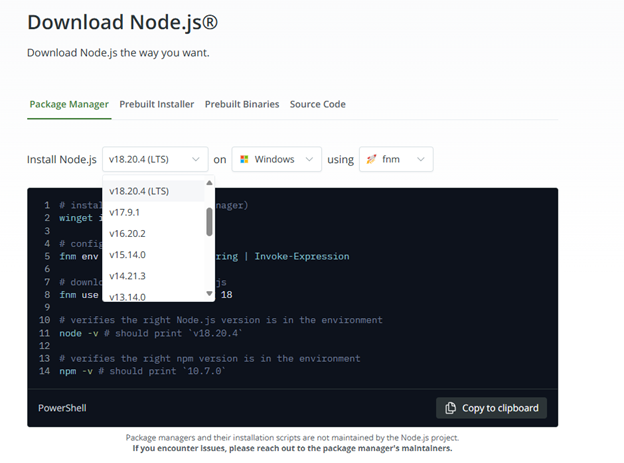
If you already have a different version of Node.js installed you can consider using a Node version manager, which allows you to install different versions of Node, and switch between these versions depending on the project that you're working on via the command line.
Prepare your Microsoft 365 work or school account (You may skip this step if you only want to utilize the Teams Test Tool)
If you already have a Microsoft 365 work or school account and the required permissions, you can use your own account to run and debug your app. Otherwise, you can follow these steps to create a free test account in the Microsoft 365 Developer Program:
Go to Microsoft 365 Developer Program and select Join now.
Sign in with your Microsoft work or school account.
Fill out the required Country/Region, Company, and Language preference information. Check the terms and conditions, and then select Next.
After the setup is completed, the Microsoft 365 Developer Program will provide an admin account and a tenant that you can use for building Teams apps.
Configure a Microsoft 365 tenant to upload apps for Teams (You may skip this step if you only want to utilize the Teams Test Tool)
Turn on custom app sideloading for your tenant by following these steps:
Sign in to the Microsoft Teams admin center with your admin credentials.
Go to Teams apps on the sidebar, and then select Setup policies.
Select the Global (Org-wide default) policy, and then turn on the Upload custom apps toggle.
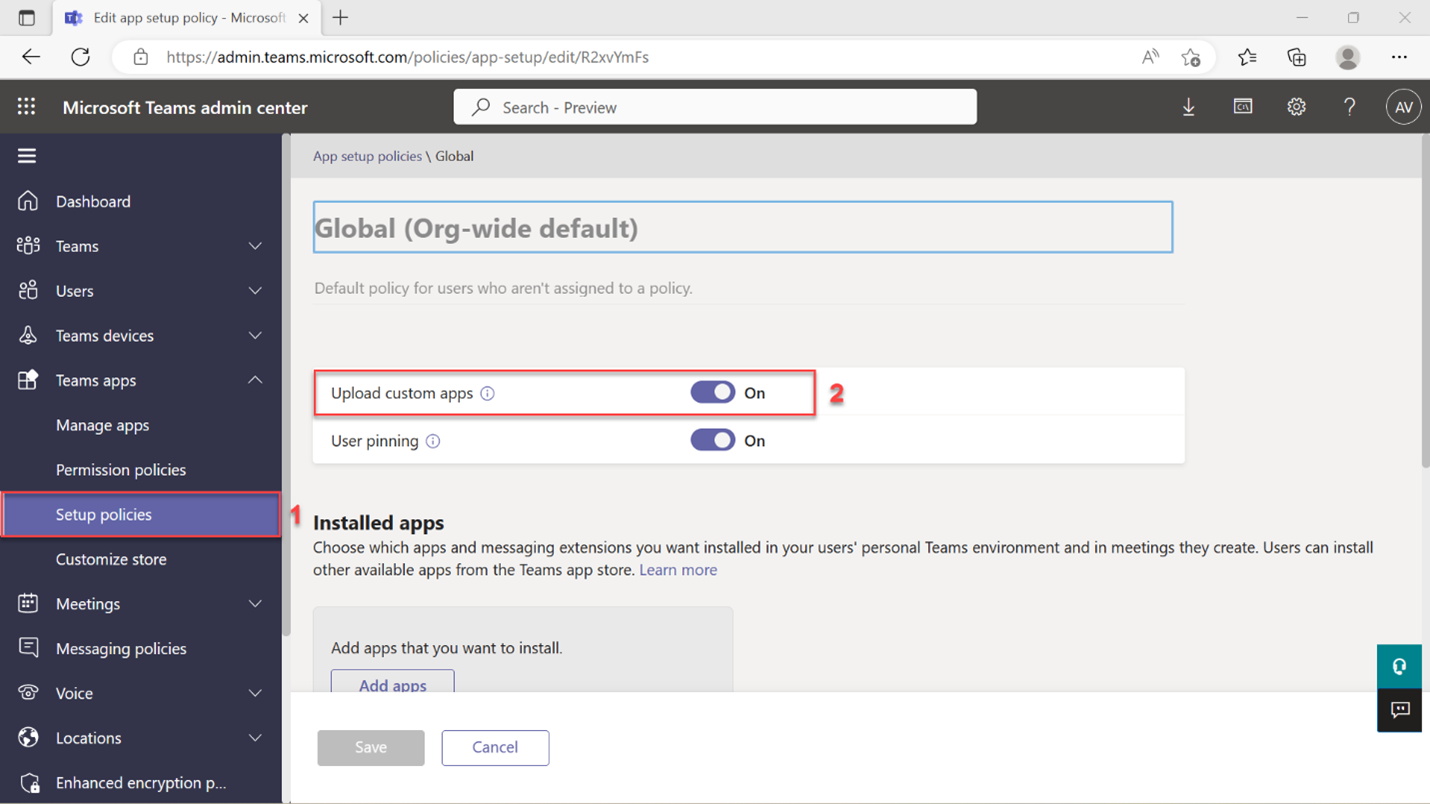
Scroll down and select the Save button to save your changes. Your tenant will now allow custom app sideloading.
After the setup and configuration, Teams Toolkit is ready to help you build apps for the Microsoft Teams platform.
In the next module, you'll learn how to create a Teams app and run locally on Teams.