Note
Access to this page requires authorization. You can try signing in or changing directories.
Access to this page requires authorization. You can try changing directories.
GitHub Copilot Edits, a feature of GitHub Copilot Chat, is designed to help you iterate across multiple files more efficiently. This feature is available with the release of Visual Studio 2022 version 17.13.
Copilot Edits combines the conversational flow of chat and an inline review experience. It offers the following benefits:
- Preview with clarity: Know exactly what's being modified with a summary of the affected files and the proposed changes.
- Review with flow: View code diffs inline, directly in your editor. Use the Tab key to accept or Alt+Delete to reject individual changes, or apply/dismiss all at once.
- Iterate with confidence: Use checkpoints to revisit earlier iterations of a code file, or try an alternative approach anytime for new ideas.
Prerequisites
Install Visual Studio 2022 version 17.13 or later.
Sign in to Visual Studio by using a GitHub account with Copilot access.
You can use GitHub Copilot for free. Sign up and use AI to code faster and more efficiently.
When to use Copilot Edits vs. Copilot Chat
| Functionality | Copilot Chat | Copilot Edits |
|---|---|---|
| Primary use case | General-purpose conversational interface for understanding programming concepts, asking questions about code, and generating code. | Focused multiple-file editing interface with code review, in-file preview, and rollback experience to make iterating on code across multiple files easier. |
| Previewing proposed code | Manually apply each code block to each file in your solution to evaluate a code diff. | Automatically apply a proposed code diff in each code file, which makes comprehension of the proposed changes easier. |
| Code review experience | Accept or reject a file's worth of changes at once. | Accept or reject individual chunks of code within a file. |
| Versioning | Can use existing version control. | Adds a rollback experience to reset edited files to a previous state. Tracks all changes (proposed, accepted, dismissed, and manual edits) made to the file. These checkpoints remain until you close Visual Studio. |
Activities in Copilot Edits
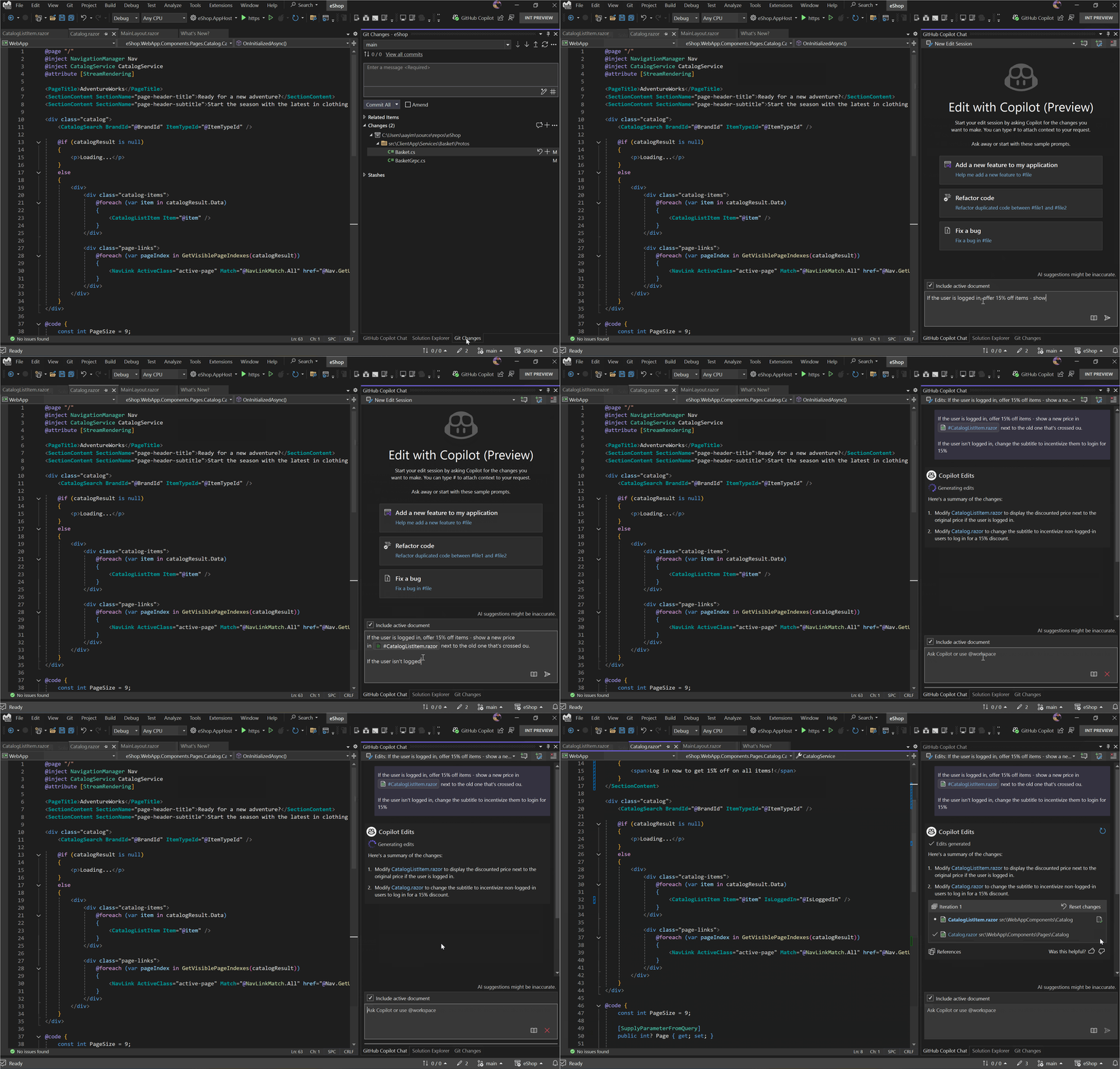
Start a Copilot Edits thread
Select View > GitHub Copilot Chat to open GitHub Copilot Chat. You can also open it from the GitHub Copilot status icon.
Select Create new Edit session.
Enter a chat prompt, by using natural language, about the specific edit that you want to make.
To help Copilot Edits provide better code suggestions, you can also add relevant context to your prompt. Reference context by typing the
#commands to refer to a file, your solution, errors, or a symbol specifically. Or attach images to provide additional context.
Tip
We suggest that you ask for one commit's worth of changes at a time. The more you can break down a problem, the better the result.
Accept or discard edits
After Copilot Edits proposes a code iteration, you can preview these suggestions in your code files. You can then accept the proposed changes to commit them.
Review each proposed change
Select a file name. The file opens, and proposed changes appear as a diff in the code editor.
Use the Tab key to accept a proposal, Alt+Delete to reject a proposal, or F8 to go to the next proposal.
If you accept or reject a proposal, the cursor automatically moves to the next proposal.

Accept all proposed changes in a file
Select the checkbox next to a file name to accept all proposed changes that are specific to a file.

Accept all proposed changes in all files
Select Accept all to accept the proposed code changes across all files where changes are available. Files that have proposed changes are bold.

Revert edits
Revert to the original state
While you review file changes, you might accept or reject a code proposal that you didn't mean to. If so, select Reset changes to reset the listed files to their state before the iteration was generated.

Reset changes also resets any manual changes that you made to the files. A popup dialog confirms the action before reverting the file states.
Revert to a previous iteration
At any time, you can select Reset to Iteration on a previous iteration to reset all proposed and manual changes made to the listed files. A popup dialog confirms the action before reverting file states.
