Note
Access to this page requires authorization. You can try signing in or changing directories.
Access to this page requires authorization. You can try changing directories.
You can customize the startup experience for Visual Studio in several different ways, such as opening your most recent solution or just an empty development environment.
To change the startup item
Open the Tools > Options dialog and expand the Environment > Startup section.
In the On startup, open list, select what you want to happen after Visual Studio launches. You can choose from Start window (where you can open a new or existing project), Most recent solution, or Empty environment.
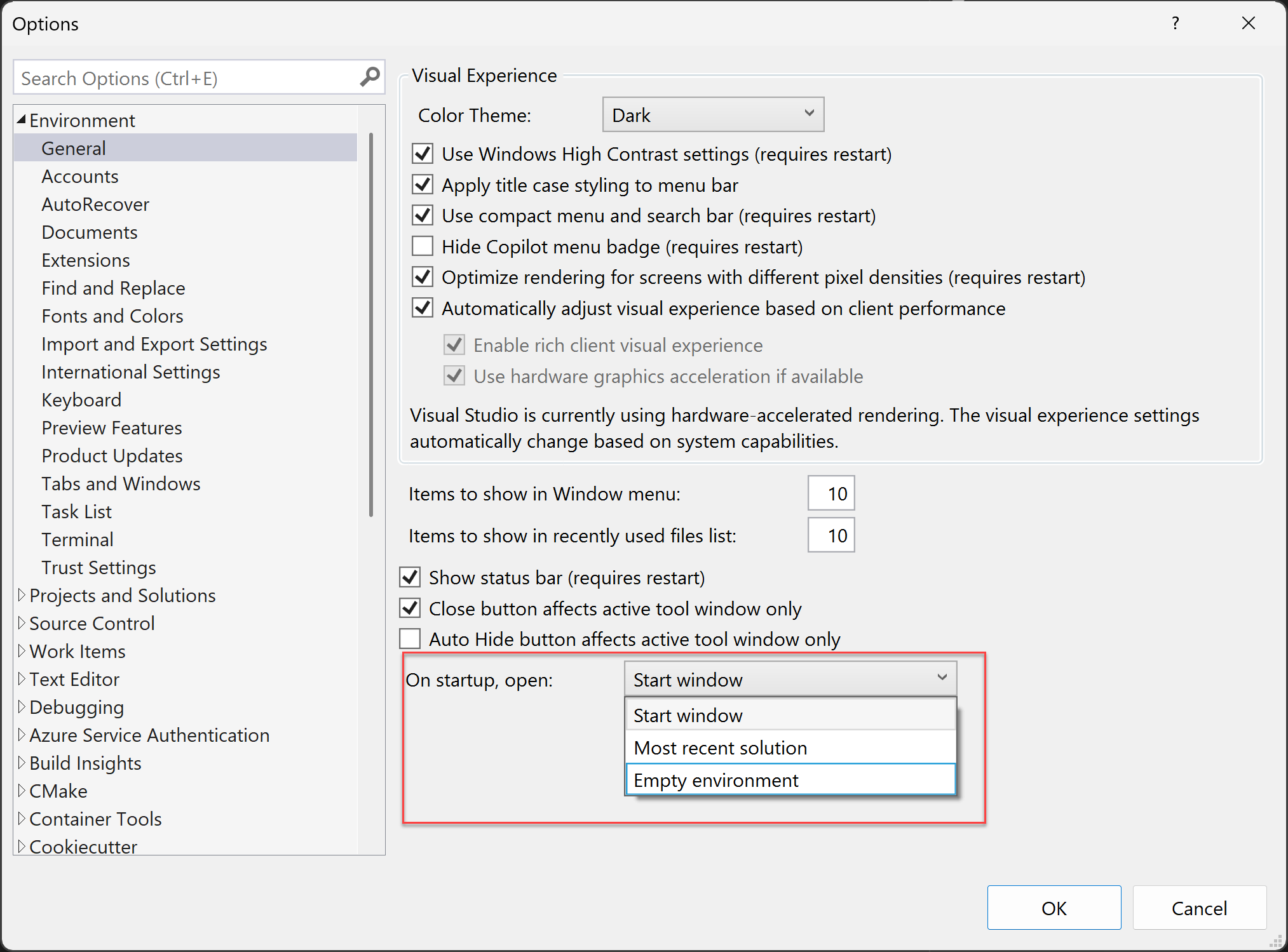
Open the Tools > Options dialog and expand the Environment > General section.
In the On startup, open list, select what you want to happen after Visual Studio launches. You can choose from Start window (where you can open a new or existing project), Most recent solution, or Empty environment.
Open the Tools > Options pane and expand the All Settings > Environment > General section.
In the On startup, open list, select what you want to happen after Visual Studio launches. You can choose from Start window (where you can open a new or existing project), Most recent solution, or Empty environment.
