Remarque
L’accès à cette page nécessite une autorisation. Vous pouvez essayer de vous connecter ou de modifier des répertoires.
L’accès à cette page nécessite une autorisation. Vous pouvez essayer de modifier des répertoires.
Table est un élément de niveau bloc qui prend en charge la présentation basée sur la grille du contenu du document Flow. La flexibilité de cet élément le rend très utile, mais il est également plus compliqué de comprendre et d’utiliser correctement.
Cette rubrique contient les sections suivantes.
[Rubriques connexes]
Principes de base des tables
Comment la table est-elle différente de la grille ?
Table et Grid partagez certaines fonctionnalités courantes, mais chacun est le mieux adapté à différents scénarios. Un Table est conçu pour une utilisation dans le contenu du flux (consultez Vue d’ensemble du document de flux pour plus d’informations sur le contenu de flux). Les grilles sont mieux utilisées à l’intérieur des formulaires (en tout lieu en dehors du contenu de flux). Dans un FlowDocument, Table prend en charge les comportements de contenu de flux tels que la pagination, le flux de colonnes et la sélection de contenu alors qu’un Grid ne le fait pas. Une Grid d’autre part est mieux utilisée en dehors d’un FlowDocument pour de nombreuses raisons, notamment Grid ajoute des éléments basés sur un index de ligne et de colonne, Table ne le fait pas. L’élément Grid autorise la superposition de contenu enfant, ce qui permet à plusieurs éléments d’exister dans une seule « cellule ». Table ne prend pas en charge la superposition. Les éléments enfants d’une Grid peuvent être absolument positionnés par rapport aux limites de leur « cellule ». Table ne prend pas en charge cette fonctionnalité. Enfin, une Grid nécessite moins de ressources qu'une Table, donc envisagez d'utiliser une Grid pour améliorer les performances.
Structure de table de base
Table fournit une présentation basée sur la grille composée de colonnes (représentées par TableColumn des éléments) et de lignes (représentées par TableRow des éléments). TableColumn les éléments n’hébergent pas de contenu ; ils définissent simplement les colonnes et les caractéristiques des colonnes. TableRow les éléments doivent être hébergés dans un TableRowGroup élément, qui définit un regroupement de lignes pour la table. TableCell les éléments, qui contiennent le contenu réel à présenter par la table, doivent être hébergés dans un TableRow élément. TableCell peut contenir uniquement des éléments dérivés de Block. Éléments enfants valides pour un TableCell comprennent.
Remarque
TableCell les éléments peuvent ne pas héberger directement le contenu du texte. Pour plus d’informations sur les règles de confinement pour les éléments de contenu de flux tels que TableCell, consultez Vue d’ensemble du document de flux.
Remarque
Table est similaire à l’élément Grid , mais a plus de fonctionnalités et, par conséquent, nécessite une surcharge de ressources accrue.
L’exemple suivant définit une table simple 2 x 3 avec XAML.
<!--
  Table is a Block element, and as such must be hosted in a container
  for Block elements.  FlowDocument provides such a container.
-->
<FlowDocument>
  <Table>
    <!--
      This table has 3 columns, each described by a TableColumn
      element nested in a Table.Columns collection element.
    -->
    <Table.Columns>
      <TableColumn />
      <TableColumn />
      <TableColumn />
    </Table.Columns>
    <!--
      This table includes a single TableRowGroup which hosts 2 rows,
      each described by a TableRow element.
    -->
    <TableRowGroup>
      <!--
        Each of the 2 TableRow elements hosts 3 cells, described by
        TableCell elements.
      -->
      <TableRow>
        <TableCell>
          <!--
            TableCell elements may only host elements derived from Block.
            In this example, Paragaph elements serve as the ultimate content
            containers for the cells in this table.
          -->
          <Paragraph>Cell at Row 1 Column 1</Paragraph>
        </TableCell>
        <TableCell>
          <Paragraph>Cell at Row 1 Column 2</Paragraph>
        </TableCell>
        <TableCell>
          <Paragraph>Cell at Row 1 Column 3</Paragraph>
        </TableCell>
      </TableRow>
      <TableRow>
        <TableCell>
          <Paragraph>Cell at Row 2 Column 1</Paragraph>
        </TableCell>
        <TableCell>
          <Paragraph>Cell at Row 2 Column 2</Paragraph>
        </TableCell>
        <TableCell>
          <Paragraph>Cell at Row 2 Column 3</Paragraph>
        </TableCell>
      </TableRow>
    </TableRowGroup>
  </Table>
</FlowDocument>
La figure suivante montre comment cet exemple s’affiche.
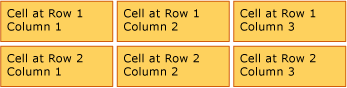
Contenu de la table
Table dérive de l’élément Block et respecte les règles communes pour Block les éléments de niveau. Un Table élément peut être contenu par l’un des éléments suivants :
Regroupements de lignes
L’élément TableRowGroup permet de regrouper arbitrairement des lignes dans une table ; chaque ligne d’une table doit appartenir à un regroupement de lignes. Les lignes d’un groupe de lignes partagent souvent une intention commune et peuvent être coordonnées en tant que groupe. Un usage courant pour les regroupements de lignes consiste à séparer les lignes à usage spécial, telles qu’un titre, un en-tête et des lignes de pied de page, du contenu principal contenu par la table.
L’exemple suivant utilise XAML pour définir une table avec des lignes d’en-tête et de pied de page stylées.
<Table>
  <Table.Resources>
    <!-- Style for header/footer rows. -->
    <Style x:Key="headerFooterRowStyle" TargetType="{x:Type TableRowGroup}">
      <Setter Property="FontWeight" Value="DemiBold"/>
      <Setter Property="FontSize" Value="16"/>
      <Setter Property="Background" Value="LightGray"/>
    </Style>

    <!-- Style for data rows. -->
    <Style x:Key="dataRowStyle" TargetType="{x:Type TableRowGroup}">
      <Setter Property="FontSize" Value="12"/>
      <Setter Property="FontStyle" Value="Italic"/>
    </Style>
  </Table.Resources>

  <Table.Columns>
    <TableColumn/> <TableColumn/> <TableColumn/> <TableColumn/>
  </Table.Columns>

  <!-- This TableRowGroup hosts a header row for the table. -->
  <TableRowGroup Style="{StaticResource headerFooterRowStyle}">
    <TableRow>
      <TableCell/>
      <TableCell><Paragraph>Gizmos</Paragraph></TableCell>
      <TableCell><Paragraph>Thingamajigs</Paragraph></TableCell>
      <TableCell><Paragraph>Doohickies</Paragraph></TableCell>
    </TableRow>
  </TableRowGroup>

  <!-- This TableRowGroup hosts the main data rows for the table. -->
  <TableRowGroup Style="{StaticResource dataRowStyle}">
    <TableRow>
      <TableCell><Paragraph Foreground="Blue">Blue</Paragraph></TableCell>
      <TableCell><Paragraph>1</Paragraph></TableCell>
      <TableCell><Paragraph>2</Paragraph></TableCell>
      <TableCell><Paragraph>3</Paragraph> </TableCell>
    </TableRow>
    <TableRow>
      <TableCell><Paragraph Foreground="Red">Red</Paragraph></TableCell>
      <TableCell><Paragraph>1</Paragraph></TableCell>
      <TableCell><Paragraph>2</Paragraph></TableCell>
      <TableCell><Paragraph>3</Paragraph></TableCell>
    </TableRow>
    <TableRow>
      <TableCell><Paragraph Foreground="Green">Green</Paragraph></TableCell>
      <TableCell><Paragraph>1</Paragraph></TableCell>
      <TableCell><Paragraph>2</Paragraph></TableCell>
      <TableCell><Paragraph>3</Paragraph></TableCell>
    </TableRow>
  </TableRowGroup>

  <!-- This TableRowGroup hosts a footer row for the table. -->
  <TableRowGroup Style="{StaticResource headerFooterRowStyle}">
    <TableRow>
      <TableCell><Paragraph>Totals</Paragraph></TableCell>
      <TableCell><Paragraph>3</Paragraph></TableCell>
      <TableCell><Paragraph>6</Paragraph></TableCell>
      <TableCell>
        <Table></Table>
      </TableCell>
    </TableRow>
  </TableRowGroup>
</Table>
La figure suivante montre comment cet exemple s’affiche.

Priorité du rendu en arrière-plan
Les éléments de table s’affichent dans l’ordre suivant (ordre z du plus bas au plus élevé). Cette commande ne peut pas être modifiée. Par exemple, il n’existe aucune propriété « Ordre Z » pour ces éléments que vous pouvez utiliser pour remplacer cet ordre établi.
Prenons l’exemple suivant, qui définit des couleurs d’arrière-plan pour chacun de ces éléments au sein d’une table.
<Table Background="Yellow">
  <Table.Columns>
    <TableColumn/>
    <TableColumn Background="LightGreen"/>
    <TableColumn/>
  </Table.Columns>
  <TableRowGroup>
    <TableRow>
      <TableCell/><TableCell/><TableCell/>
    </TableRow>
  </TableRowGroup>
  <TableRowGroup Background="Tan">
    <TableRow>
      <TableCell/><TableCell/><TableCell/>
    </TableRow>
    <TableRow Background="LightBlue">
      <TableCell/><TableCell Background="Purple"/><TableCell/>
    </TableRow>
    <TableRow>
      <TableCell/><TableCell/><TableCell/>
    </TableRow>
  </TableRowGroup>
  <TableRowGroup>
    <TableRow>
      <TableCell/><TableCell/><TableCell/>
    </TableRow>
  </TableRowGroup>
</Table>
La figure suivante montre comment cet exemple s’affiche (affichant uniquement les couleurs d’arrière-plan).

S'étendant sur des lignes ou des colonnes
Les cellules de tableau peuvent être configurées pour s’étendre sur plusieurs lignes ou colonnes à l’aide des RowSpan attributs, ColumnSpan respectivement.
Prenons l’exemple suivant, dans lequel une cellule s’étend sur trois colonnes.
<Table>
  <Table.Columns>
    <TableColumn/>
    <TableColumn/>
    <TableColumn/>
  </Table.Columns>

  <TableRowGroup>
    <TableRow>
      <TableCell ColumnSpan="3" Background="Cyan">
        <Paragraph>This cell spans all three columns.</Paragraph>
      </TableCell>
    </TableRow>
    <TableRow>
      <TableCell Background="LightGray"><Paragraph>Cell 1</Paragraph></TableCell>
      <TableCell Background="LightGray"><Paragraph>Cell 2</Paragraph></TableCell>
      <TableCell Background="LightGray"><Paragraph>Cell 3</Paragraph></TableCell>
    </TableRow>
  </TableRowGroup>
</Table>
La figure suivante montre comment cet exemple s’affiche.

Création d’une table avec du code
Les exemples suivants montrent comment créer par programmation un Table élément et le remplir avec du contenu. Le contenu de la table est réparti en cinq lignes (représentées par TableRow des objets contenus dans un RowGroups objet) et six colonnes (représentées par TableColumn des objets). Les lignes sont utilisées à des fins de présentation différentes, y compris une ligne de titre destinée à titrer la table entière, une ligne d’en-tête pour décrire les colonnes de données de la table et une ligne de pied de page avec des informations récapitulatives. Notez que les lignes « title », « header » et « footer » ne sont pas inhérentes à la table ; il s’agit simplement de lignes avec des caractéristiques différentes. Les cellules de tableau contiennent le contenu réel, qui peut être composé de texte, d’images ou presque d’un autre élément d’interface utilisateur.
Tout d’abord, un FlowDocument est créé pour héberger le Table, et un nouveau Table est créé et ajouté au contenu du FlowDocument.
// Create the parent FlowDocument...
flowDoc = new FlowDocument();

// Create the Table...
table1 = new Table();
// ...and add it to the FlowDocument Blocks collection.
flowDoc.Blocks.Add(table1);

// Set some global formatting properties for the table.
table1.CellSpacing = 10;
table1.Background = Brushes.White;
' Create the parent FlowDocument...
flowDoc = New FlowDocument()

' Create the Table...
table1 = New Table()

' ...and add it to the FlowDocument Blocks collection.
flowDoc.Blocks.Add(table1)


' Set some global formatting properties for the table.
table1.CellSpacing = 10
table1.Background = Brushes.White
Ensuite, six TableColumn objets sont créés et ajoutés à la collection de la table Columns, avec une mise en forme appliquée.
Remarque
Notez que la collection Columns de la table utilise l’indexation standard de base zéro.
// Create 6 columns and add them to the table's Columns collection.
int numberOfColumns = 6;
for (int x = 0; x < numberOfColumns; x++)
{
    table1.Columns.Add(new TableColumn());

    // Set alternating background colors for the middle colums.
    if(x%2 == 0)
        table1.Columns[x].Background = Brushes.Beige;
    else
        table1.Columns[x].Background = Brushes.LightSteelBlue;
}
' Create 6 columns and add them to the table's Columns collection.
Dim numberOfColumns = 6
Dim x
For x = 0 To numberOfColumns
    table1.Columns.Add(new TableColumn())

    ' Set alternating background colors for the middle colums.
    If x Mod 2 = 0 Then
        table1.Columns(x).Background = Brushes.Beige
    Else
        table1.Columns(x).Background = Brushes.LightSteelBlue
    End If
Next x
Ensuite, une ligne de titre est créée et ajoutée au tableau avec une mise en forme appliquée. La ligne de titre contient une seule cellule qui recouvre les six colonnes du tableau.
// Create and add an empty TableRowGroup to hold the table's Rows.
table1.RowGroups.Add(new TableRowGroup());

// Add the first (title) row.
table1.RowGroups[0].Rows.Add(new TableRow());

// Alias the current working row for easy reference.
TableRow currentRow = table1.RowGroups[0].Rows[0];

// Global formatting for the title row.
currentRow.Background = Brushes.Silver;
currentRow.FontSize = 40;
currentRow.FontWeight = System.Windows.FontWeights.Bold;

// Add the header row with content,
currentRow.Cells.Add(new TableCell(new Paragraph(new Run("2004 Sales Project"))));
// and set the row to span all 6 columns.
currentRow.Cells[0].ColumnSpan = 6;
' Create and add an empty TableRowGroup to hold the table's Rows.
table1.RowGroups.Add(new TableRowGroup())

' Add the first (title) row.
table1.RowGroups(0).Rows.Add(new TableRow())

' Alias the current working row for easy reference.
Dim currentRow As New TableRow()
currentRow = table1.RowGroups(0).Rows(0)

' Global formatting for the title row.
currentRow.Background = Brushes.Silver
currentRow.FontSize = 40
currentRow.FontWeight = System.Windows.FontWeights.Bold

' Add the header row with content,
currentRow.Cells.Add(new TableCell(new Paragraph(new Run("2004 Sales Project"))))
' and set the row to span all 6 columns.
currentRow.Cells(0).ColumnSpan = 6
Ensuite, une ligne d’en-tête est créée et ajoutée au tableau, et les cellules de la ligne d’en-tête sont créées et remplies avec du contenu.
// Add the second (header) row.
table1.RowGroups[0].Rows.Add(new TableRow());
currentRow = table1.RowGroups[0].Rows[1];

// Global formatting for the header row.
currentRow.FontSize = 18;
currentRow.FontWeight = FontWeights.Bold;

// Add cells with content to the second row.
currentRow.Cells.Add(new TableCell(new Paragraph(new Run("Product"))));
currentRow.Cells.Add(new TableCell(new Paragraph(new Run("Quarter 1"))));
currentRow.Cells.Add(new TableCell(new Paragraph(new Run("Quarter 2"))));
currentRow.Cells.Add(new TableCell(new Paragraph(new Run("Quarter 3"))));
currentRow.Cells.Add(new TableCell(new Paragraph(new Run("Quarter 4"))));
currentRow.Cells.Add(new TableCell(new Paragraph(new Run("TOTAL"))));
' Add the second (header) row.
table1.RowGroups(0).Rows.Add(new TableRow())
currentRow = table1.RowGroups(0).Rows(1)

' Global formatting for the header row.
currentRow.FontSize = 18
currentRow.FontWeight = FontWeights.Bold

' Add cells with content to the second row.
currentRow.Cells.Add(new TableCell(new Paragraph(new Run("Product"))))
currentRow.Cells.Add(new TableCell(new Paragraph(new Run("Quarter 1"))))
currentRow.Cells.Add(new TableCell(new Paragraph(new Run("Quarter 2"))))
currentRow.Cells.Add(new TableCell(new Paragraph(new Run("Quarter 3"))))
currentRow.Cells.Add(new TableCell(new Paragraph(new Run("Quarter 4"))))
currentRow.Cells.Add(new TableCell(new Paragraph(new Run("TOTAL"))))
Ensuite, une ligne pour les données est créée et ajoutée au tableau, et les cellules de cette ligne sont créées et remplies avec du contenu. La création de cette ligne est similaire à la génération de la ligne d’en-tête, avec une mise en forme légèrement différente appliquée.
// Add the third row.
table1.RowGroups[0].Rows.Add(new TableRow());
currentRow = table1.RowGroups[0].Rows[2];

// Global formatting for the row.
currentRow.FontSize = 12;
currentRow.FontWeight = FontWeights.Normal;

// Add cells with content to the third row.
currentRow.Cells.Add(new TableCell(new Paragraph(new Run("Widgets"))));
currentRow.Cells.Add(new TableCell(new Paragraph(new Run("$50,000"))));
currentRow.Cells.Add(new TableCell(new Paragraph(new Run("$55,000"))));
currentRow.Cells.Add(new TableCell(new Paragraph(new Run("$60,000"))));
currentRow.Cells.Add(new TableCell(new Paragraph(new Run("$65,000"))));
currentRow.Cells.Add(new TableCell(new Paragraph(new Run("$230,000"))));

// Bold the first cell.
currentRow.Cells[0].FontWeight = FontWeights.Bold;
' Add the third row.
table1.RowGroups(0).Rows.Add(new TableRow())
currentRow = table1.RowGroups(0).Rows(2)

' Global formatting for the row.
currentRow.FontSize = 12
currentRow.FontWeight = FontWeights.Normal

' Add cells with content to the third row.
currentRow.Cells.Add(new TableCell(new Paragraph(new Run("Widgets"))))
currentRow.Cells.Add(new TableCell(new Paragraph(new Run("$50,000"))))
currentRow.Cells.Add(new TableCell(new Paragraph(new Run("$55,000"))))
currentRow.Cells.Add(new TableCell(new Paragraph(new Run("$60,000"))))
currentRow.Cells.Add(new TableCell(new Paragraph(new Run("$65,000"))))
currentRow.Cells.Add(new TableCell(new Paragraph(new Run("$230,000"))))

' Bold the first cell.
currentRow.Cells(0).FontWeight = FontWeights.Bold
Enfin, une ligne de pied de page est créée, ajoutée et mise en forme. Comme la ligne de titre, le pied de page contient une seule cellule qui s’étend sur les six colonnes du tableau.
table1.RowGroups[0].Rows.Add(new TableRow());
currentRow = table1.RowGroups[0].Rows[3];

// Global formatting for the footer row.
currentRow.Background = Brushes.LightGray;
currentRow.FontSize = 18;
currentRow.FontWeight = System.Windows.FontWeights.Normal;

// Add the header row with content,
currentRow.Cells.Add(new TableCell(new Paragraph(new Run("Projected 2004 Revenue: $810,000"))));
// and set the row to span all 6 columns.
currentRow.Cells[0].ColumnSpan = 6;
table1.RowGroups(0).Rows.Add(new TableRow())
currentRow = table1.RowGroups(0).Rows(3)

' Global formatting for the footer row.
currentRow.Background = Brushes.LightGray
currentRow.FontSize = 18
currentRow.FontWeight = System.Windows.FontWeights.Normal

' Add the header row with content,
currentRow.Cells.Add(new TableCell(new Paragraph(new Run("Projected 2004 Revenue: $810,000"))))
' and set the row to span all 6 columns.
currentRow.Cells(0).ColumnSpan = 6
Voir aussi
- Vue d’ensemble du document de flux
- Définir une table avec XAML
- Documents dans WPF
- Utiliser les éléments de contenu de flux
Collaborer avec nous sur GitHub
La source de ce contenu se trouve sur GitHub, où vous pouvez également créer et examiner les problèmes et les demandes de tirage. Pour plus d’informations, consultez notre guide du contributeur.

.NET Desktop feedback