Create a pipeline
To manage pipelines in Microsoft Power Platform, you need to access the Solutions section in the left navigation pane of Microsoft Power Apps Studio. The solution browser area has two options for you to choose from:
- Select the unmanaged solution to deploy, and then select Deploy in the upper menu.
- Go to the solution content by selecting it, and then select Pipelines in the left menu.
Then, you can select which of the created pipelines that you want to obtain details about, launch a new deployment by using the selected pipeline, or review the run history.
You can also create, delete, or manage pipelines and then add stages to an existing pipeline. By using a stage, you can deploy to multiple environments in the same pipeline deployment. For example, you can deploy from the development environment to the testing and training environments in the same process.

Create a pipeline
The pipeline management area has two options for creating a new pipeline:
- Select Create pipeline from the upper menu.
- Select Create new pipeline below the Pipeline dropdown list.
Next, provide a name and an optional description, and then select the target environment where you want the managed solution to deploy.
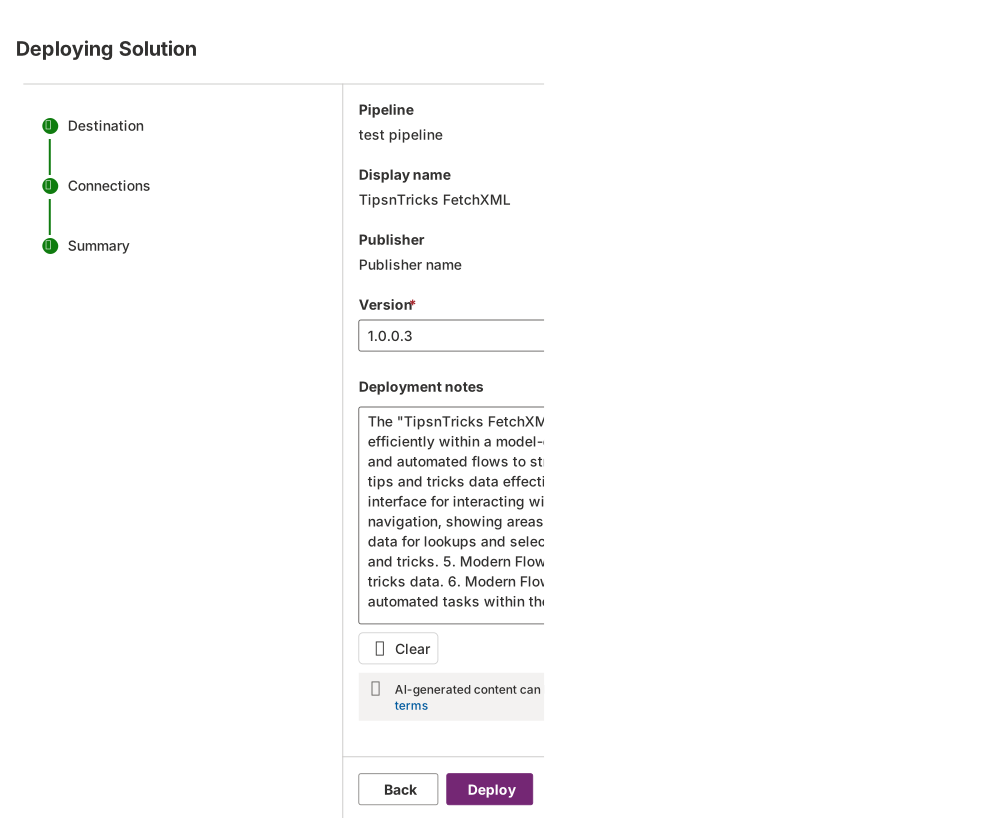
After you save the pipeline, you can use it to deploy a solution by selecting Deploy from the Solutions section, as previously described. After selecting that pipeline from the dropdown list, select Deploy here.
As a first option, you can select which stage to deploy the current solution to. Then, you can schedule the deployment for a specific date and time or launch it now. After you select Next, if connections show in the solution, you can choose which accounts to use with these connections. Finally, after the system presents an AI-generated summary for validation, select Deploy to proceed.
Manage pipeline considerations
Depending on the status and configuration of your environment, the Manage Pipeline option might not be available in Power Apps Studio. If that's the case, you might need to install the pipeline application by following the instructions from the Configure pipelines using a custom host - Power Platform | Microsoft Learn documentation.
Next steps
Now that you learned how to create a pipeline in Microsoft Power Platform, you can apply these concepts to create a pipeline and deploy it as a solution to a test environment.