Remarque
L’accès à cette page nécessite une autorisation. Vous pouvez essayer de vous connecter ou de modifier des répertoires.
L’accès à cette page nécessite une autorisation. Vous pouvez essayer de modifier des répertoires.
Dans le tutoriel précédent, vous avez créé un modèle de clavier de piano complet de 88 touches. Maintenant, vous le rendez jouable dans l’espace XR.
Dans ce tutoriel, vous apprenez à effectuer les opérations suivantes :
- Ajouter des fonctionnalités interactives de piano à l’aide d’événements de pointeur
- Mettre à l’échelle les maillages à une taille différente
- Activer la téléportation et la prise en charge de plusieurs pointeurs dans XR
Avant de commencer
Veillez à suivre le didacticiel précédent de la série et à être prêt à continuer à ajouter au code.
index.html
<html>
    <head>
        <title>Piano in BabylonJS</title>
        <script src="https://cdn.babylonjs.com/babylon.js"></script>
        <script src="scene.js"></script>
        <style>
            body,#renderCanvas { width: 100%; height: 100%;}
        </style>
    </head>
    <body>
        <canvas id="renderCanvas"></canvas>
        <script type="text/javascript">
            const canvas = document.getElementById("renderCanvas");
            const engine = new BABYLON.Engine(canvas, true);

            createScene(engine).then(sceneToRender => {
                engine.runRenderLoop(() => sceneToRender.render());
            });

            // Watch for browser/canvas resize events
            window.addEventListener("resize", function () {
                engine.resize();
            });
        </script>
    </body>
</html>
scene.js
const buildKey = function (scene, parent, props) {
    if (props.type === "white") {
        /*
        Props for building a white key should contain:
        note, topWidth, bottomWidth, topPositionX, wholePositionX, register, referencePositionX

        As an example, the props for building the middle C white key would be
        {type: "white", note: "C", topWidth: 1.4, bottomWidth: 2.3, topPositionX: -0.45, wholePositionX: -14.4, register: 4, referencePositionX: 0}
        */

        // Create bottom part
        const bottom = BABYLON.MeshBuilder.CreateBox("whiteKeyBottom", {width: props.bottomWidth, height: 1.5, depth: 4.5}, scene);

        // Create top part
        const top = BABYLON.MeshBuilder.CreateBox("whiteKeyTop", {width: props.topWidth, height: 1.5, depth: 5}, scene);
        top.position.z =  4.75;
        top.position.x += props.topPositionX;

        // Merge bottom and top parts
        // Parameters of BABYLON.Mesh.MergeMeshes: (arrayOfMeshes, disposeSource, allow32BitsIndices, meshSubclass, subdivideWithSubMeshes, multiMultiMaterials)
        const key = BABYLON.Mesh.MergeMeshes([bottom, top], true, false, null, false, false);
        key.position.x = props.referencePositionX + props.wholePositionX;
        key.name = props.note + props.register;
        key.parent = parent;

        return key;
    }
    else if (props.type === "black") {
        /*
        Props for building a black key should contain:
        note, wholePositionX, register, referencePositionX

        As an example, the props for building the C#4 black key would be
        {type: "black", note: "C#", wholePositionX: -13.45, register: 4, referencePositionX: 0}
        */

        // Create black color material
        const blackMat = new BABYLON.StandardMaterial("black");
        blackMat.diffuseColor = new BABYLON.Color3(0, 0, 0);

        // Create black key
        const key = BABYLON.MeshBuilder.CreateBox(props.note + props.register, {width: 1.4, height: 2, depth: 5}, scene);
        key.position.z += 4.75;
        key.position.y += 0.25;
        key.position.x = props.referencePositionX + props.wholePositionX;
        key.material = blackMat;
        key.parent = parent;

        return key;
    }
}

const createScene = async function(engine) {
    const scene = new BABYLON.Scene(engine);

    const alpha =  3*Math.PI/2;
    const beta = Math.PI/50;
    const radius = 220;
    const target = new BABYLON.Vector3(0, 0, 0);

    const camera = new BABYLON.ArcRotateCamera("Camera", alpha, beta, radius, target, scene);
    camera.attachControl(canvas, true);

    const light = new BABYLON.HemisphericLight("light", new BABYLON.Vector3(0, 1, 0), scene);
    light.intensity = 0.6;

    const keyParams = [
        {type: "white", note: "C", topWidth: 1.4, bottomWidth: 2.3, topPositionX: -0.45, wholePositionX: -14.4},
        {type: "black", note: "C#", wholePositionX: -13.45},
        {type: "white", note: "D", topWidth: 1.4, bottomWidth: 2.4, topPositionX: 0, wholePositionX: -12},
        {type: "black", note: "D#", wholePositionX: -10.6},
        {type: "white", note: "E", topWidth: 1.4, bottomWidth: 2.3, topPositionX: 0.45, wholePositionX: -9.6},
        {type: "white", note: "F", topWidth: 1.3, bottomWidth: 2.4, topPositionX: -0.55, wholePositionX: -7.2},
        {type: "black", note: "F#", wholePositionX: -6.35},
        {type: "white", note: "G", topWidth: 1.3, bottomWidth: 2.3, topPositionX: -0.2, wholePositionX: -4.8},
        {type: "black", note: "G#", wholePositionX: -3.6},
        {type: "white", note: "A", topWidth: 1.3, bottomWidth: 2.3, topPositionX: 0.2, wholePositionX: -2.4},
        {type: "black", note: "A#", wholePositionX: -0.85},
        {type: "white", note: "B", topWidth: 1.3, bottomWidth: 2.4, topPositionX: 0.55, wholePositionX: 0},
    ]

    // Transform Node that acts as the parent of all piano keys
    const keyboard = new BABYLON.TransformNode("keyboard");

    // Register 1 through 7
    var referencePositionX = -2.4*14;
    for (let register = 1; register <= 7; register++) {
        keyParams.forEach(key => {
            buildKey(scene, keyboard, Object.assign({register: register, referencePositionX: referencePositionX}, key));
        })
        referencePositionX += 2.4*7;
    }

    // Register 0
    buildKey(scene, keyboard, {type: "white", note: "A", topWidth: 1.9, bottomWidth: 2.3, topPositionX: -0.20, wholePositionX: -2.4, register: 0, referencePositionX: -2.4*21});
    keyParams.slice(10, 12).forEach(key => {
        buildKey(scene, keyboard, Object.assign({register: 0, referencePositionX: -2.4*21}, key));
    })

    // Register 8
    buildKey(scene, keyboard, {type: "white", note: "C", topWidth: 2.3, bottomWidth: 2.3, topPositionX: 0, wholePositionX: -2.4*6, register: 8, referencePositionX: 84});

    // Transform node that acts as the parent of all piano components
    const piano = new BABYLON.TransformNode("piano");
    keyboard.parent = piano;

    // Import and scale piano frame
    BABYLON.SceneLoader.ImportMesh("frame", "https://raw.githubusercontent.com/MicrosoftDocs/mixed-reality/docs/mixed-reality-docs/mr-dev-docs/develop/javascript/tutorials/babylonjs-webxr-piano/files/", "pianoFrame.babylon", scene, function(meshes) {
        const frame = meshes[0];
        frame.parent = piano;
    });

    // Lift the piano keyboard
    keyboard.position.y += 80;

    const xrHelper = await scene.createDefaultXRExperienceAsync();

    return scene;
}
Rendre le clavier du piano jouable
À l’heure actuelle, le clavier de piano que nous avons créé est un modèle statique qui ne répond à aucune interaction utilisateur. Dans cette section, nous allons programmer les touches pour qu’elles se déplacent vers le bas et diffusent un son lorsque quelqu’un appuie dessus.
Babylon.js fournit différents types d’événements, ou observables, avec lesquels nous pouvons interagir. Dans notre cas, nous allons traiter avec le
onPointerObservable, car nous voulons programmer les touches pour effectuer des actions quand quelqu’un appuie sur elles via un pointeur, qui peut être un clic de souris, une interaction tactile, un clic sur le bouton du contrôleur XR, etc.Voici la structure de base de la façon dont nous pouvons ajouter n’importe quel comportement à un
onPointerObservable:scene.onPointerObservable.add((pointerInfo) => { // do something });Bien que Babylon.js fournisse de nombreux types différents d’événements de pointeur, nous utiliserons uniquement les
POINTERDOWNévénements etPOINTERUPpour programmer le comportement des touches de piano, à l’aide de la structure ci-dessous :scene.onPointerObservable.add((pointerInfo) => { switch (pointerInfo.type) { case BABYLON.PointerEventTypes.POINTERDOWN: // When the pointer is down on a piano key, // move the piano key downward (to show that it is pressed) // and play the sound of the note break; case BABYLON.PointerEventTypes.POINTERUP: // When the pointer is released, // move the piano key upward to its original position // and stop the sound of the note of the key that is released break; } });Commençons par travailler sur le déplacement de la touche du piano vers le bas et vers le haut lorsque nous appuyons et relâchez la touche.
Lors de l’événement pointeur vers le bas, nous devons détecter le maillage sur lequel on clique, vérifier qu’il s’agit d’une touche de piano et modifier négativement la coordonnée y du maillage d’une petite quantité pour qu’elle ressemble à une touche enfoncée.
Pour l’événement pointeur vers le haut, c’est un peu plus compliqué, car le pointeur qui a appuyé sur la touche peut ne pas être relâché sur la touche. Par exemple, une personne peut cliquer sur la touche C4, faire glisser sa souris sur E4, puis relâcher son clic. Dans ce cas, nous voulons toujours libérer la touche qui a été enfoncée (C4) au lieu de l’endroit où l’événement
pointerUpse produit (E4).Voyons comment le code suivant permet d’atteindre ce que nous voulons :
const pointerToKey = new Map();
scene.onPointerObservable.add((pointerInfo) => {
    switch (pointerInfo.type) {
        case BABYLON.PointerEventTypes.POINTERDOWN:
            if(pointerInfo.pickInfo.hit) {
                const pickedMesh = pointerInfo.pickInfo.pickedMesh;
                const pointerId = pointerInfo.event.pointerId;
                if (pickedMesh.parent === keyboard) {
                    pickedMesh.position.y -= 0.5;
                    // play the sound of the note
                    pointerToKey.set(pointerId, {
                        mesh: pickedMesh
                    });
                }
            }
            break;
        case BABYLON.PointerEventTypes.POINTERUP:
            const pointerId = pointerInfo.event.pointerId;
            if (pointerToKey.has(pointerId)) {
                pointerToKey.get(pointerId).mesh.position.y += 0.5;
                // stop the sound of the note of the key that is released
                pointerToKey.delete(pointerId);
            }
            break;
    }
});
le
pointerIdest propre à chaque pointeur et peut nous aider à identifier un pointeur lorsque nous avons plusieurs contrôleurs ou si nous utilisons un écran tactile. Ici, nous avons initialisé unMapobjet nommépointerToKeypour stocker la relation entre le pointeur qui a appuyé sur quelle touche, afin de savoir quelle clé libérer lorsque le pointeur est relâché, quel que soit l’endroit où la mise en production se produit.Voici à quoi ressemblerait l’interaction avec le code ci-dessus :
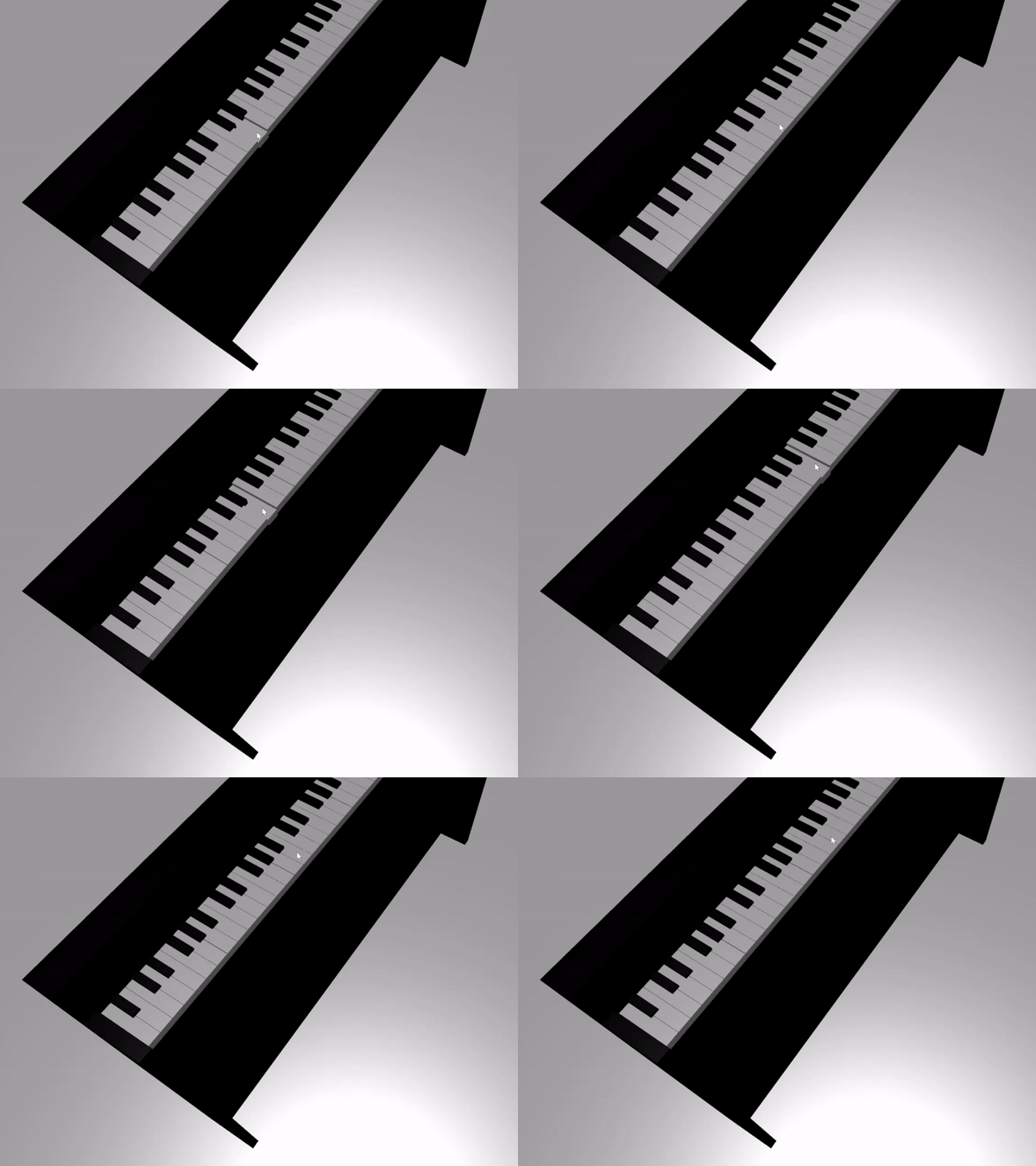
Nous allons maintenant travailler sur la lecture et l’arrêt d’un son lorsqu’une touche est enfoncée et relâchée. Pour ce faire, nous allons utiliser une bibliothèque Javascript nommée soundfont-player, qui nous permet de lire facilement les sons MIDI d’un instrument que nous choisissons.
Téléchargez le code minimal de la bibliothèque, enregistrez-le dans le même dossier que index.html, puis incluez-le dans la
<header>balise dansindex.html:<head> <title>Babylon Template</title> <script src="https://cdn.babylonjs.com/babylon.js"></script> <script src="scene.js"></script> <script src="soundfont-player.min.js"></script> <style> body,#renderCanvas { width: 100%; height: 100%;} </style> </head>Une fois la bibliothèque importée, voici comment initialiser un instrument et lire/arrêter les sons MIDI à l’aide de la bibliothèque :
const pianoSound = await Soundfont.instrument(new AudioContext(), 'acoustic_grand_piano'); const C4 = piano.play("C4"); // Play note C4 C4.stop(); // Stop note C4À présent, nous allons incorporer ceci dans les événements de pointeur et finaliser le code de cette section :
const pointerToKey = new Map() const piano = await Soundfont.instrument(new AudioContext(), 'acoustic_grand_piano'); scene.onPointerObservable.add((pointerInfo) => { switch (pointerInfo.type) { case BABYLON.PointerEventTypes.POINTERDOWN: if(pointerInfo.pickInfo.hit) { let pickedMesh = pointerInfo.pickInfo.pickedMesh; let pointerId = pointerInfo.event.pointerId; if (keys.has(pickedMesh)) { pickedMesh.position.y -= 0.5; // Move the key downward pointerToKey.set(pointerId, { mesh: pickedMesh, note: pianoSound.play(pointerInfo.pickInfo.pickedMesh.name) // Play the sound of the note }); } } break; case BABYLON.PointerEventTypes.POINTERUP: let pointerId = pointerInfo.event.pointerId; if (pointerToKey.has(pointerId)) { pointerToKey.get(pointerId).mesh.position.y += 0.5; // Move the key upward pointerToKey.get(pointerId).note.stop(); // Stop the sound of the note pointerToKey.delete(pointerId); } break; } });Étant donné que nous avons nommé le maillage de chaque clé par la note qu’elle représente, nous pouvons facilement indiquer la note à lire en passant le nom du maillage à la
pianoSound.play()fonction. Notez également que nous stockons le son dans lapointerToKeycarte afin de savoir quel son arrêter lorsqu’une clé est relâchée.
Mise à l’échelle du piano pour le mode VR immersif
À l’heure actuelle, vous avez probablement déjà joué avec le piano avec votre souris (ou même avec un écran tactile) à mesure que vous avez ajouté les fonctionnalités interactives. Dans cette section, nous allons passer à l’espace vr immersif.
Pour ouvrir la page dans votre casque VR immersif, vous devez d’abord connecter votre casque à votre machine de développement et vous assurer qu’il est configuré pour une utilisation dans l’application Windows Mixed Reality. Si vous utilisez le simulateur Windows Mixed Reality, assurez-vous qu’il est activé.
Vous voyez maintenant un bouton Vr immersif en bas à droite de la page web. Cliquez dessus pour voir le piano dans l’appareil XR auquel vous êtes connecté.

Une fois que vous êtes dans l’espace virtuel, vous remarquerez peut-être que le piano que nous avons construit est extrêmement énorme. Dans le monde de la réalité virtuelle, nous pouvons uniquement nous tenir au bas de celui-ci et le jouer en pointant le pointeur vers les touches dans la distance.

Nous allons mettre à l’échelle le piano afin que sa taille ressemble davantage à un piano debout normal dans la vraie vie. Pour ce faire, nous devons utiliser une fonction utilitaire qui nous permet de mettre à l’échelle un maillage par rapport à un point dans l’espace. Ajoutez cette fonction à scene.js (en dehors de
createScene()) :const scaleFromPivot = function(transformNode, pivotPoint, scale) { const _sx = scale / transformNode.scaling.x; const _sy = scale / transformNode.scaling.y; const _sz = scale / transformNode.scaling.z; transformNode.scaling = new BABYLON.Vector3(_sx, _sy, _sz); transformNode.position = new BABYLON.Vector3(pivotPoint.x + _sx * (transformNode.position.x - pivotPoint.x), pivotPoint.y + _sy * (transformNode.position.y - pivotPoint.y), pivotPoint.z + _sz * (transformNode.position.z - pivotPoint.z)); }Cette fonction prend 3 paramètres :
-
transformNode : à mettre à l’échelle
TransformNode -
pivotPoint :
Vector3objet qui indique le point auquel la mise à l’échelle est relative - scale : facteur d’échelle
-
transformNode : à mettre à l’échelle
Nous allons utiliser cette fonction pour mettre à l’échelle le cadre et les touches du piano d’un facteur de 0,015, avec un point de pivot à l’origine. Ajoutez l’appel de fonction à la
createScene()fonction en le plaçant aprèskeyboard.position.y += 80;:// Put this line at the beginning of createScene() const scale = 0.015;// Put this function call after keyboard.position.y += 80; // Scale the entire piano scaleFromPivot(piano, new BABYLON.Vector3(0, 0, 0), scale);N’oublions pas de mettre également à l’échelle la position de la caméra :
const alpha = 3*Math.PI/2; const beta = Math.PI/50; const radius = 220*scale; // scale the radius const target = new BABYLON.Vector3(0, 0, 0); const camera = new BABYLON.ArcRotateCamera("Camera", alpha, beta, radius, target, scene); camera.attachControl(canvas, true);Maintenant, quand nous entrons à nouveau dans l’espace VR, le piano serait de la taille d’un piano debout ordinaire.

Activation des fonctionnalités WebXR
Maintenant que nous avons mis à l’échelle le piano à la bonne taille dans l’espace VR, nous allons activer des fonctionnalités WebXR cool pour améliorer notre expérience de lecture de piano dans l’espace.
Si vous avez joué au piano à l’aide de vos contrôleurs VR immersifs, vous avez peut-être remarqué que vous ne pouvez utiliser qu’un seul contrôleur à la fois. Nous allons activer la prise en charge de plusieurs pointeurs dans l’espace XR à l’aide du gestionnaire de fonctionnalités WebXR de Babylon.js.
Ajoutez le code suivant à la
createScene()fonction, après la ligne d’initialisationxrHelper:const featuresManager = xrHelper.baseExperience.featuresManager; const pointerSelection = featuresManager.enableFeature(BABYLON.WebXRFeatureName.POINTER_SELECTION, "stable", { xrInput: xrHelper.input, enablePointerSelectionOnAllControllers: true });De plus, selon votre point de départ, il peut être un peu difficile de vous positionner devant le piano. Si vous êtes familiarisé avec l’environnement vr immersif, vous connaissez peut-être déjà la téléportation, qui est une fonctionnalité qui vous permet de passer instantanément à un autre endroit de l’espace en pointant vers celui-ci.
Pour utiliser la fonctionnalité de téléportation de Babylon.js, nous devons d’abord disposer d’un maillage au sol sur lequel nous pouvons « tenir » dans l’espace VR. Ajoutez le code suivant à la
createScene()fonction pour créer un terrain :const ground = BABYLON.MeshBuilder.CreateGround("ground", {width: 400, height: 400});La prise en charge de la téléportation est également fournie avec une fonctionnalité très utile appelée positions enfichables. En bref, les positions enfichables sont des postes spécifiques auxquels nous voulons que les utilisateurs accèdent.
Par exemple, nous pouvons définir une position d’alignement devant le piano afin que les utilisateurs puissent facilement se téléporter à cet emplacement lorsqu’ils pointent leurs pointeurs près du piano.
Ajoutez le code ci-dessous pour activer la fonctionnalité de téléportation et spécifier un point d’ancrage :
const teleportation = featuresManager.enableFeature(BABYLON.WebXRFeatureName.TELEPORTATION, "stable", { xrInput: xrHelper.input, floorMeshes: [ground], snapPositions: [new BABYLON.Vector3(2.4*3.5*scale, 0, -10*scale)], });Maintenant, vous devriez être en mesure de vous positionner facilement devant le piano en vous téléportant au point d’ancrage devant le piano, et vous devriez être en mesure de jouer deux touches à la fois à l’aide des deux contrôleurs.

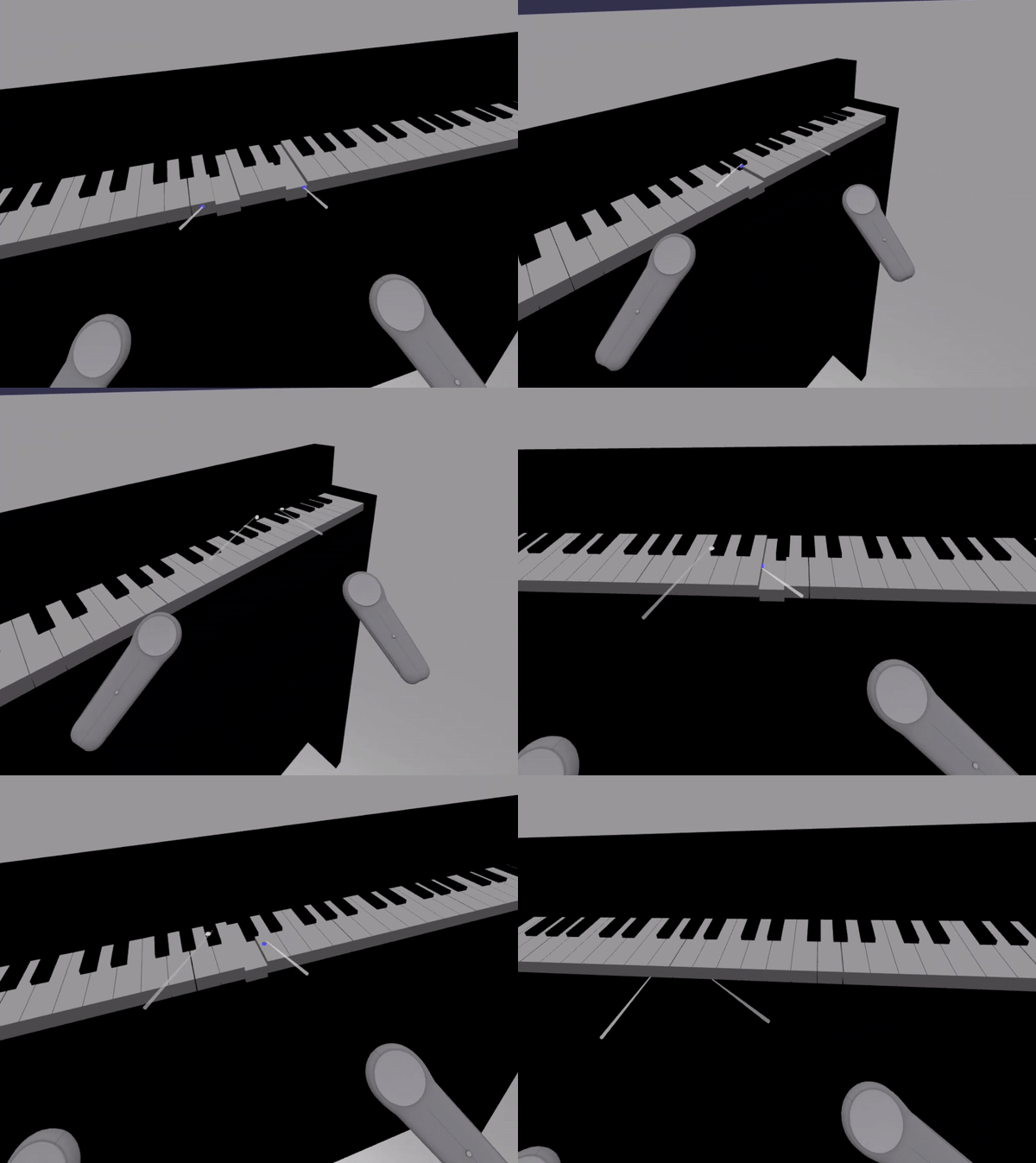
Résumé
Félicitations ! Vous avez terminé notre série de tutoriel sur la construction de piano Babylon.js et vous avez appris à :
- Créer, positionner et fusionner des maillages pour créer un modèle de clavier de piano
- Importer un modèle Babylon.js d’un cadre de piano debout
- Ajouter des interactions de pointeur à chaque touche de piano
- Mettre à l’échelle la taille des maillages en fonction d’un point de tableau croisé dynamique
- Activer les principales fonctionnalités WebXR telles que la téléportation et la prise en charge des multipoints
Voici le code final pour scene.js et index.html:
scene.js
const buildKey = function (scene, parent, props) {
if (props.type === "white") {
/*
Props for building a white key should contain:
note, topWidth, bottomWidth, topPositionX, wholePositionX, register, referencePositionX
As an example, the props for building the middle C white key would be
{type: "white", note: "C", topWidth: 1.4, bottomWidth: 2.3, topPositionX: -0.45, wholePositionX: -14.4, register: 4, referencePositionX: 0}
*/
// Create bottom part
const bottom = BABYLON.MeshBuilder.CreateBox("whiteKeyBottom", {width: props.bottomWidth, height: 1.5, depth: 4.5}, scene);
// Create top part
const top = BABYLON.MeshBuilder.CreateBox("whiteKeyTop", {width: props.topWidth, height: 1.5, depth: 5}, scene);
top.position.z = 4.75;
top.position.x += props.topPositionX;
// Merge bottom and top parts
// Parameters of BABYLON.Mesh.MergeMeshes: (arrayOfMeshes, disposeSource, allow32BitsIndices, meshSubclass, subdivideWithSubMeshes, multiMultiMaterials)
const key = BABYLON.Mesh.MergeMeshes([bottom, top], true, false, null, false, false);
key.position.x = props.referencePositionX + props.wholePositionX;
key.name = props.note + props.register;
key.parent = parent;
return key;
}
else if (props.type === "black") {
/*
Props for building a black key should contain:
note, wholePositionX, register, referencePositionX
As an example, the props for building the C#4 black key would be
{type: "black", note: "C#", wholePositionX: -13.45, register: 4, referencePositionX: 0}
*/
// Create black color material
const blackMat = new BABYLON.StandardMaterial("black");
blackMat.diffuseColor = new BABYLON.Color3(0, 0, 0);
// Create black key
const key = BABYLON.MeshBuilder.CreateBox(props.note + props.register, {width: 1.4, height: 2, depth: 5}, scene);
key.position.z += 4.75;
key.position.y += 0.25;
key.position.x = props.referencePositionX + props.wholePositionX;
key.material = blackMat;
key.parent = parent;
return key;
}
}
const scaleFromPivot = function(transformNode, pivotPoint, scale) {
const _sx = scale / transformNode.scaling.x;
const _sy = scale / transformNode.scaling.y;
const _sz = scale / transformNode.scaling.z;
transformNode.scaling = new BABYLON.Vector3(_sx, _sy, _sz);
transformNode.position = new BABYLON.Vector3(pivotPoint.x + _sx * (transformNode.position.x - pivotPoint.x), pivotPoint.y + _sy * (transformNode.position.y - pivotPoint.y), pivotPoint.z + _sz * (transformNode.position.z - pivotPoint.z));
}
const createScene = async function(engine) {
const scale = 0.015;
const scene = new BABYLON.Scene(engine);
const alpha = 3*Math.PI/2;
const beta = Math.PI/50;
const radius = 220*scale;
const target = new BABYLON.Vector3(0, 0, 0);
const camera = new BABYLON.ArcRotateCamera("Camera", alpha, beta, radius, target, scene);
camera.attachControl(canvas, true);
const light = new BABYLON.HemisphericLight("light", new BABYLON.Vector3(0, 1, 0), scene);
light.intensity = 0.6;
const keyParams = [
{type: "white", note: "C", topWidth: 1.4, bottomWidth: 2.3, topPositionX: -0.45, wholePositionX: -14.4},
{type: "black", note: "C#", wholePositionX: -13.45},
{type: "white", note: "D", topWidth: 1.4, bottomWidth: 2.4, topPositionX: 0, wholePositionX: -12},
{type: "black", note: "D#", wholePositionX: -10.6},
{type: "white", note: "E", topWidth: 1.4, bottomWidth: 2.3, topPositionX: 0.45, wholePositionX: -9.6},
{type: "white", note: "F", topWidth: 1.3, bottomWidth: 2.4, topPositionX: -0.55, wholePositionX: -7.2},
{type: "black", note: "F#", wholePositionX: -6.35},
{type: "white", note: "G", topWidth: 1.3, bottomWidth: 2.3, topPositionX: -0.2, wholePositionX: -4.8},
{type: "black", note: "G#", wholePositionX: -3.6},
{type: "white", note: "A", topWidth: 1.3, bottomWidth: 2.3, topPositionX: 0.2, wholePositionX: -2.4},
{type: "black", note: "A#", wholePositionX: -0.85},
{type: "white", note: "B", topWidth: 1.3, bottomWidth: 2.4, topPositionX: 0.55, wholePositionX: 0},
]
// Transform Node that acts as the parent of all piano keys
const keyboard = new BABYLON.TransformNode("keyboard");
// Register 1 through 7
var referencePositionX = -2.4*14;
for (let register = 1; register <= 7; register++) {
keyParams.forEach(key => {
buildKey(scene, keyboard, Object.assign({register: register, referencePositionX: referencePositionX}, key));
})
referencePositionX += 2.4*7;
}
// Register 0
buildKey(scene, keyboard, {type: "white", note: "A", topWidth: 1.9, bottomWidth: 2.3, topPositionX: -0.20, wholePositionX: -2.4, register: 0, referencePositionX: -2.4*21});
keyParams.slice(10, 12).forEach(key => {
buildKey(scene, keyboard, Object.assign({register: 0, referencePositionX: -2.4*21}, key));
})
// Register 8
buildKey(scene, keyboard, {type: "white", note: "C", topWidth: 2.3, bottomWidth: 2.3, topPositionX: 0, wholePositionX: -2.4*6, register: 8, referencePositionX: 84});
// Transform node that acts as the parent of all piano components
const piano = new BABYLON.TransformNode("piano");
keyboard.parent = piano;
// Import and scale piano frame
BABYLON.SceneLoader.ImportMesh("frame", "https://raw.githubusercontent.com/MicrosoftDocs/mixed-reality/docs/mixed-reality-docs/mr-dev-docs/develop/javascript/tutorials/babylonjs-webxr-piano/files/", "pianoFrame.babylon", scene, function(meshes) {
const frame = meshes[0];
frame.parent = piano;
});
// Lift the piano keyboard
keyboard.position.y += 80;
// Scale the entire piano
scaleFromPivot(piano, new BABYLON.Vector3(0, 0, 0), scale);
const pointerToKey = new Map()
const pianoSound = await Soundfont.instrument(new AudioContext(), 'acoustic_grand_piano');
scene.onPointerObservable.add((pointerInfo) => {
switch (pointerInfo.type) {
case BABYLON.PointerEventTypes.POINTERDOWN:
// Only take action if the pointer is down on a mesh
if(pointerInfo.pickInfo.hit) {
let pickedMesh = pointerInfo.pickInfo.pickedMesh;
let pointerId = pointerInfo.event.pointerId;
if (pickedMesh.parent === keyboard) {
pickedMesh.position.y -= 0.5; // Move the key downward
pointerToKey.set(pointerId, {
mesh: pickedMesh,
note: pianoSound.play(pointerInfo.pickInfo.pickedMesh.name) // Play the sound of the note
});
}
}
break;
case BABYLON.PointerEventTypes.POINTERUP:
let pointerId = pointerInfo.event.pointerId;
// Only take action if the released pointer was recorded in pointerToKey
if (pointerToKey.has(pointerId)) {
pointerToKey.get(pointerId).mesh.position.y += 0.5; // Move the key upward
pointerToKey.get(pointerId).note.stop(); // Stop the sound of the note
pointerToKey.delete(pointerId);
}
break;
}
});
const xrHelper = await scene.createDefaultXRExperienceAsync();
const featuresManager = xrHelper.baseExperience.featuresManager;
featuresManager.enableFeature(BABYLON.WebXRFeatureName.POINTER_SELECTION, "stable", {
xrInput: xrHelper.input,
enablePointerSelectionOnAllControllers: true
});
const ground = BABYLON.MeshBuilder.CreateGround("ground", {width: 400, height: 400});
featuresManager.enableFeature(BABYLON.WebXRFeatureName.TELEPORTATION, "stable", {
xrInput: xrHelper.input,
floorMeshes: [ground],
snapPositions: [new BABYLON.Vector3(2.4*3.5*scale, 0, -10*scale)],
});
return scene;
}
index.html
<html>
<head>
    <title>Babylon Template</title>
    <script src="https://cdn.babylonjs.com/babylon.js"></script>
    <script src="scene.js"></script>
    <script src="soundfont-player.min.js"></script>
    <style>
            body,#renderCanvas { width: 100%; height: 100%;}
    </style>
</head>
<body>
<canvas id="renderCanvas"></canvas>
<script>
const canvas = document.getElementById("renderCanvas"); // Get the canvas element
const engine = new BABYLON.Engine(canvas, true); // Generate the BABYLON 3D engine
// Register a render loop to repeatedly render the scene
createScene(engine).then(sceneToRender => {
engine.runRenderLoop(() => sceneToRender.render());
});
// Watch for browser/canvas resize events
window.addEventListener("resize", function () {
engine.resize();
});
</script>
</body>
</html>
Étapes suivantes
Pour plus d’informations sur Mixed Reality développement JavaScript, consultez Vue d’ensemble du développement JavaScript.