Python ツールを使用すると、プロンプト フローで自己完結型の実行可能ノードとしてカスタマイズされたコード スニペットを作成できます。 Python ツールの作成、コードの編集、結果の確認を簡単に行うことができます。
Inputs
| Name | タイプ | Description | Required |
|---|---|---|---|
| Code | 文字列 | Python のコード スニペット | Yes |
| Inputs | - | ツール関数パラメーターとその割り当ての一覧 | - |
Types
| タイプ | Python example | Description |
|---|---|---|
| int | param: int | Integer type |
| bool | param: bool | Boolean type |
| 文字列 | param: str | String type |
| double | param: float | Double type |
| list | param: list または param: List[T] | List type |
| オブジェクト | param: dict または param: Dict[K, V] | Object type |
| Connection | param: CustomConnection | 接続の種類は特別に処理されます |
Connection型注釈を持つパラメーターは、接続入力として扱われます。つまり、次のことを意味します。
- プロンプト フロー拡張機能には、接続を選択するセレクターが表示されます。
- 実行中、プロンプト フローは、渡されたパラメーター値から同じ名前の接続を検索しようとします。
Note
The Union[...] type annotation is supported only for the connection type, for example, param: Union[CustomConnection, OpenAIConnection].
Outputs
出力は Python ツール関数の戻り値です。
Python ツールを使用した書き込み
Python ツールを使用して記述する場合は、次のガイドラインに従います。
Guidelines
Python ツール コードは、必要なモジュールのインポートを含む完全な Python コードで構成されている必要があります。
Python ツール コードには、実行のエントリ ポイントとして機能する
@tool(ツール関数) で修飾された関数が含まれている必要があります。 スニペット内で@toolデコレーターを 1 回だけ適用します。次の例では、
@toolで修飾された Python ツールmy_python_toolを定義します。Python ツールの関数パラメータは
Inputsセクションで割り当てる必要があります。次の例では、入力
messageを定義し、world割り当てます。Python ツール関数には戻り値が必要です。
次の例では、連結された文字列が返されます。
Code
次のスニペットは、ツール関数の基本的な構造を示しています。 プロンプト フローは、関数を読み取り、関数パラメーターと型注釈から入力を抽出します。
from promptflow import tool
from promptflow.connections import CustomConnection

# The inputs section will change based on the arguments of the tool function, after you save the code
# Adding type to arguments and return value will help the system show the types properly
# Please update the function name/signature per need
@tool
def my_python_tool(message: str, my_conn: CustomConnection) -> str:
    my_conn_dict = dict(my_conn)
    # Do some function call with my_conn_dict...
    return 'hello ' + message
Inputs
| Name | タイプ | フロー YAML のサンプル値 | 関数に渡される値 |
|---|---|---|---|
| メッセージ | 文字列 | world |
world |
| my_conn | CustomConnection |
my_conn |
CustomConnection オブジェクト |
プロンプト フローは、実行中に my_conn という名前の接続を見つけようとします。
Outputs
"hello world"
Python ツールから推論モデルを呼び出す
LLM ノードでサポートされていない推論モデルを呼び出す必要がある場合は、Python ツールを使用してモデルを直接呼び出すことができます。 次の例は、Python ツールから推論モデルを呼び出す方法を示しています。
from promptflow import tool
from promptflow.connections import AzureOpenAIConnection
from openai import AzureOpenAI

@tool
def my_python_tool(
    OpenAIConnection: AzureOpenAIConnection,
    scope_reply: str
):
    model_name = "o3-mini"
    deployment = "o3-mini"
    print(OpenAIConnection['api_base'])
    endpoint = OpenAIConnection['api_base'] #"https://<your endpoint>.openai.azure.com/"
    model_name = "o3-mini" #your model name
    deployment = "o3-mini" #your deployment name

    subscription_key = OpenAIConnection['api_key']
    api_version = "2024-12-01-preview" #Supply an API version that supports reasoning models.

    client = AzureOpenAI(
        api_version=api_version,
        azure_endpoint=endpoint,
        api_key=subscription_key,
    )

    response = client.chat.completions.create(
        messages=[
            {
                "role": "system",
                "content": "You are a helpful assistant.",
            },
            {
                "role": "user",
                "content": "I am going to Paris, what should I see?",
            }
        ],
        max_completion_tokens=100000,
        model=deployment
    )
    return response.choices[0].message.content
Python ツールでのカスタム接続
認証を使用して外部サービスを呼び出す必要がある Python ツールを開発している場合は、プロンプト フローでカスタム接続を使用します。 これを使用して、アクセス キーを安全に格納し、Python コードで取得できます。
カスタム接続を作成する
大規模言語モデル API キーまたはその他の必要な資格情報をすべて格納するカスタム接続を作成します。
Go to prompt flow in your workspace, and then select the Connections tab.
Select Create>Custom.
![ドロップダウン メニューの [カスタム] ボタンが強調表示されている [接続] タブのフローを示すスクリーンショット。](../media/how-to-integrate-with-langchain/custom-connection-1.png?view=azureml-api-2)
右側のウィンドウで、接続名を定義できます。 [キーと値のペアを追加] を選び、資格情報とキーを保存する複数のキーと値のペアを追加できます。
![カスタム接続ポイントの追加と [キーと値のペアの追加] ボタンを示すスクリーンショット。](../media/how-to-integrate-with-langchain/custom-connection-2.png?view=azureml-api-2)
![ドロップダウン メニューの [カスタム] ボタンが強調表示されている [接続] タブのフローを示すスクリーンショット。](../media/how-to-integrate-with-langchain/custom-connection-1.png?view=azureml-api-2#lightbox)
![カスタム接続ポイントの追加と [キーと値のペアの追加] ボタンを示すスクリーンショット。](../media/how-to-integrate-with-langchain/custom-connection-2.png?view=azureml-api-2#lightbox)
Note
To set one key-value pair as secret, select the is secret checkbox. このオプションは、キー値を暗号化して格納します。 少なくとも 1 つのキーと値のペアがシークレットとして設定されていることを確認します。 それ以外の場合、接続は正常に作成されません。
Python でカスタム接続を使用する
Python コードでカスタム接続を使用するには:
Python ノードのコード セクションで、カスタム接続ライブラリ
from promptflow.connections import CustomConnectionをインポートします。 ツール関数でCustomConnection型の入力パラメータを定義します。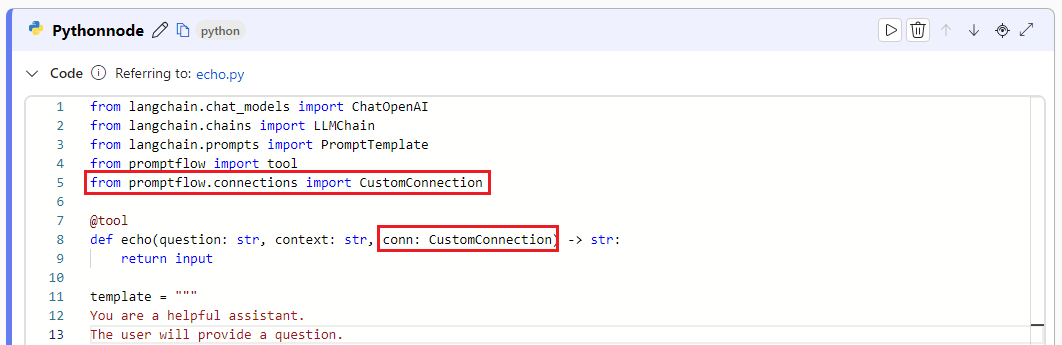
Parse the input to the input section, and then select your target custom connection in the Value dropdown.
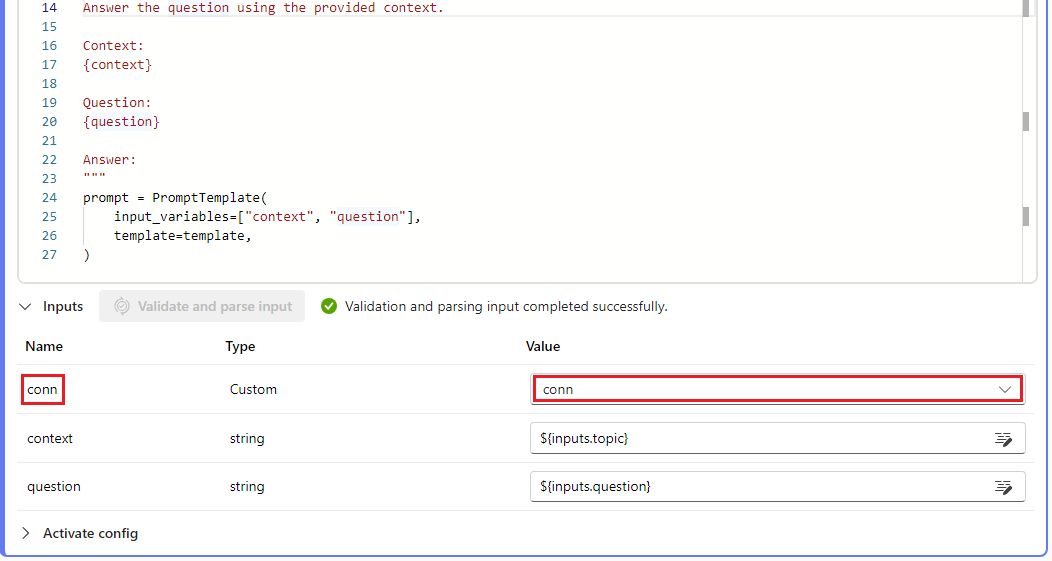
For example:
from promptflow import tool
from promptflow.connections import CustomConnection

@tool
def my_python_tool(message: str, myconn: CustomConnection) -> str:
    # Get authentication key-values from the custom connection
    connection_key1_value = myconn.key1
    connection_key2_value = myconn.key2