このクイック スタートでは、実行時に MIP C++ SDK によって使用されるクライアント初期化パターンを実装する方法について説明します。
注
このクイック スタートで説明する手順は、MIP ファイル、ポリシー、または保護 SDK を使用するすべてのクライアント アプリケーションに必要です。 このクイック スタートではファイル SDK の使用方法を示しますが、ポリシー SDK と保護 SDK を使用するクライアントにも同じパターンが適用されます。 残りのクイックスタートは、最初のこのクイックスタートから始めて、前のものに基づいて順番に完了してください。
[前提条件]
まだ行っていない場合は、次の手順を実行してください。
- Microsoft Information Protection (MIP) SDK のセットアップと構成の手順を完了します。 この "クライアント アプリケーションの初期化" クイック スタートは、適切な SDK のセットアップと構成に依存します。
- 必要 に応じて:
- プロファイル オブジェクトとエンジン オブジェクトを確認します。 プロファイル オブジェクトとエンジン オブジェクトは、MIP ファイル/ポリシー/保護 SDK を使用するクライアントに必要なユニバーサル概念です。
- 認証の概念を確認して、SDK とクライアント アプリケーションによって認証と同意がどのように実装されるかを確認します。
- オブザーバーの概念を確認して、オブザーバーとその実装方法の詳細を確認します。 MIP SDK は、オブザーバー パターンを使用して非同期イベント通知を実装します。
Visual Studio ソリューションとプロジェクトを作成する
最初に、Visual Studio の最初のソリューションとプロジェクトを作成して構成します。このソリューションでは、他のクイック スタートがビルドされます。
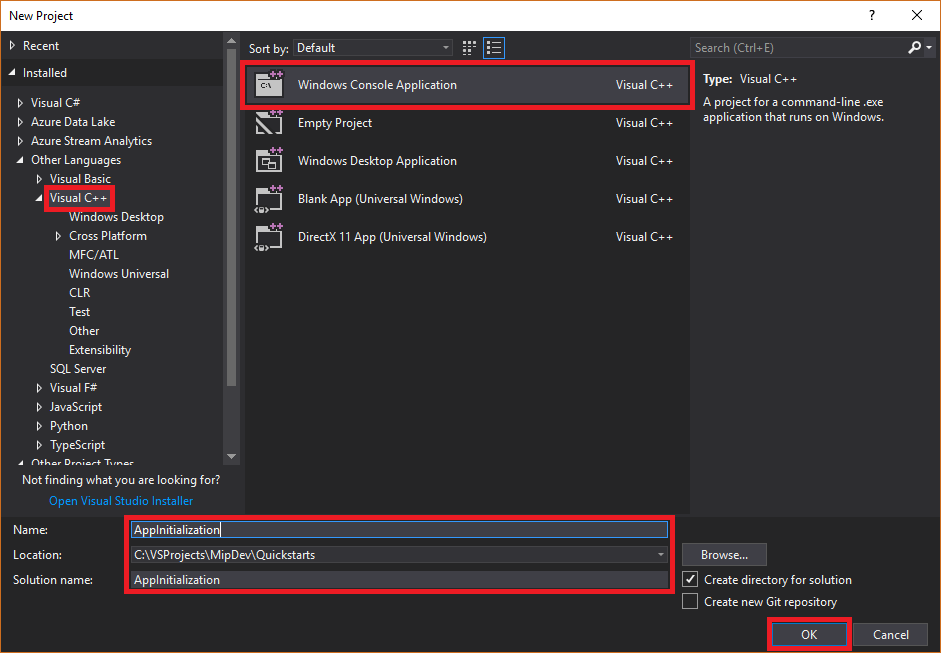
Visual Studio 2019 以降を開き、[ ファイル ] メニューの [ 新規作成]、[ プロジェクト] の順に選択します。 [ 新しいプロジェクト ] ダイアログで、次の手順を実行します。
左側のウィンドウの [ インストール済み] の [ その他の言語] で、[ Visual C++] を選択します。
中央のウィンドウで、[Windows コンソール アプリケーション] を選択します
下部のウィンドウで、プロジェクト 名、 場所、および含まれている ソリューション名 を適宜更新します。
完了したら、右下にある [OK] ボタンをクリックします。
MIP ファイル SDK の NuGet パッケージをプロジェクトに追加します。
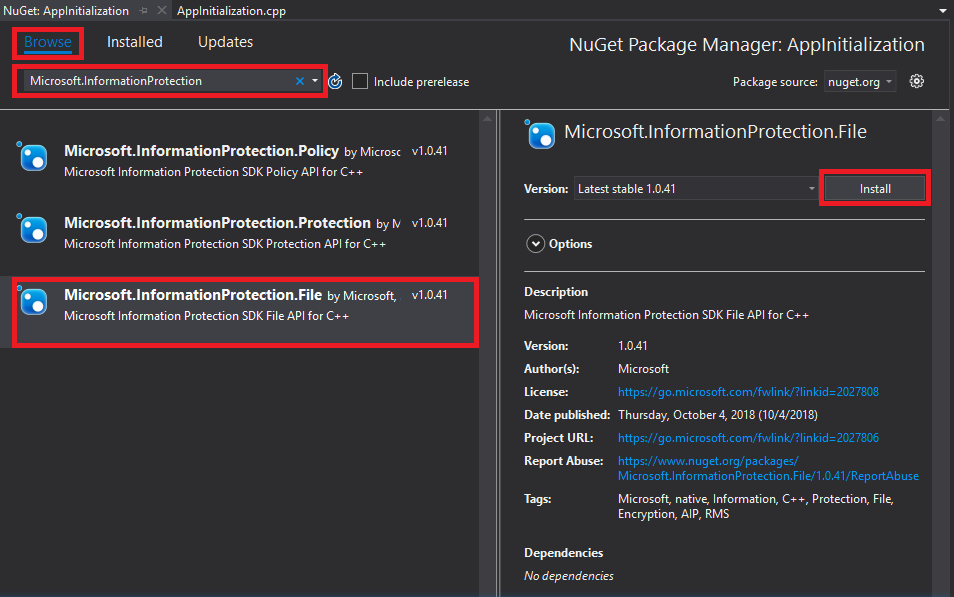
ソリューション エクスプローラーで、プロジェクト ノード (上部またはソリューション ノードのすぐ下) を右クリックし、[NuGet パッケージの管理]を選択します。..:
[エディター グループ] タブ領域で [NuGet パッケージ マネージャー ] タブが開いたとき:
- を選択し、を参照します。
- 検索ボックスに「Microsoft.InformationProtection」と入力します。
- "Microsoft.InformationProtection.File" パッケージを選択します。
- [インストール] をクリックし、[ プレビューの変更 の確認] ダイアログが表示されたら [OK] をクリックします。
ファイル プロファイルとエンジン オブジェクトを監視するオブザーバー クラスを実装する
次に、SDK の mip::FileProfile::Observer クラスを拡張して、ファイル プロファイル オブザーバー クラスの基本的な実装を作成します。 オブザーバーは後でインスタンス化され、ファイル プロファイル オブジェクトの読み込みを監視し、エンジン オブジェクトをプロファイルに追加するために使用されます。
プロジェクトに新しいクラスを追加すると、ヘッダー/.h ファイルと implementation/.cpp ファイルの両方が生成されます。
ソリューション エクスプローラーで、もう一度プロジェクト ノードを右クリックし、[追加] を選択し、[クラス] を選択します。
[ クラスの追加 ] ダイアログで、次の手順を実行します。
- [ クラス名] フィールドに「profile_observer」と入力します。 入力した名前に基づいて、 .h ファイル フィールドと .cpp ファイル フィールドの両方が自動的に設定されます。
- 完了したら、[ OK ] ボタンをクリックします。

クラスの .h ファイルと .cpp ファイルを生成すると、両方のファイルがエディター グループ タブで開かれます。 次に、新しいオブザーバー クラスを実装するように各ファイルを更新します。
生成された
profile_observerクラスを選択または削除して、"profile_observer.h" を更新します。 前の手順で生成されたプリプロセッサ ディレクティブ (#pragma、#include) は削除しないでください。 次に、既存のプリプロセッサ ディレクティブの後に、次のソースをコピーしてファイルに貼り付けます。#include <memory> #include "mip/file/file_profile.h" class ProfileObserver final : public mip::FileProfile::Observer { public: ProfileObserver() { } void OnLoadSuccess(const std::shared_ptr<mip::FileProfile>& profile, const std::shared_ptr<void>& context) override; void OnLoadFailure(const std::exception_ptr& error, const std::shared_ptr<void>& context) override; void OnAddEngineSuccess(const std::shared_ptr<mip::FileEngine>& engine, const std::shared_ptr<void>& context) override; void OnAddEngineFailure(const std::exception_ptr& error, const std::shared_ptr<void>& context) override; };生成された
profile_observerクラス実装を選択または削除して、"profile_observer.cpp" を更新します。 前の手順で生成されたプリプロセッサ ディレクティブ (#pragma、#include) は削除しないでください。 次に、既存のプリプロセッサ ディレクティブの後に、次のソースをコピーしてファイルに貼り付けます。#include <future> using std::promise; using std::shared_ptr; using std::static_pointer_cast; using mip::FileEngine; using mip::FileProfile; void ProfileObserver::OnLoadSuccess(const shared_ptr<FileProfile>& profile, const shared_ptr<void>& context) { auto promise = static_pointer_cast<std::promise<shared_ptr<FileProfile>>>(context); promise->set_value(profile); } void ProfileObserver::OnLoadFailure(const std::exception_ptr& error, const shared_ptr<void>& context) { auto promise = static_pointer_cast<std::promise<shared_ptr<FileProfile>>>(context); promise->set_exception(error); } void ProfileObserver::OnAddEngineSuccess(const shared_ptr<FileEngine>& engine, const shared_ptr<void>& context) { auto promise = static_pointer_cast<std::promise<shared_ptr<FileEngine>>>(context); promise->set_value(engine); } void ProfileObserver::OnAddEngineFailure(const std::exception_ptr& error, const shared_ptr<void>& context) { auto promise = static_pointer_cast<std::promise<shared_ptr<FileEngine>>>(context); promise->set_exception(error); }
必要に応じて、F6 (ソリューションのビルド) を使用してソリューションのテスト コンパイル/リンクを実行し、続行する前に正常にビルドされるようにします。

認証デリゲートを実装する
MIP SDK は、クラス拡張を使用して認証を実装します。この機能は、認証作業をクライアント アプリケーションと共有するメカニズムを提供します。 クライアントは、適切な OAuth2 アクセス トークンを取得し、実行時に MIP SDK に提供する必要があります。
次に、SDK の mip::AuthDelegate クラスを拡張し、 mip::AuthDelegate::AcquireOAuth2Token() 純粋仮想関数をオーバーライド/実装することで、認証デリゲートの実装を作成します。 認証デリゲートは、後でファイル プロファイルオブジェクトとファイル エンジン オブジェクトによってインスタンス化され、使用されます。
前のセクションの手順 1 で使用したのと同じ Visual Studio の "クラスの追加" 機能を使用して、別のクラスをプロジェクトに追加します。 今回は、「 クラス名 」フィールドに「auth_delegate」と入力します。
次に、新しい認証デリゲート クラスを実装するように各ファイルを更新します。
生成されたすべての
auth_delegateクラス コードを次のソースに置き換えて、"auth_delegate.h" を更新します。 前の手順で生成されたプリプロセッサ ディレクティブ (#pragma、#include) は削除しないでください。#include <string> #include "mip/common_types.h" class AuthDelegateImpl final : public mip::AuthDelegate { public: AuthDelegateImpl() = delete; // Prevents default constructor AuthDelegateImpl( const std::string& appId) // AppID for registered AAD app : mAppId(appId) {}; bool AcquireOAuth2Token( // Called by MIP SDK to get a token const mip::Identity& identity, // Identity of the account to be authenticated, if known const OAuth2Challenge& challenge, // Authority (AAD tenant issuing token), and resource (API being accessed; "aud" claim). OAuth2Token& token) override; // Token handed back to MIP SDK private: std::string mAppId; std::string mToken; std::string mAuthority; std::string mResource; };生成されたすべての
auth_delegateクラス実装を次のソースに置き換えて、"auth_delegate.cpp" を更新します。 前の手順で生成されたプリプロセッサ ディレクティブ (#pragma、#include) は削除しないでください。重要
次のトークン取得コードは、運用環境での使用には適していません。 運用環境では、これは次を使用してトークンを動的に取得するコードに置き換える必要があります。
- Microsoft Entra アプリの登録で指定された appId と応答/リダイレクト URI (応答/リダイレクト URI はアプリの登録と一致 する必要があります )
-
challenge引数で SDK によって渡される機関とリソース URL (リソース URL はアプリ登録の API/アクセス許可と一致する必要があります) - 有効なアプリ/ユーザー資格情報。アカウントが SDK によって渡された
identity引数と一致します。 OAuth2 "ネイティブ" クライアントは、ユーザー資格情報の入力を求め、"承認コード" フローを使用する必要があります。 OAuth2 の "機密クライアント" は、"クライアント資格情報" フロー (サービスなど) で独自のセキュリティで保護された資格情報を使用するか、"承認コード" フロー (Web アプリなど) を使用してユーザー資格情報の入力を求めることができます。
OAuth2 トークンの取得は複雑なプロトコルであり、通常はライブラリを使用して実現されます。 TokenAcquireOAuth2Token() は、必要に応じて MIP SDK によってのみ 呼び出されます。
#include <iostream>
using std::cout;
using std::cin;
using std::string;

bool AuthDelegateImpl::AcquireOAuth2Token(const mip::Identity& identity, const OAuth2Challenge& challenge, OAuth2Token& token)
{
     // Acquire a token manually, reuse previous token if same authority/resource. In production, replace with token acquisition code.
     string authority = challenge.GetAuthority();
     string resource = challenge.GetResource();
     if (mToken == "" || (authority != mAuthority || resource != mResource))
     {
         cout << "\nRun the PowerShell script to generate an access token using the following values, then copy/paste it below:\n";
         cout << "Set $authority to: " + authority + "\n";
         cout << "Set $resourceUrl to: " + resource + "\n";
         cout << "Sign in with user account: " + identity.GetEmail() + "\n";
         cout << "Enter access token: ";
         cin >> mToken;
         mAuthority = authority;
         mResource = resource;
         system("pause");
     }

     // Pass access token back to MIP SDK
     token.SetAccessToken(mToken);

     // True = successful token acquisition; False = failure
     return true;
}
必要に応じて、F6 (ソリューションのビルド) を使用してソリューションのテスト コンパイル/リンクを実行し、続行する前に正常にビルドされるようにします。
同意デリゲートを実装する
次に、SDK の mip::ConsentDelegate クラスを拡張し、 mip::AuthDelegate::GetUserConsent() 純粋仮想関数をオーバーライド/実装することで、同意デリゲートの実装を作成します。 同意デリゲートは、ファイル プロファイルオブジェクトとファイル エンジン オブジェクトによって後でインスタンス化され、使用されます。
前に使用したのと同じ Visual Studio の "クラスの追加" 機能を使用して、別のクラスをプロジェクトに追加します。 今回は、「 クラス名 」フィールドに「consent_delegate」と入力します。
次に、新しい同意デリゲート クラスを実装するように各ファイルを更新します。
生成されたすべての
consent_delegateクラス コードを次のソースに置き換えて、"consent_delegate.h" を更新します。 前の手順で生成されたプリプロセッサ ディレクティブ (#pragma、#include) は削除しないでください。#include "mip/common_types.h" #include <string> class ConsentDelegateImpl final : public mip::ConsentDelegate { public: ConsentDelegateImpl() = default; virtual mip::Consent GetUserConsent(const std::string& url) override; };生成されたすべての
consent_delegateクラス実装を次のソースに置き換えて、"consent_delegate.cpp" を更新します。 前の手順で生成されたプリプロセッサ ディレクティブ (#pragma、#include) は削除しないでください。#include <iostream> using mip::Consent; using std::string; Consent ConsentDelegateImpl::GetUserConsent(const string& url) { // Accept the consent to connect to the url std::cout << "SDK will connect to: " << url << std::endl; return Consent::AcceptAlways; }
必要に応じて、F6 (ソリューションのビルド) を使用してソリューションのテスト コンパイル/リンクを実行し、続行する前に正常にビルドされるようにします。
ファイル プロファイルとエンジンを構築する
前述のように、MIP API を使用する SDK クライアントにはプロファイル オブジェクトとエンジン オブジェクトが必要です。 プロファイルとエンジン オブジェクトをインスタンス化するコードを追加して、このクイック スタートのコーディング部分を完了します。
ソリューション エクスプローラーで、
main()メソッドの実装を含む.cpp ファイルをプロジェクトで開きます。 既定の名前は、それが含まれるプロジェクトと同じであり、プロジェクトの作成時に指定したものです。生成された
main()の実装を削除します。 プロジェクトの作成時に Visual Studio によって生成されたプリプロセッサ ディレクティブ (#pragma、#include) は削除しないでください。 プリプロセッサ ディレクティブの後に次のコードを追加します。
#include "mip/mip_context.h"
#include "auth_delegate.h"
#include "consent_delegate.h"
#include "profile_observer.h"

using std::promise;
using std::future;
using std::make_shared;
using std::shared_ptr;
using std::string;
using std::cout;
using mip::ApplicationInfo;
using mip::FileProfile;
using mip::FileEngine;

int main()
{
  // Construct/initialize objects required by the application's profile object
  // ApplicationInfo object (App ID, name, version)
  ApplicationInfo appInfo{"<application-id>",
                          "<application-name>",
                          "<application-version>"};

  // Create MipConfiguration object.
  std::shared_ptr<mip::MipConfiguration> mipConfiguration = std::make_shared<mip::MipConfiguration>(appInfo,
				                                                                                               "mip_data",
                                                                                      			         mip::LogLevel::Trace,
                                                                                                     false);


  std::shared_ptr<mip::MipContext> mMipContext = mip::MipContext::Create(mipConfiguration);

  auto profileObserver = make_shared<ProfileObserver>();                     // Observer object
  auto authDelegateImpl = make_shared<AuthDelegateImpl>("<application-id>"); // Authentication delegate object (App ID)
  auto consentDelegateImpl = make_shared<ConsentDelegateImpl>();             // Consent delegate object

  // Construct/initialize profile object
  FileProfile::Settings profileSettings(
                                mMipContext,
                                mip::CacheStorageType::OnDisk,
                                consentDelegateImpl,
                                profileObserver);

  // Set up promise/future connection for async profile operations; load profile asynchronously
  auto profilePromise = make_shared<promise<shared_ptr<FileProfile>>>();
  auto profileFuture = profilePromise->get_future();

  try
	  {
		  mip::FileProfile::LoadAsync(profileSettings, profilePromise);
  }
	  catch (const std::exception& e)
	  {
		  cout << "An exception occurred... are the Settings and ApplicationInfo objects populated correctly?\n\n" << e.what() << "'\n";

		  system("pause");
		  return 1;
	  }
	  auto profile = profileFuture.get();

  // Construct/initialize engine object
  FileEngine::Settings engineSettings(
                                  mip::Identity("<engine-account>"), // Engine identity (account used for authentication)
                                  authDelegateImpl,		       // Token acquisition implementation
				    "<engine-state>",                  // User-defined engine state
                                  "en-US");                          // Locale (default = en-US)

  // Set the engineId for caching.
  engineSettings.SetEngineId("<engine-account>");
  // Set up promise/future connection for async engine operations; add engine to profile asynchronously
  auto enginePromise = make_shared<promise<shared_ptr<FileEngine>>>();
  auto engineFuture = enginePromise->get_future();
  profile->AddEngineAsync(engineSettings, enginePromise);
  std::shared_ptr<FileEngine> engine;
  try
  {
    engine = engineFuture.get();
  }
  catch (const std::exception& e)
  {
    cout << "An exception occurred... is the access token incorrect/expired?\n\n" << e.what() << "'\n";

    system("pause");
    return 1;
  }

  // Application shutdown. Null out profile and engine, call ReleaseAllResources();
  // Application may crash at shutdown if resources aren't properly released.
  // handler = nullptr; // This will be used in later quick starts.
  engine = nullptr;
  profile = nullptr;
  mMipContext->ShutDown();
  mMipContext = nullptr;

  return 0;
  }
文字列定数を使用して、貼り付けたソース コード内のすべてのプレースホルダー値を置き換えます。
プレースホルダー 価値 例 <application-id> 「MIP SDK のセットアップと構成」の記事の手順 2 で登録されたアプリケーションに割り当てられた Microsoft Entra アプリケーション ID (GUID)。 2 つのインスタンスを置き換えます。 "0edbblll-8773-44de-b87c-b8c6276d41eb"<アプリケーション名> アプリケーションのユーザー定義のフレンドリ名。 有効な ASCII 文字 (';' を除く) を含める必要があり、Microsoft Entra 登録で使用したアプリケーション名と一致するのが理想的です。 "AppInitialization"<アプリケーションのバージョン> アプリケーションのユーザー定義バージョン情報。 有効な ASCII 文字 (';' を除く) を含める必要があります。 "1.1.0.0"<エンジンアカウント> エンジンの ID に使用されるアカウント。 トークンの取得中にユーザー アカウントで認証を行う場合は、この値と一致する必要があります。 "user1@tenant.onmicrosoft.com"<エンジン状態> エンジンに関連付けるユーザー定義の状態。 "My App State"次に、アプリケーションの最終的なビルドを行い、エラーを解決します。 コードは正常にビルドされますが、次のクイック スタートを完了するまでは正しく実行されません。 アプリケーションを実行すると、次のような出力が表示されます。 次のクイック スタートを完了するまで、提供するアクセス トークンはありません。
次のステップ
初期化コードが完了したら、次のクイック スタートに向けて準備が整いました。ここでは、MIP ファイル SDK の使用を開始します。