演習 - カスタム コードを使用する
この演習では、既存のカスタム コネクタに新しい操作を追加します。 次に、カスタム コードを使用して操作を実装し、応答を変換します。
ListInvoice 操作は追加されているが、LastInvoice 操作は追加されていない Contoso Invoicing カスタム コネクタを変更します。 そのため、LastInvoice 操作を追加して、作成された最新の請求書を取得します。 Contoso Invoicing のネットワーク API ではこの操作はサポートされないため、LastInvoice 操作で実行されているカスタム コードを使用して、要求を API の ListInvoice にリダイレクトした後、作成された最新の請求書のみを返すよう応答を変換します。
重要
Microsoft Dataverse がプロビジョニングされているテスト環境を使用してください。 まだない場合、Microsoft Power Apps 開発者向けプランにアクセスし、開発者向けプランにサインアップしてください。
タスク: 環境を準備する
このタスクでは、ソリューションを環境にインポートします。
Microsoft Power Automate に移動して、正しい環境にいることを確認します。
左側のナビゲーション ウィンドウで 詳細 を選択し、すべて検出 ボタンをクリックします。
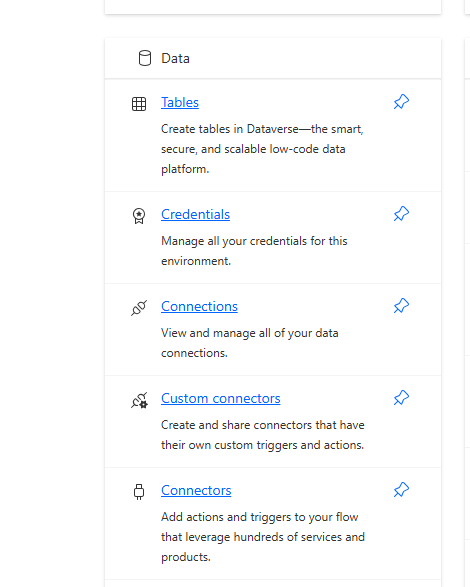
データ の下にある カスタム コネクタ オプションを選択します。 見えない場合は下にスクロールする必要があります。
環境に Contoso Invoicing カスタム コネクタが既にあることを確認します。
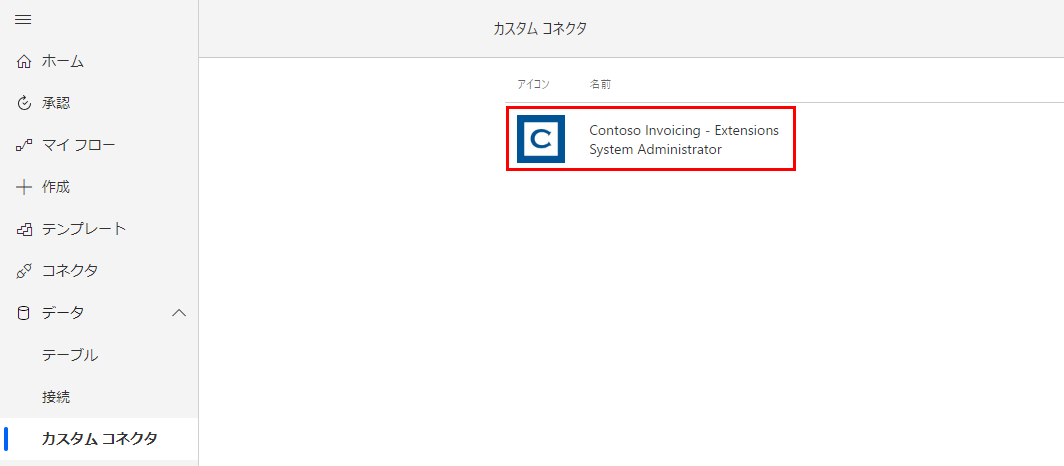
既に環境に Contoso Invoicing カスタム コネクタが存在する場合、この演習の次のタスクまでスキップします。 カスタム コネクタが存在しない場合、手順 6 に進みます。
ソリューション > インポート を選択します。
参照 を選択します。
リソース フォルダーにある ContosoInvoicingExtensions_1_0_0_0.zip ソリューションを選択し、開くを選択します。
次へを選択します。
インポートを選択し、インポートが完了するのを待ちます。 インポートが完了すると、成功メッセージが表示されます。
すべてのカスタマイズの公開を選択し、公開が完了するまで待ちます。 このページから移動しないでください。

タスク: LastInvoice 操作を作成する
このタスクでは、Contoso Invoicing カスタム コネクタで新しい操作を作成します。
インポートした Contoso Invoicing - Extensions ソリューションを選択します。 Contoso Invoicing - Extensions カスタム コネクタ コンポーネントが表示されます。
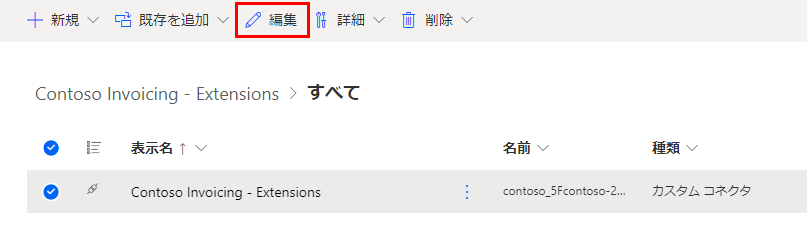
Contoso Invoicing - Extensions コネクタを選択して、編集を選択します。 別の演習で作成した場合、コネクタ名に Extensions が含まれていないことがありますが、問題ありません。
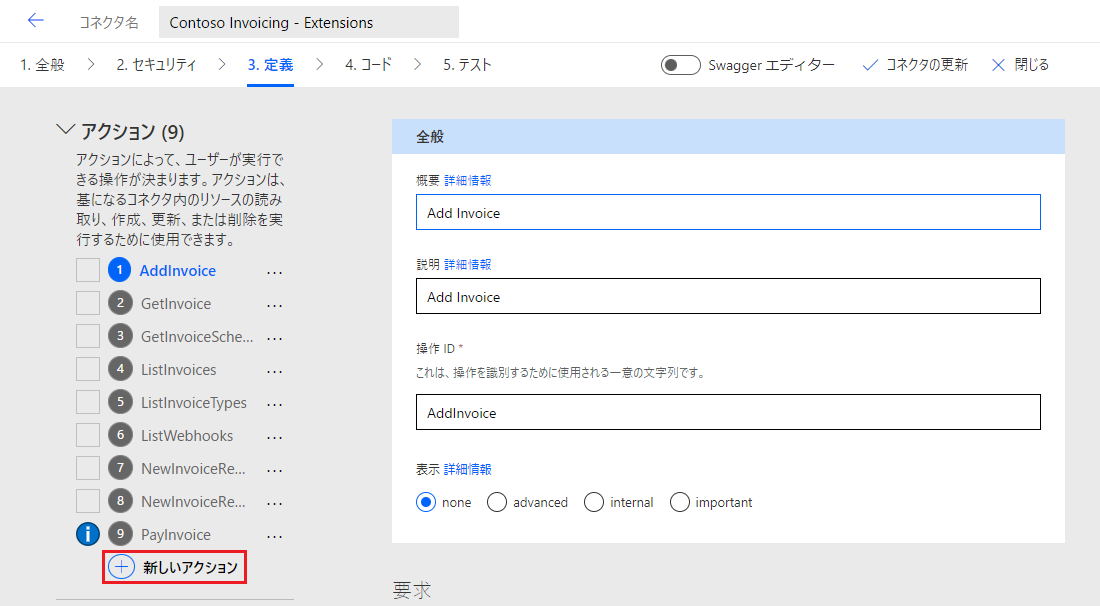
定義タブを選択して、+ 新しいアクションを選択します。
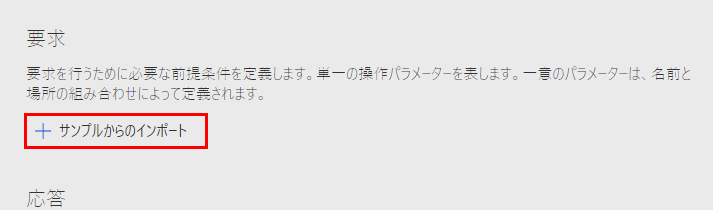
要求セクションに移動し、+ サンプルからのインポートを選択します。
動詞セクションで、Get を選択し、URL ボックスに
https://contosoinvoicingtest.azurewebsites.net/GetLastInvoiceを貼り付けた後、インポートを選択します。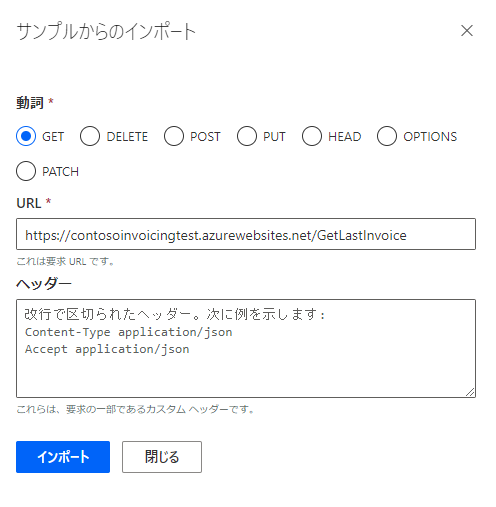
応答セクションまで下にスクロールし、+ 既定の応答を追加するを選択します。
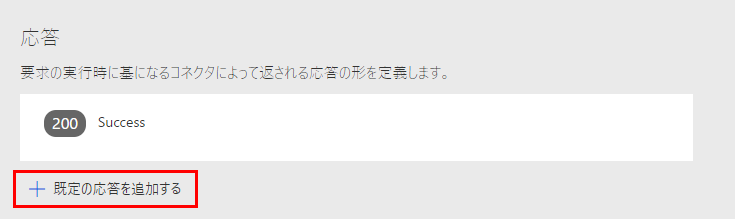
次の JSON を本文フィールドに貼り付けて、インポートを選択します。
{
  "invoiceId": "1934",
  "date": "2023-03-19T06:55:45.9039452+00:00",
  "createDate": "2023-03-14T06:55:45.9039456Z",
  "amount": 8000,
  "accountId": "1001",
  "accountName": "Wing Tips",
  "status": "Invoiced",
  "typeId": 1,
  "purchaseOrderId": "3004",
  "tags": "New Account;Special Pricing;Non-returnable"
}
テスト タブを選択し、コネクタの更新を選択した後、更新が完了するまで待ちます。
新しいブラウザー ウィンドウまたはタブを起動して、Contoso Invoicing に移動します。
API キーのリンクを選択します。
API キーをコピーします。
メモ帳でこのキーを保存します。
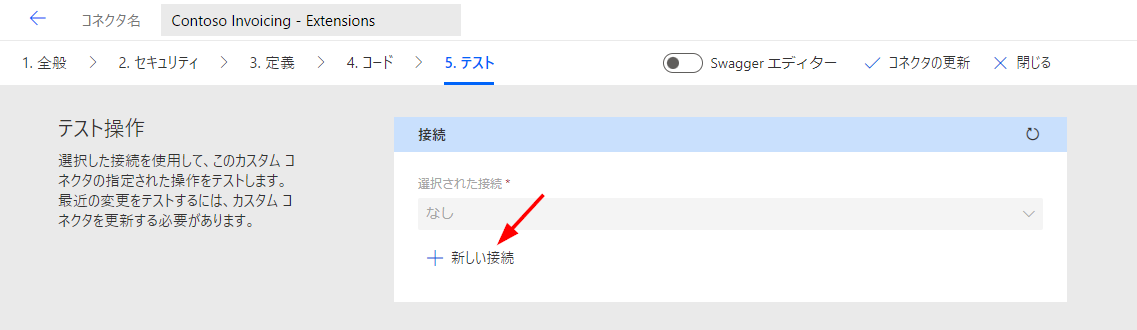
コネクタに戻り、テスト タブを選択して、+ 新しい接続を選択します。

コピーしたキーを API キー フィールドに貼り付けて、接続の作成を選択します。
接続の更新を選択します。
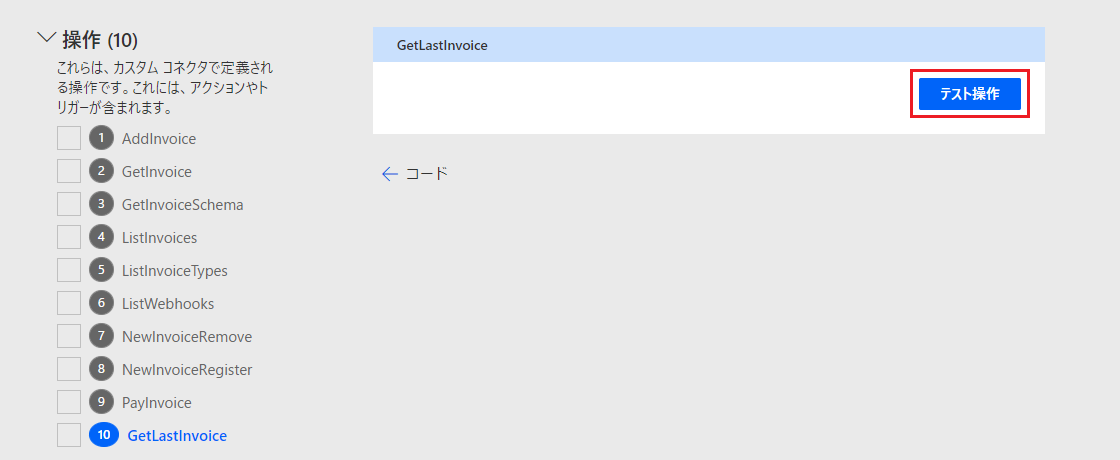
操作セクションまで下にスクロールし、GetLastInvoice を選択して操作のテストを選択します。
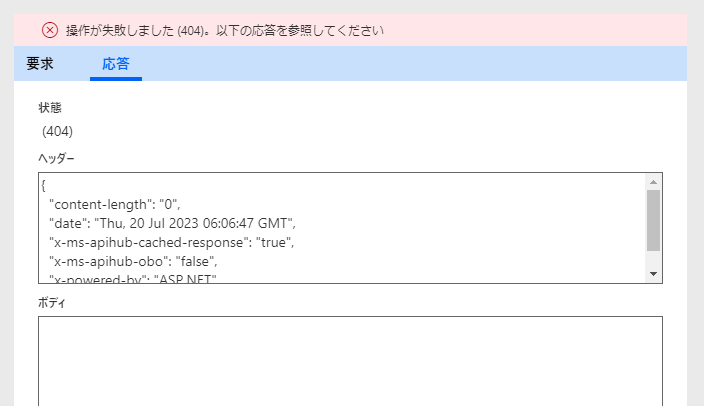
API には GetLastInvoice 操作がないため、404 エラーが発生します。
このページから移動しないでください。

タスク: コネクタにコードを追加する
このタスクでは、GetLastInvoice 操作を実行するコードを追加します。
コード タブを選択し、コードが有効トグルをオンにします。
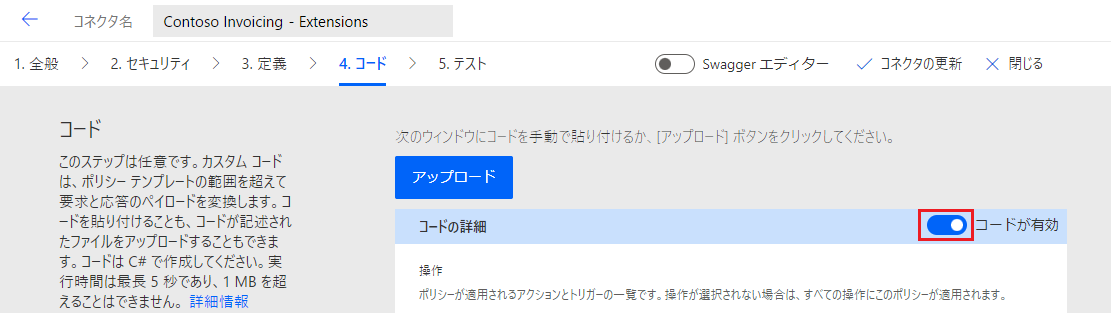
操作ドロップダウン メニューを選択し、GetLastInvoice 操作を選択します。
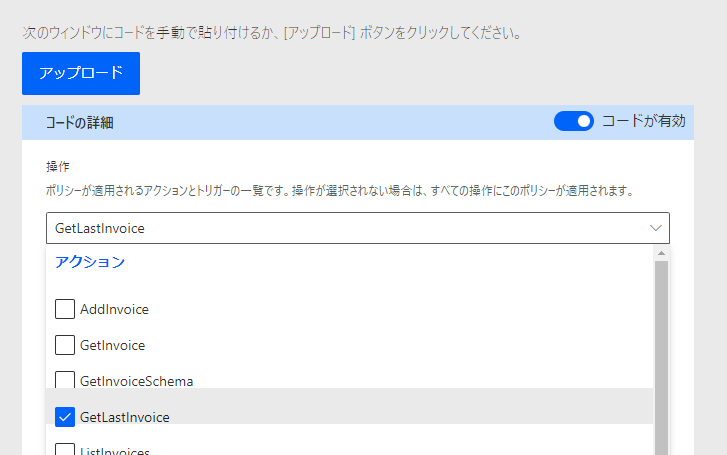
次のコードをコード フィールドに貼り付けて、テスト タブを選択します。
public class Script : ScriptBase
{
    public override async Task<HttpResponseMessage> ExecuteAsync()
    {
        // Check if the operation ID matches what is specified in the OpenAPI definition of the connector
        if (String.Equals(this.Context.OperationId, "GetLastInvoice", StringComparison.OrdinalIgnoreCase))
        {
            this.Context.Request.RequestUri = ReplaceUri(this.Context.Request.RequestUri, "GetLastInvoice", "ListInvoices");
            return await this.HandleGetLastInvoiceOperation().ConfigureAwait(false);
        }
        else
        {
            //pass-thru any other operation to the API directly
            return await this.HandleForwardOperation().ConfigureAwait(false);
        }
    }
    private Uri ReplaceUri(Uri original, string fromValue, string toValue)
    {
        try
        {
            var builder = new UriBuilder(original.ToString().Replace(fromValue, toValue));
            return builder.Uri;
        }
        catch (Exception ex)
        {
            throw new Exception(original.ToString().Replace(fromValue, toValue));
        }
    }
    private async Task<HttpResponseMessage> HandleGetLastInvoiceOperation()
    {
        JObject newResult = null;
        // Use the context to send an HTTP request
        HttpResponseMessage response = await this.Context.SendAsync(this.Context.Request, this.CancellationToken).ConfigureAwait(continueOnCapturedContext: false);
        // Do the transformation if the response was successful, otherwise return error responses as-is
        if (response.IsSuccessStatusCode)
        {
            if (response.StatusCode == HttpStatusCode.OK)
            {
                var responseString = await response.Content.ReadAsStringAsync().ConfigureAwait(continueOnCapturedContext: false);
                var result = JObject.Parse(responseString);
                // Wrap the original JSON object into a new JSON object with just two properties
                if (result != null && result.ContainsKey("invoices") && result["invoices"].HasValues)
                {
                    var sortedArray = result["invoices"].OrderBy(jo => (DateTime)jo["date"]).ToArray();
                    var lastInvoice = sortedArray[0];
                    newResult = new JObject
                    {
                        ["invoiceid"]   = lastInvoice["invoiceid"],
                        ["date"]        = lastInvoice["date"],
                        ["createDate"]  = lastInvoice["createDate"],
                        ["amount"]      = lastInvoice["amount"],
                        ["accountId"]   = lastInvoice["accountId"],
                        ["accountName"] = lastInvoice["accountName"],
                        ["status"]      = lastInvoice["status"],
                        ["typeId"]      = lastInvoice["typeId"],
                        ["purchaseOrderId"] = lastInvoice["purchaseOrderId"],
                        ["tags"]        = lastInvoice["tags"]

                    };
                }
                else
                {
                    newResult = new JObject
                    {
                        ["invoiceid"] = "-9999",
                        ["status"] = "No Invoices",
                    };
                }
            }
            else
            {
                newResult = new JObject
                    {
                        ["invoiceid"] = "-9999",
                        ["status"] = "Error retrieving invoices",
                    };
            }
            response.Content = CreateJsonContent(newResult.ToString());
            response.StatusCode = HttpStatusCode.OK;
        }
        return response;
    }
    private async Task<HttpResponseMessage> HandleForwardOperation()
    {
        // Use the context to forward/send an HTTP request
        HttpResponseMessage response = await this.Context.SendAsync(this.Context.Request, this.CancellationToken).ConfigureAwait(continueOnCapturedContext: false);
        return response;
    }
}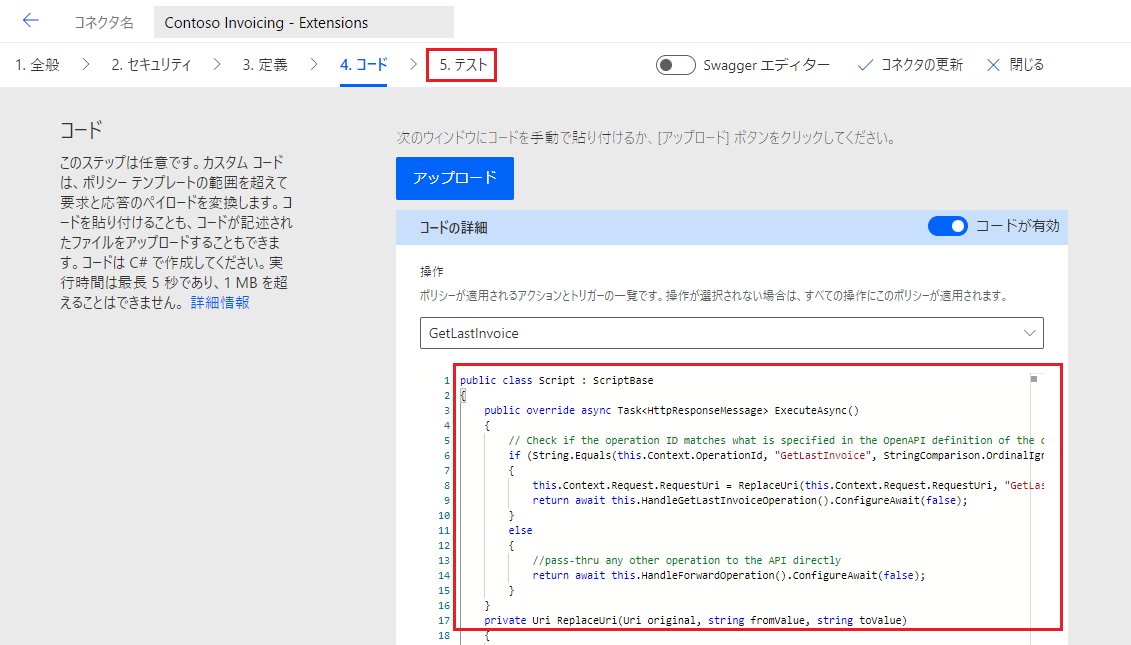
コードを確認します。 コードには、次のロジックが含まれています。
GetLastInvoice 操作であるかどうかを確認し、そうでない場合、変更されていない要求をネットワーク API に転送します。
ネットワーク API で ListInvoice 操作を使用するよう要求を変更します。
SendAsync を使用してネットワーク API を呼び出します。
最新の請求書である 1 つの請求書オブジェクトのみが含まれるよう応答を変換します。
テスト タブを選択し、コネクタの更新を選択した後、更新が完了するまで待ちます。
操作セクションまで下にスクロールし、GetLastInvoice を選択して操作のテストを選択します。
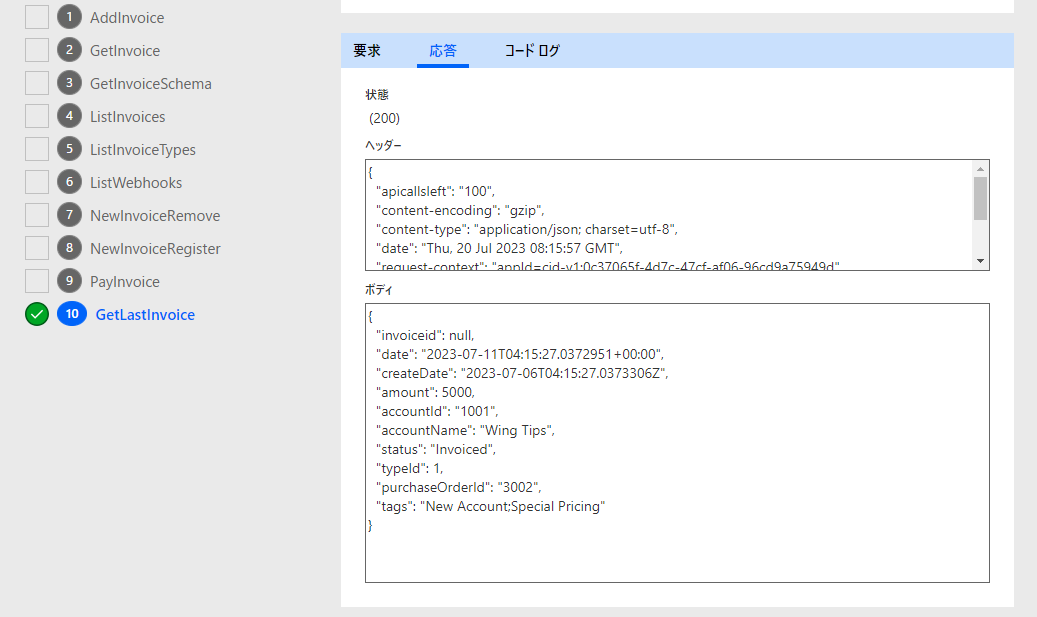
最新の請求書を示す応答が返されます。